

How to Set Up Your Store Preferences
Preferences control how orders, the POS, your customer-facing storefront, your hardware, and your manager policies behave. Change them any time after you create the store.
Open Preferences
- Open the Fuze Store app and select your store.
- Go to Configurations → Preferences.
- Use the tabs at the top to switch sections, edit fields, then tap Save.
Every field has a short line under it saying what it does. Fields that take a number also show a fixed example and a line that starts Based on what you entered, worked out from the value you typed, so you can see what a setting means before you save it. The Policies tab and the refund rules add a How it works card that lays out the whole rule with your numbers.
Tabs (overview)
The tabs appear in this order. Two of them are conditional — Service Context needs a paid plan, and Policies appears only when you have at least one of its sections.
| Tab | Typical contents |
|---|---|
| Order | Adding register customers to your list, slow-order flag and delivery fee, waiting-list auto-text, kitchen display, order emails |
| Point of Sale | Starting status and payment method for new orders, what must be filled in before an order can be placed |
| Service Context | Custom per-visit fields — only on plans that include Service Context (not Basic) |
| Store | The store's default language and its financial toggles |
| Storefront | What customers see on your public store page, and your public operating hours |
| Printing & Devices | Printing capability toggles, customer cards, plus NFC tag protection when that add-on is active |
| Policies | Cash variance thresholds, Staff Operations, manager approvals, refund policy — each appears only with its add-on / permission |
| Product | Stock return / low-stock email toggles (built-in); auto-reorder only when Advanced Inventory is active |
| POS Order Tabs | Which order status tabs appear on POS |
The Store tab used to hold everything customer-facing, every hardware toggle, and every manager rule. Those moved to Storefront, Printing & Devices, and Policies — the settings themselves are unchanged, they just have a clearer home.
Order
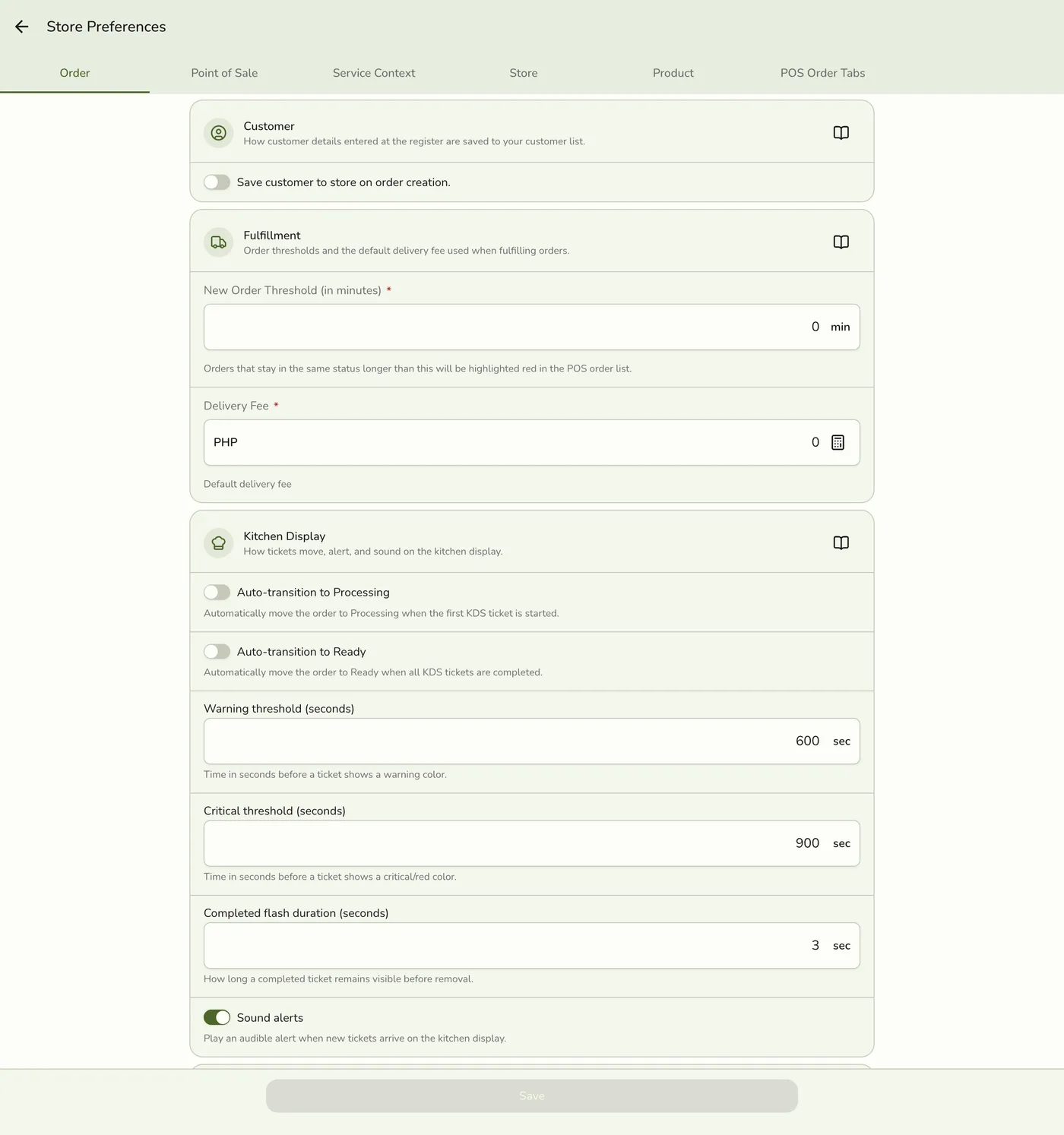
The Preferences screen on the Order tab, showing save-customer-on-create, new order threshold, and delivery fee fields — screenshot coming soon
| Setting | Description |
|---|---|
| Add new customers to your customer list | A customer typed in at the register is saved, so next time they can be picked from the list. |
| Flag slow orders after | An order that stays in one status longer than this many minutes is marked red in the order list. 0 turns the flag off. |
| Delivery fee | Default delivery amount for delivery-style orders. This is not a named charge — manage corkage / service charge under Charges. |
The Waiting list section appears when the SMS add-on is active — it holds the auto-SMS that fires when someone joins the queue. It sits here rather than with the queue itself because the queue is order intake, alongside the other things that fire when work arrives. See SMS automation.
Kitchen display settings appear when the KDS add-on is active: whether an order moves to Processing when cooking starts and to Ready when every ticket is done, Warning after and Critical after (seconds before a ticket turns amber, then red; the critical time must be longer), Keep finished tickets for, and sound alerts. The line under each timing field repeats the value in minutes.
Email notifications
Order email toggles appear when your plan includes email notifications: Email customers about their orders is the master switch, and Email when an order is placed and Email when an order is completed choose when. Mail goes to the email address on the order; nothing is sent without one. SMS automation lives under Configurations → SMS when the SMS add-on is active.
There is no “Service fee” preference anymore. Use the Charges catalog instead.
Point of Sale
Defaults
| Setting | Description |
|---|---|
| Starting status for new orders | Where a new order lands when the register places it. The Pay options also open the payment sheet right away. |
| Default payment method | Pre-selected on the payment sheet. Cashiers can still pick another. |
Requirements
| Setting | Description |
|---|---|
| Require a customer on every order | The register will not place an order until a customer is attached. |
| Require a service mode on every order | The register will not place an order until dine-in, takeout, delivery or another mode is chosen. |
| Require a staff member on every order | The register will not place an order until a staff member is chosen. |
| Pre-fill the signed-in staff member | New orders start with whoever is signed in on the device. It can still be changed on the order. |
| Assign staff per line | Shows a Staff field on each line so every line records who did the work. Always on while commissions are on. |
Service Context
Custom per-visit fields — a plate number, a claim tag, a device serial. This tab appears only on plans that include Service Context (not free Basic). See Service Context overview.
Store
This tab holds the settings that are genuinely about the store itself.
Language
The store's default app language. Every device that opens this store starts here; a cashier can still pick their own language per device under Account → Settings.
Financials / Tax
Charge tax adds the taxes set up under Configurations → Taxes to new orders when Tax is available on your plan (Starter and above — not free Basic). Nothing is charged until a tax exists there.
Require an open shift before selling appears when the Store Sessions add-on is active — cashiers open a shift (a session) before taking orders, count the drawer when it closes, and get an end-of-day report. See Using store session.
Staff commissions
Appears when the Staff Operations add-on is active.
| Setting | Description |
|---|---|
| Enable staff commissions | Turns on commission accrual and per-line staff assignment together — enabling it also switches on Assign staff per line under Point of Sale. |
| Default service rate | What a staff member earns on a service when neither they nor the item has a rate of their own. A percentage is of the line's price after discounts, before tax; the line under the field shows what a ₱1,000 line pays at the rate you typed. |
| Default product rate | Same, for product items. |
| Daily minimum wage in your area | Optional. Pay statements add a note when a staff member's period comes out below it — Fuze Store never tops up a payout automatically. |
See Staff Commissions Overview and Setting Commission Rates.
Storefront
Everything a customer sees or does on your public store page.
| Setting | Description |
|---|---|
| Show my store online | Controls the whole public store: page, menu, links page, contact card, table pages, ordering, and booking. On by default. |
| Show my street address on my store page | Off by default — city and province still show, so nearby customers can find you without publishing your exact address. |
| Allow online ordering | Off by default. Opens the shop, cart and checkout on your public store page. |
| Require a mobile number at checkout | Off by default. See below. |
| Require a last name at checkout and booking | Off by default. One switch covers both online orders and booking requests. |
| Order code on the bill | On by default. Prints a 4-digit code customers can use to look up their own order from a table tag. |
| Accept booking requests online | Off by default. Customers request a time from your store page; nothing is booked until you confirm it in Events. Its options (booking types, staff picker, Reservation slot duration, Reservations per time slot) appear while it is on, each with a line showing what your number means. |
See Customer visibility & hours.
Require a mobile number at checkout is off by default. Customers show or send you the order QR, so you already have a way to reach them — asking for a number before they can order turns some buyers away. Turn it on if you call every online order back to confirm it.
Frequently asked questions have their own screen
FAQs used to live here. They're now edited on their own Configurations →
FAQs screen, with per-question save instead of a page-level Save button.
See Frequently Asked Questions.
Operating hours
Set open/closed per weekday and opening / closing times. Overnight windows (close earlier than open) are supported. These are the hours customers see on your public store page, and they drive the open/closed badge there.
Printing & Devices
Printing
| Setting | Description |
|---|---|
| Print from this store | Master switch: receipts, tickets and labels print from this store's devices only while it is on. |
| Receipt order QR | When printing is on, include the order-lookup QR on sales receipts (on by default). |
| Auto-print waiting list ticket | When the Waiting List add-on is in use, optionally print a queue ticket on create. |
| Open the cash drawer for non-cash payments | Off (the default): the drawer opens only when cash is taken or change is given. On: it opens for every payment and refund, card and e-wallet included. See Cash drawer. |
Pair printers under Configurations → Printers. Connecting a Fuze Store Hub for USB/LAN printers is under Configurations → Integrations → Fuze Store Hub, not on this Preferences screen.
NFC
Customer cards lets staff tap or scan a customer's card to find them. Off hides cards; they work again when turned back on. It shows for every store, because a QR card needs no NFC. See Customer Cards.
With the NFC add-on active, Protect the tags this store writes (on by default) locks every tag you write so only your store can change it later. Turning it off does not unprotect tags you already wrote — it only changes what happens on the next write. See Tags and Badges for what each kind of tag does.
Policies
The rules a manager sets once and staff work under. Each section appears only when you have its add-on or permission — if you have none of them, the tab itself does not appear.
Cash variance
Thresholds that decide when a shift's cash difference is minor, needs review, or gets escalated. Needs the Store Sessions add-on. See Cash variance thresholds.
Staff operations
Only sell from registered terminals, Lock idle terminals (with the idle time, shown in minutes under the field), and staff badges. Needs the Staff Operations add-on. See Activity & settings.
Approval policy
Which actions raise a manager approval, and at what amount. Needs the Staff Operations add-on. Only the store owner, organization admins, and staff whose role has Staff Operations → Modify can change it; everyone else sees it read-only. See Manager approvals.
Refund policy
Refund window, amount caps, and who may override them. Appears when you hold the refund-override permission. See Refund policy.
Product

| Setting | Description |
|---|---|
| Put stock back when an order is voided | Voided or cancelled lines go back into stock. Not needed while stock is held for open orders, since a void releases the hold. |
| Never let stock go below zero | Re-checks stock at the moment a sale is saved, so two registers can't both sell the last unit. Products that don't track stock are not affected. |
| Hold stock for open orders | Stock is held when an order is placed and taken out when the order is completed. A voided order gives it back. |
| Email me about low stock | Every few hours, the store owner gets one email listing every product at or below its low-stock level (built-in — no Advanced Inventory add-on). Set the level on each product. |
| Draft purchase orders for low stock | Once a day, products at or below their reorder point go on a draft purchase order, one per supplier. Nothing is sent until you place it. Shown only when Advanced Inventory is active. |
See Low-Stock Alerts & Auto-Reorder.
POS Order Tabs

Toggle Show every order status tab and the individual tabs (New, Pending, On Hold, Processing, Ready, Shipped, Completed, Closed). Hidden tabs disappear from the register's order list and from the status pickers. Under each tab, Main button moves the order to picks the status the big button on an order in that tab sends it to.
Edge cases
- Last save wins. Preferences sends almost every setting on each save, and nothing records who changed what. A Preferences screen left open on another device puts back the older values for every setting, not only the ones you touched. Reopen Preferences before you edit if someone else may have saved.
- Unsaved edits can be lost. If the settings reload while you are editing, for example after a pull to refresh or a reconnect, the form resets to the saved values.
- Read-only without the permission. Any staff member can open Preferences, but only a role with Preferences · Modify can save. The Store Language picker still looks active for read-only staff, but a change there cannot be saved.
- Commissions and per-line staff are linked. Turning on Enable staff commissions also turns on Assign staff per line, and the second switch stays locked on while commissions are on. If the Staff Pay add-on later lapses, commissions stay on and the switch stays locked.
- Rules checked on save. Cash variance thresholds must rise from minor to review to escalation. A percent commission cannot pass 100. Service Context field keys must be unique.
- Kitchen display timing. Set Warning after shorter than Critical after. The app does not check it. If warning is at or after critical, tickets go from normal straight to red and never show amber.
- Default payment method removed. If you delete the store's default payment method, Preferences cannot save until you pick a default on the Point of Sale tab again. The error shows on that tab.
- Turning off every order tab. With Show every order status tab off you can untick all tabs. The POS Orders screen then shows no tabs and no orders, so keep at least one on.
- New settings can take a day to appear. The server keeps each store's settings for 24 hours, so a setting added in an update can be missing until the store saves its settings.
- Changing store language. Setting the store language back to Device language does not switch devices that already took the old store language. Each device picks its own language again.
- Live status on printed QR codes. Scanning a receipt, claim slip, queue ticket, or booking QR shows live order status. No screen turns that off yet.
- Control settings need their own permission. Some settings decide how strict the store's controls are, so changing them takes Change control settings (on the Store Settings card in the role editor), not just permission to edit preferences. Without it these show read-only with a lock note: only sell from registered terminals, lock idle terminals and its seconds, the PIN step-up for approvals, the three cash variance thresholds, never let stock go below zero, what the register must have before an order is placed, and protecting the tags the store writes (NFC). Everything else still edits normally, and a save that tries to change a locked setting is refused. The commission rules and payroll settings are locked the same way for anyone without Manage on the Commissions card. The store owner and organization admins can always change them. Give Change control settings only to the people who set store policy.
Works with
| Add-on or plan | What changes |
|---|---|
| Basic plan | Service Context, Charge tax, and order email toggles are not offered. |
| Starter and up | Charge tax and Service Context are available. Order emails need a plan with email notifications. |
| Kitchen Display add-on | Adds the Kitchen display section on the Order tab. |
| SMS add-on | Adds the waiting-list auto-text on the Order tab. The switch also shows without the Waiting List add-on, but then it does nothing. |
| Store Sessions add-on | Adds Require an open shift before selling and the Cash variance section on Policies. |
| Staff Operations add-on | Adds terminal rules, staff badges, and the approval policy. |
| Staff Pay add-on | Adds Staff commissions. |
| NFC add-on | Adds Protect the tags this store writes. |
| Advanced Inventory add-on | Adds Draft purchase orders for low stock on the Product tab. |
| Waiting List add-on | Adds Auto-print waiting list ticket. |
Tips
- Save after each meaningful change.
- Restrict who can edit preferences with Roles & Permissions when that add-on is enabled.
- Named fees such as a service charge belong in Charges, not in Preferences.