

How to Use Store Sessions
A store session tracks every sale, payment, refund, and cash movement between opening and closing your store or register. Think of it as opening and closing your shift. It shows how much was sold, who was working, and whether your cash drawer matches your sales: the end-of-day reconciliation that catches counting mistakes, missed payouts, or real shortages before they become a habit.
Before you start
- The Store Sessions add-on is active on the store.
- The Register Sessions · Modify permission to start, end, or log drawer movements. Starting from the register also needs Point of Sale · Modify.
- Count your opening cash.
Steps
Open the session at the start of your shift
Open the sidebar menu and choose Session. Tap Start Session, count the cash in your drawer, and enter it as the opening cash. You can count by denomination, and that count is kept with the session. Add a note if you like, then confirm. Every order, transaction, and drawer movement is now linked to it.
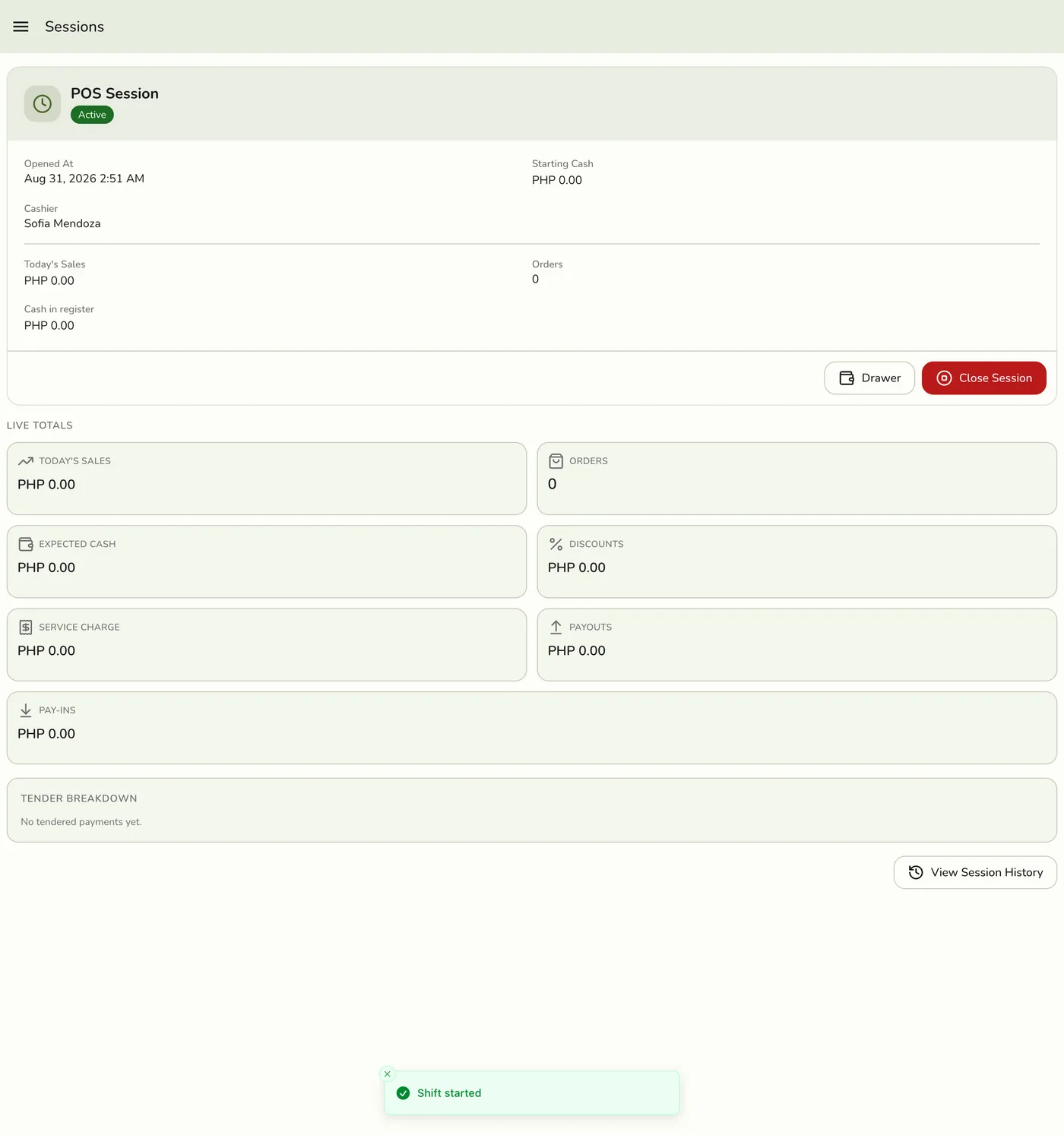
Run your shift normally
Process orders, take payments, and handle refunds. The session counts everything in the background. Preview the running totals any time on the Reconciliation card. It refreshes every minute while the page is open, and when you pull down.
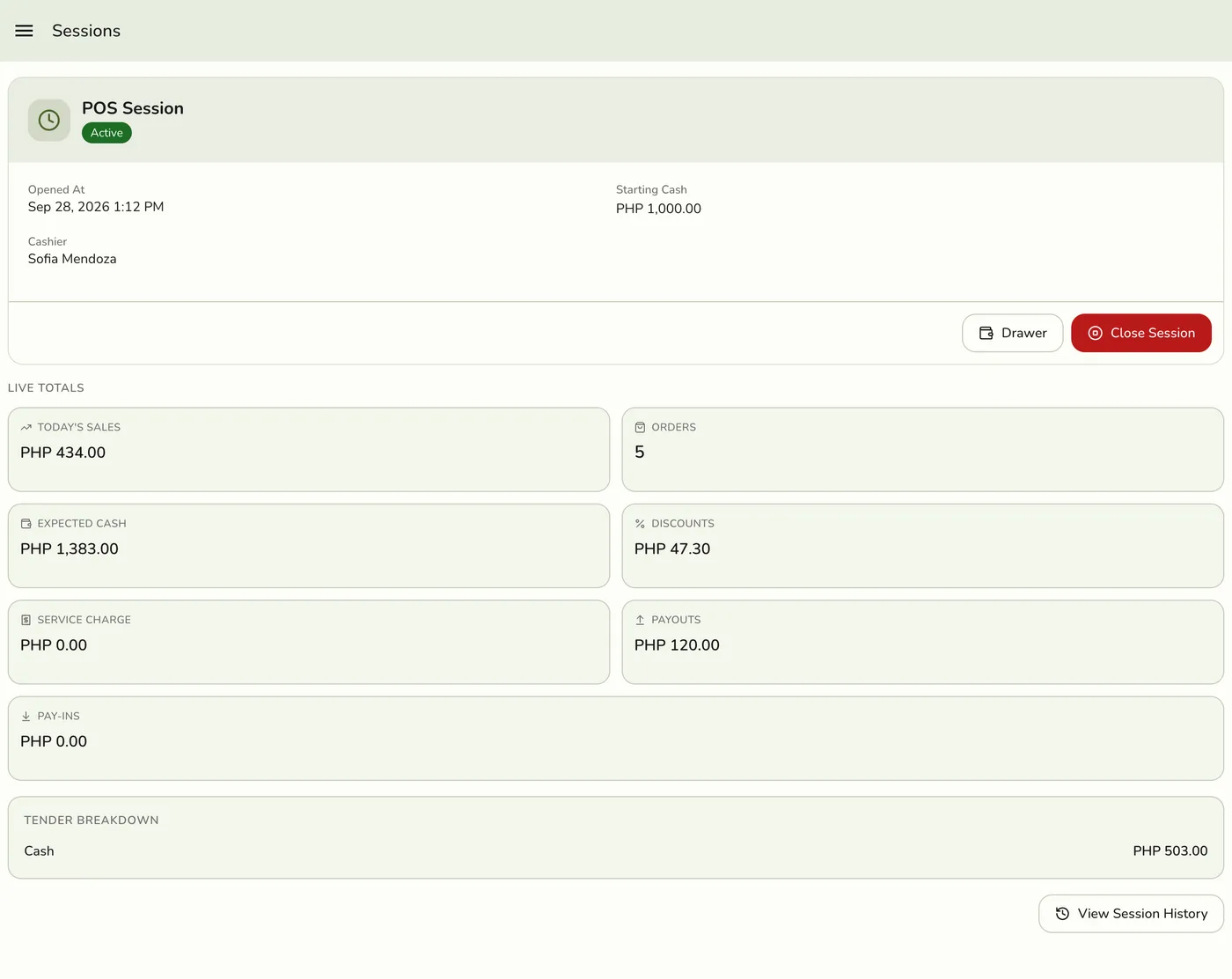
Log drawer movements as they happen
When cash enters or leaves the drawer for a reason that is not a sale or refund, tap Drawer and pick Cash In (a top-up from the safe) or Cash Out (petty cash for a rider, a supply run, a tip-out). See Cash Drawer Movements.
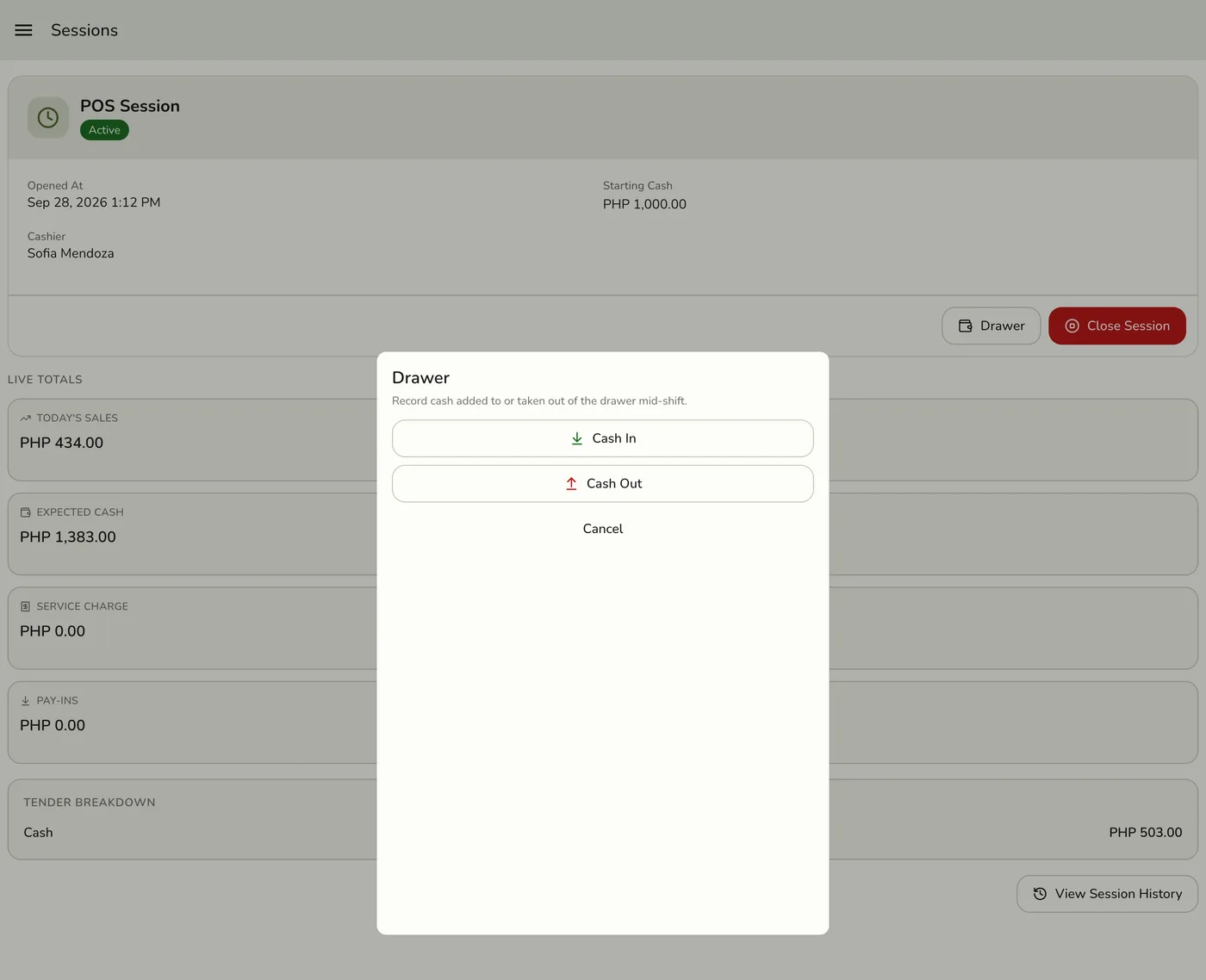
Close the session at the end of your shift
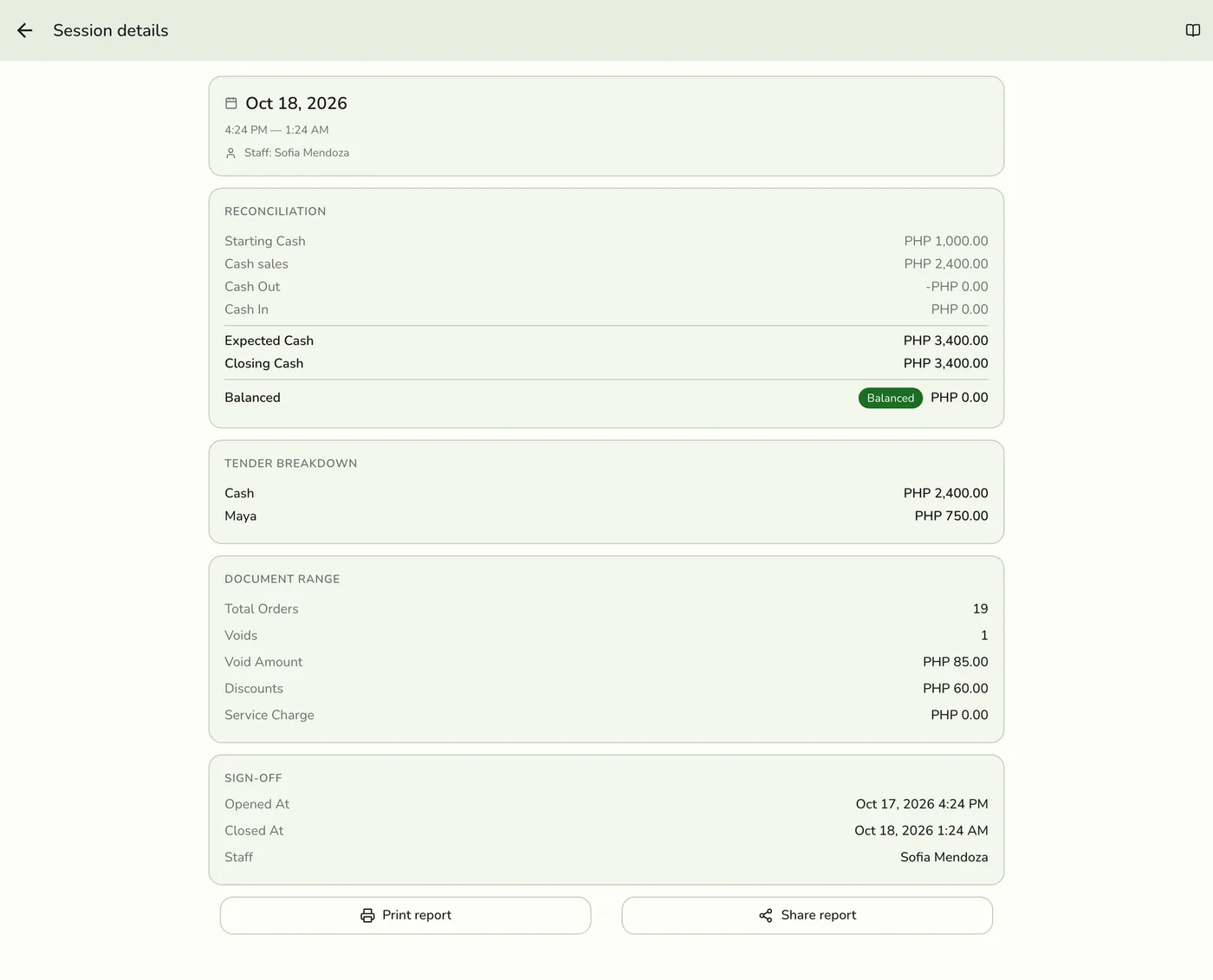
Tap End Session, count the drawer again, and enter the closing cash. Review the reconciliation, pick a reason if the variance asks for one, and tap Close Session. See Closing the Day with the Z-Report.
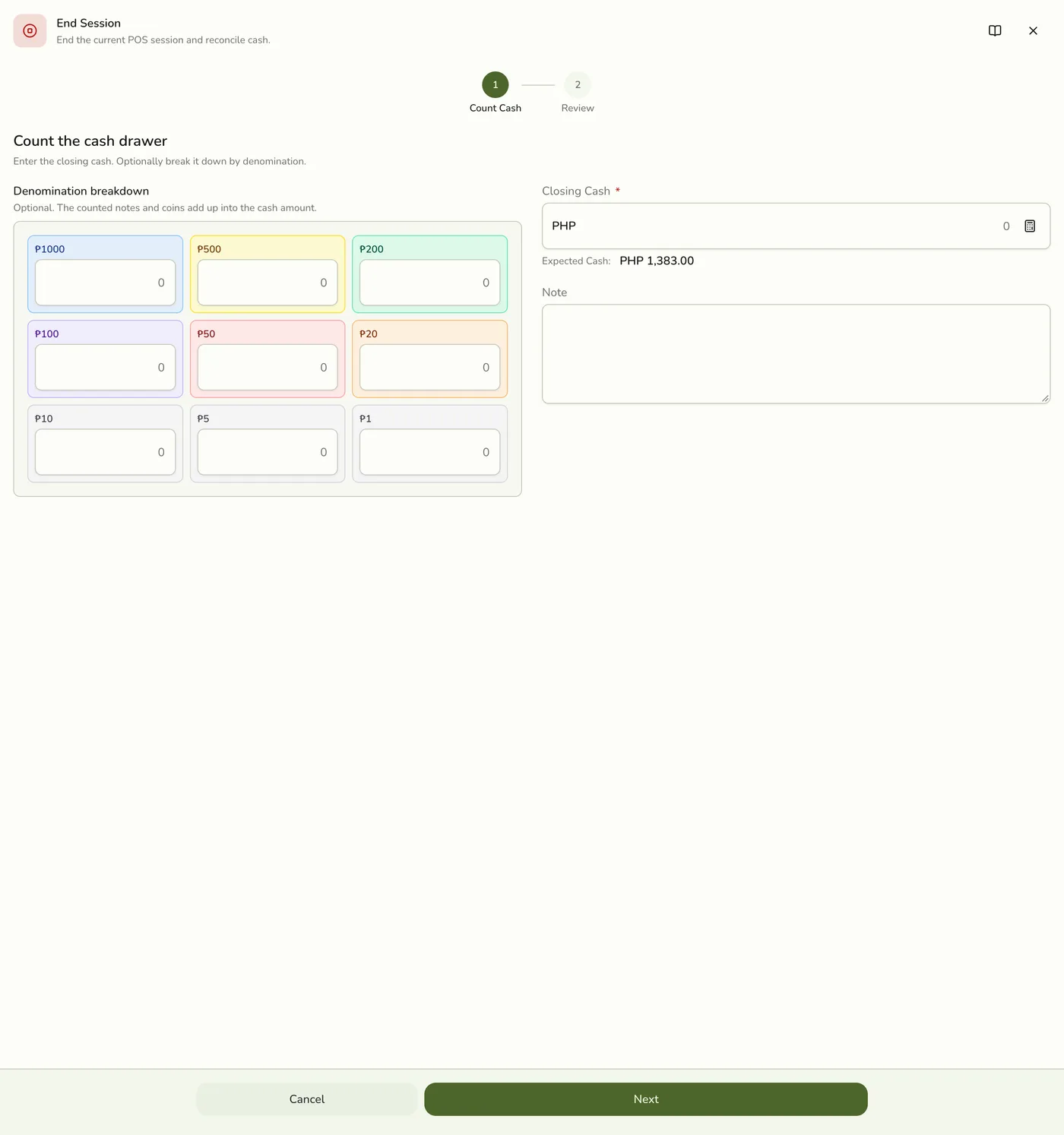
Print or share the Z-report
Open the closed session from Session History. Print Report sends a Z-report to your default Bluetooth thermal printer. Share Report opens your share sheet. See Session History Detail.
What happens next
- A session records opening cash, the tender breakdown (each payment counts in the shift that takes it, even for an order rung up in an earlier shift), discounts and service charges on completed orders, voided and cancelled orders, the receipt range (first and last order numbers), every drawer movement, closing cash, and the cash variance.
- When you close, Fuze works out
expected cash = opening cash + cash sales − cash out + cash inandvariance = closing cash − expected cash. Cash refunded from the drawer is taken off cash sales. - The closed session goes into Session History, and its Z-report snapshot never changes.
Edge cases
- Require an open shift before selling. When this preference is on and Store Sessions is active, the register refuses new orders until a session is open (SESSION_REQUIRED). Turn it on under Preferences → Store (see Activity and settings).
- Cashiers without the Sessions permission can still reach the register and see whether a session is open. If one is required and none is open they see an ask a manager screen. They cannot start or end a session, record drawer movements, or see history.
- Only one session at a time. If another device opened it first, you are told it is already started. Two devices opening at once cannot both win. On the opening form this shows as an unexpected-error message, so leave the screen and reopen it.
- An organization member who reaches the branch only by an organization role, with no staff place at the store, is refused when opening a session. Give them a staff place first.
- Without live sync other registers do not hear about an open or close. A second register keeps selling after a close until an order is refused for needing a session, and after an open it stays on the opening screen until reopened.
- Nothing closes a session for you. A session left open overnight stays open, so the next day's sales fall into the old shift and its Z-report covers several days. Close it at the end of every shift.
- If Store Sessions ends with a shift open, you can still open and close that shift. Nothing else under Store Sessions works until the add-on is back. Sales made after it ended are not part of the shift, so the count may show more cash than expected.
- Who opened it is not kept. Closing writes the closer's name into the staff field, and the opening note is replaced by the closing note.
- Start of a day or shift. Without a session, the first hour of sales does not get bucketed and reconciliation is off.
Works with
| Add-on or plan | What changes on this page |
|---|---|
| Store Sessions add-on | Required. Without it there are no sessions, and the register never asks for one. If the add-on lapses, new orders are no longer tied to a session and none is required. |
| Expenses add-on | Cash Out records an approved cash expense. See Cash Drawer Movements. |
| Staff Operations add-on | Operator sessions and terminals are separate from the cash session. A cash session is not swept by the operator-session cleanup. |
| Any plan | Store Sessions works on Basic too, because it is an add-on, not a plan feature. |