

Share Your Store Online
Every Fuze store has a public store page at its own web address, for example fuze-store.com/store/your-store. Customers open it on any phone, with no app and no account, to see your info, hours, and menu.
With online ordering turned on, customers can also build a cart and check out. Checkout does not create an order in your POS. The customer gets a QR code of their order to show or message to your staff. Staff scan it at the register, the cart loads, and your staff create the actual order. You always stay the last touch, and no payment happens online.

What this covers
- The store page and the menu. Free on every plan. Visible while your store is shown online. See Customer Visibility and Sharing Your Menu.
- Online ordering. Off until you enable it. See Taking Orders Online and Receiving Customer QR Orders.
- Table QR codes. One code per table, so an order arrives knowing where the customer sits. See Table QR Codes.
- Online booking. Customers request an appointment or reservation and you confirm it. See Online Booking Requests.
- Search. See Get Found on Google.
Find and share your store link
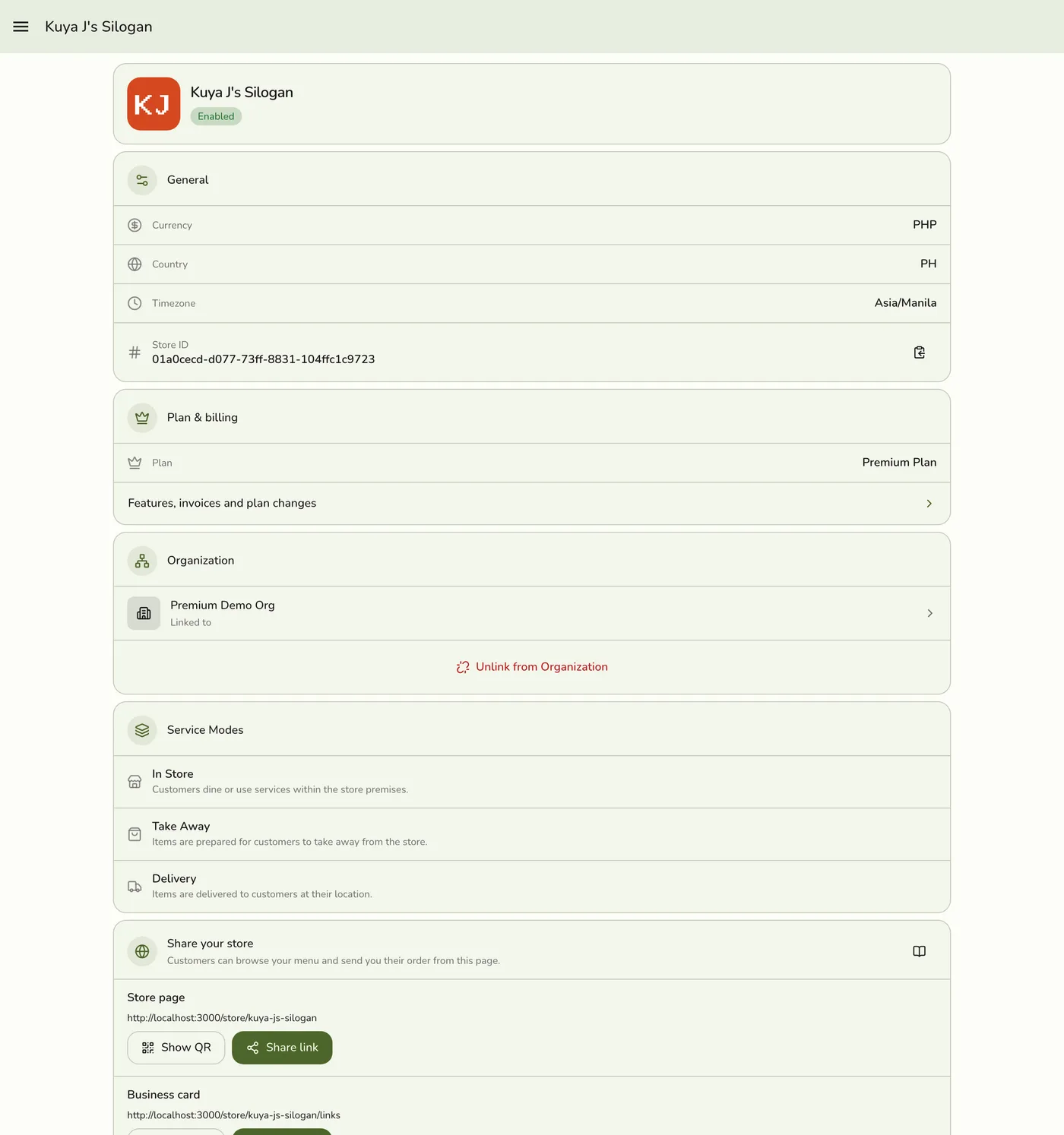
- In the Fuze Store app, open Stores and open your store, or choose My Store in the menu.
- Find Share your store below the service modes. It has a row for the store page, the business card, and the menu.
- Tap Share link to send a ready-to-post message, with your store name, a short line, and the link. While online ordering is off the message invites people to browse, not to order. Copy link copies the plain URL.
- Tap Show QR to display a scannable code. Download saves a printable poster with your store name, for a counter stand, a flyer, or a window.
What the customer sees
- Your store page with info, hours, and menu.
- Your menu, where they pick items, options, and quantities. They can search by name or description, or filter by category.
- A cart they can edit: change quantities, remove a line, or clear everything.
- A checkout asking how they want the order (in store, pickup, or delivery), their name and contact details, and any service details your store collects, like a plate number. If they have a Fuze account they can sign in to fill their details. Otherwise their details are remembered on their own phone.
- An order code (QR) they can download, share, or keep on screen. The page updates live when your staff load their order.
The code page never shows full contact details, only a masked hint like M*** · **** 4567, so a forwarded link or a photo of the screen cannot leak their name or number. Prices on the customer page are estimates. The register recomputes the final total when staff create the order.
What stays off your online menu
An item shows on your public menu, its own item page, and the home page photo row, and can be ordered online, only when both are true:
- The item is Enabled, and Sell on has Online store switched on.
- The item has no category, or it is in at least one category that is enabled and has Show on → Online store switched on.
An item that fails either check is left out everywhere customers can look. Its link opens your store page with a note that the item is not available, and an order that includes it is refused. An item in a hidden and a shown category stays visible. Sub-categories are judged on their own settings. Sold-out items still appear, marked as sold out. Table QR codes order through the same menu, so a Register-only item is not offered there either.
Customer orders arrive as drafts that expire after 24 hours if nobody loads them. They never appear in your order list on their own. Staff must scan the customer's QR first.
Works with
| Add-on or plan | What changes |
|---|---|
| Any plan | The store page, menu, and online ordering are free, including on Basic. |
| Premium plan or free trial | The store page leads with your logo, drops the "Powered by Fuze Store" line, and your QR codes show your logo in the center. Other plans show the Fuze Store mark. |
| NFC add-on | Adds Write tag to the share rows, so a tap opens your page. |
| Starter and up | Table QR codes need units, which are locked on Basic. |
| A plan with bookings | Accept booking requests online is offered only on a plan with events. |
| SMS add-on | Order texts can carry the live status link. |
Guides in this section
- Sharing Your Menu
- Taking Orders Online
- Table QR Codes
- Receiving Customer QR Orders
- Online Booking Requests
- Get Found on Google