

Sharing Your Menu
Every store has a menu page at /store/your-store/menu, with your items, categories, and prices. It works even if you have not turned on online ordering, so you can show customers what you sell long before you take orders through the app.
Before you start
- Your store is shown online (Preferences → Storefront → Show my store online).
Steps
Open Share your store
In the Fuze Store app, open Stores → your store, or My Store in the menu. Find Share your store below the service modes and look at the Menu row.
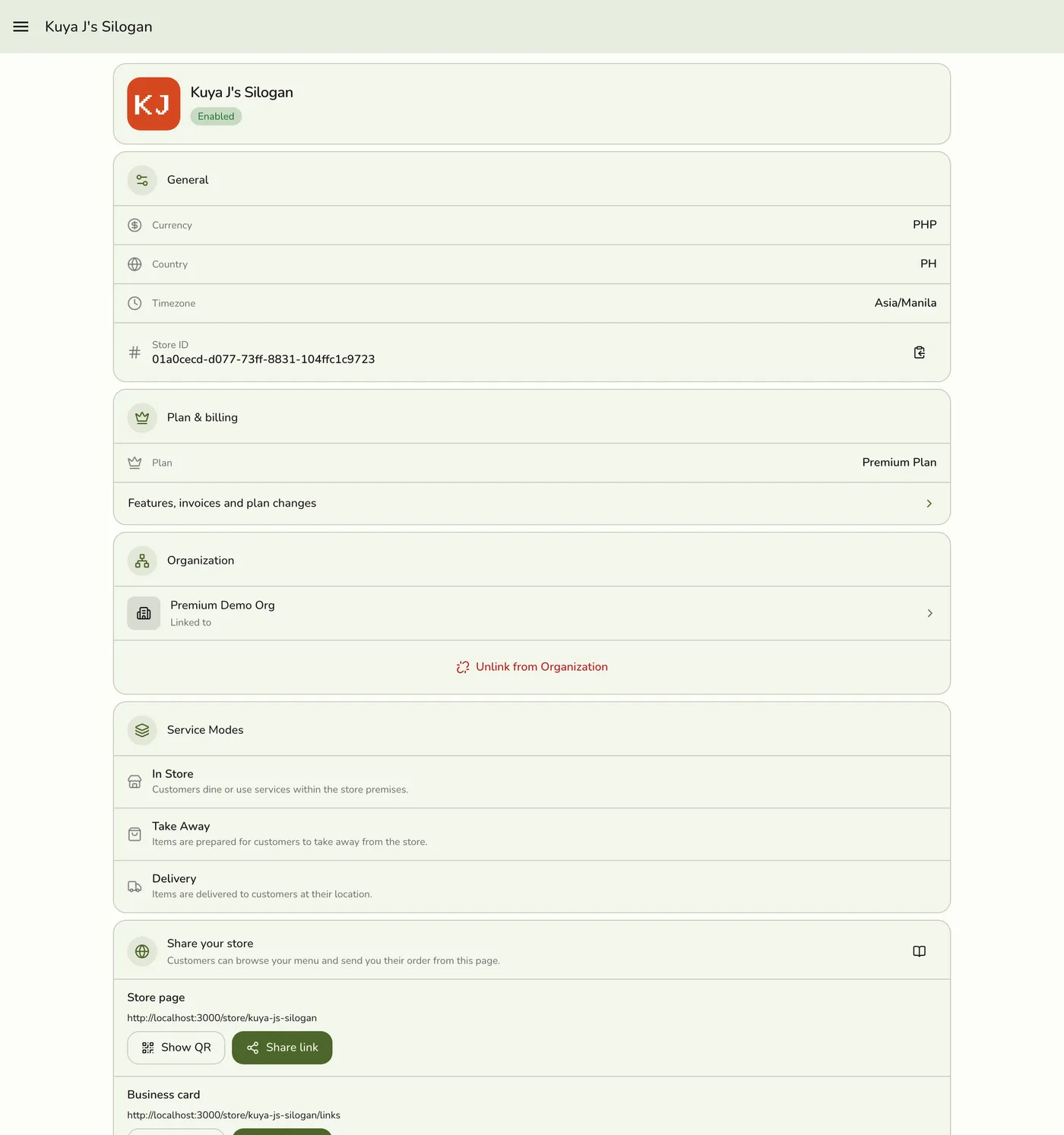
Share the link
Tap Share to post a short message with the link, ready to paste into a group chat.
The share sheet with the menu link message — screenshot coming soon
Or show a QR code
Tap Show QR for a code to print on a table tent, a window, or a flyer.
The Show QR dialog for the menu link — screenshot coming soon
Or write it to a tag
With the NFC add-on, open NFC Tools → Write → Menu and hold a tag to your phone.
The NFC Tools Write screen with Menu selected — screenshot coming soon
What happens next
- Customers see your categories, items, photos, and prices, with search so a long menu stays usable on a phone.
- If you take online orders, every item has Add to cart (items with options show Choose options), a tap opens a quick order window, and the cart opens from the top button or, on a phone, the bar at the bottom. Each item also has a Details link.
- If you do not, a tap on any item opens that item's own page, and an Order in store label shows that orders happen with you.
- Each item has its own page, for example
/store/your-store/menu/chicken-adobo. A customer can send someone one dish, and search engines can rank the item.
Edge cases
- Your store must be shown online. The menu link answers "not found" while Show my store online is off. Turn it on under Preferences → Storefront.
- Sold-out items stay on the menu, greyed out with a Sold out badge, and cannot be added.
- The item link never changes. It is built from the item's name the first time, and renaming "Adobo" to "Chicken Adobo" keeps the old link working. Items made before this feature use an internal reference until their readable link is made.
- Items left off the online menu (not enabled, Online store off, or only in hidden categories) are missing here too. See Share Your Store Online.
- Store page vs menu. The store page has your hours, address, and contact details but no item list. The menu has the full list with search and one page per item. Share the store page as your main link, and the menu when it is the only thing you want to talk about.
Works with
| Add-on or plan | What changes on this page |
|---|---|
| Any plan | The menu page is free, including on Basic. |
| Online ordering on | Items get Add to cart and a checkout. See Taking Orders Online. |
| NFC add-on | Adds Write tag so a tap opens the menu. |