

Table QR Codes
A Table QR is a code made for one of your units: a table, bay, chair, or station. A customer who scans it with a phone camera lands on that table's own page and can open your menu with the table already attached. A staff member who scans the same code with the Fuze Store app opens the POS register pre-bound to that unit.
Before you start
- A paid plan with units, and at least one unit. See Areas and Units.
- The Areas · Modify permission.
Steps
Open your units
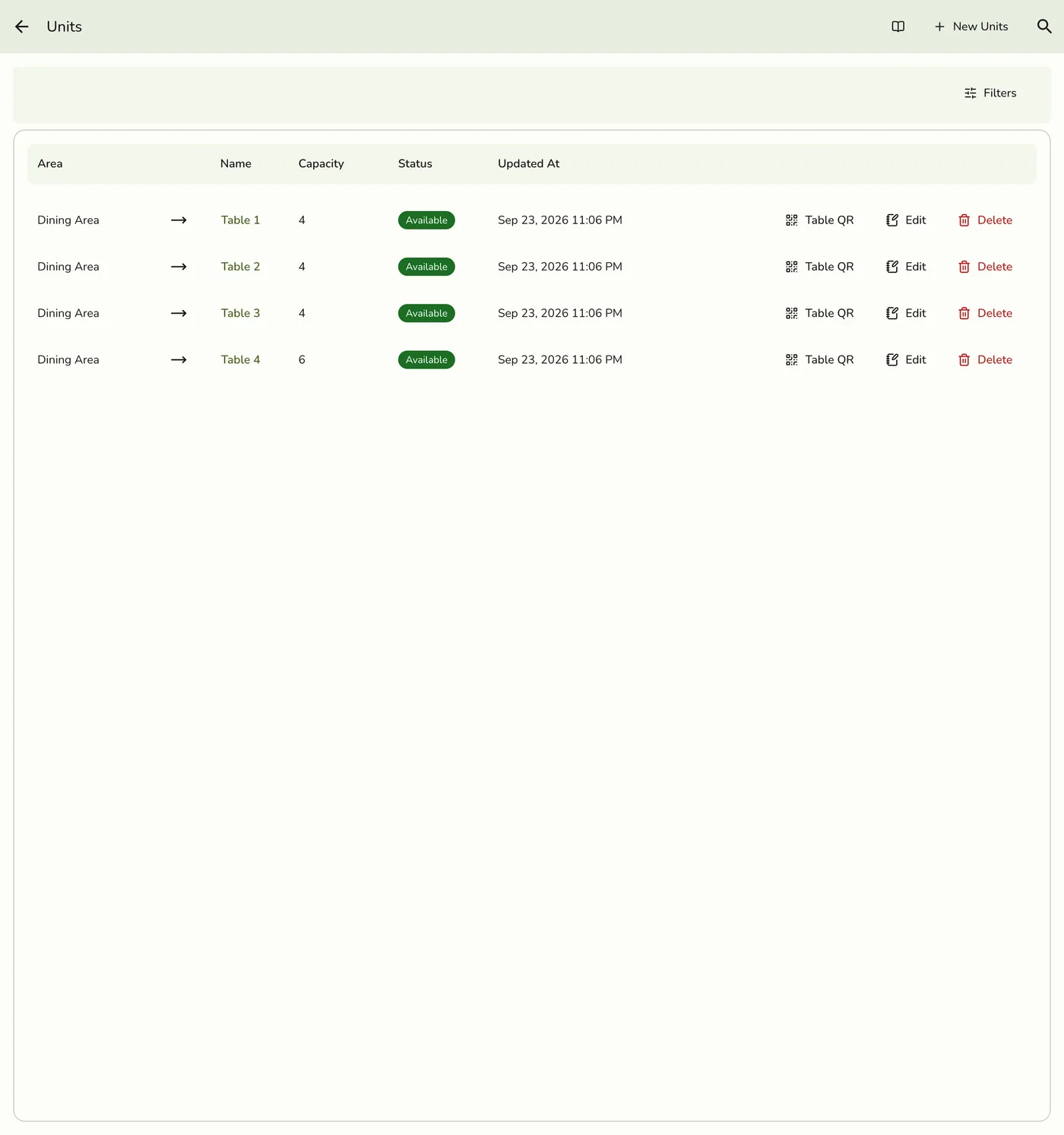
In the Fuze Store app, go to Configurations → Operations → Units.
Tap the QR button on a unit
Each unit card, and each table row on wide screens, has a QR button, also called Table QR in the card menu. Tapping it opens the code on a poster with the store and unit name.
The QR action on a unit card — screenshot coming soon
Download, share, or display it
Download saves a ready-to-print poster with your store name, the table name, the code, and a short "scan to view the menu" line. On a phone or tablet the poster opens in your share sheet, where you can pick Save Image or send it to a print shop. On the web it downloads as a PNG. Share posts the link, Copy link copies the plain URL, and you can leave the QR on screen to photograph. Place each printed code on the table it belongs to.

What happens next
- When staff scan the customer's order QR at the register, the table is pre-selected on the cart, so there is no "which table was that?" round trip.
- The customer orders from their phone exactly like the normal store page, but their draft carries the table.
- With the NFC add-on you can also write the table link to a tag.
Edge cases
- Ordering needs online ordering on. With it off, the code still opens the table's page with your menu and contact details, but customers cannot order. Staff scanning works either way.
- The code needs the store shown online and the unit turned on. Otherwise the scanned link shows nothing.
- The dialog warns you when the store is hidden online, the unit is turned off, online ordering is off, or the unit is marked unavailable. It shows the most serious one. Write to tag shows the same warning, because the tag carries the same link.
- A scanned Table QR always wins. A customer who arrived through a table code gets no table dropdown at checkout.
- Customers who did not scan a table and pick In store at checkout can choose a preferred table. Treat it as a request, not a booking: the list shows your active tables with no availability, so two customers can pick the same one. Staff confirm or change the table at the register.
- Seated customers can follow their order. A 4-digit order code printed on the bill lets them tap the table tag, type the code, and watch their own order. The code is on by default. Turning off Let customers look up their order with the code on their bill stops new codes and makes printed ones stop working.
- Wrong codes are limited. One device can try 5 times a minute per table, and a table locks after 10 wrong codes in 15 minutes. Any failure gets the same answer.
- A code shared with the wrong person can be replaced from the order: staff issue a fresh code, which also unlocks the table. A closed order is refused.
- The code is cleared when the order is closed, cancelled, or fully voided.
Works with
| Add-on or plan | What changes on this page |
|---|---|
| Basic plan | Units are locked, so there are no tables to make codes for. |
| Starter and up | Units are available. |
| Premium plan or free trial | Every code, on screen, downloaded, or shared, shows your store logo in the center, and the poster carries no "Powered by Fuze Store" line. Other plans show the Fuze Store mark. |
| NFC add-on | Adds Write to tag for the table link, with the phone's own NFC or a reader on a paired Hub. |