

How to Update Your Store Information
Keep your store name, logo, and cover photo current so receipts, the app header, and customer-facing pages stay accurate.
Before you start
- Open the store you want to change. Anyone can read General, but saving needs Store Settings · Modify.
- Currency, country, and the template you picked when you made the store cannot be changed here.
Steps
Open General
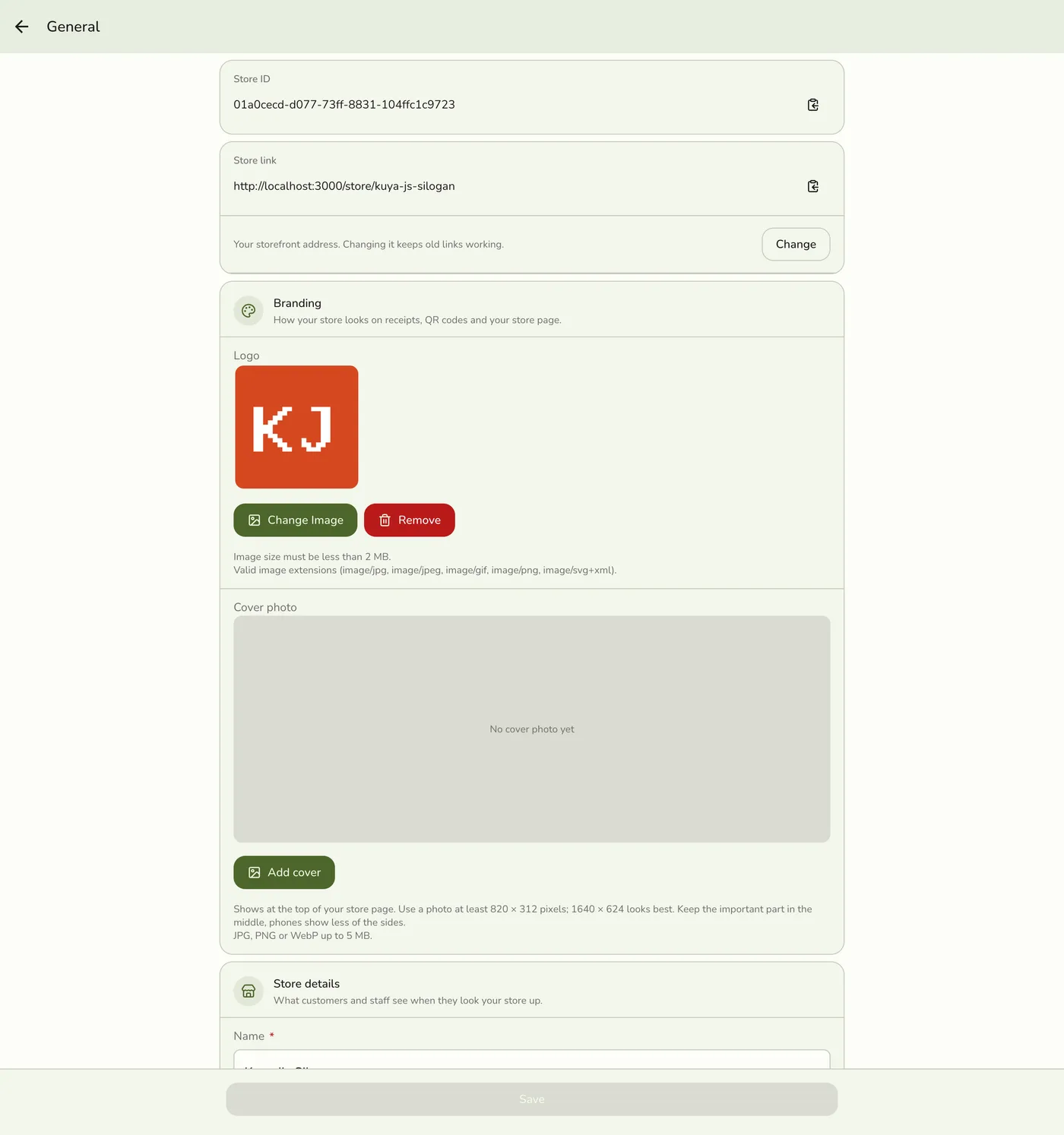
Open the Fuze Store app, select your store, and go to Configurations → General.

Change the name, branch, and description
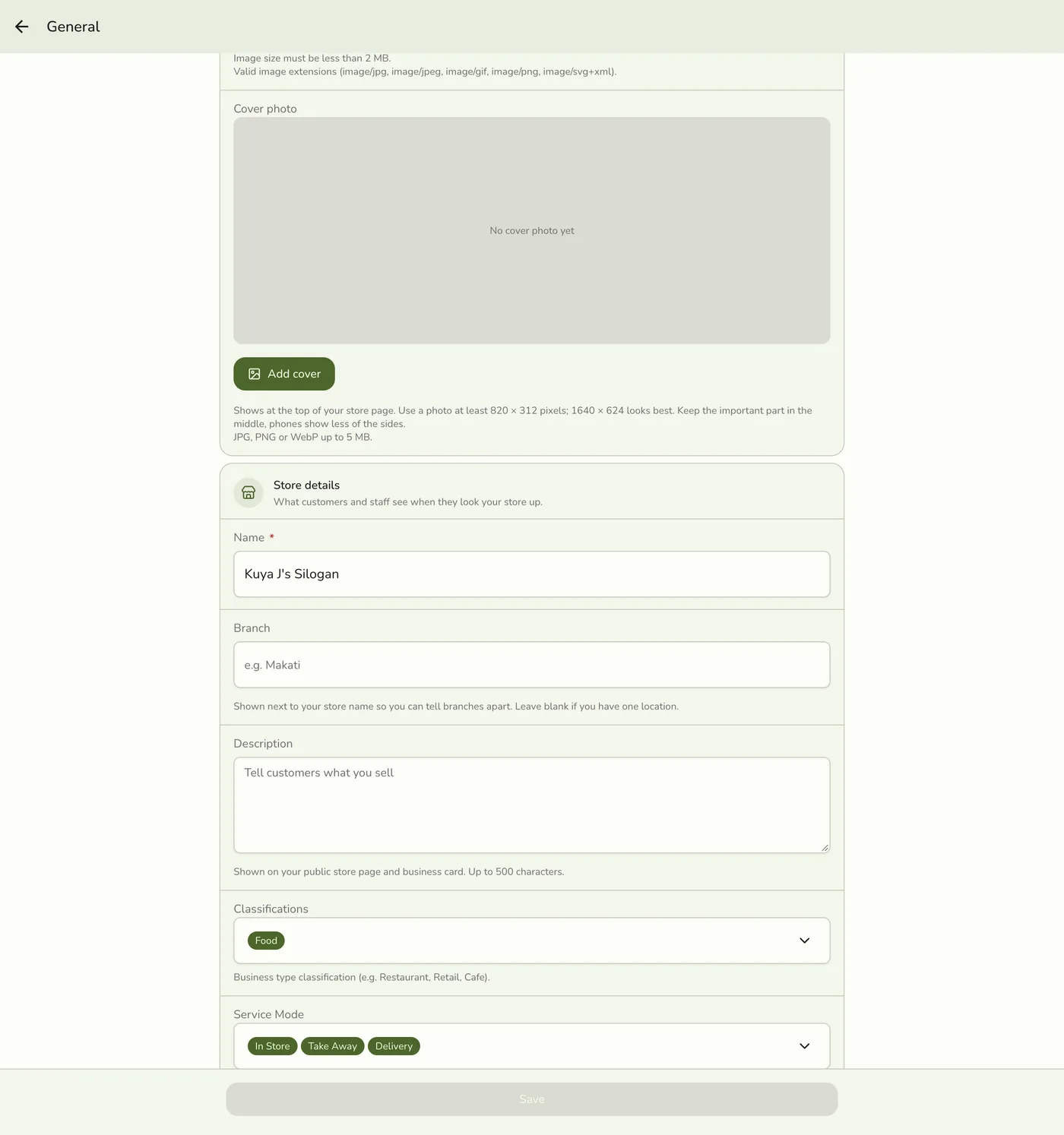
Edit Name (required), Branch, and the description. A Branch label tells apart stores that share a name, such as "Makati". See Label your branches.
Set the logo and cover photo
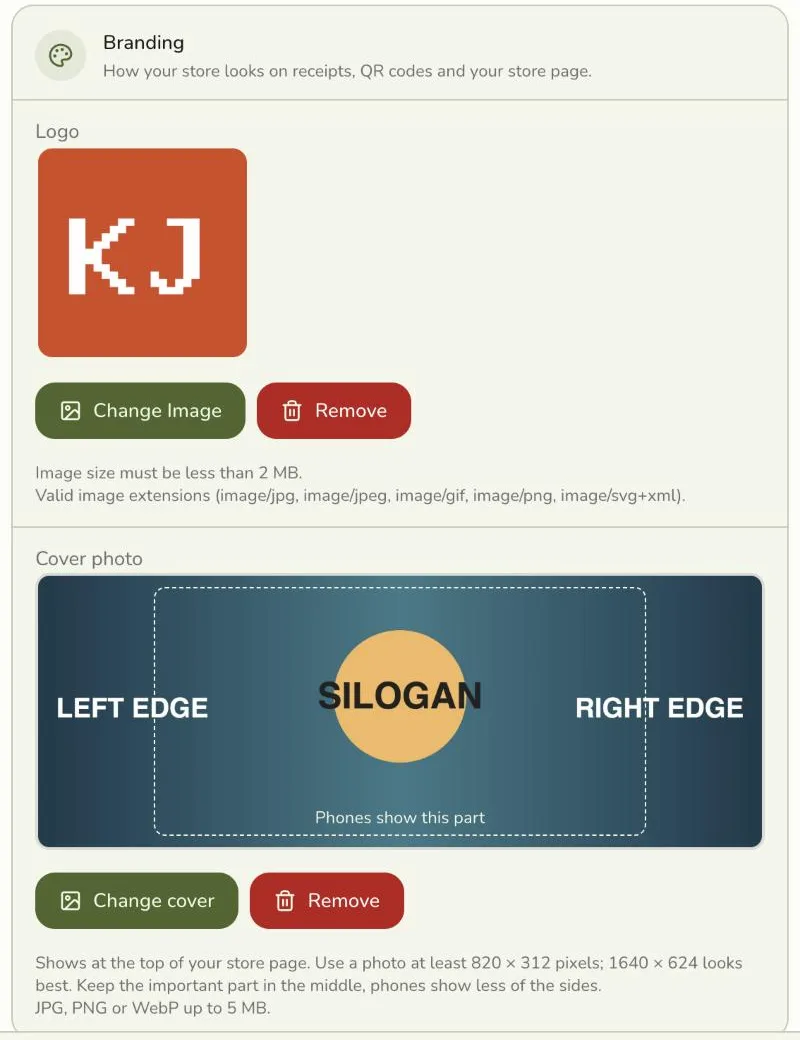
In the Branding section, upload or take a photo for your Logo. Under Cover photo, tap Add cover and pick a photo. Check the dashed box on the preview: phones show only that middle part, so keep your shop name or best dish inside it.
Use a cover at least 820 × 312 pixels; 1640 × 624 looks best. JPG, PNG, and WebP files up to 5 MB work, and Fuze Store resizes the photo for you. To change it, tap Change cover. To take it down, tap Remove, then Save.
Choose what you sell and how customers get it
Pick what the store sells (Food, Item, Service, or Virtual) and how customers get it. You need at least one of each. What you sell is a label: it shows on your public page and lets customers filter the store directory.
Save
Tap Save. Changes apply in the app straight away and on new prints, and your public store page is refreshed.
The General form after saving, with the new store name shown in the header — screenshot coming soon
What happens next
- Your public store page, menu, and links page are rebuilt so customers see the change.
- Your other devices are told only on plans with live sync.
- New receipts show the new name. Old receipts are not changed.
Change your store link
Your public link is changed on its own, from a dialog on the same screen.
- On General, open the store link dialog.
- Type the new link: 3 to 60 lowercase letters, numbers, and single hyphens.
- Confirm. The page is refreshed under the old and new links.
The old link keeps working as a redirect. You can change the link once every 30 days. A link another store uses now or used before is refused, and a few words are reserved.
View your store profile
To read, not edit, the selected store's details, open the main menu and go to Store Management → My Store. It shows currency, country, time zone, Store ID, organization link, service modes, address, and add-ons for the store you have selected.

Common fields
| Field | What it means | Required |
|---|---|---|
| Store name | Shown in the app and on receipts. | Yes |
| Branch | A short label up to 60 characters. | No |
| Logo | Optional image. Upload one, or take a photo on a phone or tablet. | No |
| Cover photo | Wide image behind the logo on your public page. | No |
Label your branches
If you run more than one location under the same name, give each store a Branch label on Configurations → General (or when you create the store). The app then shows each one as Name — Branch, for example Brew Haven — Makati, in the store switcher, the Stores list, the menu and dashboard headers, the Fuze Store Hub's store picker, your public storefront, order status pages, and the table QR page. On printed receipts and end-of-day reports the store name and the branch print on separate lines.
- Leave it blank if you have one location.
- Each branch label must be different within an organization. "Makati" and "makati" count as the same label. Two unrelated businesses can both use "Makati".
- Changing the label never changes your store link or printed QR codes.
- To remove a label, clear the field and save.
Edge cases
- Without the permission, the form is read-only.
- A store with no name cannot be saved.
- Replacing the cover saves the new file first. A photo that cannot be read is refused and the old cover stays.
- The logo is removed only when you delete it or upload a new one. Saving other fields leaves it alone.
- The link cooldown. A second change inside 30 days is refused. The old link still works while you wait.
- Taking the store offline. Visibility is a separate switch. See Customer Visibility and Operating Hours.
Works with
| Add-on or plan | What changes |
|---|---|
| Free trial and Premium plan | The logo also sits in the center of your QR codes and leads your storefront, emails, and customer display (store branding). |
| Other plans | The logo shows in the app and on the store page, but not in the middle of QR codes. |
| Organization add-on | Branch labels must be different inside the organization. |