

How to Transfer Store Ownership
Store ownership can pass to another staff member. Use it when selling the business, changing management, or giving one person full control. This is the email Transfer Ownership flow, from the current owner to an existing staff member with an email. The in-person Claim Store handover is different: see Claim Store Overview.
Before you start
- You are signed in as the store owner (or the owner of its organization).
- The new owner is already on the staff with an email address.
- The store is not in an organization and no Claim Store handover is open.
Steps
Open Transfer Ownership
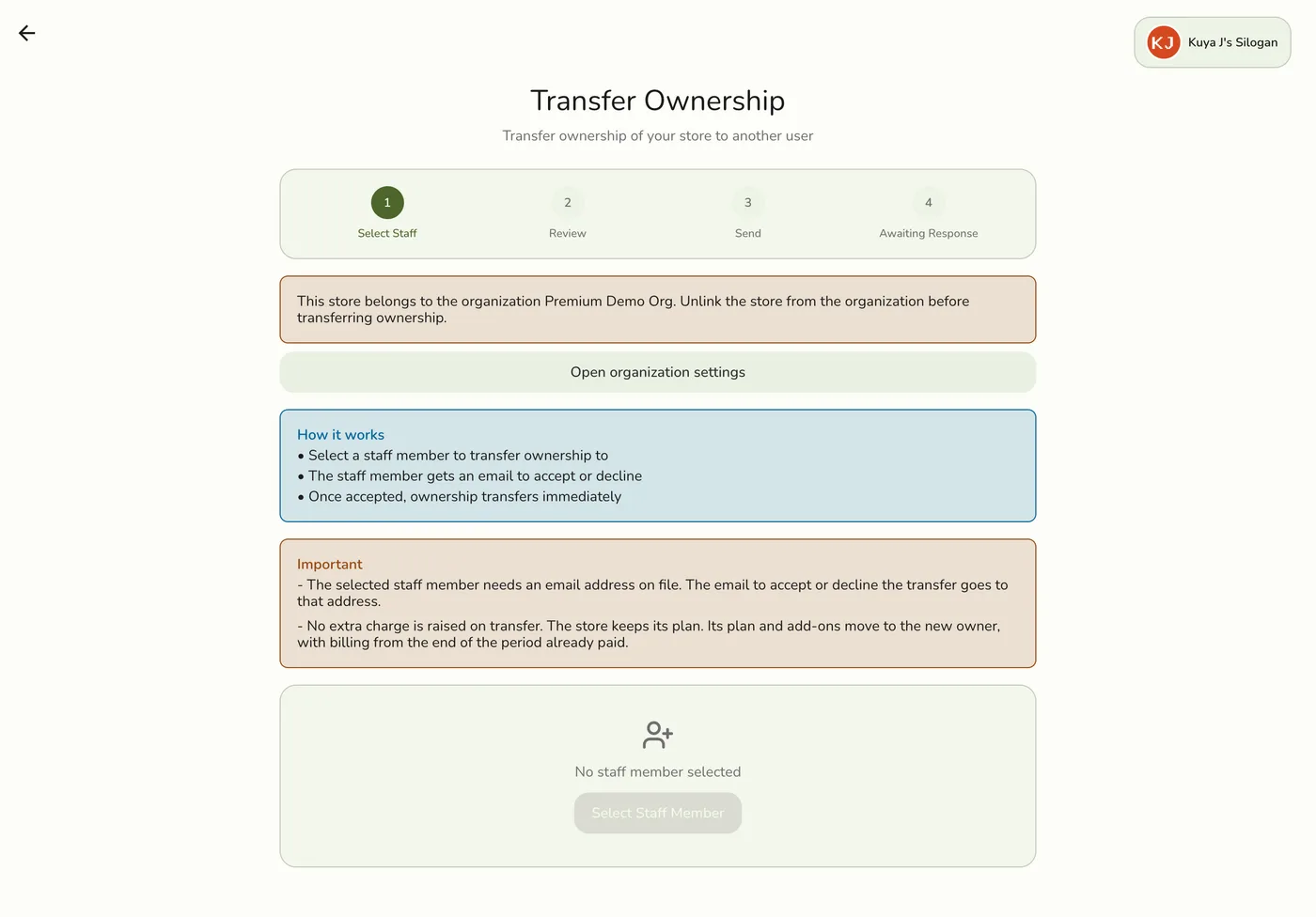
Open the sidebar menu, choose Configurations, scroll to Advanced, and open Transfer Ownership. Only the current owner sees it. The screen walks four steps: Select Staff → Review → Send → Awaiting Response.

Pick the new owner
Tap Select Staff Member and pick someone. Everyone on the staff list shows except you. The staff member needs an email on their staff record. Nothing is sent yet, and you can change or remove the pick.
Check and send
Check the current owner and the new owner. The screen notes that no extra charge is raised and that the add-ons move to the new owner. Tap Send Store Transfer. The new owner gets an email with Accept and Decline buttons.
The review step with the old and new owner and a Send Store Transfer button — screenshot coming soon
Wait for the answer
The screen shows the new owner and the expiry date and time. The expiry turns red only in the last two hours. You can Cancel the transfer at any time before an answer, and the email link then stops working.
The Awaiting Response card with a Cancel button — screenshot coming soon
What happens next
- Both email buttons open the transfer review screen in a browser. Nothing happens until the new owner presses a button there. They sign in, or create an account, with the one the transfer was sent to. The review shows the store, who sent it, the expiry, what changes hands (the store and everything in it, with you staying on as read-only staff), the plan it joins and how many stores are on that plan, and the add-ons that carry over with their monthly price and paid-until date. Then Accept and take over, or Decline.
- After Accept: the store belongs to the new owner at once and appears in their store list on the Super Admin role. You stay on as a regular staff member with the store's Read-only role, unless they remove that record or change the role. The result screen names you and says so. After Decline, nothing changes.
- No one is told the answer. Your waiting card goes away, and your devices find out the next time they load the store.
- Billing. No invoice is raised for either owner. The store joins the new owner's plan from the moment of acceptance with fresh billing dates, and a new owner with no plan yet starts on the free trial. Every add-on switched on for the store, including one set to end at the close of the period, moves with its paid-until date. The new owner's bill for an add-on starts after that date and covers only the days not already paid. Account-wide add-ons, such as Organization, stay with you.
Edge cases
- Organization stores cannot be transferred. The screen explains this and links to the organization settings. Unlink the store first.
- Wrong account. Signed in with a different account, the screen shows part of the address the transfer went to and offers Sign out and switch account. The wrong account cannot accept or decline.
- Email not verified. A staff member added with Invite to Fuze Store who never accepted has no account on the record yet, so the review matches by email. That email must be verified first. The review offers to resend the verification email, with a Check again button. Declining still works.
- A Claim Store handover is open. A transfer can be neither sent nor accepted while one is open. Finish or cancel that handover first.
- An add-on payment is being confirmed. Accepting has to wait. Try again in a few minutes.
- Owner changed. If the sender no longer owns the store, or the store was deleted, the transfer is cancelled and the link no longer works.
- Staff member removed. Removing the new owner from the staff, switching them off, taking away access, or changing their email cancels the transfer. The Remove confirmation on Staffs says so.
- Expiry. The link works for 24 hours. After that it stops working and the transfer stops showing as waiting. An expired transfer does not block a new transfer or a handover. Sending again replaces any earlier link.
- Sending twice reuses the waiting transfer with a new link and a fresh 24 hours, and the old link stops working.
- Trust. Only transfer to someone you trust: the new owner gets full control of the store, its data, the billing, and the staff. Double-check the email, since the review opens only for that account.
Works with
| Add-on or plan | What changes on this page |
|---|---|
| Any plan | The store keeps its own plan, its trial or paid status, and its paid-until date. |
| Roles & Permissions add-on | Your read-only role is enforced while the store has the add-on (included in the free trial). Without it every staff member has full access. |
| Organization add-on | A store inside an organization must be unlinked before it can be transferred. |