

Deleting a Store
Deleting a store hides it from every device immediately and schedules its data for permanent removal about a month later. Its sales records are first saved to a file you can download for five years. Only the store owner, or an admin of the organization the store belongs to, can do it.
Before you start
- You are the store owner, or an admin of its organization.
- You have exported what you need.
Steps
Settle the open items
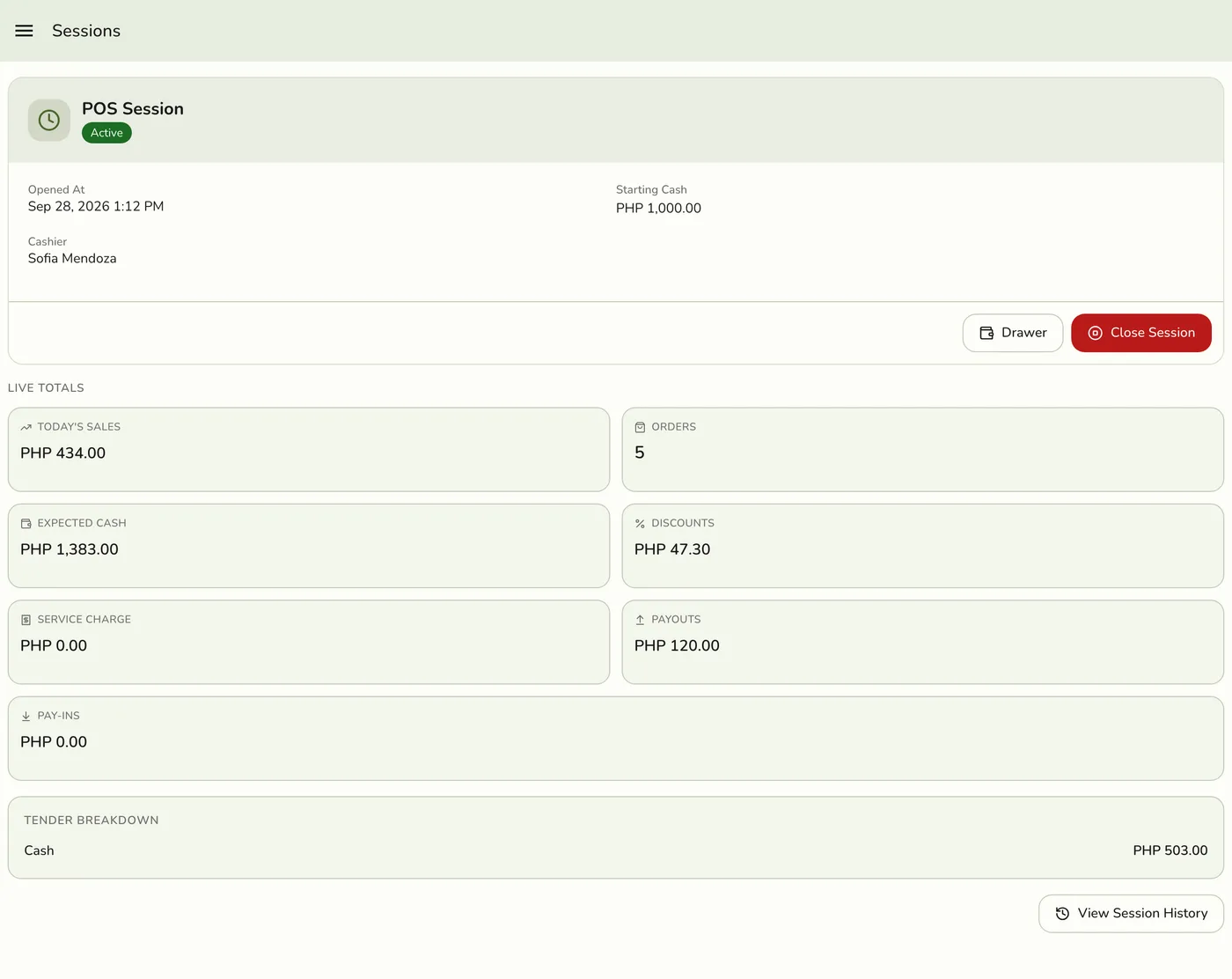
Export anything else you need (product lists, customer lists, reports), because you cannot open the store afterwards. Close the open register session so the day's cash is reconciled. Check your team: staff attached only to this store lose access to it. You do not need to cancel its add-ons first.
Open the store
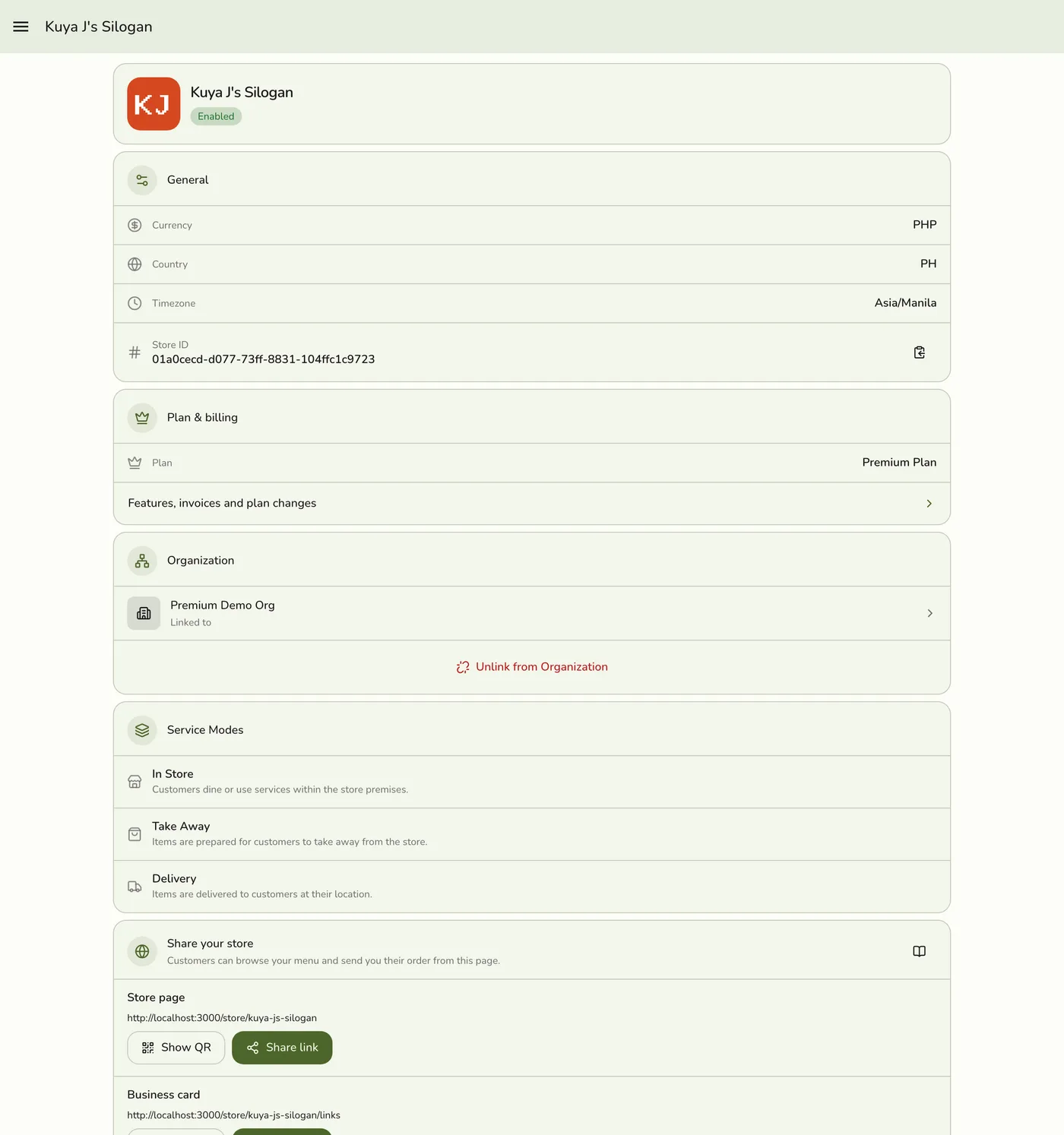
On the web, sign in and open Account → Stores (/account/stores), then select the store. You can also use the ⋯ menu on a store card in the Stores list, or the stores list on an organization's page. In the app, open the main menu, then Stores, then the ⋯ menu on the store, then View details.
Select Delete Store
Scroll to Danger Zone at the bottom, on the web, or to the bottom of the details page in the app, and tap Delete Store.
The Danger Zone with the Delete Store button — screenshot coming soon
Read the confirmation and confirm
The confirmation says the data is kept for 30 days and only support can bring it back, and that the sales records are kept for five years and can be downloaded from Account → Store records. Confirm. You return to the Stores list and the store is gone. If it was the store you were working in, the app clears your selection and asks you to pick another one.
The Delete Store confirmation dialog — screenshot coming soon
What happens next
- The store is hidden immediately everywhere: the store list, the register, reports, and any other device signed in to your account. Anyone else working at the store loses it the next time their app asks the server for it.
- Its data (orders, products, customers, staff records, settings, uploaded images) is kept for about one month, then permanently erased by a nightly clean-up. See the Data Deletion policy.
- Sales records are kept for five years. Before the store is erased, Fuze saves a spreadsheet of its orders (with the name on each order, no email, phone, or address), order lines, payments and refunds, and cash sessions. It is kept until 31 December of the sixth year after the last sale, and emailed to you. See Downloading a deleted store's sales records.
- Billing stops. The store's plan ends at once and does not appear on your next invoice. Nothing is refunded for the days already paid, and its invoices stay. A replacement starts on free Basic, because the free trial is used once per account.
- Any old store wallet balance moves to you. Your wallet balance is safe: prepaid credit belongs to your account, not to a store.
Edge cases
- There is no Restore button. If it was a mistake, contact support within 30 days with the store name or ID. After that the data is gone for good.
- If support restores it, the store comes back on the plan it had (inside the period it was paid for), a trial that had not ended resumes to the same end date if a trial slot is free, and after either ended it comes back on free Basic. Cross-branch product links in an organization must be set up again.
- The dialog does not mention the plan. It says the data is kept 30 days, but not that the store's own plan ends at once with no refund for the rest of the period.
- The app shows no message after deleting. It just returns to the Stores list. The website shows one.
- The Danger Zone can show on a store you only work at, when it is not the one selected. The server still refuses anyone not allowed.
- A failed delete can leave links removed. In an organization the product links are removed first, and if the delete step then fails, the store stays but its links are gone.
- Organization stores. Deleting a store in an organization removes it from the organization's store list and unlinks matched products. A link left with one product is removed, and the master catalog is cleared if it was this store. The organization and every other store are unaffected.
- Hand it over instead? Use Transfer Ownership or Claim Store to give a store to someone.
- Deleting your account needs you to own no stores. See Deleting Your Account.
Works with
| Add-on or plan | What changes on this page |
|---|---|
| Any plan | Deleting works on every plan. The store's plan ends at once. |
| Organization add-on | Product links to other branches are removed and are not restored. |
| SMS add-on and wallet | The balance is on your account, so deleting a store never costs credit. |