

Customer Visibility & Operating Hours
Fuze gives your customers three free, always-on surfaces. No add-on is required.
- A public store page and directory where customers find your store, profile, and menu.
- Operating hours on your public page, with a live "open now" indicator.
- Live order-status pages behind the QR codes printed on receipts, claim stubs, and queue tickets.
All of it is controlled from Configurations → Preferences → Storefront.

Before you start
- Saving needs Preferences · Modify. Without it the Storefront tab is read-only.
- The Storefront tab is the third group of settings customers see. Saving it is the general Preferences save, described in Store Preferences.
Steps
Show or hide your store online
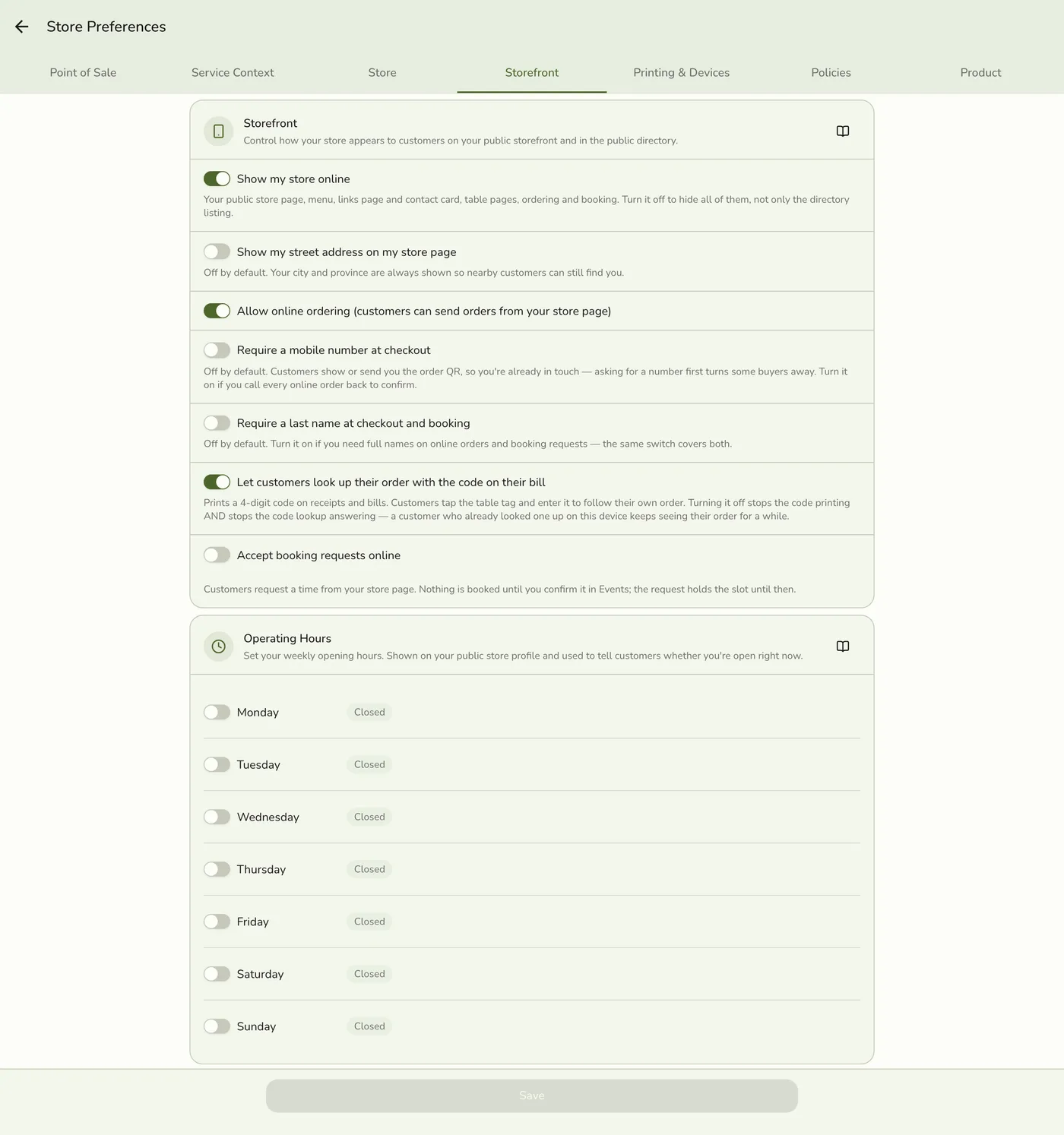
On the Storefront tab, the first switch is Show my store online. It is on by default, so new stores are discoverable from day one. Turn it off to take the store offline. That hides your store page, menu, links page, contact card, table pages, and online ordering and booking, not only the directory listing. Visitors get "not found", the same as a store that does not exist.
Decide whether to show your street address
Directly under it, Show my street address on my store page is off by default. Many sellers run from home, so Fuze does not publish a street address until you choose to. Switch it on for a shop customers walk into. Leave it off if you sell from home, deliver only, or meet customers at an agreed point. Your city and province are always shown, so nearby customers still see roughly where you are.
The Storefront tab with Show my street address on my store page switched off — screenshot coming soon
Set your weekly operating hours
Under Operating Hours, each weekday has a row. Use the switch to mark the day open or closed. An open day shows an opening and a closing time. Closed days show as Closed on your page. If the closing time is earlier than the opening time, such as 10:00 PM to 2:00 AM, Fuze treats it as an overnight window that spills into the next day, so "open now" stays right past midnight.

Save
Tap Save. Your public page shows the weekly schedule and works out Open now or Closed live, in your store's own time zone.
The Storefront tab after saving — screenshot coming soon
What happens next
- Saving clears the cached store page, menu, table, and booking lists and asks the website to rebuild its copy. Otherwise the public page is cached for five minutes, so changes can take up to 5 minutes to appear. Your own app shows the saved setting at once.
- The same hours limit the times offered for online booking.
- Contacts and links are switched on or off on Contact & Links, and show only once you add one.
The live order-status page
Every receipt, claim stub, and queue ticket you print carries a QR code. When a customer scans it they land on a live status page showing your store name and the order number, a timeline (Placed → Being prepared → Ready for pickup → Completed), the items and any balance due, and for queue tickets their live position in line. The page refreshes itself, so customers stop calling to ask if it is ready.
With the SMS add-on you can include the live status link in order and waiting-list texts: open Configurations → SMS → Message templates and add the {{statusUrl}} placeholder. The link makes the message longer. A typical "order ready" text with the link often uses 2 SMS segments instead of 1. See Message Templates.
Edge cases
- Show my street address needs a saved address. With no address on the Address screen the page shows no address at all, whatever the switch says. The tab does not warn you.
- Online ordering, booking, and the table order code need the store shown online. Turning the first switch off turns them all off.
- A store with no hours shows no schedule and no open-now badge, rather than a wrong one.
- The menu shows only what is on the online store. An item appears while it is enabled, Sell on has Online store on, and it either has no category or sits in at least one category that is on and shown on the online store. Costs, SKUs, barcodes, stock levels, and tax setup are never public.
- An inactive or suspended store answers "not found" publicly.
- The directory. Stores shown online can be searched by name, filtered by business type, and sorted by distance. A store with no map pin drops out of a distance search. Directory results are cached for a minute.
Works with
| Add-on or plan | What changes |
|---|---|
| Any plan | Directory listing, public page, menu, hours, and live status pages are free, including on Basic. |
| SMS add-on | Texts can carry the live status link. |
| Premium plan or free trial | Store branding puts your logo in the center of QR codes and on your storefront. |
| Booking-capable plan | Accept booking requests online needs a plan that includes bookings. |