

Receiving Customer QR Orders
When a customer checks out on your public store page, they get an order code (QR). Nothing lands in your POS until a staff member loads that code, so you review every order before it exists.
Before you start
- The Point of Sale · Modify permission.
- The customer's order code (QR), their screenshot, or the link they messaged.
Steps
Open a scanner
Use the POS drawer's Scan action, or the camera scanner on the register header (enable it under Settings → General → POS if hidden).
Scan the code, upload it, or paste the link
Point the camera at the customer's screen. If the customer messaged you their order, you have three ways in. Scan the chat preview: most chat apps show a preview card under the link, and that card is the QR. Upload image: pick their screenshot of the code. Paste link: copy the link from the chat and tap this, and the field is already filled from your clipboard. All three load the order like a scan. If the chat app shows a plain link with no preview, use Paste link.
The scanner with Upload image and Paste link options — screenshot coming soon
Review the loaded cart
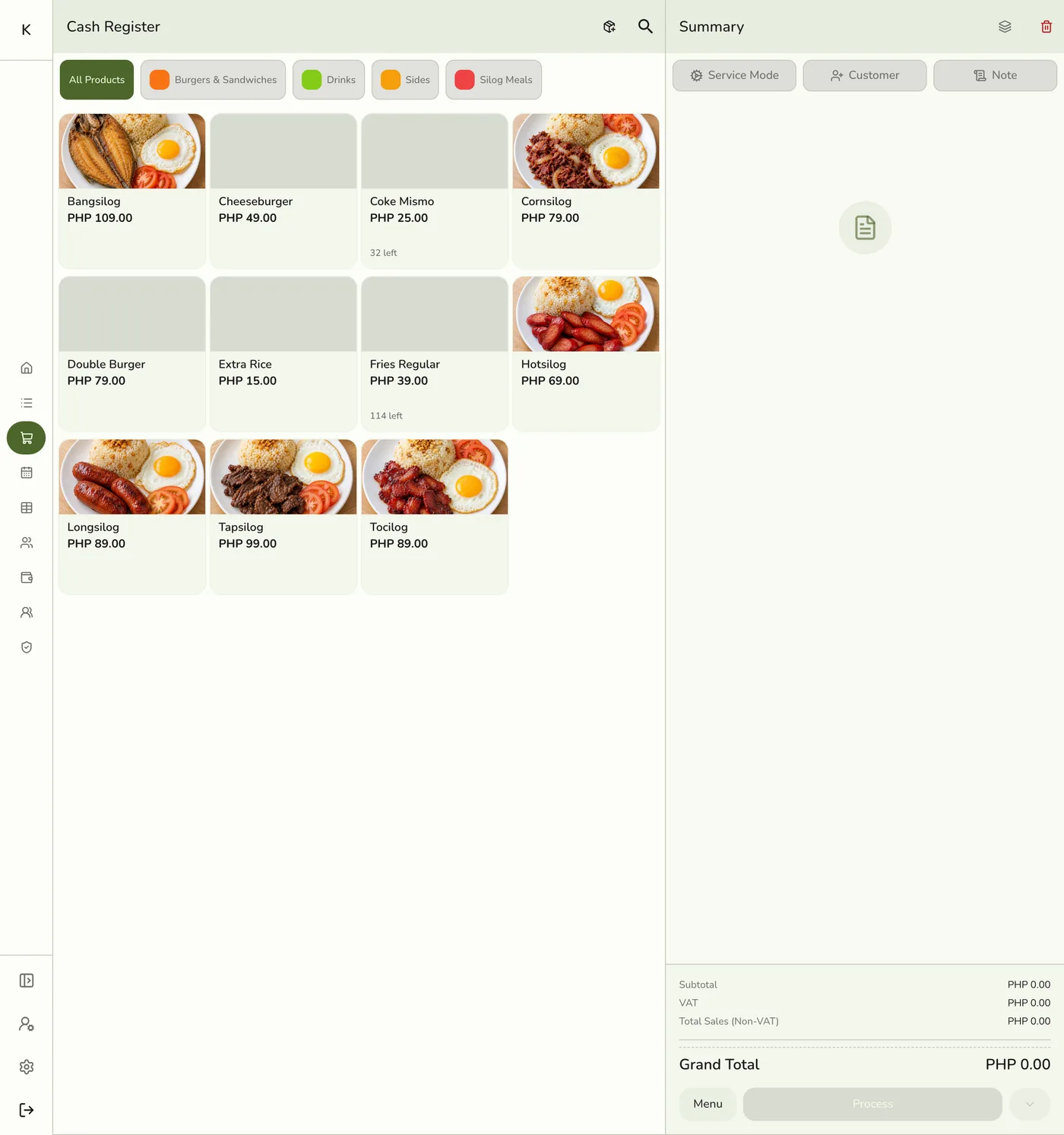
The register fills with the customer's items, contact details, table (if a Table QR was used), notes, and any service details. If you already had a cart in progress, the app asks to put it aside first, so nothing is lost. No customer record is saved.
The register with a loaded customer order — screenshot coming soon
Create the order
Adjust anything, then submit like a normal register sale. Prices are always recomputed from your current catalog, because the customer's page showed estimates.
The register after creating the order — screenshot coming soon
What happens next
- The draft is marked as picked up in the background, and linked to the new order.
- Use Share on the order's action menu to send the customer their live order-status link, the same link printed as a QR on receipts.
- The customer's page then shows the live receipt. See Taking Orders Online.
Edge cases
- "No longer in the catalog": an item the customer picked was deleted. It is skipped and you are told how many.
- "Some details changed": a price, option, or the table changed since the customer sent the order. Review the cart before charging.
- "Already loaded": another register loaded this code first. You can load it again on purpose, for example after a crash, but check you are not double-entering. Another device that got there first gets "already claimed".
- "Expired": order codes last 24 hours. Ask the customer to order again.
- "Wrong store": the code was made for a different store than the one you are signed into. It is warned about and ignored.
- The time the customer asked for is kept apart from the time you promise. It shows in a note when it differs.
- The customer's page can still say "waiting" after you ring the order up, if the claim step failed or the draft expired while you worked. It does not point them to the order.
Works with
| Add-on or plan | What changes on this page |
|---|---|
| Any plan | Receiving QR orders is free on every plan. |
| Premium plan or free trial | The status QR shows your store logo in the center. Other plans show the Fuze Store mark. |