

How to Delete a Unit
Remove tables, rooms, or seats you no longer use so the POS Units list stays accurate.
Before you start
- The Areas · Delete permission.
- Check that no open order is on the unit.
Steps
1
Open Units
Open Configurations → Operations → Units.
2
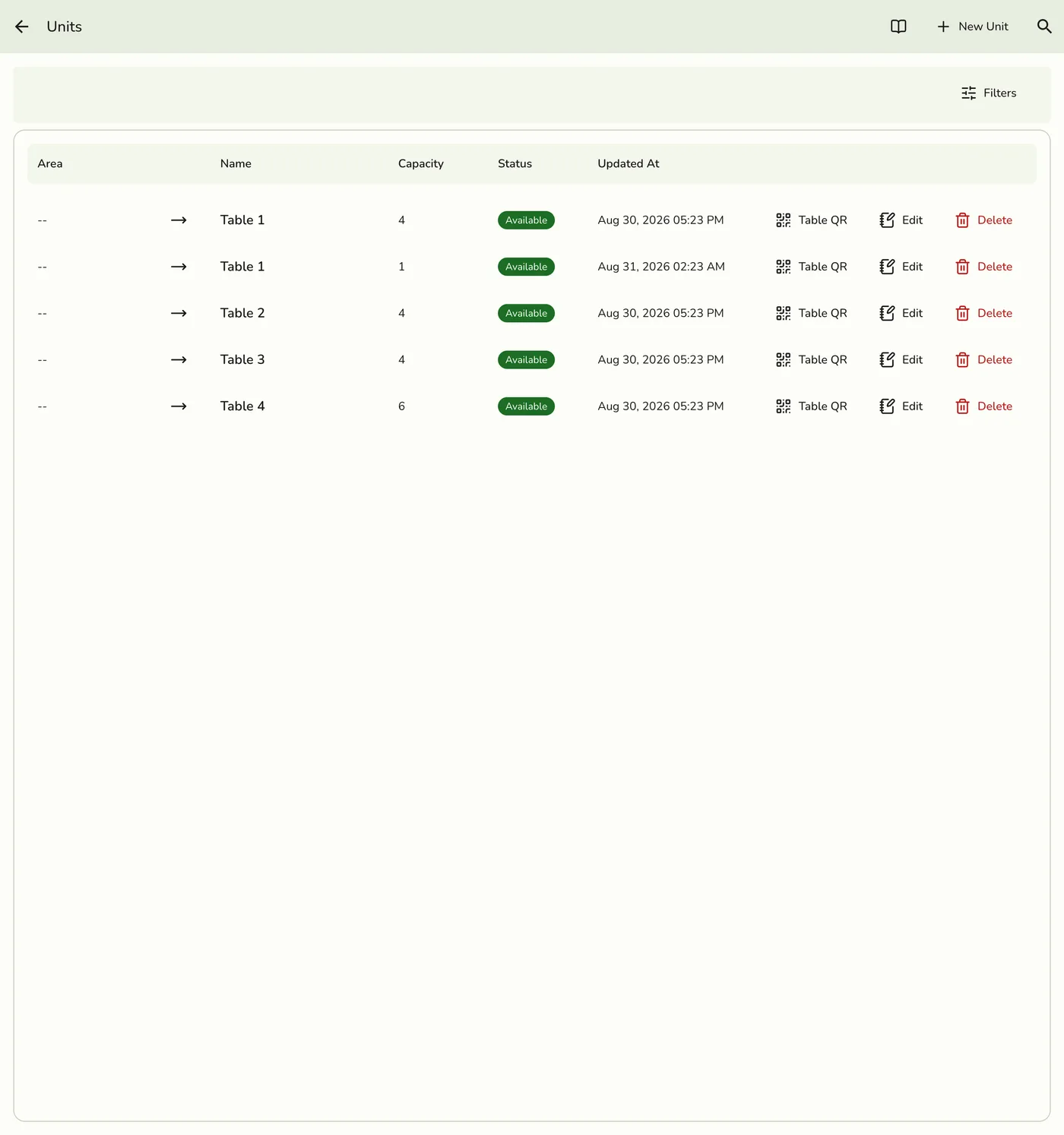
Choose Delete
Use Delete from the card's menu or the row, or open the unit and tap Delete on its page. Delete shows only to people who may delete areas.

3
Confirm
Confirm when prompted. The unit is removed for good.

What happens next
- The unit leaves management and the POS.
- Past orders keep their history and show in reports.
- Bookings and waiting-list entries that pointed at it lose the link.
- Other devices are told only on plans with live sync.
Edge cases
- Nothing stops you deleting a unit that has an open order. The order stays but loses its table. Finish or move the order first.
- A table drawn for the unit on a floor plan stays there, frozen in its last status, until someone deletes it in the floor plan editor.
- There is no undo. To take a unit out of use for a while, turn Enable off instead.
Works with
| Add-on or plan | What changes on this page |
|---|---|
| Basic plan | Units are locked. |
| Floor Plan add-on | Delete the unit's table in the floor plan editor too. See Editing and Placing Units. |