

How to Update an Area
Rename an area, change its description, or change which units are in it whenever your layout changes.
Before you start
- The Areas · Modify permission. Anyone with Areas · View can open the area and read it.
- Keep names short so they fit on the POS Units screen.
Steps
1
Open Areas
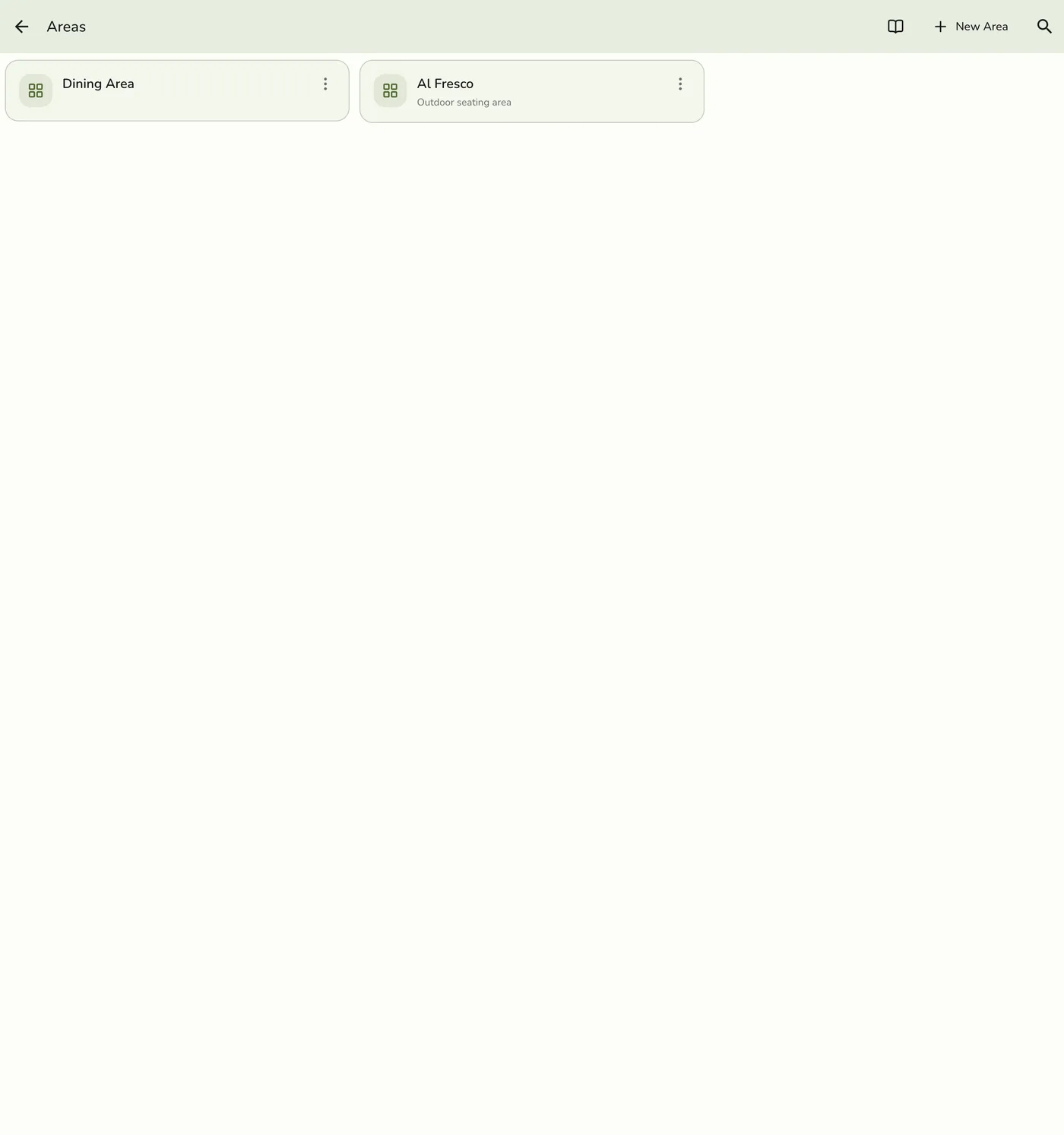
Open Configurations → Operations → Areas.
2
Open the area
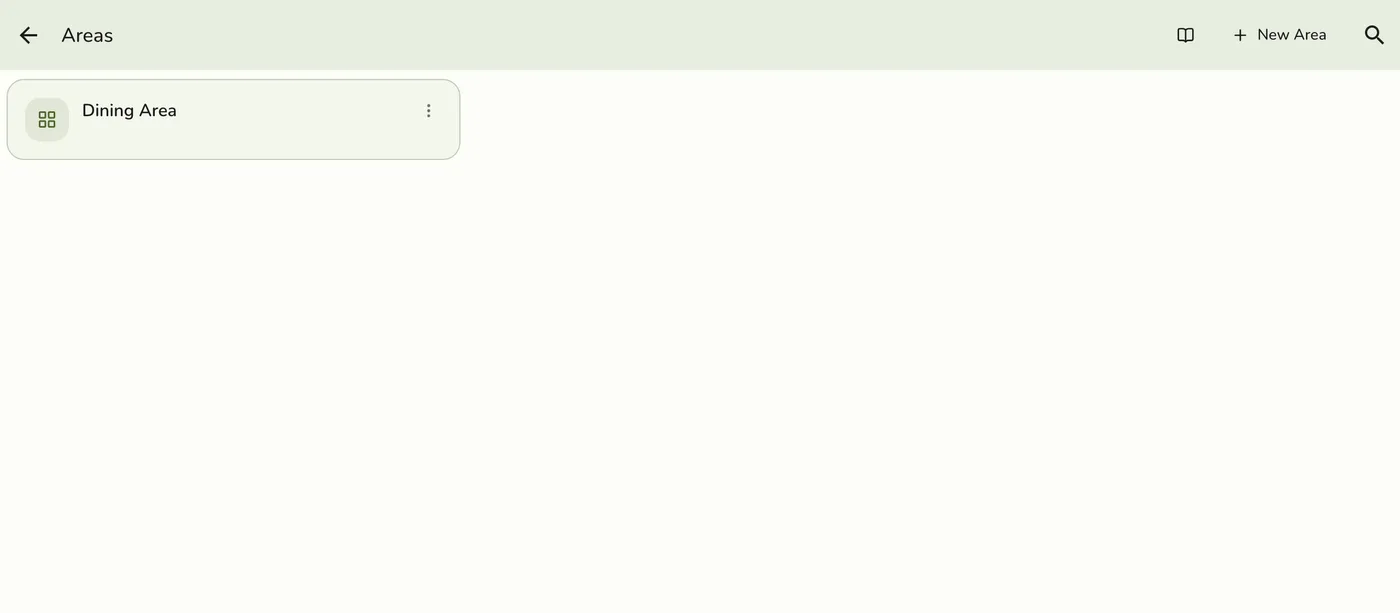
Tap the ⋮ icon on the area's card, then tap Edit. Tapping the card opens the same page.
3
Change the fields
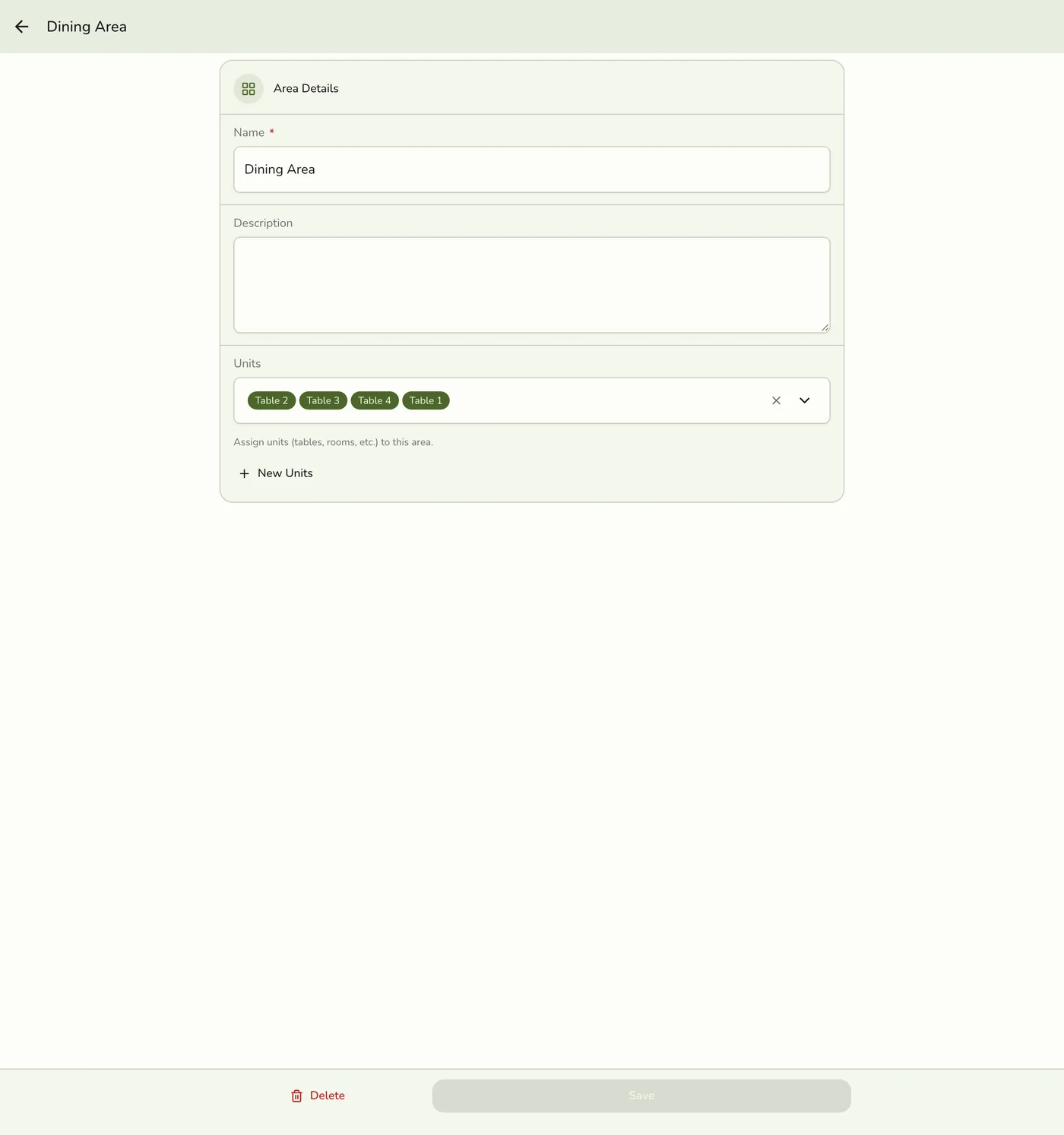
Change Name, Description, or the assigned Units. The picker offers this area's units and units in no area.

4
Save
Tap Save. Changes apply right away.
What happens next
- Units you take out are left in no area. They are not deleted.
- Units you pick are moved into this area, out of any area they were in.
- Other devices are told only on plans with live sync.
Edge cases
- Read-only without the permission. Without Areas · Modify the fields are read-only and there is no Save. Delete shows only to people who may delete areas.
- The plan limit is not checked on a change, only when you create an area.
- A unit open on an order stays on its order when you move it to another area.
Works with
| Add-on or plan | What changes on this page |
|---|---|
| Basic plan | Areas and Units are locked. The menu items do not show. |
| Floor Plan add-on | The area's floor plan keeps its layout when you rename the area. |