

How to Update a Unit
Change a unit's name, capacity, area, or enable switch when your layout changes.
Before you start
- The Areas · Modify permission.
Steps
1
Open Units
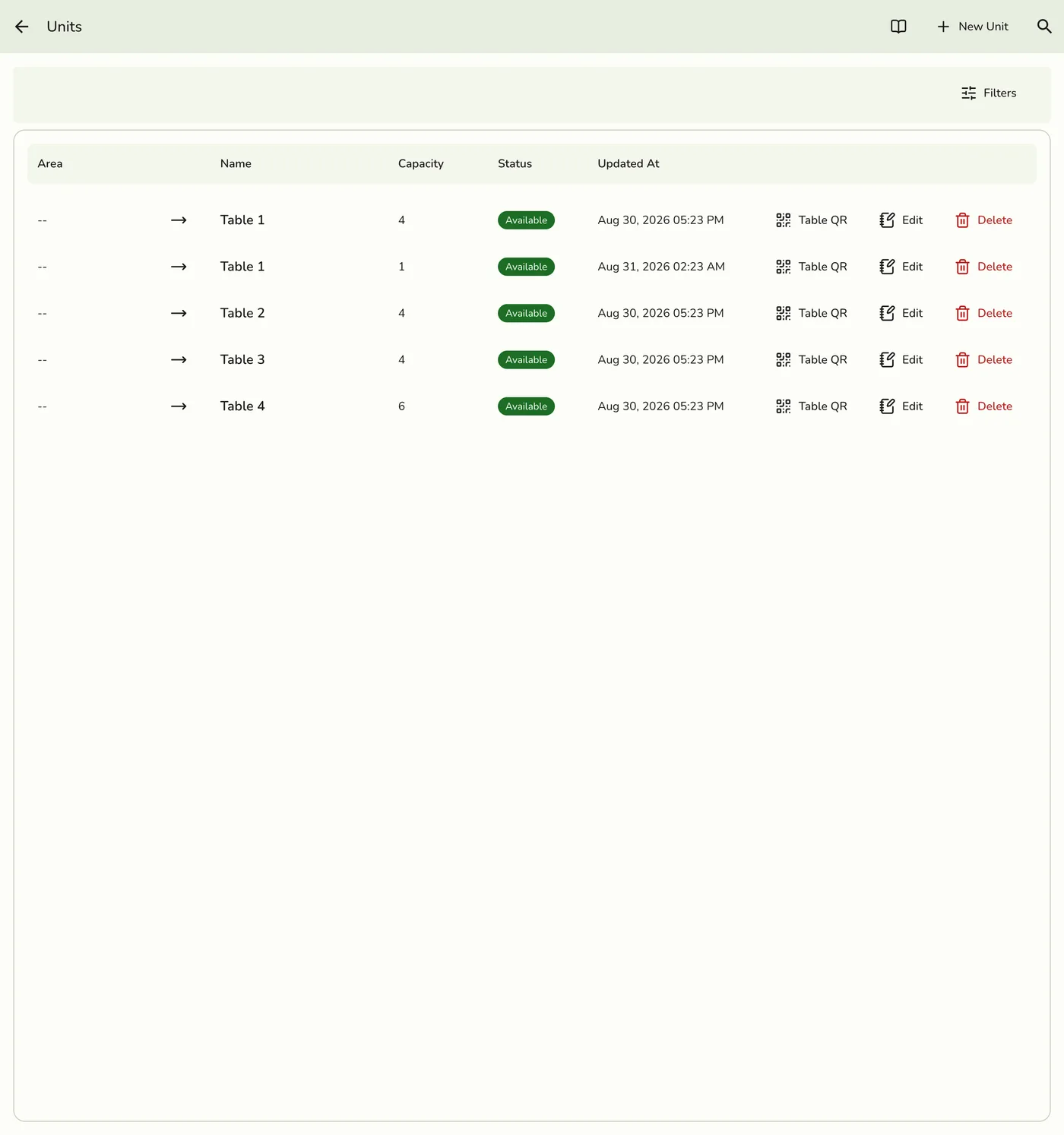
Open Configurations → Operations → Units. Search by unit or area name, or scroll.
2
Open the unit
Tap the unit, or use Edit on its row.

3
Change the fields
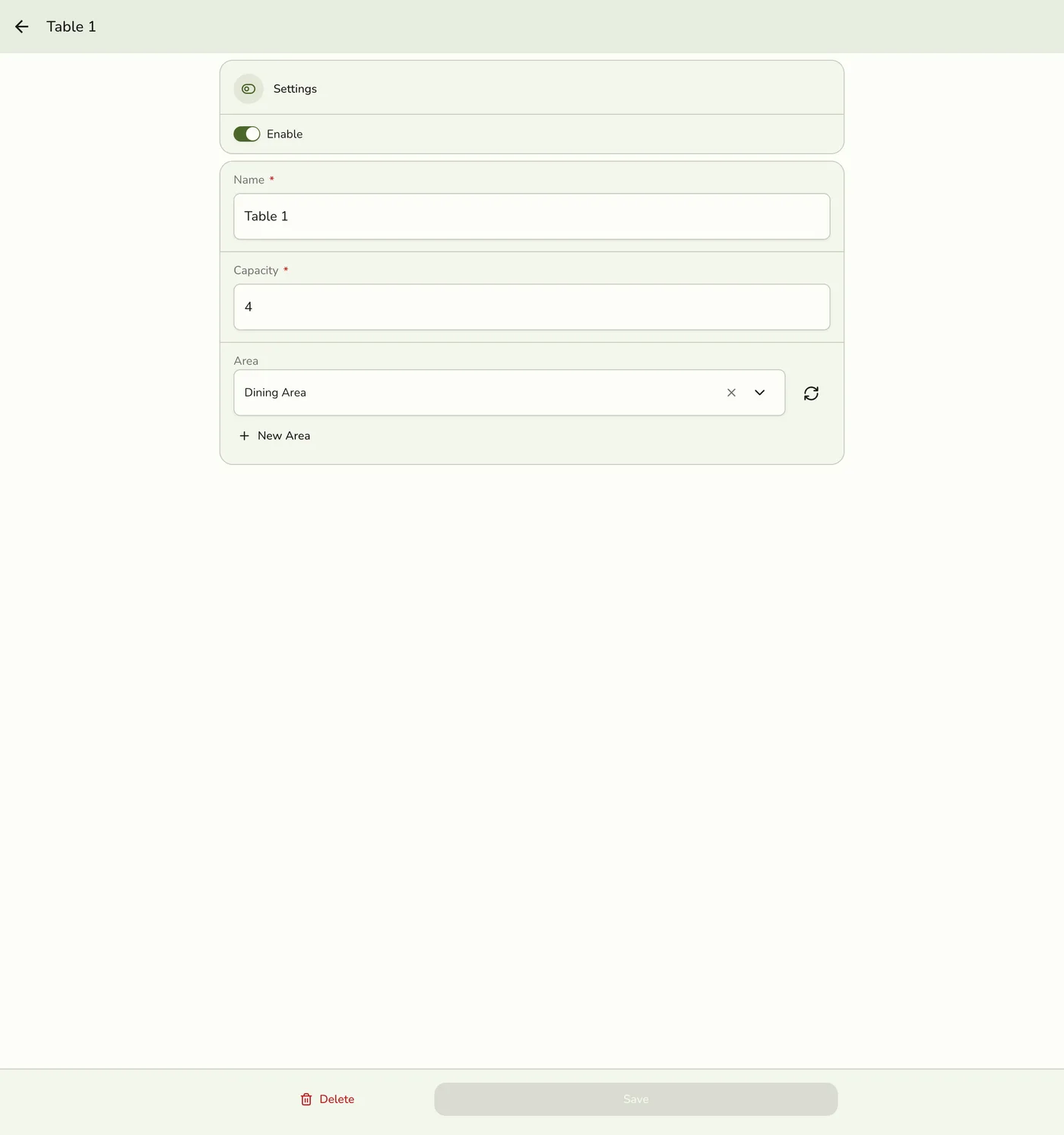
Update Enable, Name, Capacity, and the optional Area. Clearing the area leaves the unit in no area.

4
Save
Tap Save. Changes apply on the next POS refresh.
What happens next
- Only the name, capacity, area, and Enable change here. The status (available, occupied, reserved, unavailable) is set on the register.
- Other devices are told only on plans with live sync.
Edge cases
- Turning Enable off hides the unit from POS without deleting it. Use this when a table is out of use for a while.
- An open order on the unit stays on it when you move the unit to another area or clear its area.
- Read-only without the permission. Without Areas · Modify the fields are read-only and there is no Save.
Works with
| Add-on or plan | What changes on this page |
|---|---|
| Basic plan | Units are locked. |
| Floor Plan add-on | A unit with no area cannot be placed on a floor plan. |