

How to Delete an Area
Remove areas you no longer use so the list stays focused on active zones.
Before you start
- The Areas · Delete permission.
- Check whether the area has a floor plan you still want.
Steps
1
Open Areas
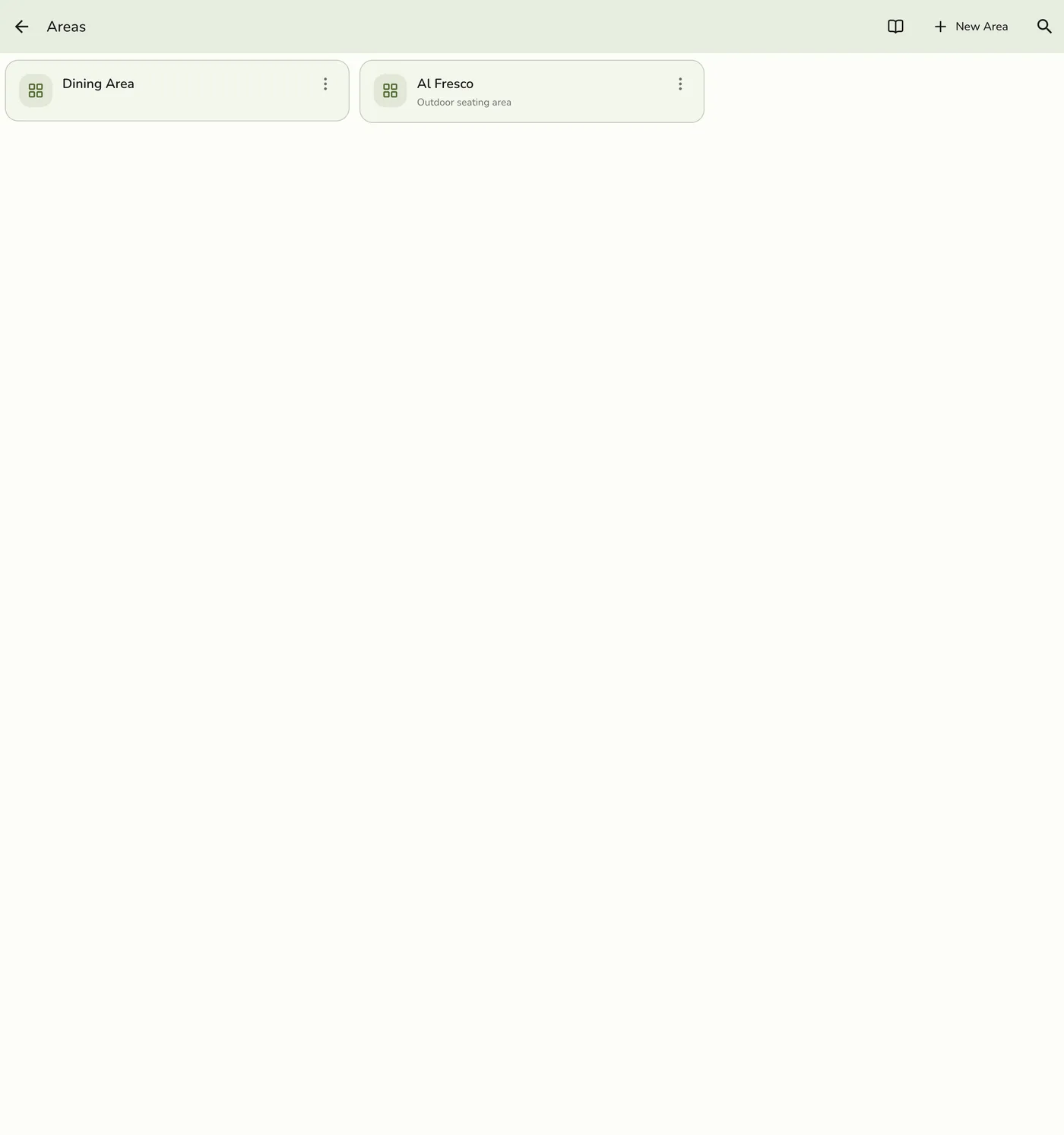
Open Configurations → Operations → Areas.
2
Choose Delete
Tap the ⋮ icon on the area's card, then Delete. You can also open the area (⋮ → Edit) and tap Delete on the form. Delete shows only to people who may delete areas.
The Actions overflow menu open on an area card, showing Edit and Delete options — screenshot coming soon
3
Confirm
Confirm when prompted. The area is removed for good.

What happens next
- The area leaves your list and is not offered for new assignments.
- Its units are kept and left in no area. Reassign them under Units if you still need the grouping.
- Past orders keep whatever area and unit they already had.
- Other devices are told only on plans with live sync.
Edge cases
- A floor plan drawn for the area is kept on the server but no longer belongs to an area, so the app stops showing it. It leaves Floor Plans and the register on the next refresh. It is never cleaned up.
- There is no restore in the app after delete. Rename the area instead if you only need a new label.
Works with
| Add-on or plan | What changes on this page |
|---|---|
| Basic plan | Areas and Units are locked. The menu items do not show. |
| Floor Plan add-on | Deleting an area hides its floor plan from the app. See Floor Plan Overview. |