

Session History Detail
Every closed session is kept as a Session History entry. The detail screen lets you open any past close, from yesterday or six months ago, and review the exact numbers your cashier saw. It is for managers reviewing variance, accountants reconciling at month-end, and owners spotting patterns.
Before you start
- The Store Sessions add-on is active, and you have the Sessions permission. Owners and organization owners and admins always have it.
Steps
Open Session History
Sidebar, then Session, then View Session History. The list is newest first. On a wide screen it is a table you page through. On a phone it is cards that load more as you scroll.

Search or filter
Search by cashier (every word you type must match the cashier's first or last name) or pick a date range. The dates are the days sessions closed, on your store's own clock.
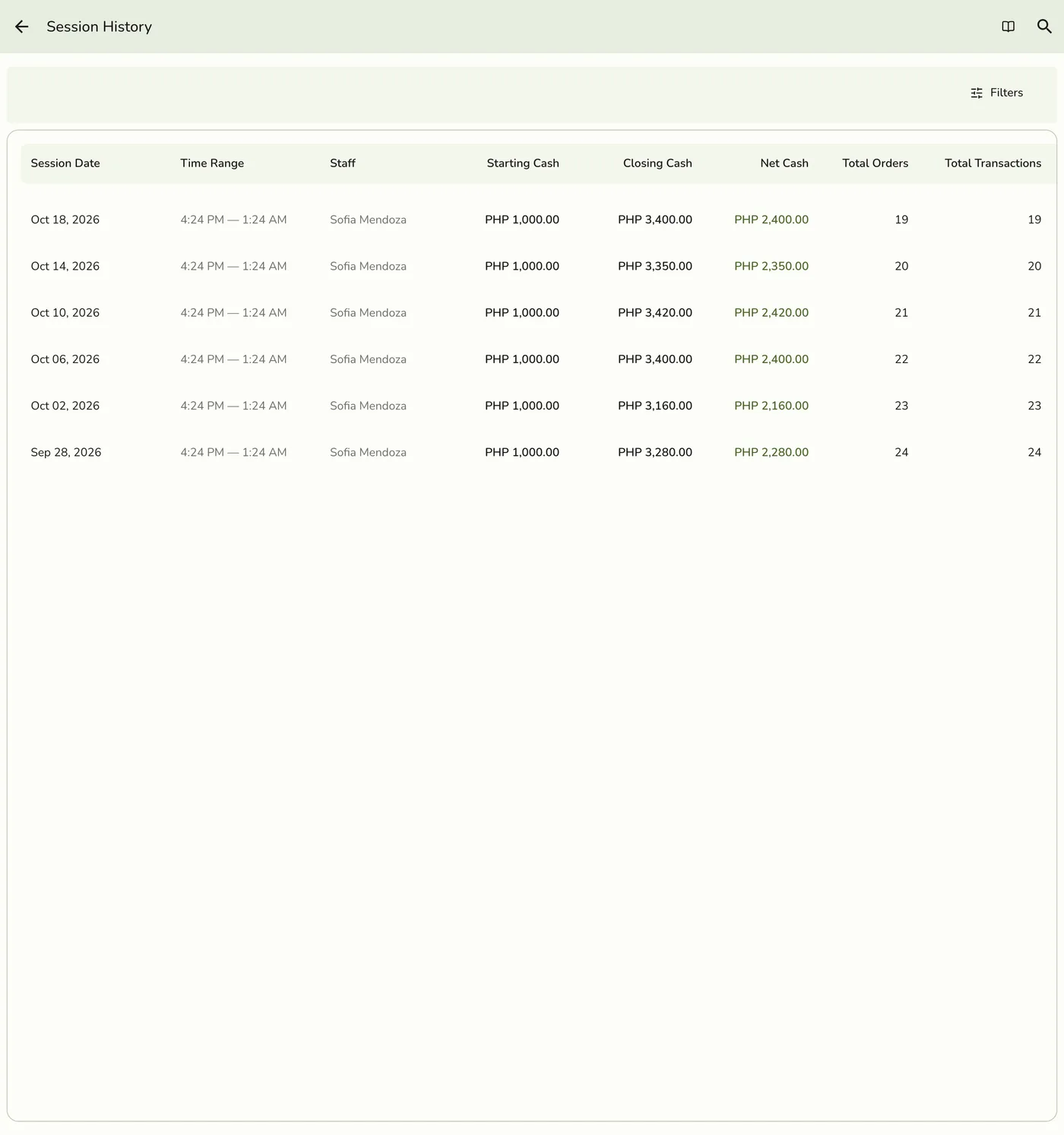
Open a session
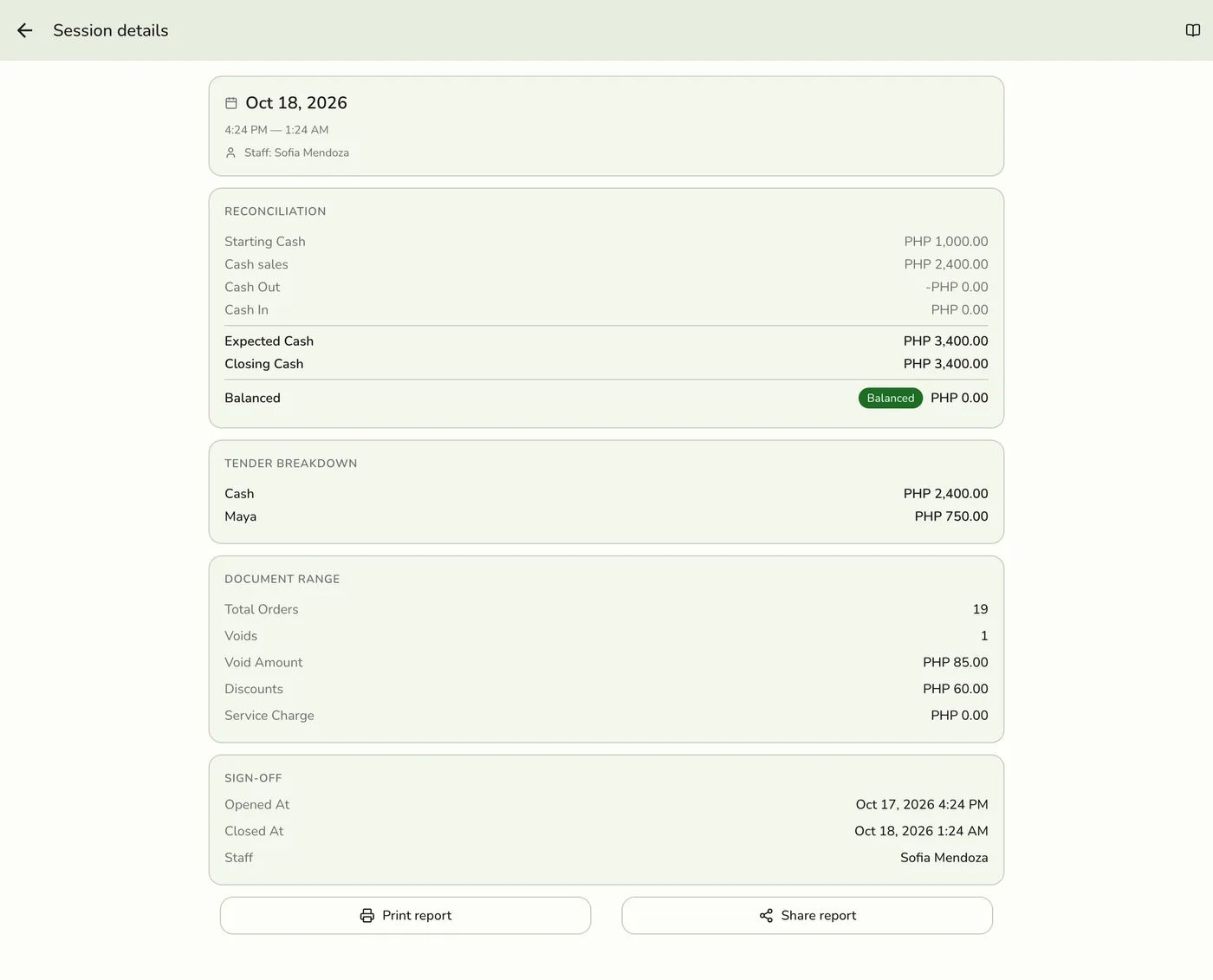
Tap the session you want. A session of another store, or one that does not exist, shows "not found".
Print or share the Z-report
Print Report sends it to your default Bluetooth thermal printer. Share Report writes it as text, headed with the store and branch name, and opens your share sheet. You can reprint at any time. The Z-report is a snapshot, so there is no audit log on reprints.
Print Report and Share Report buttons on the session detail — screenshot coming soon
What happens next
- The screen shows a header (cashier, open and close times in the store's time zone, a colour-coded variance badge, and the reason and explanation), the reconciliation (opening cash, cash sales, payouts, payins, expected cash, closing cash, variance), the tender breakdown, orders (first and last order number, totals, discounts, service charge, voids count and amount), every drawer movement, and the optional denomination breakdown.
- A payment counts in the session that took it, so an order rung up in one shift and paid in the next shows in the next shift.
Edge cases
- You cannot edit or reopen a closed session. Sessions are read-only here and cannot be approved. If you closed the wrong one by mistake, contact your owner.
- You cannot add drawer movements afterwards. A missed Cash Out found the next day belongs in the variance reason or explanation at the next close.
- The badge uses default bands. This page rates a session against 50, 500, and 5,000, not the thresholds your store set, so it can differ from the badge at close.
- Who opened the shift is not kept. The record stores only the closer, and the opening note is replaced by the closing remark.
- Print Report needs a default Bluetooth printer. Printers reached through the Hub are not used. Without one, Print fails with a message and Share is the way out.
- Two payment methods of one kind show as one line. The tender breakdown groups by kind, not by each method.
- Notification links. A variance warning can open straight to this screen.
- A removed drawer line stays listed, struck through, with Removed by [name]: [reason], and is not counted in the totals. See Cash Drawer Movements.
- Remove drawer lines works only while the shift is open. Once it is closed, its Cash In and Out lines are fixed.
Works with
| Add-on or plan | What changes on this page |
|---|---|
| Store Sessions add-on | Required. Drawer movements belong to an open session. |
| Any plan | No plan limit applies. |