

Activity Log and Settings
Staff Operations keeps a record of every gated action and gives you settings to tune how strict the rules are.
Before you start
- The Staff Operations add-on.
- Staff Operations · View to read, and Modify to change rules.
Steps
Open the activity log
Open Configurations → Staff Operations → Activity log. Entries show newest first, each with the action, its area code such as AUTH, SALES or SETTINGS, who did it, who approved it when a manager was needed, and when.

Open the rules
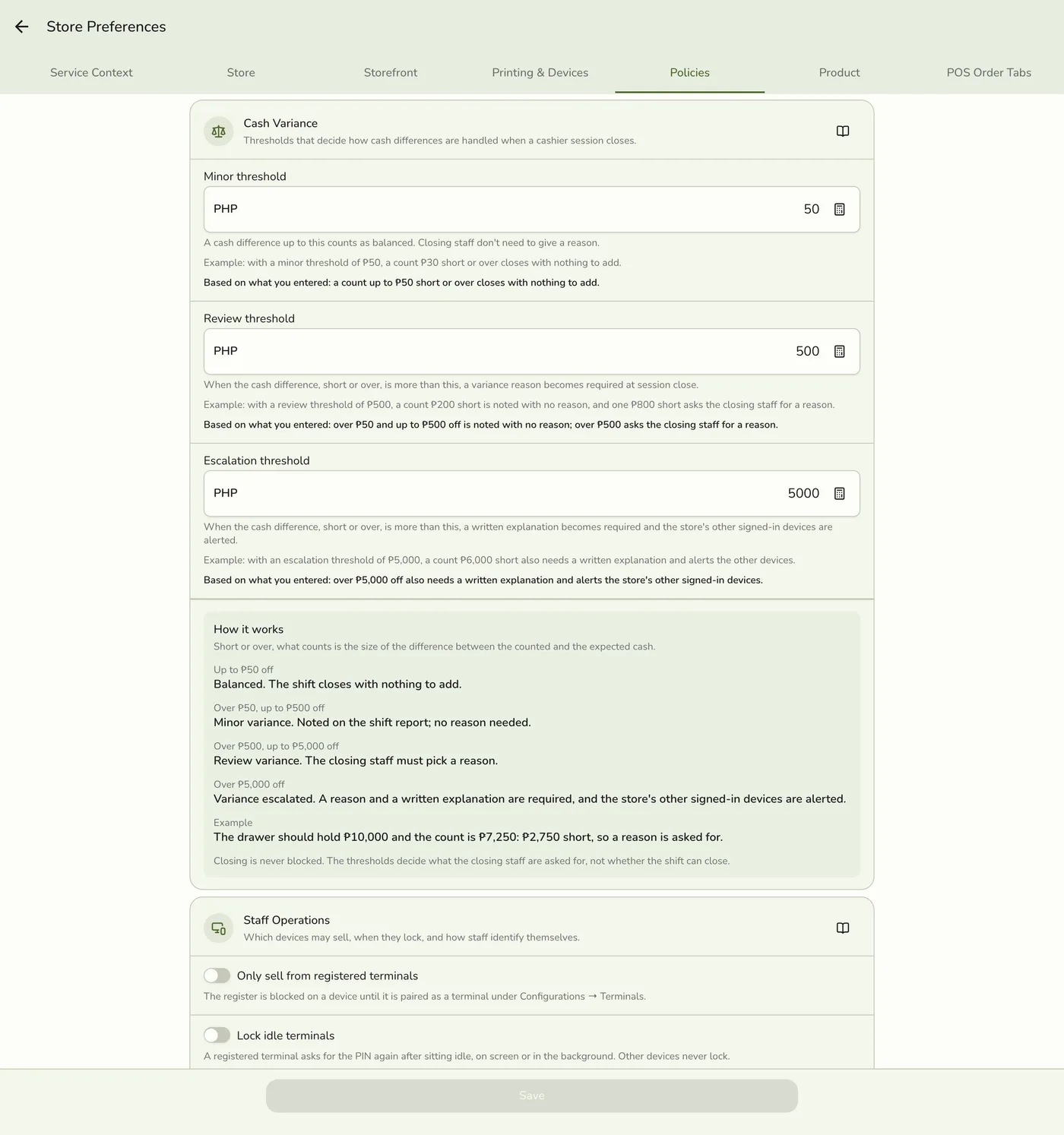
Open Configurations → Preferences → Policies. The Staff operations and Approvals sections show only with the add-on.

Set the sign-in and lock rules
Turn on Require a registered terminal, and Auto-lock with its seconds (5 to 900, 60 by default).
Set badges and approvals
Switch Staff badges on or off, and whether approving by badge also asks for a PIN. For each action choose Require manager approval, a threshold and Require a different authorizer. Tap Save.
Approval rule cards — screenshot coming soon
What happens next
- The next gated action reads the new rule. The terminal gate, lock timer and badge switch take effect on each device as soon as it has the new settings.
Edge cases
- What is logged. Sign-ins, locks, unlocks, handovers and force-closes. Terminal pairing codes, registrations and renames. Badges issued, re-issued and revoked. Approval requests and decisions. Voids, reissued table codes, and the steps of handing a store to a new owner. Refused sign-ins, such as a wrong PIN or a badge that did not work, are saved too. PIN changes are not.
- It cannot be edited or deleted, and entries older than about 400 days are removed automatically.
- No filters. The log is a list you scroll. It has no filter by type, staff or date.
- Require an open shift before selling lives with the Store Session settings. Staff with only Point of Sale see an ask-a-manager prompt when none is open.
- Badges off stops every badge at once and hides badge options. PINs keep working, and turning badges back on revives every badge that was live.
- Auto-lock applies only to registered terminals and only for an operator who has a PIN or a badge to unlock with.
- Saving needs Modify Store, and thresholds cannot be negative.
- Start light, tighten later.
- The settings that tighten or loosen the shift rules (require a registered terminal, terminal auto-lock and its seconds, and the PIN step-up for approvals) can be changed only by the store owner, organization admins and staff whose role has Change control settings. Everyone else sees them read-only with a lock note.
Works with
| Add-on or plan | What changes on this page |
|---|---|
| Staff Operations add-on | Required. Free during the free trial. Without it every PIN, badge, terminal and approval call is refused and the screens are hidden. |
| Roles & Permissions add-on | Makes cashier and manager differ. Without it everyone counts as a manager, so nobody is asked for an approval. |