

Recording a Payout
A payout takes every unpaid commission entry for a staff member in a period and turns it into one statement: base pay plus commission, plus additions, minus deductions, with any cash advance repaid automatically.
Before you start
- Staff commissions is on.
- The Payouts · Manage permission.
Steps
Start a payout
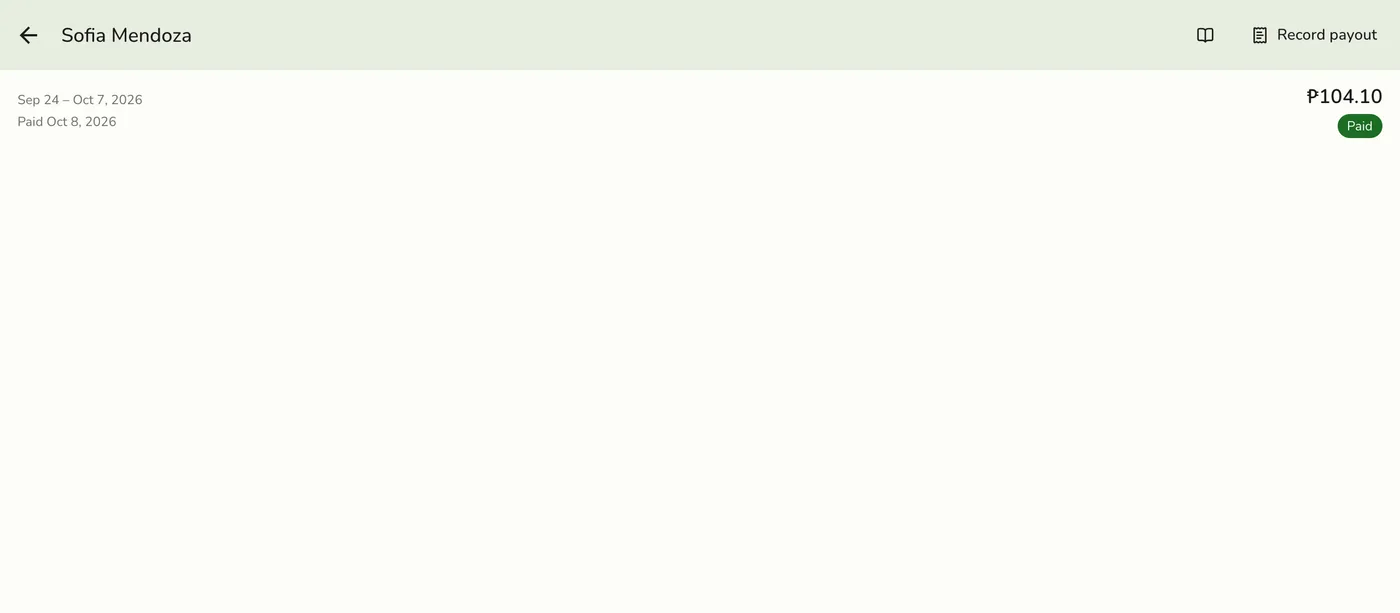
On the staff member's Commissions tab tap Record payout, or More → Record payout. Pick the period beside their name. It defaults to the last completed pay period, and starts the day after their last payout's end if that payout already covers part of it.
Review the draft
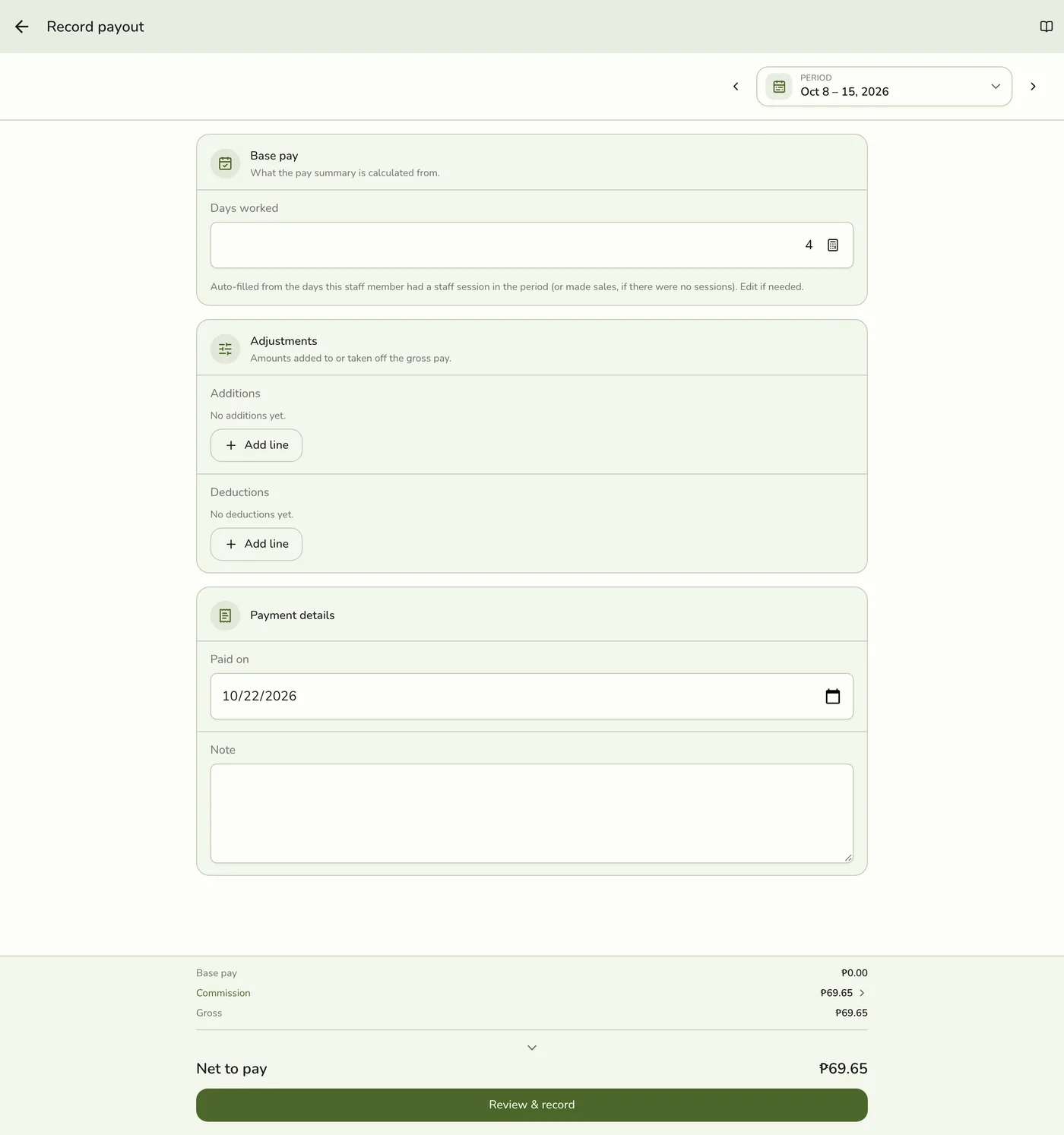
Fuze fills in days worked and base pay, and you can adjust them. The summary pinned at the bottom shows Base pay, Commission, Gross, each addition and deduction, the automatic Advance repayment, and Net to pay, with Advance balance remaining if some is still owed. Tap Commission to see its orders.
Add lines if needed
Tap Add line for an addition (bonus, reimbursement) or a deduction (uniform, damage). Enter a label and amount.
Additions and deductions — screenshot coming soon
Review and record
Tap Review & record, check the statement and confirm. Every unpaid entry in the period is stamped paid, the advance repayment is recorded, and the payout opens like a payslip. Statement (PDF) is at the top.
The recorded payout — screenshot coming soon
What happens next
- Unpaid commission becomes Paid, advances are repaid oldest first, and the payout shows on the staff member's Payouts page.
Edge cases
- Days worked count days with a terminal sign-in, else days with a sale, else the days the person is scheduled to work in their staff schedule, up to today. Someone with no schedule shows 0 days, so type the days in. Weekly and monthly base pay is prorated, and monthly is exactly half for the 1st to 15th or 16th to month end.
- A period that ends after today shows a warning and Record payout stays off until you tick the box. It covers up to the day it is recorded, and the rest goes into the next payout, which starts the day after. A sale made later that day, after you recorded, is in neither. Record at day's end.
- Cash advances. Do not add an advance as a deduction. The payout repays it, up to what the person has coming, never below ₱0. With ₱380.50 earned and a ₱500 advance, the statement shows Advance repayment −₱380.50, Net to pay ₱0.00, Advance balance remaining ₱119.50. Deleting a payout undoes the repayment. See Cash Advances.
- Written consent. Philippine labor rules (Labor Code, Article 113) restrict wage deductions. Repaying an advance from pay is normally backed by the staff member's written authorization. This is guidance only. Fuze does not record it.
- If figures change mid-edit, because a sale, refund or void was recognized or an advance recorded, Fuze asks you to review the refreshed numbers.
- One payout per person per day. You cannot be paid twice for the same day, even with two managers recording at once. Pick a period that starts after the last covered day.
- Deductions larger than pay are refused, since a payout is never negative. A period cannot end after the current pay period.
- A refund after a payout. The commission taken back lands in a later period. If that period nets below ₱0 it cannot be paid on its own; the amount carries into the next payout and comes off what the person earns then.
- Fixed pay. On a fixed-pay type, commission is left out of the payout and stays unpaid instead of being marked paid, so changing someone's pay type before you record never loses what they earned.
- Delete a payout from its page. Its commission becomes unpaid again and the advance repayments are undone.
- Organization people. The app shows Paid by the organization, and the statement and payout are refused. Payouts recorded before they joined stay listed, printable and deletable. See Organization Pay Runs.
- Payouts and cash advances are separate permissions. Recording a payout needs Payouts → Manage. Giving or deleting a cash advance is a different card, Cash advances, so a payroll clerk can pay staff without handing out advances. A payout still repays any open advance automatically, whoever recorded it. Deleting a payout needs Payouts → Delete. Recording a cash advance from the Commissions tab needs the Give permission on the Cash advances card.
Works with
| Add-on or plan | What changes on this page |
|---|---|
| Staff Pay add-on | Required. Free during the free trial. Without it the commission, payout and cash advance screens are hidden and no commission is recorded. |
| Staff Operations add-on | Optional. A PIN sign-in proves who tagged each line. |
| Staff Commissions preference | The switch inside Staff Pay that turns commissions on. See Turning On Commissions. |
| Organization add-on | The organization's people earn commission here but are paid by the organization's pay runs. See Organization Pay Runs. |