

Staff Commissions Report
The report needs the Staff Pay add-on, commissions turned on, and permission to view or manage commissions. It does not need an advanced reports plan.
Before you start
- The Staff Pay add-on, with Staff commissions on.
- Commissions · View or Manage.
Steps
Open the report
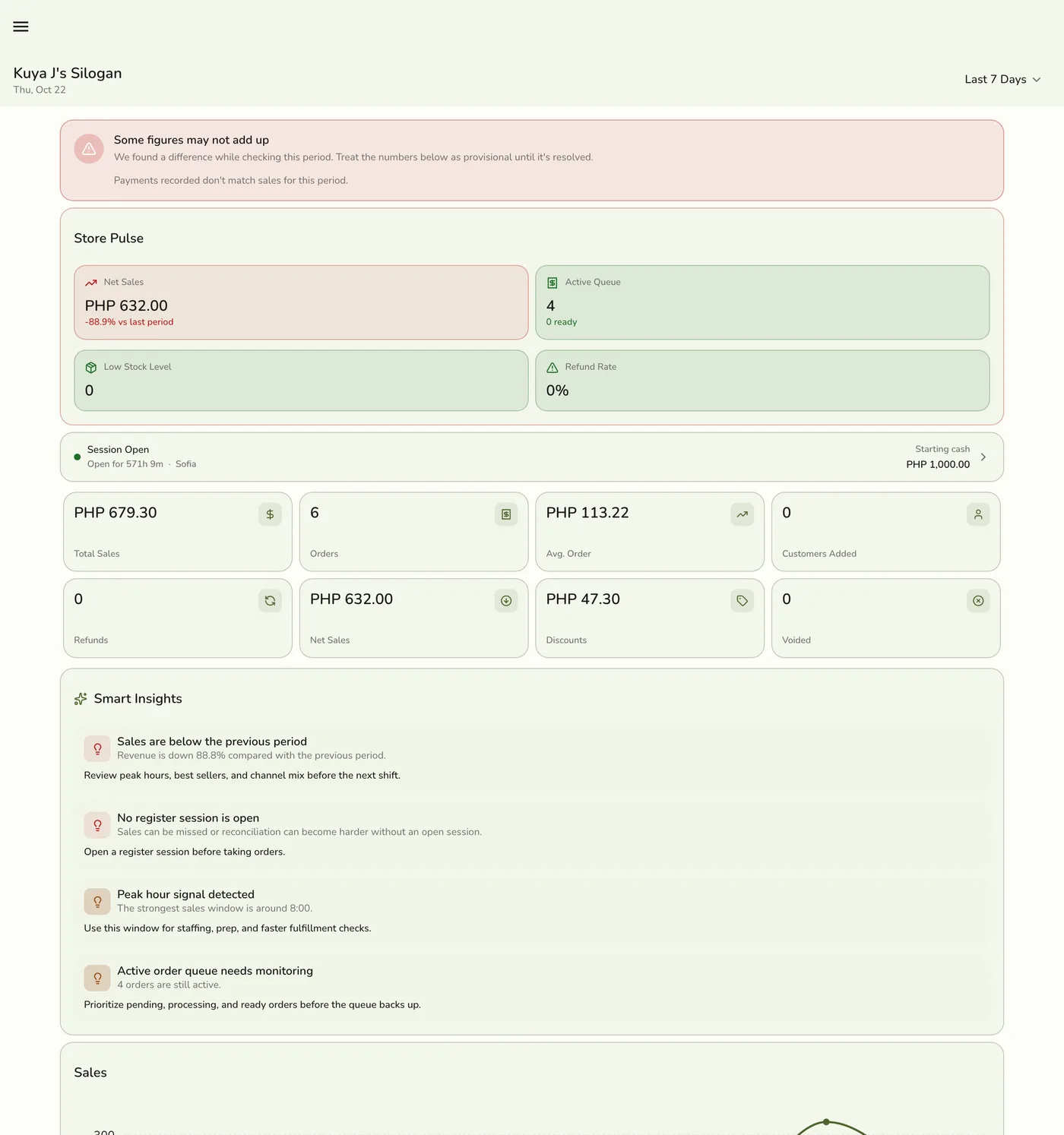
Open the drawer → Reports → Staff Commissions. The card shows only where commissions are on, to staff who may see them.
Pick the period
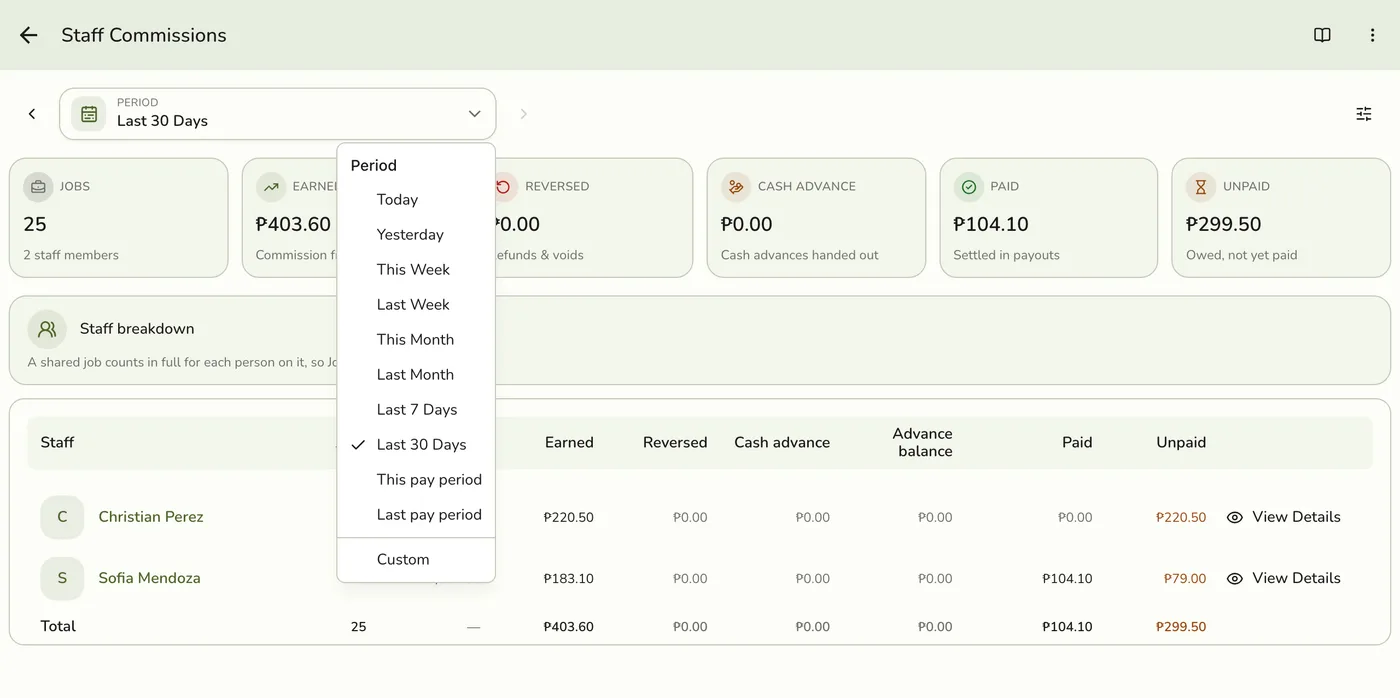
Tap Period and choose one, including This pay period and Last pay period, which follow your store's pay schedule.
Filter to one person if needed
Tap Filters, pick a staff member and Apply. Their name shows as a chip. Close it to go back to all staff.
Read the rows
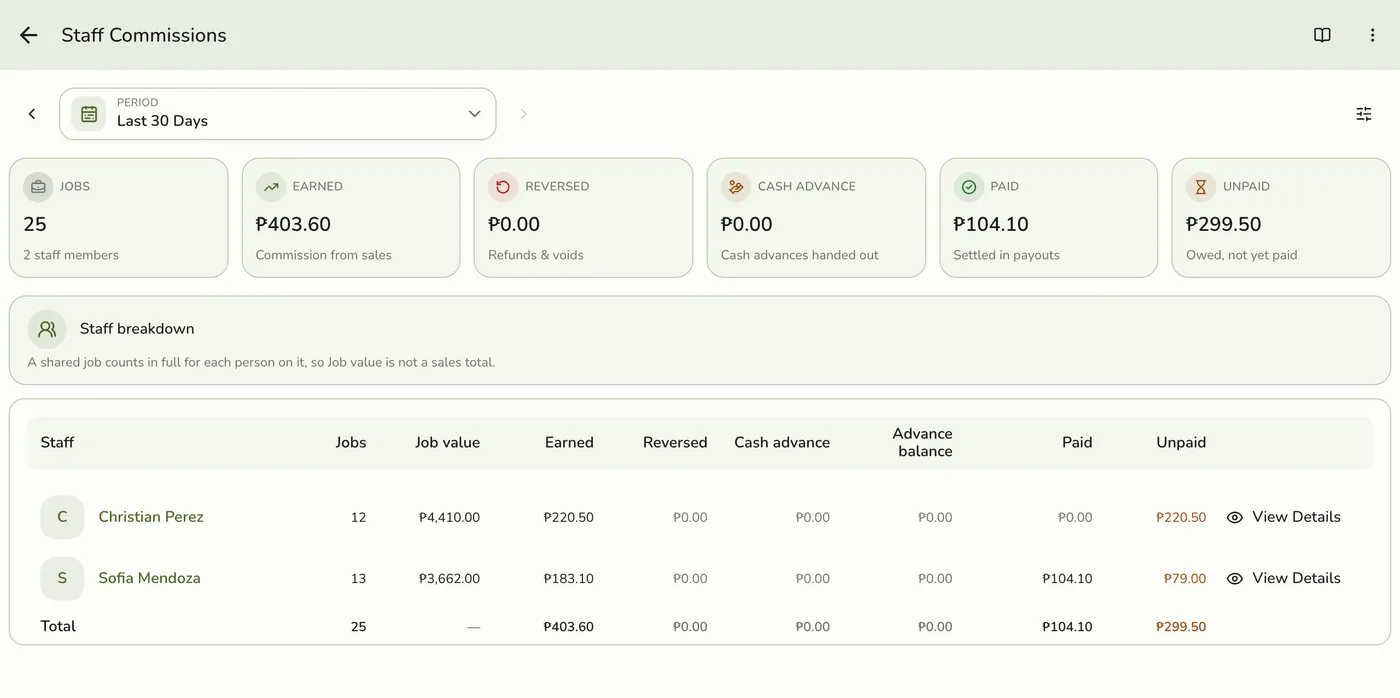
One row per person: Jobs, Job value, Earned, Reversed, Cash advance, Paid and Unpaid. Tap a name to open their Commissions page, where you record payouts.
Per-staff commission rows — screenshot coming soon
Export
Tap ⋯. Export Excel is the payroll sheet. Export PDF is one staff member's pay statement, so pick them in Filters first.
The export menu — screenshot coming soon
What happens next
- The report only reads the commission ledger. Payouts and cash advances are recorded on each staff member's page.
Edge cases
- Job value is not a sales total. When two people share a job, each is credited the whole job's value, and the rate is what is split. A ₱900 job done by two shows ₱900 for each, so the Total row shows a dash for Job value. Use the Sales report for sales totals.
- Cash advances are never Paid or Unpaid. They show in their own figure and net against the next payout.
- Organization pay runs. Commission paid by an organization pay run counts as Paid, with a note saying how much. In the payroll sheet those rows read Organization in Status. The PDF is not available for an organization person.
- Excel extras. The Summary sheet carries YTD job value (net) and YTD commission (net) to the period's last day, after refunds and voids.
- Refunds show in Reversed for the period they happened in, not as a change to an earlier Earned.
- Both exports need permission to download reports. On Android the app first asks for a folder.
- No comparison with an earlier period.
- Paid looks lower than they received? Check Cash advance.
- How every report works. The period, comparison and export controls are the same on every report. See How every report works.
Works with
| Add-on or plan | What changes on this page |
|---|---|
| Staff Pay add-on | Required, with commissions on. |
| Plan | Not tied to the plan's report level. |
| Organization add-on | Pay runs count as Paid. |