

Daily Sheet Report
The Daily Sheet is a digital version of the paper sheet many shops keep by hand: the day's orders, the cash you should have, and who worked.
Before you start
- A plan with Reports (Starter and up).
- The Reports · View permission.
Steps
Open the Daily Sheet
Open the drawer → Reports → Daily Sheet. It opens on the last day of the period you were viewing, or today. Use the day picker to move to another day or jump back to Today.
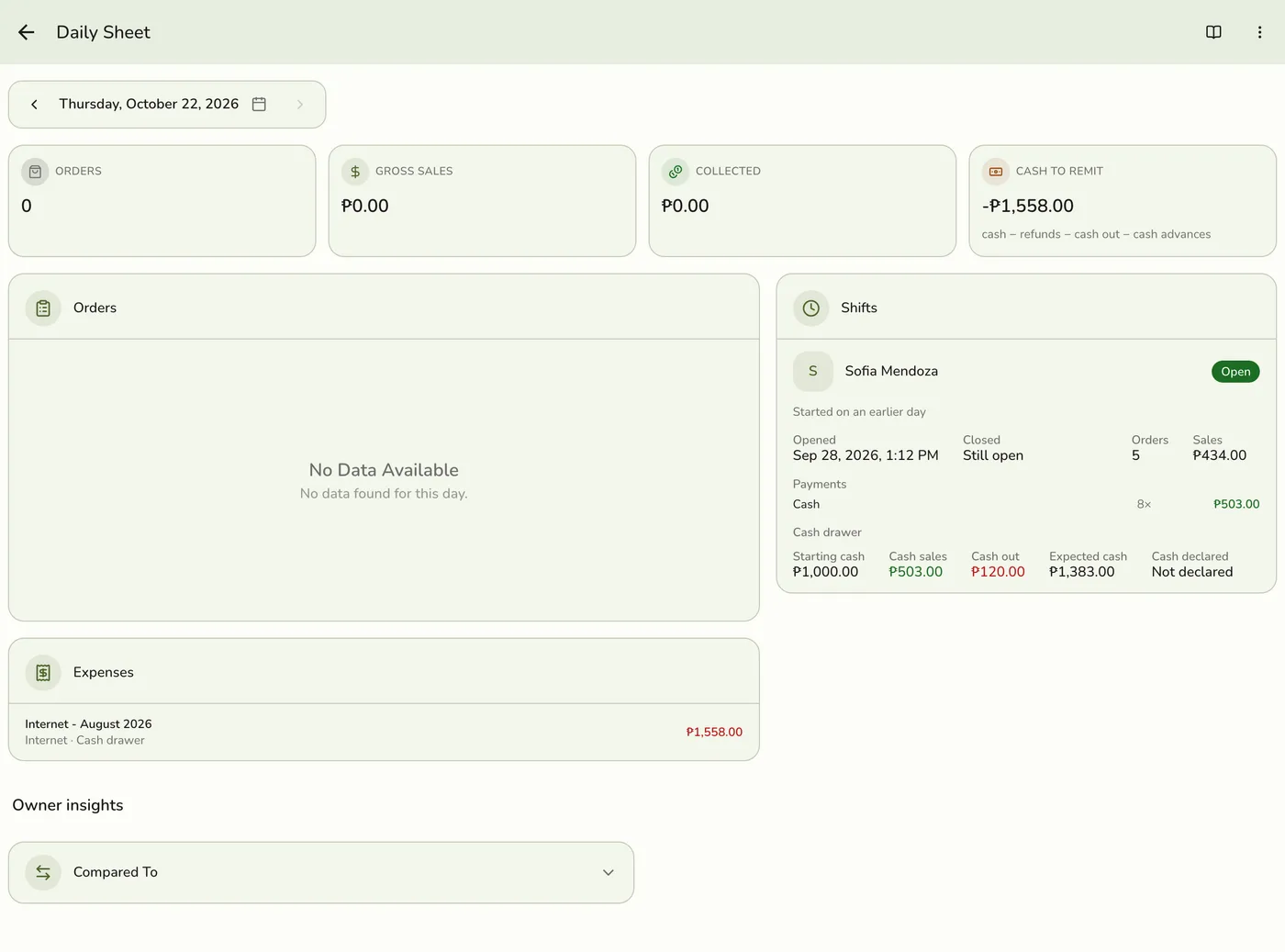
Read the sections
Shifts (needs Store Session): one card per cash session. Summary: orders, gross sales, collected and Cash to remit. Pace: sales by hour, then leakage (discounts, refunds, voids). Payments, Items sold, Staff totals, Jobs, and Cash advances and expenses. Each shows only when it has something to show.
Daily Sheet sections — screenshot coming soon
Open Owner insights
Expand compared to last week, money owed, returning customers, on duty and tomorrow.
Owner insights sections — screenshot coming soon
Export it
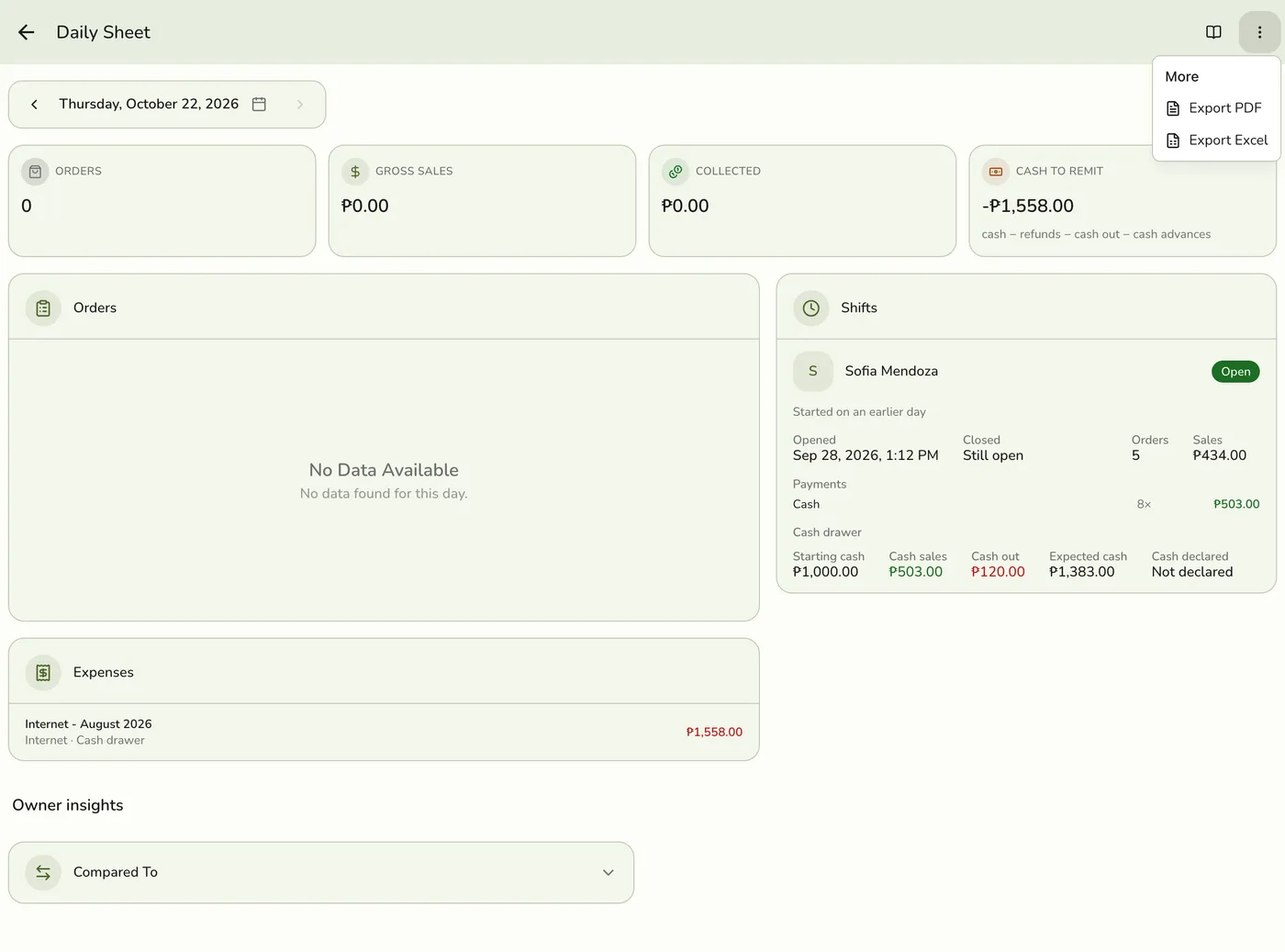
Tap ⋯ and choose Export Excel or Export PDF. The menu shows only to staff who may download reports. Both carry the same sections.
What happens next
- The date lives in the screen's link, so you can bookmark or share a link to a day.
Edge cases
- Which orders count. A completed order counts on the day it was completed. A job paid in full before it is finished counts on the day it was paid and shows a Paid, in progress badge. A job only part paid is not counted yet, its payment shows under Payments for the day you took it, and the job is under Money owed. Other reports count a sale on the day it is completed.
- Cash to remit is cash collected, minus cash refunded, minus approved expenses paid from the cash drawer (or each Cash Out without the Expenses add-on), minus cash advances paid out in cash, each counted on the day the cash moved. It leaves out opening cash and Cash In, so with one shift it equals that shift's expected cash minus its starting cash. An expense tagged Other was paid another way and is not subtracted.
- Refunds. Sales reports take a refund off the day of the sale. Cash to remit and the shift take it off the day the cash went back.
- Money owed counts what went to each order, not what was handed over. Change and tips do not pay the bill: an order paid ₱100 with ₱10 a tip shows ₱10 short.
- Commission is earned when the job is completed. A job paid Monday and finished Wednesday shows its staff on Monday without an amount, and the commission appears on Wednesday. A staff row shows the line's own commission math whatever their pay type, so check their pay statement for flat wages.
- Staff totals add Cash advance and Net rows only when that person has an advance.
- Items sold groups products and services under their category, with a category total. A product in several categories counts once, under the first by name.
- Order details on the Jobs list. Add Reports under Show on for a service detail field in Preferences → Service Context. Stores made before this option need to turn it on once. An order with two cars shows both values.
- A missing section has nothing to show. A store with no cash advances shows none, and one without Store Session shows no Shifts.
- Needs a wide screen for two columns. On a phone it runs top to bottom.
- Kept 30 seconds on the server, so a pull to refresh may be needed.
Works with
| Add-on or plan | What changes on this page |
|---|---|
| Plan | Reports Basics need Starter and up. The free Basic plan has no Reports, only the Dashboard. |
| Store Session add-on | Adds Shifts and drawer figures. |
| Expenses add-on | Expenses paid from the drawer. |
| Staff Operations add-on | On duty. |
| Staff Pay add-on | Commissions and cash advances today. |