

Transaction Report
Transactions is a Basics report. The API also allows it when advanced reports are on.
Before you start
- A plan that includes this report.
- The Reports · View permission.
Steps
1
Open the report
Open the drawer → Reports, then tap Transactions.

2
Pick a period
Tap Period and choose Today, Yesterday, This or Last Week, This or Last Month, Last 7 or 30 Days, or Custom dates. Weeks start on Monday and periods follow your store's time zone.

3
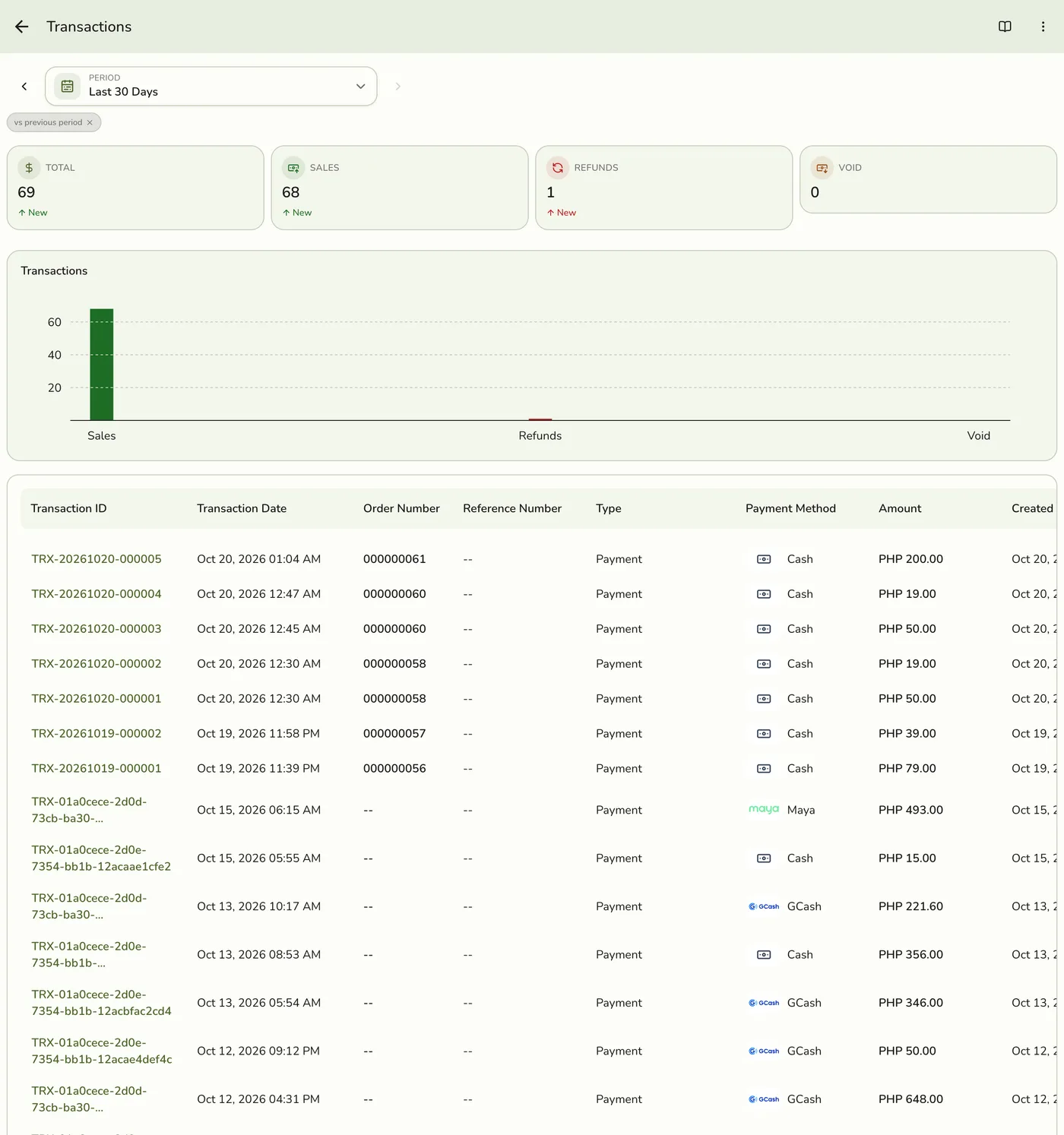
Read the four counts
Total, Sales, Refunds and Void, with a chart setting the three side by side.
4
Scroll the list
The transactions for the period. More rows load as you reach the end.

What happens next
- Only completed and closed orders count, at the moment they were completed. Pending, held, voided and cancelled orders are left out.
Edge cases
- Export Excel is on the ⋯ menu, on every plan with Reports. It is the one export Basics allows.
- This is the summary report. To find and read a single payment, use the Transactions screen.
- Compared the same way as the Sales report.
- How every report works. The period, comparison and export controls are the same on every report. See How every report works.
Works with
| Add-on or plan | What changes on this page |
|---|---|
| Plan | Reports Basics need Starter and up. The free Basic plan has no Reports, only the Dashboard. |