

Staff Performance Report
It shows each person's sales contribution, which is not the same as what they earned in commission.
Before you start
- A plan that includes this report.
- The Reports · View permission.
Steps
Open the report
Open the drawer → Reports, then tap Staff Performance.

Pick a period
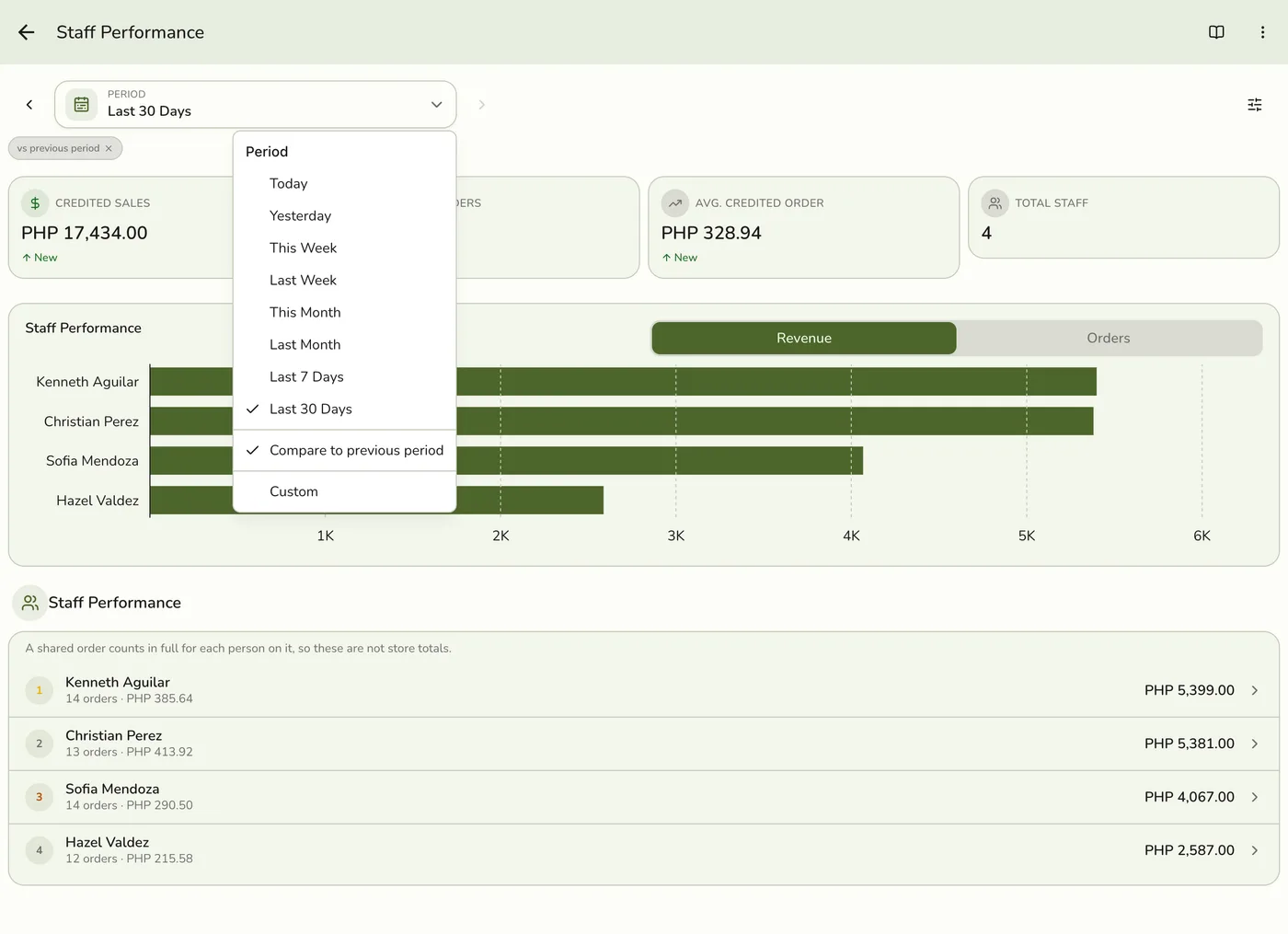
Tap Period and choose Today, Yesterday, This or Last Week, This or Last Month, Last 7 or 30 Days, or Custom dates. Weeks start on Monday and periods follow your store's time zone.
Read the figures and the list
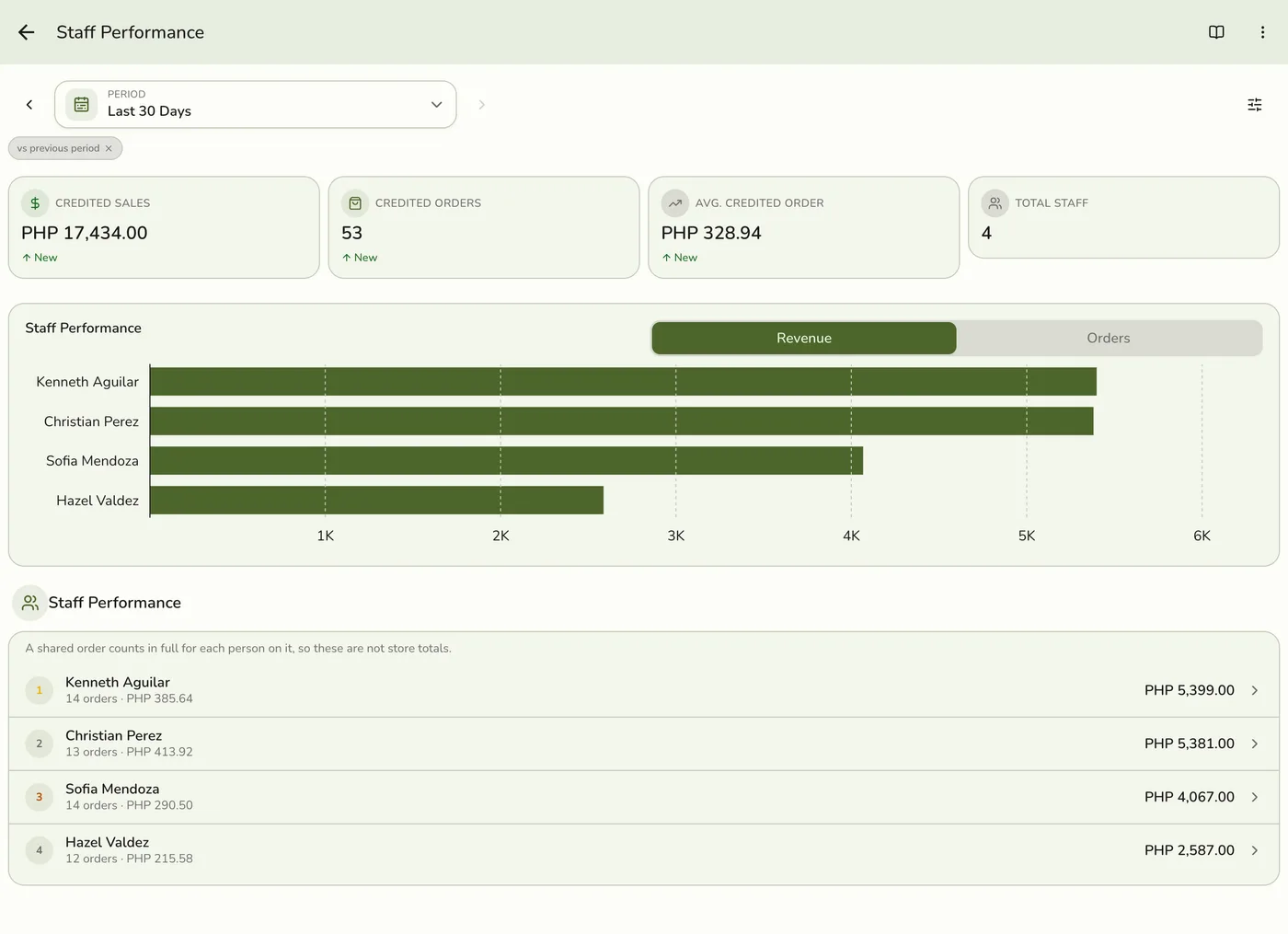
Net Sales, Orders, Average Order Value and the number of staff, a chart of the top ten (switch between Revenue and Orders), and a ranked list with each person's orders, average credited order and sales.
Open one person
Tap a row, or open Filters and pick a staff member. You see four figures (Net Sales, Orders, Average Order Value and Team share) and their credited lines, grouped by order with the newest first. Tap the × on their chip to go back to everyone.
Staff Performance Report: open one person — screenshot coming soon
What happens next
- Only completed and closed orders count, at the moment they were completed. Pending, held, voided and cancelled orders are left out.
Edge cases
- Opening one person needs Standard. On Lite the list still shows, and opening a person shows a note about the Standard plan in place of their lines.
- Attribution is by line. A line with its own staff credits each person on it in full. A line with none falls back to the order's staff, shown as Order assignment. A shared line shows With and a name. A person tagged on both the order and a line counts once.
- Net sales basis. What the items sold for after discounts, without tax, service charges or delivery. An order-wide discount is shared across lines in proportion to their value.
- A person's total is not the whole order when different staff worked different lines.
- Not the same as commissions. A person can show sales here but no commission, depending on their rate and pay type. See Staff Commissions Report.
- Refund count on the per-person view reads 0 today.
- How every report works. The period, comparison and export controls are the same on every report. See How every report works.
Works with
| Add-on or plan | What changes on this page |
|---|---|
| Plan | Advanced reports need Lite and up. On Starter the card is hidden and the server refuses the report. |