

Hourly Sales Report
Use it to plan staffing for peak windows. For a day and hour grid, use Sales Heatmap.
Before you start
- A plan that includes this report.
- The Reports · View permission.
Steps
1
Open the report
Open the drawer → Reports, then tap Hourly Sales.

2
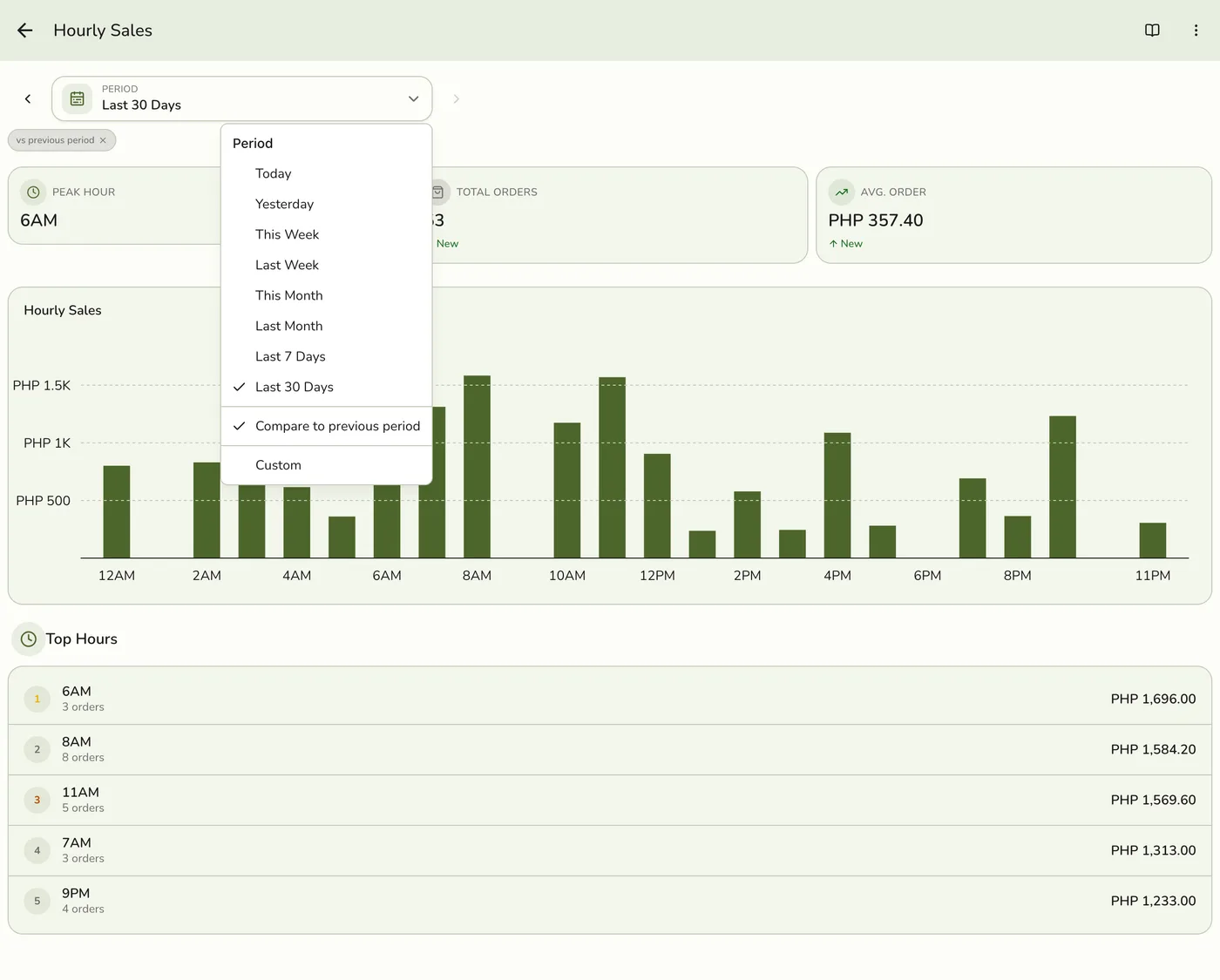
Pick a period
Tap Period and choose Today, Yesterday, This or Last Week, This or Last Month, Last 7 or 30 Days, or Custom dates. Weeks start on Monday and periods follow your store's time zone.
3
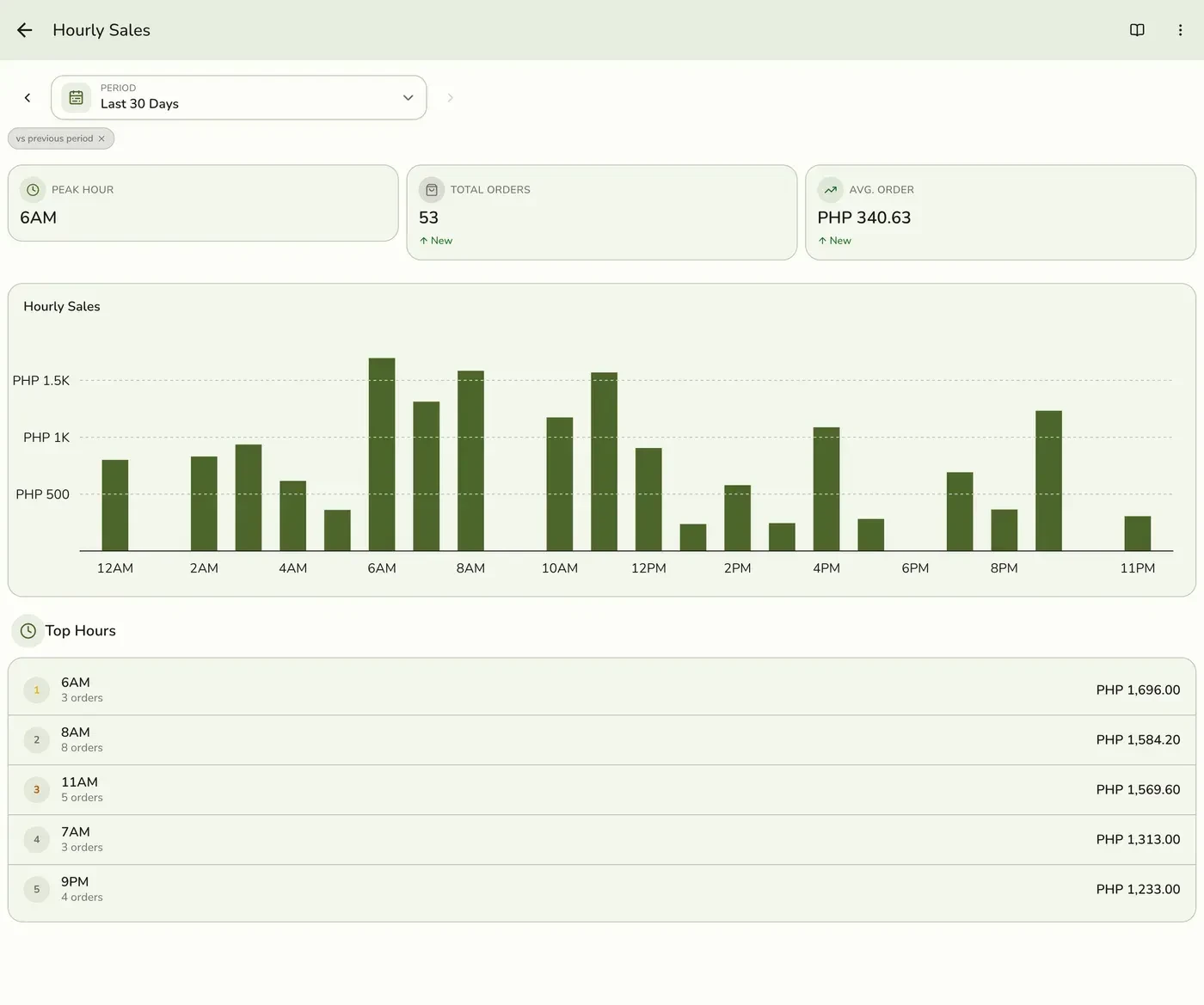
Read the figures and bars
Peak Hour, Total Orders and Average Order Value, a bar for each hour of the day, and the five busiest hours under the chart. The change against the period before shows on the figures.
What happens next
- Only completed and closed orders count, at the moment they were completed. Pending, held, voided and cancelled orders are left out.
Edge cases
- By your clock. Each of the 24 hours is in the store's time zone, so a late-night hour lands on the day your staff worked it.
- A weekday and hour grid is the Sales Heatmap, which needs Standard.
- How every report works. The period, comparison and export controls are the same on every report. See How every report works.
Works with
| Add-on or plan | What changes on this page |
|---|---|
| Plan | Advanced reports need Lite and up. On Starter the card is hidden and the server refuses the report. |