

Dashboard Overview
The Dashboard is the home screen after you select a store. It summarizes the period you pick, and it is the only part of reporting on the free Basic plan.
Before you start
- The Dashboard · View permission.
Steps
Open the Dashboard
Select your store. The Dashboard is the first screen.
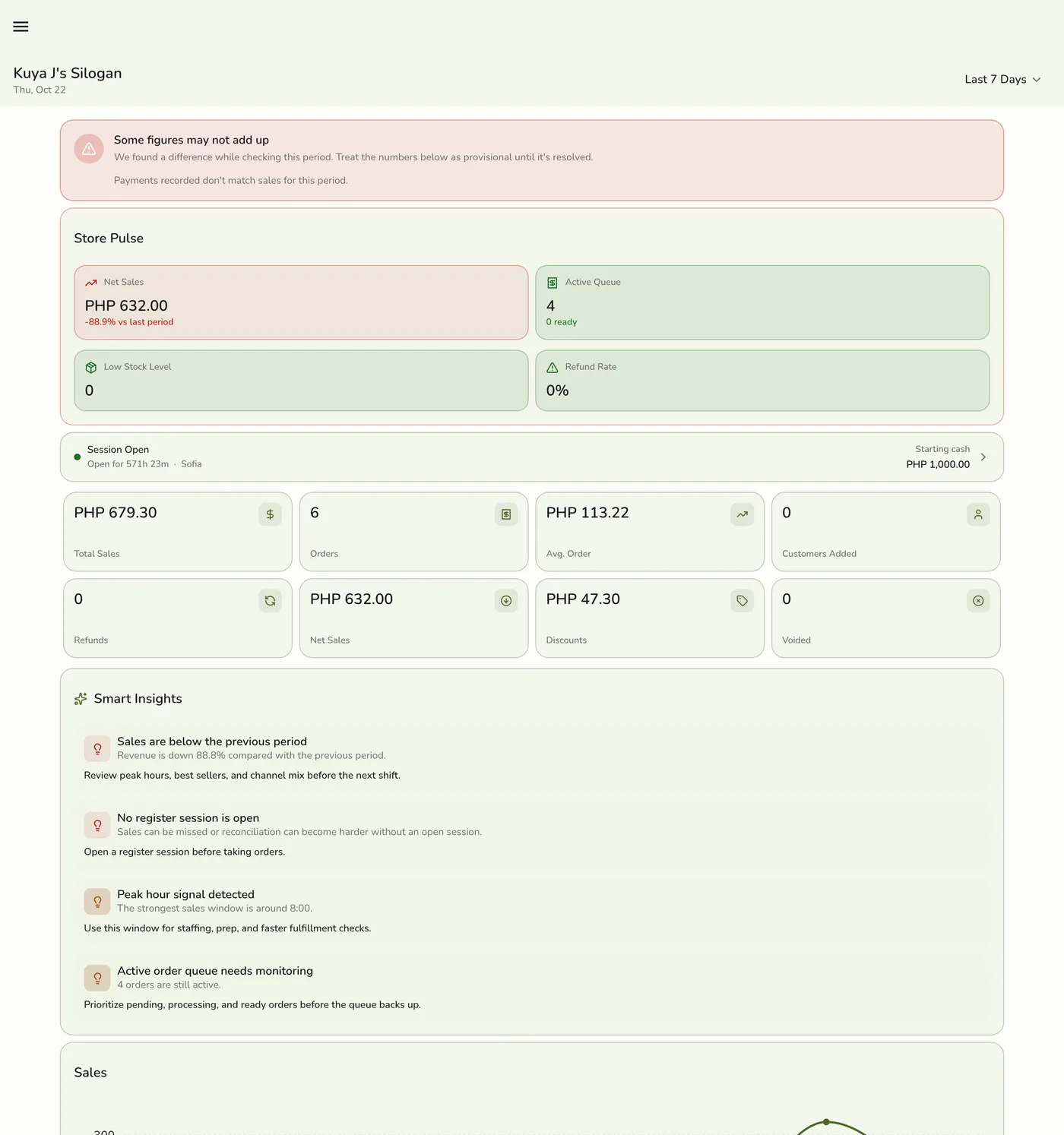
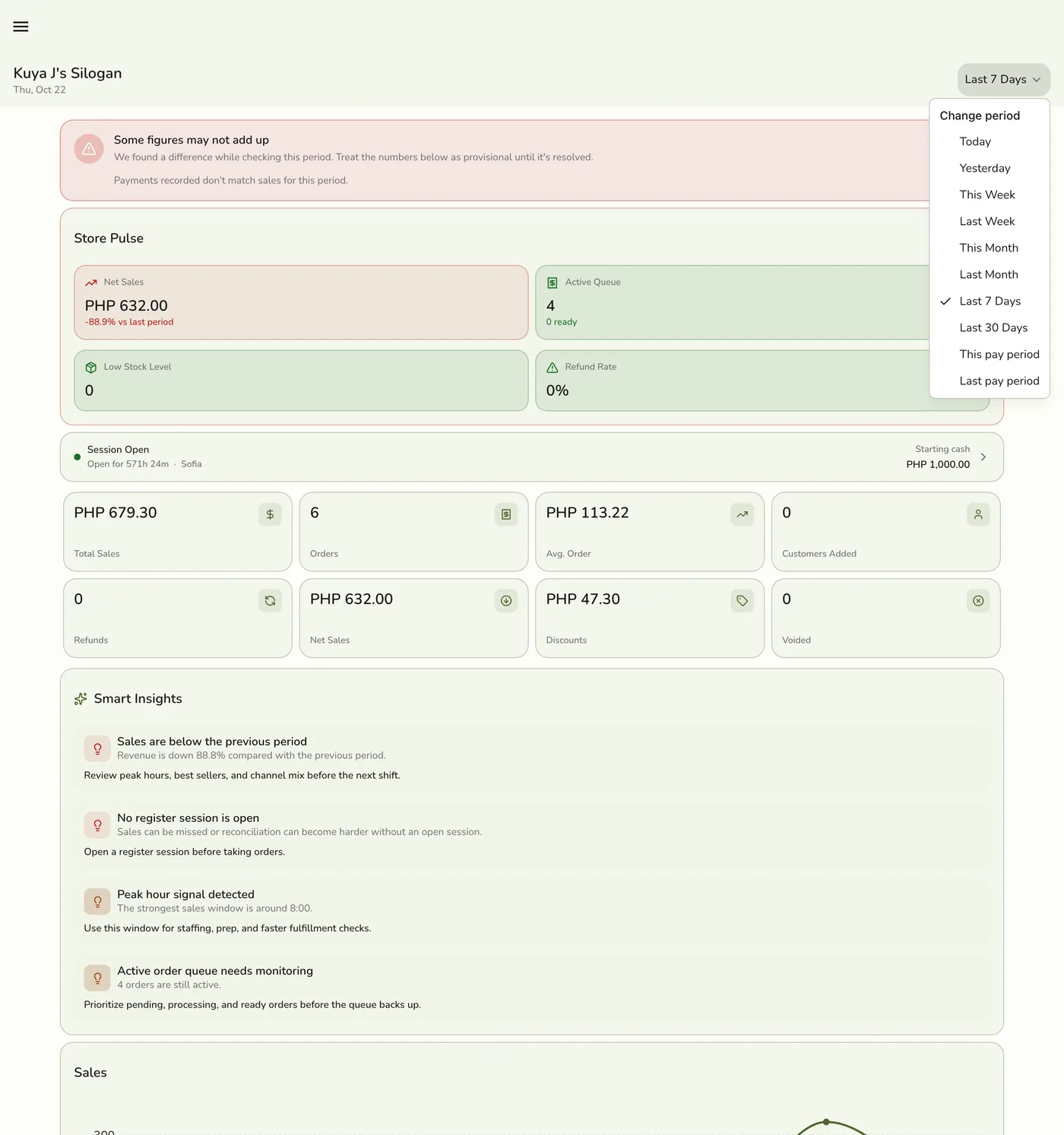
Pick the period
Use the filters: Today, This week, This month, Last 7 or 30 days, or a custom range. Weeks start on Monday, so This week matches Reports.
Read the cards
Store Pulse shows Net Sales (completed and closed orders after discounts and completed refunds), Active Queue and Refund Rate. Smart Insights are short observations. Operations shows Active Orders, Peak Hour and Table Occupancy. Inventory Watch shows Urgent Restocks and best-seller low stock. Customer Snapshot shows Average Spend and Top Customer.
Dashboard cards — screenshot coming soon
Check the banner, if there is one
A banner "Some figures may not add up" means the Dashboard's own checks found a difference. Expand it to see which check failed, and fix it using the table below.
The provisional figures banner — screenshot coming soon
What happens next
- The Dashboard compares headline figures with the previous period of the same length, such as net sales with the previous net sales.
Edge cases
- One set of definitions everywhere. Average order value is your sales of goods, before discounts and with tax included, divided by orders. Refund rate is the refunded part of those sales as a percentage. Discount rate is discounts as a percentage of them. Service charges and delivery fees are not sales of goods and are left out.
- Refunds count, the refunded amount and the Refunds card all read the refunds on orders counted in the period. A refund on an order still in progress is left out until that order is completed or closed. Giving back an overpayment does not lower net sales, because that money was never a sale.
- Cards that do not apply stay hidden. Table Occupancy needs units, and shows more with Floor Plan. Links into the Advanced Inventory hub need that add-on.
- The check banner. Payments do not match sales: settle the short or over-paid orders in Transactions. The per-tax breakdown does not add up: review Taxes. Expense categories do not add up: categorize the expense. Some sold items have no category: give them one on the product form. Some orders have no order type: set a default in Preferences. No cashier session was recorded: open a session before selling, see Store Sessions. Some sold items have no cost: enter Cost on the product's Pricing tab.
- The Dashboard is kept for 30 seconds on the server, and a pull to refresh asks for a fresh copy at most once every 10 seconds.
- Use Reports for depth, if your plan includes them.
Works with
| Add-on or plan | What changes on this page |
|---|---|
| Plan | The Dashboard is on every plan. Reports need Starter and up. |
| Floor Plan add-on | Adds to Table Occupancy. |
| Advanced Inventory add-on | Links from Inventory Watch. |