

Receipt and Ticket Design
Every document Fuze prints, from receipts to labels, comes out of one shared print engine. The same engine draws the preview and the paper, so what you see is what prints.
Before you start
- A printer set up. See Connecting a Printer.
Steps
Run a test print
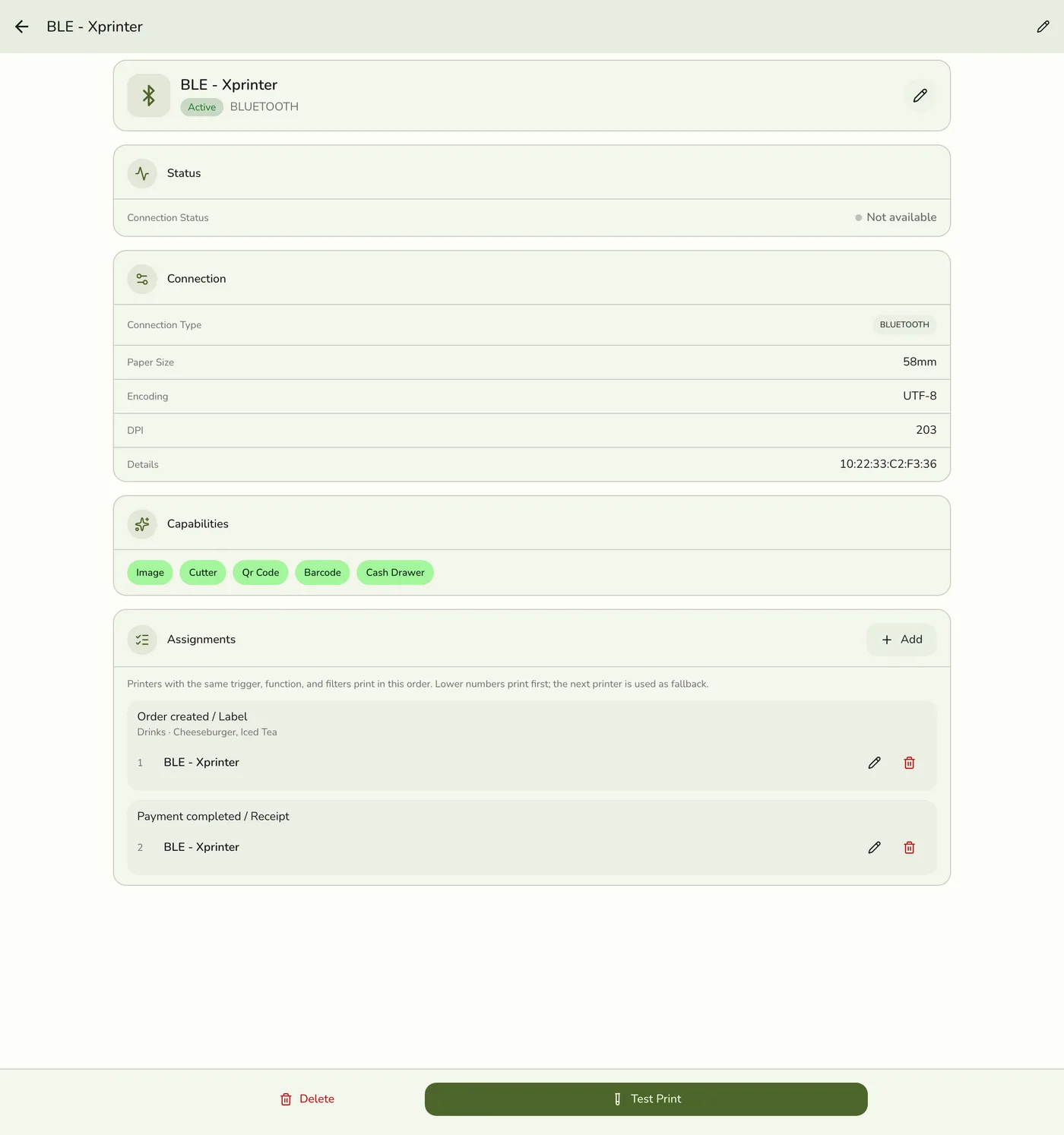
Open the printer's detail page and tap Test print. It prints a ruler, alignment and bold samples, the date and the terminal name. A good test page means the printer, paper width and connection are right. If real receipts still look off, the cause is data, such as a missing TIN.
Check the paper width
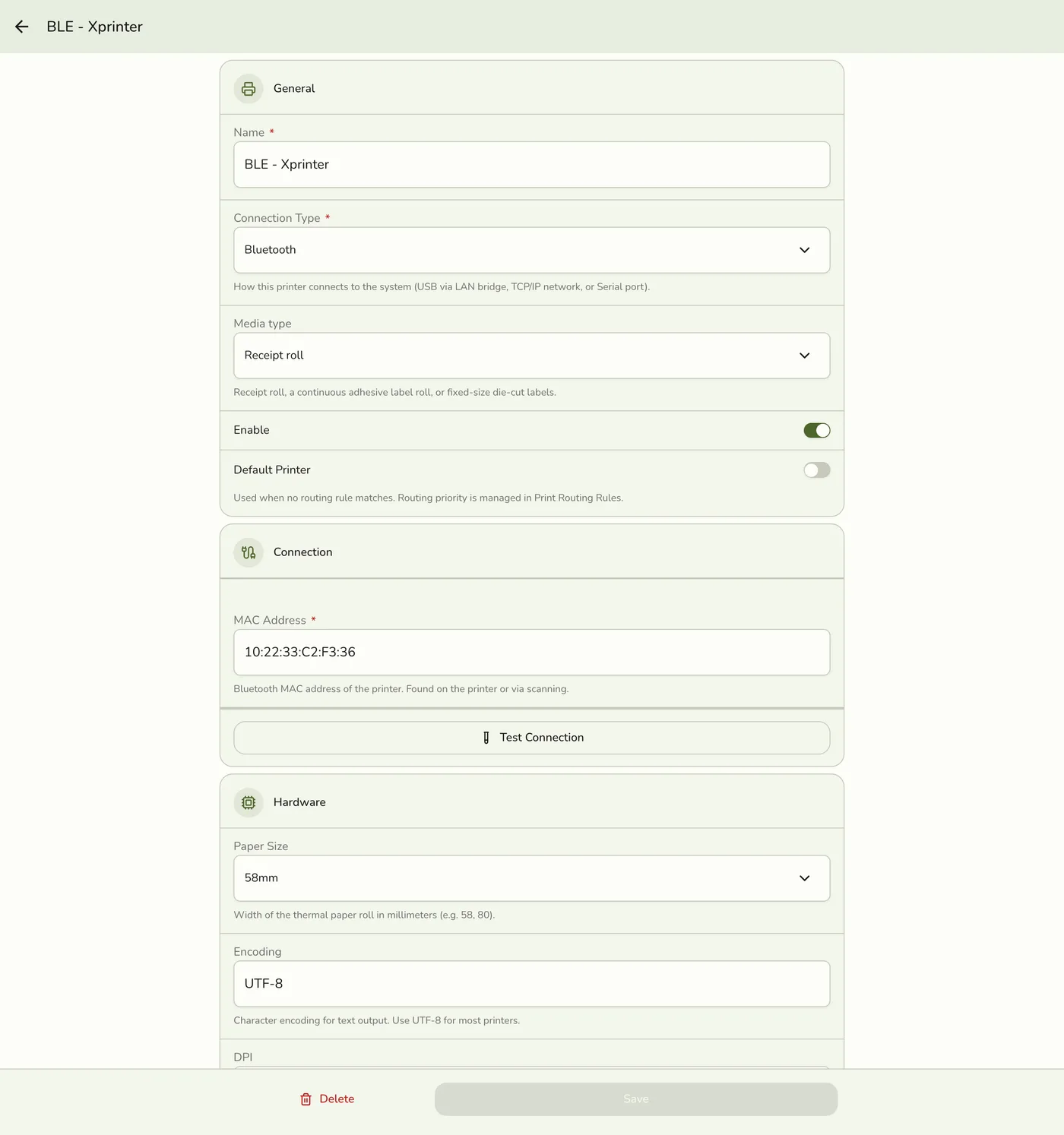
Set Paper width to 58mm (32 columns) or 80mm (48 columns) to match the paper loaded.
Turn on the cash drawer if you have one
Tick Cash drawer on the printer that a drawer is wired to. See the cash drawer rules below.
The Cash drawer capability — screenshot coming soon
Reprint when needed
On a finished order tap Print again. The copy carries a DUPLICATE / REPRINT band and the line "Not for refund or warranty claims."

What happens next
- Each document prints in the same layout on Bluetooth and Hub printers.
Edge cases
- Documents. Sales receipt (payment completed), kitchen ticket, bar ticket, customer bill (before payment), official receipt, refund receipt, queue ticket, order sticker (one label per item unit), delivery slip and a test page.
- Layout. 32 columns on 58mm and 48 on 80mm. The store name prints bold and double height, then your address block, with each line only when you have it. Money prints with thousands separators and the currency once in the header, because many printers cannot print ₱. Dates read like Apr 15, 2026 2:32 PM in your store's time zone. Receipts close with an item count, and a "Powered by Fuze Store" line, which Premium and trial stores omit.
- Receipt contents. A Sold to, Address, TIN and Business Style block (blank for walk-ins), the cashier or assigned staff, the order type, payment tendered and change, and a VAT analysis (VATable Sales, VAT 12%, VAT-Exempt Sales, Zero-Rated Sales) when your store has tax. Stores without tax skip it.
- Not an official receipt. Until your store has a BIR Permit to Print Official Receipts, the receipt prints two notice lines: THIS IS NOT AN OFFICIAL RECEIPT and NOT VALID FOR CLAIM OF INPUT TAX. They go away once the permit is approved.
- Kitchen and bar tickets. Store name, a bold KITCHEN ORDER or BAR ORDER band, a large order number, the order type, then customer, table, guests, staff and times when known, an ORDER NOTE block, numbered double-height items with modifiers and notes, and a TOTAL ITEMS (or TOTAL DRINKS) count. Prices never print. A reprint carries a REPRINT banner. A category-limited rule counts only its items.
- Cash drawer. A cash payment opens it, part payments included, and so does a split with any cash. A card or e-wallet payment that gives change opens it. A card-only or e-wallet-only payment does not. A cash refund opens it. The kick rides on the receipt when it prints on a drawer printer, otherwise a drawer pulse is sent on its own. Turn on Open the cash drawer for non-cash payments in Preferences → Printing & Devices to open it for every payment and refund. If Fuze cannot tell what a payment used, it opens. Reprints, kitchen and void slips, bag tags, claim slips, the customer bill, the Z-report and any print where you pick the printer never open it. The standalone Test print through the Hub does not either.
- Language. Documents print in the engine's built-in English labels today. Your own data, such as item names and notes, prints as typed.
- Legal footers. A TIN, OR prefix and footer lines come from your store's tax settings, so switching tax regions is a settings change.
- Peso sign. If your printer cannot print ₱, the currency code in the header covers it.
Works with
| Add-on or plan | What changes on this page |
|---|---|
| Plan | Printing is included in every plan. |