

Printer Troubleshooting
Applies toEvery plan, including free BasicNeeds Printers · Modify; Point of Sale · ModifyUsually owner, manager, cashier
Each fix follows the same shape: the symptom, the likely cause, and what to do. If nothing helps, contact support with the printer model, the connection type and any message you see.
Before you start
- A printer already added.
Steps
1
Run a Test print
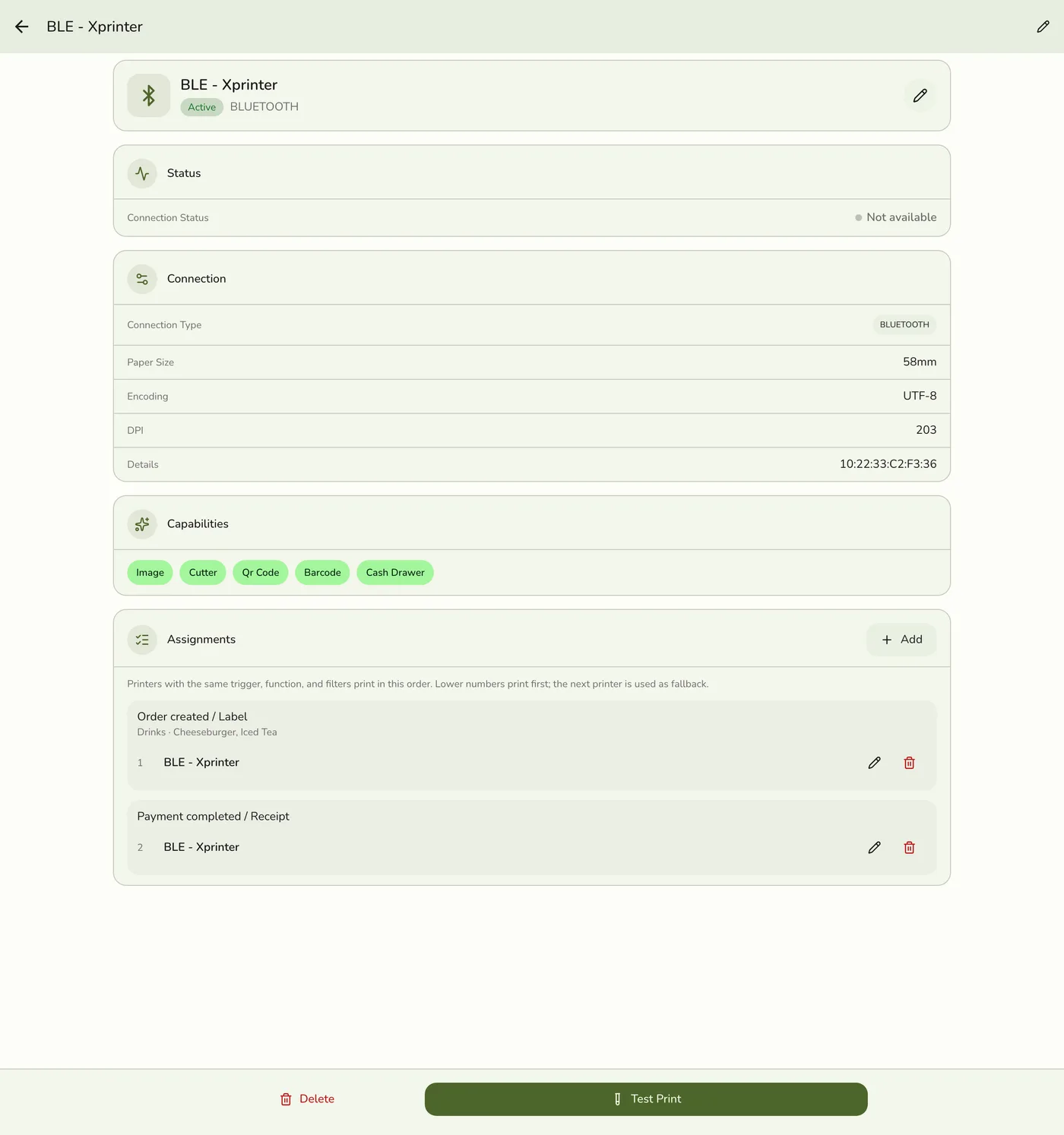
Open the printer's detail page and tap Test print. It shows whether the device, connection and printer work. A USB, network or serial printer needs a connected Hub, otherwise the app says one is needed.
2
Read the message
Most messages carry a button to the fix. See the message table in Print Queue and Status.
A print failure message with a button — screenshot coming soon
3
Check the status and queue
On the printer page, read Status and the Status & Queue card. Retry failed jobs once the printer is healthy.
Printer status and queue — screenshot coming soon
What happens next
- Fix the cause, then Try again or let the queue retry.
Edge cases
- Bluetooth printer not appearing. Power-cycle it into pairing mode, make sure Bluetooth is on and permitted, forget any other pairing since most printers hold one at a time, stay within about 10 meters, and scan again. The Add Printer list shows printers the phone already knows, so pair first in system settings.
- Network printer connection failed. Print a self-test page for the IP, put the POS and printer on the same Wi-Fi (not guest versus staff), and confirm port 9100.
- USB printer not found. Check that Discover USB Printers is active, meaning the device is paired with a connected Hub. Open
https://<hub-ip>:18443/healthto confirm the Hub is up. Reseat the cable or try another port. Windows: discovery finding it is enough, and you do not need to add it in Printers and scanners. If it is already there, name it in Fuze exactly as Windows does. If Test print fails with LIBUSB_ERROR_NOT_SUPPORTED, reinstall the Hub. macOS: remove the printer from System Settings, Printers and Scanners, since macOS claims it and prints are lost. The Hub names it in the message. Linux: add the udev rule the message gives, reload withsudo udevadm control --reload-rules, and replug. Restart the Hub, then discover again. You can also type the Vendor and Product IDs. - Garbled or square characters. Change the Encoding on the printer's edit page. UTF-8 for Latin scripts, GB18030 or GBK for Chinese, Shift_JIS for Japanese, EUC-KR for Korean, CP437 for older printers. Save and test.
- Wrong printer prints. Open the printer that got the wrong paper and check each assignment's function, trigger and filters.
- Duplicate prints. Two rules with the same function and trigger can both match one order. Delete or narrow one. For two copies on purpose, set Copies to 2 on one rule.
- A Hub printer shows Offline or Error. Offline on a network printer: the Hub cannot connect, so check power, cable or Wi-Fi and that its IP did not change. Offline on USB or serial: no Hub has found it for about 90 seconds, so check the cable on the Hub's computer, and with two Hubs plug it into one of them. Offline on every Hub printer at once: the Hub has stopped checking in. Error: the last print failed while the Hub could see it, so check paper, cover and jams. A Hub restart needs no test print.
- The queue is not draining. Check the connection badge for "LAN disconnected" and restart the Hub, check the printer's power and paper, run Test print, then retry failed jobs or wait 5 seconds.
- The cutter does not cut. Make sure Cutter is on in the printer's Capabilities, and check the manual for firmware or a cutter switch.
- "Front Counter unavailable" is not an error. The first printer could not print, so the next one did. Check the first printer when you can.
- Receipts clipped or half-filling the paper. Set Paper width to match the roll, 58mm or 80mm.
- Bluetooth permission denied. iOS: Settings, Fuze Store, Bluetooth on. Android: Settings, Apps, Fuze Store, Permissions, Nearby devices, then force-quit and reopen.
- No Hub for a wired printer. Test print and printing say a Hub is needed. A USB printer on a Mac that macOS also has installed fails with a message to remove it there.
- Printer needs a proprietary driver. Fuze uses ESC/POS, the standard for thermal printers, so such a printer will not work.
Works with
| Add-on or plan | What changes on this page |
|---|---|
| Plan | Printing is included in every plan. |
| Fuze Store Hub | Needed for USB, Serial and web-browser printing, and recommended for network printers. Bluetooth prints straight from the phone. |