

Displays Overview
A display is a device that shows part of your store to customers or the kitchen, full screen. You set one up in Configurations → Display, and every display setting is kept on that device.
What this covers
The three modes.
| Mode | Shows | Needs |
|---|---|---|
| Customer display | The cart, payment and thank-you | Customer Front Display add-on, Displays · Front Display |
| Waiting list | Now Serving and who is waiting | Waiting List add-on, waiting-list permission |
| Kitchen | Open kitchen tickets with timers | Kitchen Display add-on, Displays · Kitchen Display |
A mode card says whether the add-on or the permission is missing.
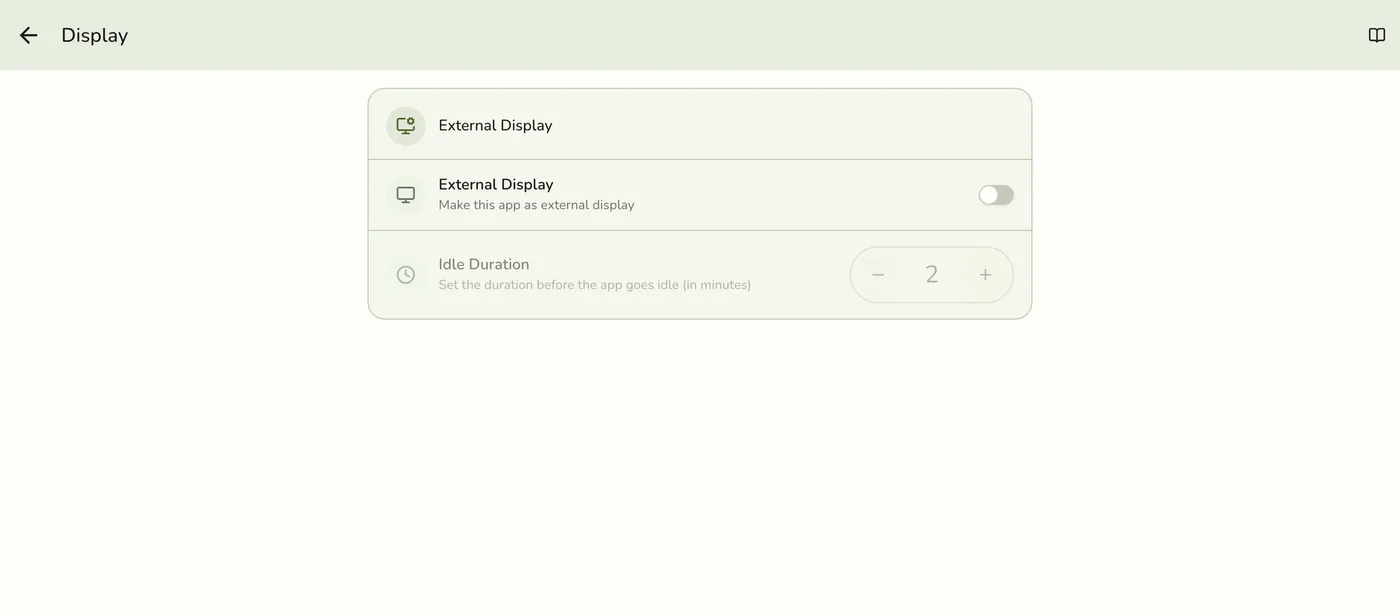
Set one up. (1) Open Configurations → Display on the device that will face the customer. (2) Turn on External display and set the idle time (2 minutes by default, 0 never idles). (3) Optionally list the registers it follows under Monitored Terminals. With none listed it follows every register. (4) Pick the mode. (5) Open Displays, and the device swaps into the full-screen display.
Leave a display. Tap the top-right corner five times quickly. It asks for the staff PIN when the store has Staff Operations and the signed-in person has a PIN, otherwise a plain confirmation.
Works with
| Add-on or plan | What changes |
|---|---|
| Add-ons | Each mode needs its own add-on. Free during the free trial. |
| Fuze Store Hub | Recommended. The display warns when no Hub is paired. The kitchen and customer displays also work over the internet. |
Guides in this section
Related guides
Edge cases
- Staff pop-ups and toasts are hidden on customer displays. The terminal lock screen, the Hub badge and approval banners are off every display, the kitchen too.
- If the store loses the add-on or the permission, the device goes back to the normal app.
- A message that does not say which register sent it is always shown.