

Kitchen Display
Applies toEvery plan, including free BasicKitchen Display System add-onNeeds Displays · Kitchen Display; Point of Sale · ModifyUsually owner, manager, cashier
With the Kitchen Display add-on, every order becomes a ticket on the kitchen screen, started and bumped as the food is made. Tickets show how long they have waited, turning to a warning and then critical after the times your store sets.
Before you start
- The Kitchen Display add-on.
- The Displays · Kitchen Display permission.
- A spare device for the screen.
Steps
1
Turn a device into the kitchen display
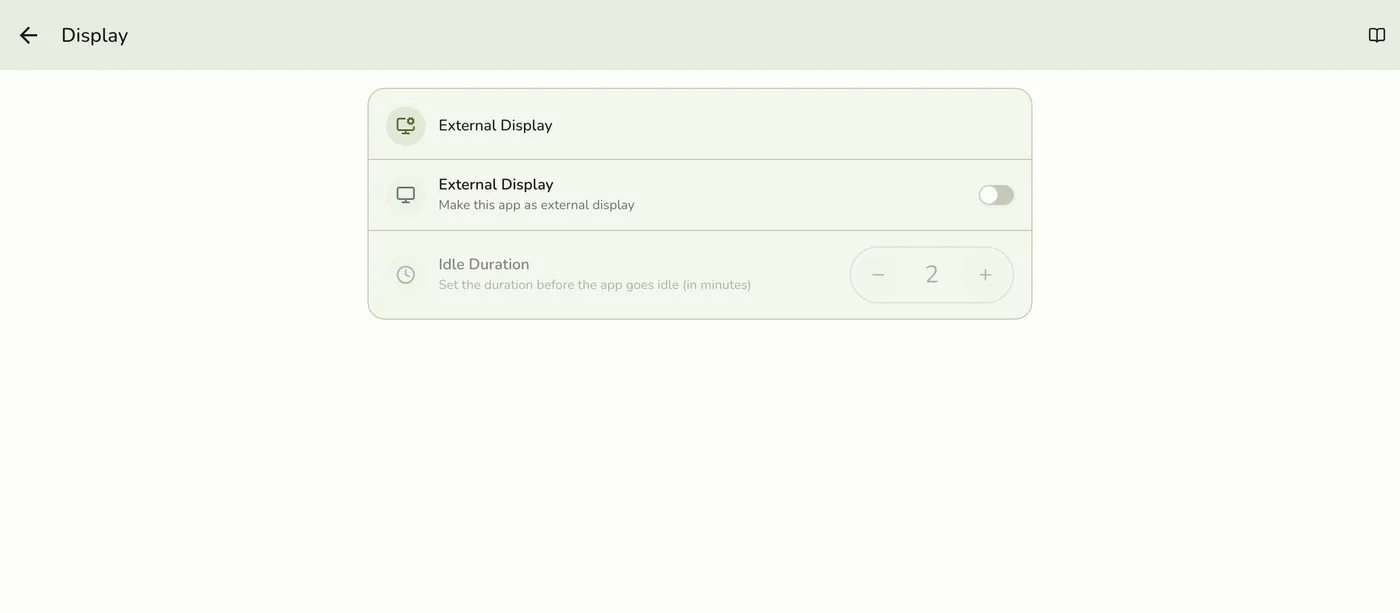
On the kitchen device open Configurations → Display, turn on External display and pick Kitchen. See Displays Overview.
2
Place an order
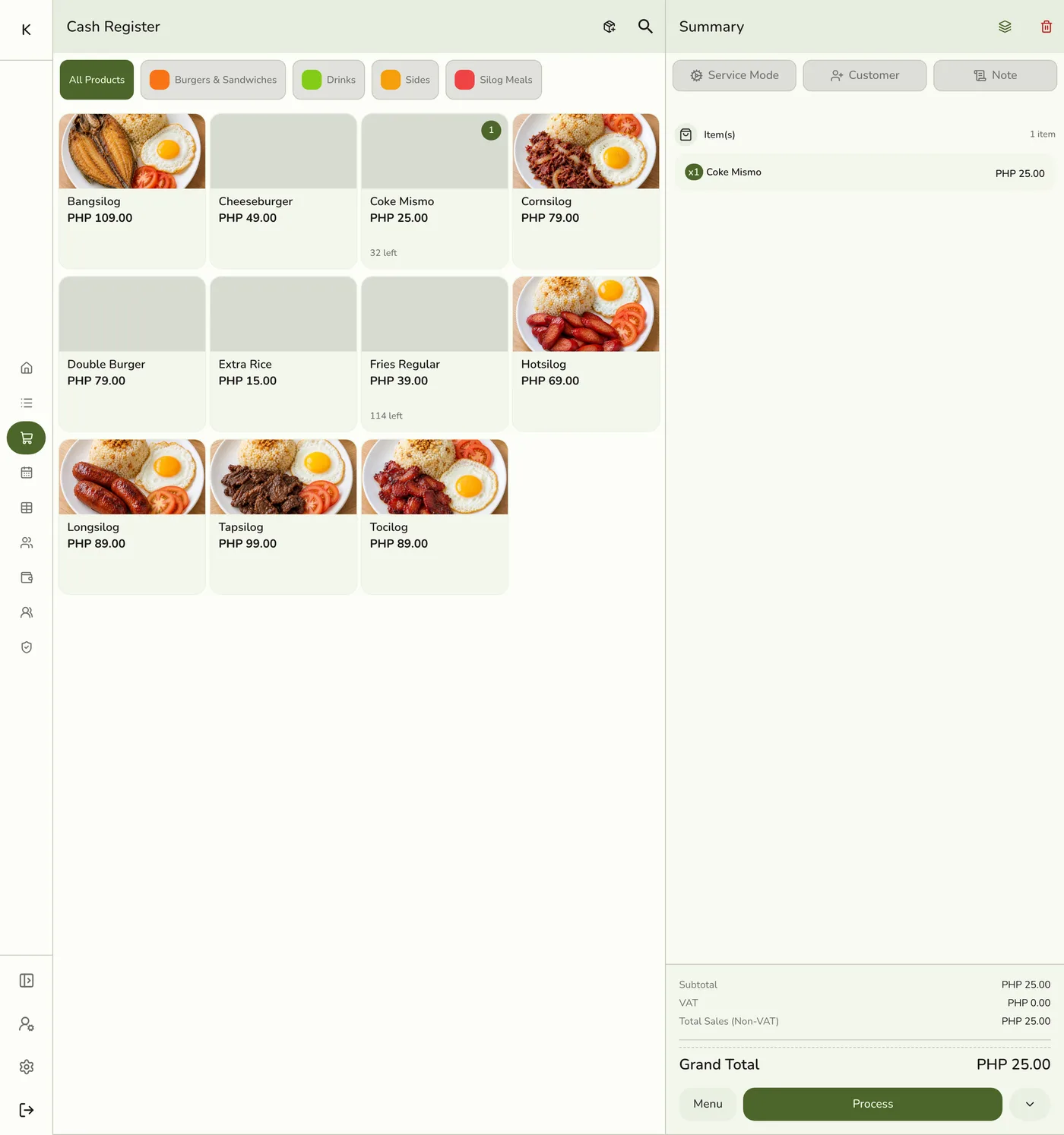
The cashier rings up an order. The ticket is made as the order is saved, and editing the order updates it.
3
Start the ticket
Tap the ticket to mark it as being prepared.
A started ticket — screenshot coming soon
4
Bump it when the food is up
Tap Bump to mark it done. When it was the last open ticket on the order, the order is signalled as ready.
Bumping a ticket — screenshot coming soon
What happens next
- A bumped ticket stays on screen, dimmed and marked Done, for your Keep finished tickets for time, then leaves. Voided tickets leave at once, and tickets clear on their own when the order is readied, shipped, closed, cancelled or voided.
Edge cases
- Void a ticket by holding it down and confirming. Only a waiting or in-preparation ticket can be voided.
- Recall. Staff who may change tickets get Recall in the header, listing tickets finished in the last while so one can be brought back. Kitchen performance counts recalled tickets separately from voided ones.
- With a Hub, a kitchen screen paired with the Hub shows only the Hub's tickets. The register sends each new order, edits, item voids, and the order being readied, shipped, completed, closed or cancelled to the Hub too.
- Offline taps. A tap that fails while the connection is down waits on the kitchen device and is tried again when it reconnects, on Retry now, or when the Hub comes back, up to 3 times within an hour.
- Move to Processing and Ready need a local Hub to move the order in the app today, because the server's own check never matches.
- A void on the register can miss the Hub's kitchen screen, and a partial void can leave the full quantity on the kitchen display, while a Hub-paired display drops the whole line. Tell the kitchen when you void part of a line.
- Printers. To also print kitchen slips, add a Kitchen routing rule. See Routing Rules.
Works with
| Add-on or plan | What changes on this page |
|---|---|
| Kitchen Display add-on | Required. Free during the free trial. |
| Fuze Store Hub | Recommended. See Kitchen Display on the Hub. |