

App Settings (Per-Device)
App Settings holds everything that is true of this device, not your store and not your account. Open it from the drawer menu → Account → Settings, or while working the register, from the POS drawer footer → App Settings.
Steps
1
Open App Settings
Go to Account → Settings, or use the register's POS drawer footer.

2
Set General options
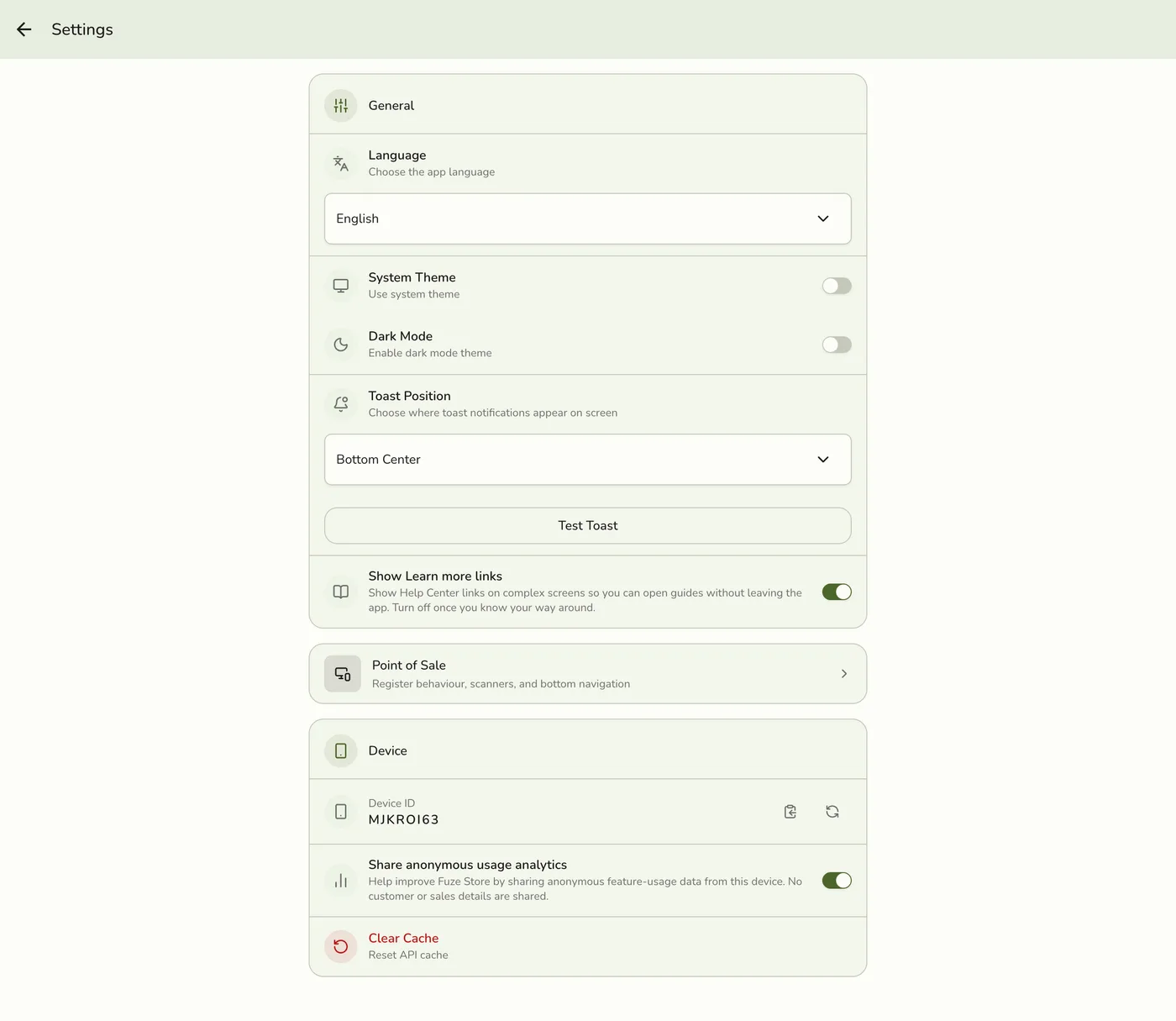
Language, System theme (follow the device), Dark mode (when System theme is off), Toast position, Test toast and Show Learn more links.

3
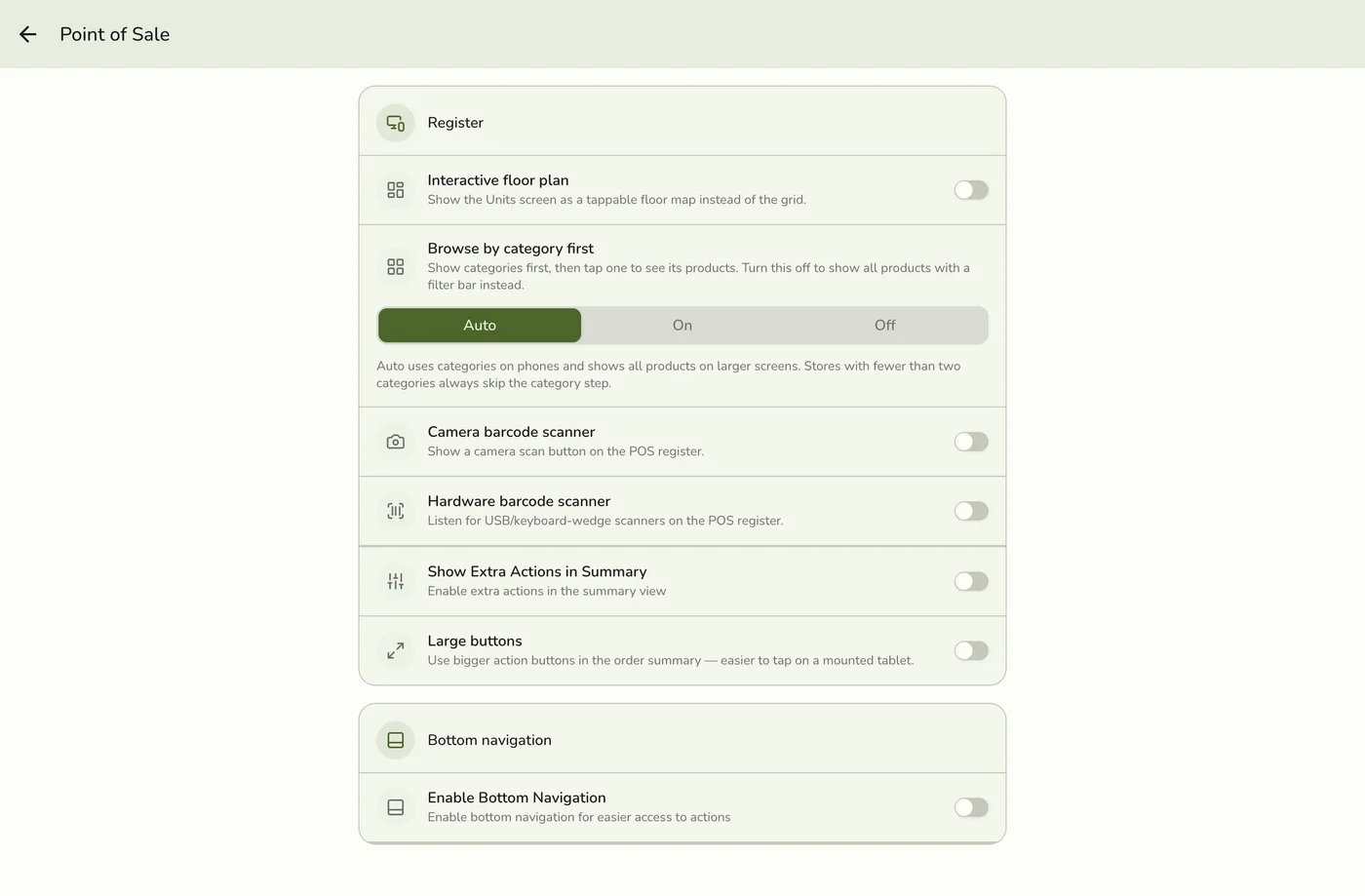
Open Point of Sale
Tap the Point of Sale row for the register options and the bottom navigation bar.
4
Review the Device section
Device ID, Share anonymous usage analytics and Clear cache.
What happens next
- Each change applies to this device at once and is not sent anywhere.
Edge cases
- These settings do not sync. Dark mode on the counter tablet does not turn it on for the back-office phone, and reinstalling resets all of them. Settings that should be the same everywhere, such as tax, receipts, order behaviour and opening hours, live in Configurations → Preferences.
- Language. English, Japanese, Simplified Chinese and Traditional Chinese, plus English for teams used to Indian or American wording. Only finished languages are listed. Changing it changes the words only: prices stay in your store currency, the day closes on your store's time and tax follows your store's rules. Preferences → Store sets a default for every device, and Settings → General → Language overrides it on this device. Once you pick one, a store-wide change will not overwrite it, and it survives signing out. With no choice the app follows the device's language, then falls back to English.
- Register options. Interactive floor plan (Floor Plan add-on), Browse by category first, Camera barcode scanner, Hardware barcode scanner (web only, since a USB keyboard-style scanner can only be heard in a browser), Read cards without tapping (Android phones with NFC, on by default, turn it off on a shared or older phone), Show extra actions in summary and Large buttons. Both scanners are off by default. See Scanning QR Codes and Barcodes.
- Bottom navigation. Enable bottom navigation adds an action bar to the register, up to a quarter of the screen. Persistent bottom navigation keeps it open. Initially open starts it open when it is not persistent.
- Regenerating the Device ID unpairs this terminal. With Staff Operations, a terminal is registered under its Device ID, so a new one drops the pairing and a manager must register the device again. Only do it when told to, for example after cloning a device image so two devices share an ID.
- Usage analytics. Sends only anonymous signals about which features are used, never customer names, order contents, sales figures or store data. Turning it off stops this device sending anything and does not change how the app works.
- Clear cache empties this device's local copy and fetches it again. Nothing is deleted, you stay signed in and your settings stay. Use it when a screen keeps showing stale data after a pull to refresh.
- Tips. On a mounted register pick dark or light deliberately, and move toasts to the top on a low tablet. Turn off Learn more links once your team knows the app.
Works with
| Add-on or plan | What changes on this page |
|---|---|
| Floor Plan add-on | Shows Interactive floor plan. |
| Staff Operations add-on | The Device ID is the terminal identity. |