

Setting Up CFD
Follow these steps to get the Customer Facing Display running. Fuze Store Hub is optional: the display works over the internet, and a Hub adds a faster local path that survives an outage.
Before you start
- The Customer Front Display add-on.
- A second device with a browser or the app.
- The Displays · Front Display permission.
Steps
Activate the add-on
Go to Account → Add-ons, find Customer Front Display and tap Activate. It is billed per store per month, and free during the free trial and early release. Then enable it for the store in the store's Add-ons section.
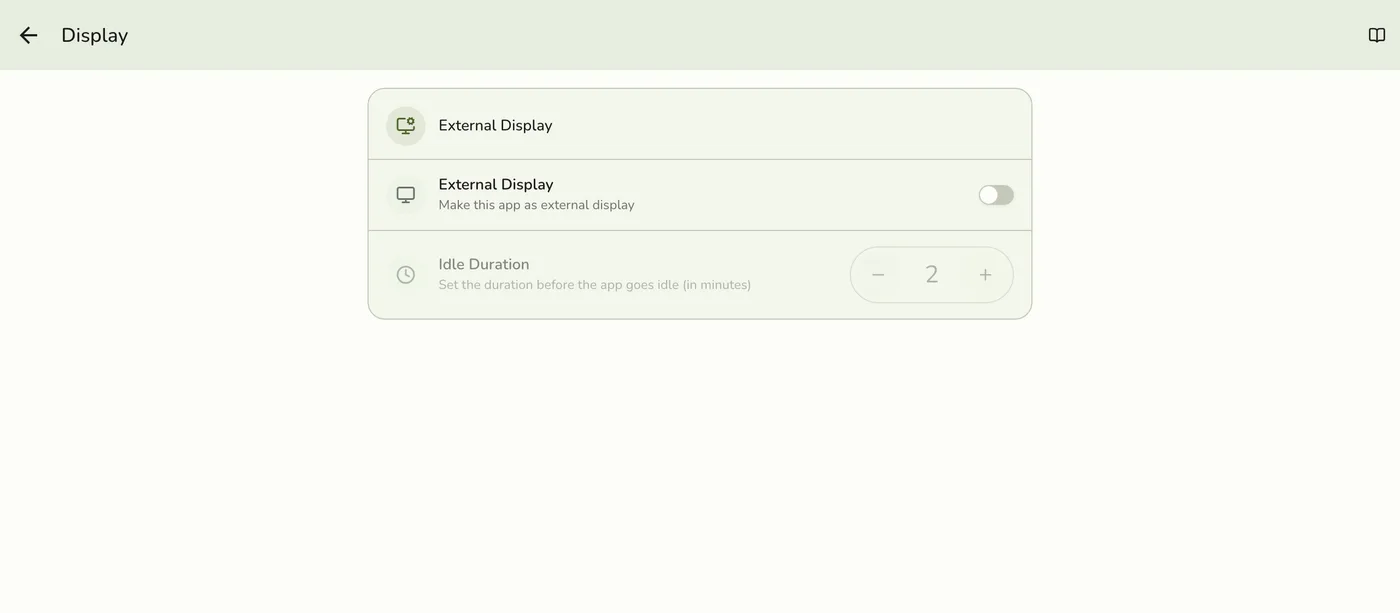
Open Display settings on the second device
On the tablet or monitor, open Fuze Store and go to Configurations → Display.
The Display settings screen — screenshot coming soon
Turn on External display and pick the mode
Enable External display, then choose the Customer Front Display mode card.
Mode cards — screenshot coming soon
Confirm the connection
A badge in the corner shows whether the display is connected to the Hub on your local network or over the internet. With a Hub, make sure it is running and your register is paired with Use this Hub on.
The connection badge — screenshot coming soon
What happens next
- The device swaps into the full-screen display and follows the register.
Edge cases
- Monitored Terminals. On the same screen, list specific register device IDs to follow only those. Leave it empty to mirror every terminal.
- Appearance and privacy (idle screen, queue visibility, name masking, how long the summary shows) are supported by the app but have no operator screen yet. Contact support to change them.
- Display not connecting. Check the add-on is active, both devices are online, and the Hub is running and paired with the CFD device on the same Wi-Fi. Refresh the display page.
- Cart not updating. Check the badge is green, that the register is on the same store, and refresh the display.
- Stuck on the payment screen. Tap Hide Info from Other Screen in the payment dialog, close the payment dialog, or on a touchscreen tap the close button at the top left. If the register cart is already empty, the display returns to idle.
- Leaving display mode. Tap the top-right corner five times quickly. It asks for the staff PIN when the store has Staff Operations and the signed-in person has a PIN, otherwise a plain confirmation.
Works with
| Add-on or plan | What changes on this page |
|---|---|
| Customer Front Display add-on | Required. Free during the free trial and early release. |
| Fuze Store Hub | Optional, for a faster local path. |