

Customer Display Screen
Applies toEvery plan, including free BasicWaiting List add-onNeeds Waiting List · ViewUsually owner, manager
Put the live queue on a tablet or monitor facing your lobby. It is the Waiting List display mode, separate from the Customer Facing Display cart screen used at checkout.
Before you start
- The Waiting List add-on.
- A second device, such as a tablet or monitor.
- Permission to view Displays.
Steps
1
Open Display settings on the display device
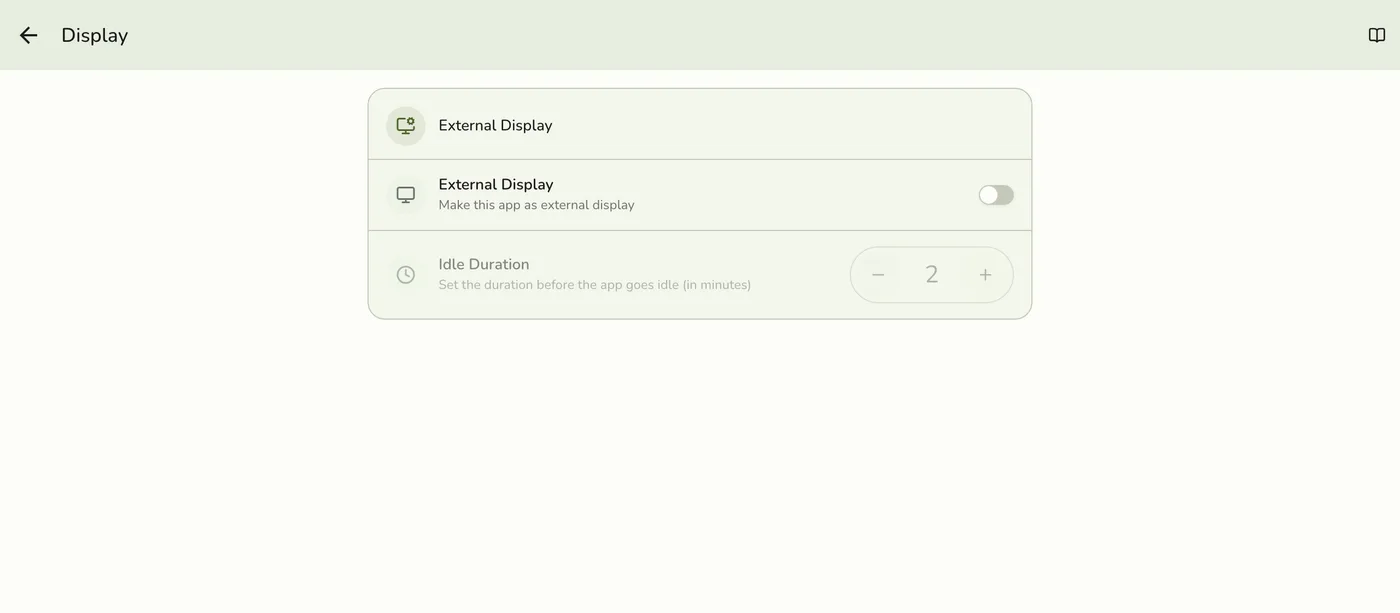
On the device that will face customers, open Fuze Store, select your store, and go to Configurations → Display.

2
Turn on External Display
This makes the device act as a customer screen.

3
Choose the Waiting List mode
Under Display Modes, choose Waiting List.
4
Launch the board
Open Displays from the app. Fuze launches the Waiting List board fullscreen.
The Waiting List board — screenshot coming soon
What happens next
- The board shows Now Serving (parties you called), the Waiting list with party size and wait time, and the estimated wait. A clear queue shows your logo and a no-one-waiting message. It does not show cart items or payments.
Edge cases
- How it stays current. Over Fuze Store Hub on your local network, which also works if the internet drops, or over the cloud when Hub is not available. Unlike the cart display, it does not need Hub.
- Monitored Terminals. Leave the list empty to follow every register, or list device IDs to follow only some.
- Board not updating? Check the add-on, that External Display is on with mode Waiting List, that Hub is running and paired if you rely on it, or that the device has internet, and reopen Displays after changing modes.
- Wrong cart screen? That is the Customer Facing Display, a separate add-on that needs Hub. See Setting Up CFD.
- How many show follows your queue display preferences, such as the maximum visible entries.
- Wait times age on screen with colour cues, so long waits stand out.
Works with
| Add-on or plan | What changes on this page |
|---|---|
| Waiting List add-on | Required. Free during the free trial. |
| SMS Notifications add-on | Text the queue link on join, the table-ready text on Call, and manual Send SMS. Uses Wallet points. |
| Displays | A lobby board shows the queue. See Customer Display Screen. |
| Fuze Store Hub | Keeps the board updating over your local network. The cloud also works. |
| Printer | An optional queue ticket with a QR code. |