

Queue Ticket QR
Applies toEvery plan, including free BasicWaiting List add-onNeeds Waiting List · Modify; Waiting List · ViewUsually owner, manager, cashier
The queue ticket shows your store name, the guest's number (NOW SERVING #), position, party size and estimated wait, plus a QR code. It fits both 58 mm and 80 mm paper.
Before you start
- The Waiting List add-on.
- A printer that can print a QR code.
Steps
1
Open the printing preferences
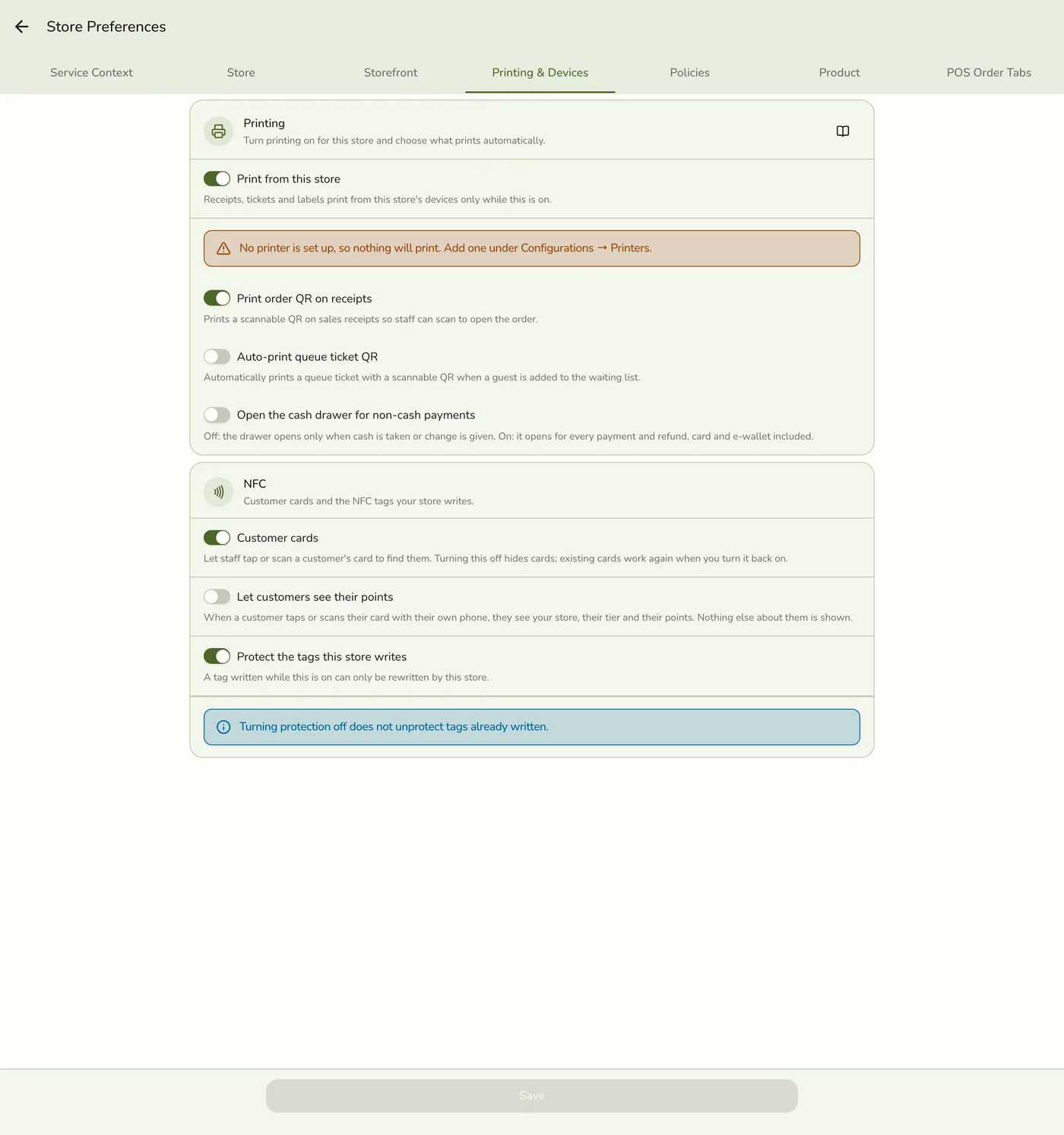
Go to Configurations → Preferences → Printing & Devices → Printing.

2
Turn on Printing and Auto-print queue ticket QR
Turn on Printing if it is not on, then Auto-print queue ticket QR, and save. It is off by default.
3
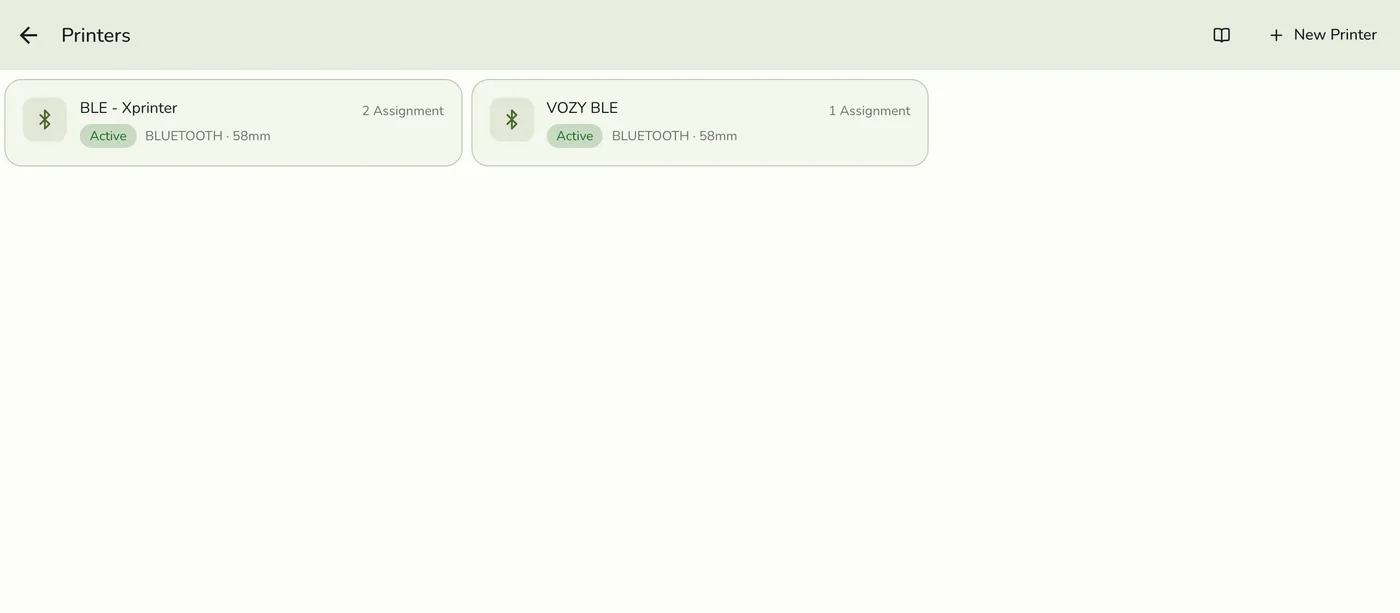
Make sure a printer is set up
Fuze prints to the printer assigned the Queue role, or your default printer if none is. Add a guest to test it.
What happens next
- From then on, adding a guest prints their ticket automatically.
- One QR serves two people. A customer scans it with their normal phone camera and sees their live position, how many parties are ahead, their estimated wait and a You're up! banner when called. Staff scan it in Fuze to open that entry.
Edge cases
- No printer, no ticket. Adding a guest still works.
- Customers lock their phones. The status page is a convenience. When it is their turn, use Send SMS or the called text for a direct message.
- 58 mm paper prints a smaller QR that some budget printers print tight. An 80 mm printer gives a more reliable code, which is why this is opt-in.
- Reprint a ticket for a waiting or called party from the entry.
- The live page refreshes on its own, and with live status off it shows a plain "present this to staff" card.
Works with
| Add-on or plan | What changes on this page |
|---|---|
| Waiting List add-on | Required. Free during the free trial. |
| SMS Notifications add-on | Text the queue link on join, the table-ready text on Call, and manual Send SMS. Uses Wallet points. |
| Displays | A lobby board shows the queue. See Customer Display Screen. |
| Fuze Store Hub | Keeps the board updating over your local network. The cloud also works. |
| Printer | An optional queue ticket with a QR code. |