

Managing the Queue
Applies toEvery plan, including free BasicWaiting List add-onNeeds Waiting List · Modify; Waiting List · ViewUsually owner, manager, cashier
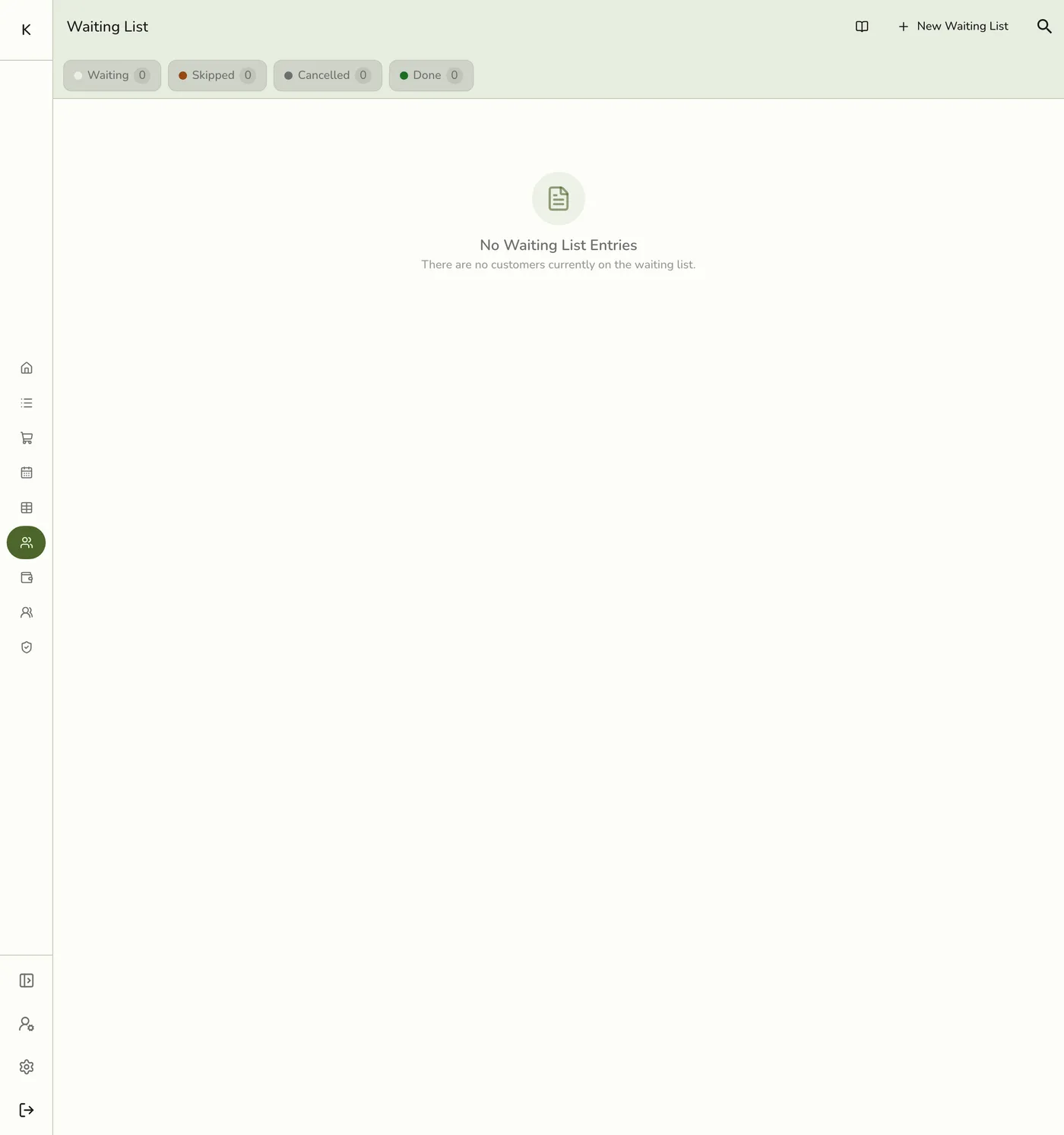
The Waiting List screen shows each party's name, party size, position, wait time and status.
Before you start
- The Waiting List add-on.
- The Waiting List · Modify permission.
Steps
1
Open the Waiting List
Open the POS and choose Waiting List from the menu.

2
Add a party
Tap New Waiting List. Pick a Customer if they are saved (it fills Name and Mobile Number), or type a Name. Set the Party Size, and optionally a Mobile Number, Estimated Wait in minutes and Notes. Tap Save.

3
Call the party
Open the next party and tap Call. They move to Called.

4
Text them if you want
Tap Send SMS on a Waiting or Called party, confirm the mobile number, pick a template such as table ready, and send.

5
Finish the entry
Tap Done when served, Cancel if they left, Skip if they stepped away, or Wait to return them to the queue.
What happens next
- The queue, the lobby board and any queue links update as you act. Finished parties stay visible for the rest of the day under the Done filter.
Edge cases
- Does Call send a text? Only when Waiting list called is ticked in SMS Automation, and the party or customer has a mobile number. Otherwise nothing is sent, and you can use Send SMS.
- Text on join. Turn on Auto-text queue link on join under Configurations → Preferences → Order → Waiting list. Every guest with a mobile number gets a link to watch their place.
- Send SMS is always allowed even when automatic texts are off. It needs the SMS add-on, Wallet points and Waiting List · Modify, and is SMS only. A valid mobile number is required.
- Statuses. Waiting, Called, Skipped, Cancelled and Done.
- Returning a party. Wait brings a Called, Skipped or Cancelled party back. A Cancelled party goes to the end of today's queue. A Called or Skipped one keeps its number.
- Already waiting. If a saved customer already holds a place, a warning says so, such as "Lexi Gonzales is already waiting (#1, 6 h)". Tap Open entry, or save anyway if the party is splitting. The server never blocks a second entry.
- Service details. If your store uses them and you may see them, the form also asks for fields such as a plate or tag number.
- Wait time and estimate. The live counter runs from when you added them. As a party waits past its estimate, its row on the display changes colour.
- Reprint the ticket for a waiting or called party with Print ticket, choosing the printer.
- Stale entries. An entry from an earlier day that was never finished stays in the list. Cancel or Done it.
Works with
| Add-on or plan | What changes on this page |
|---|---|
| Waiting List add-on | Required. Free during the free trial. |
| SMS Notifications add-on | Text the queue link on join, the table-ready text on Call, and manual Send SMS. Uses Wallet points. |
| Displays | A lobby board shows the queue. See Customer Display Screen. |
| Fuze Store Hub | Keeps the board updating over your local network. The cloud also works. |
| Printer | An optional queue ticket with a QR code. |