

Designing Your Own Label
Presets cover common cases. For your own layout, draw it under Configurations → Label templates. The designer is a canvas where you drop in text, barcodes, QR codes, boxes and lines on a preview of your real label stock.
Before you start
- The Advanced Printing add-on.
- The Printers · Modify permission.
- A label printer set up.
Steps
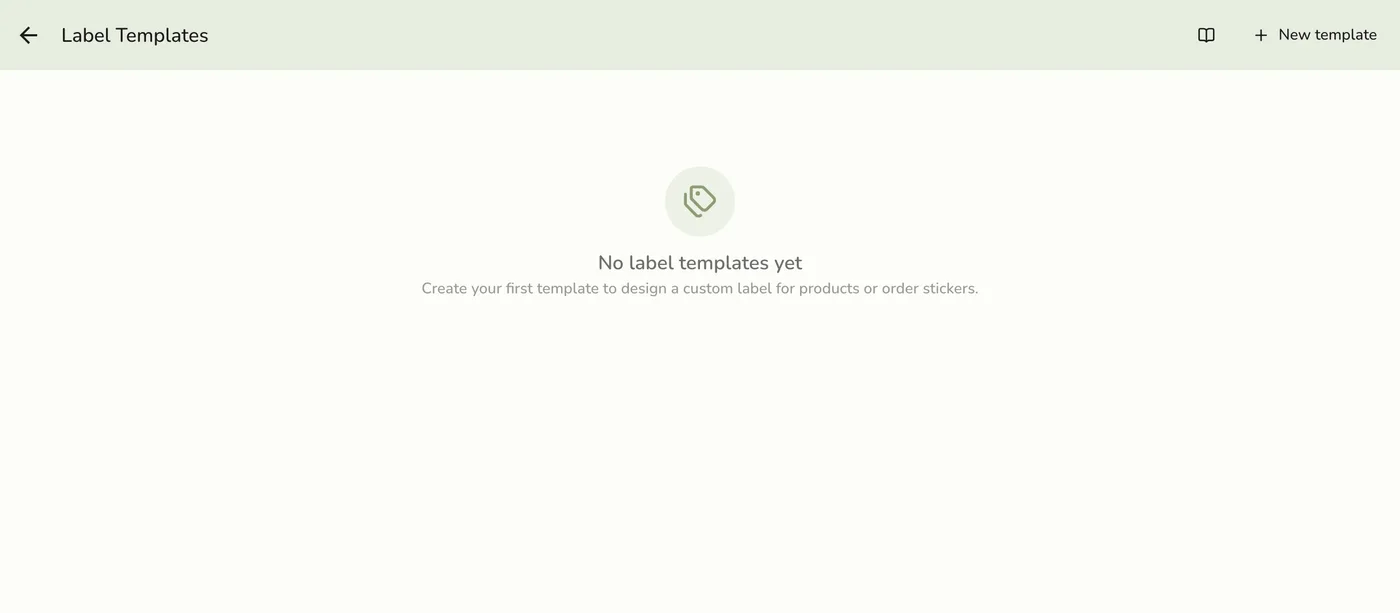
Open Label templates and tap New
Go to Configurations → Labels → Templates and tap New.
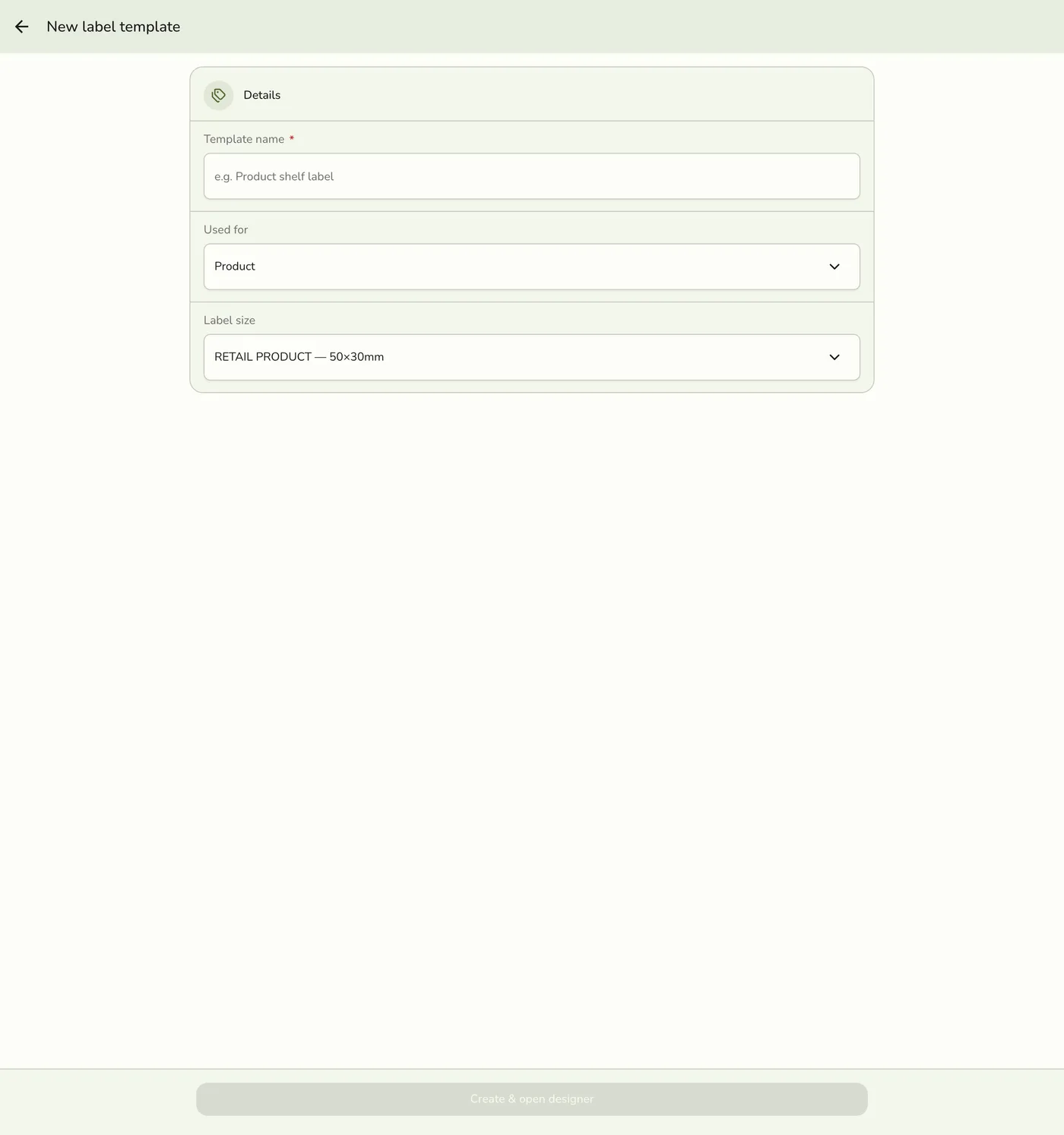
Name it and choose what it is for
Enter a Template name, such as Product shelf label. Pick Used for: products or orders, which decides the variables on offer. Pick the Label size.
Draw the label
Add text, barcode, QR, box and line blocks and position them on the preview. Pick variables from the chips so the value is filled in at print time.
The label designer canvas — screenshot coming soon
Test print and save
Use Test print to check it on your own printer, especially that barcodes scan, then save. It appears under My templates above the built-in presets in every print dialog.
Saving a label template — screenshot coming soon
Mark a default
Mark one as the one-tap default for products or for orders.
Setting the one-tap default — screenshot coming soon
What happens next
- Your template is used wherever you print that kind of label.
Edge cases
- Variables. Product templates:
product_name,sku,barcode,category,weight,description,qr(a link to the product's page),price,price_original,quantity,location,store_name,printed_date,printed_time. Order templates:order_number,order_date,order_time,service_mode,table,pickup_time,staff,remarks,check_code,order_url,customer_name,customer_phone,address,item_name,item_quantity,item_options,item_note,item_price,item_total,sequence(prints as 2 of 5),item_count,items,order_total,discount,payment_status. Variables that depend on the item print only when the value exists. - Barcode blocks accept
barcodeandskuon product labels, andorder_numberandcheck_codeon order labels. QR blocks also takeqrandorder_url. EAN-13 and UPC-A need an exact digit count, so only the product barcode fits them. - It prints as an image, so the result depends on your printer model. If a code prints too small to scan, use larger stock or a 300 dpi printer.
- Needs Advanced Printing and permission to change printers. Without the add-on the screens are refused.
- Bag tags. A custom order template can carry the batch fields, including the N of M sequence, and be the one batch mode uses. See Bag Tags and Batch Labels.
- Delete a template from its page or the list.
Works with
| Add-on or plan | What changes on this page |
|---|---|
| Advanced Printing add-on | Needed for die-cut labels, stickers, product barcode labels, bag tags on label stock and the label designer. Receipts, kitchen tickets, bar slips, queue tickets and claim stubs are free on every plan. |