

Print Queue and Status
Nothing in Fuze Store loses a print. A print that cannot reach a printer waits in a queue and retries when the printer is back, so you can keep ringing up sales.
Before you start
- The Printers · View permission to see status and history.
Steps
Open a printer's detail page
Go to Configurations → Printers and tap a printer. You see its Status and a Status & Queue card.
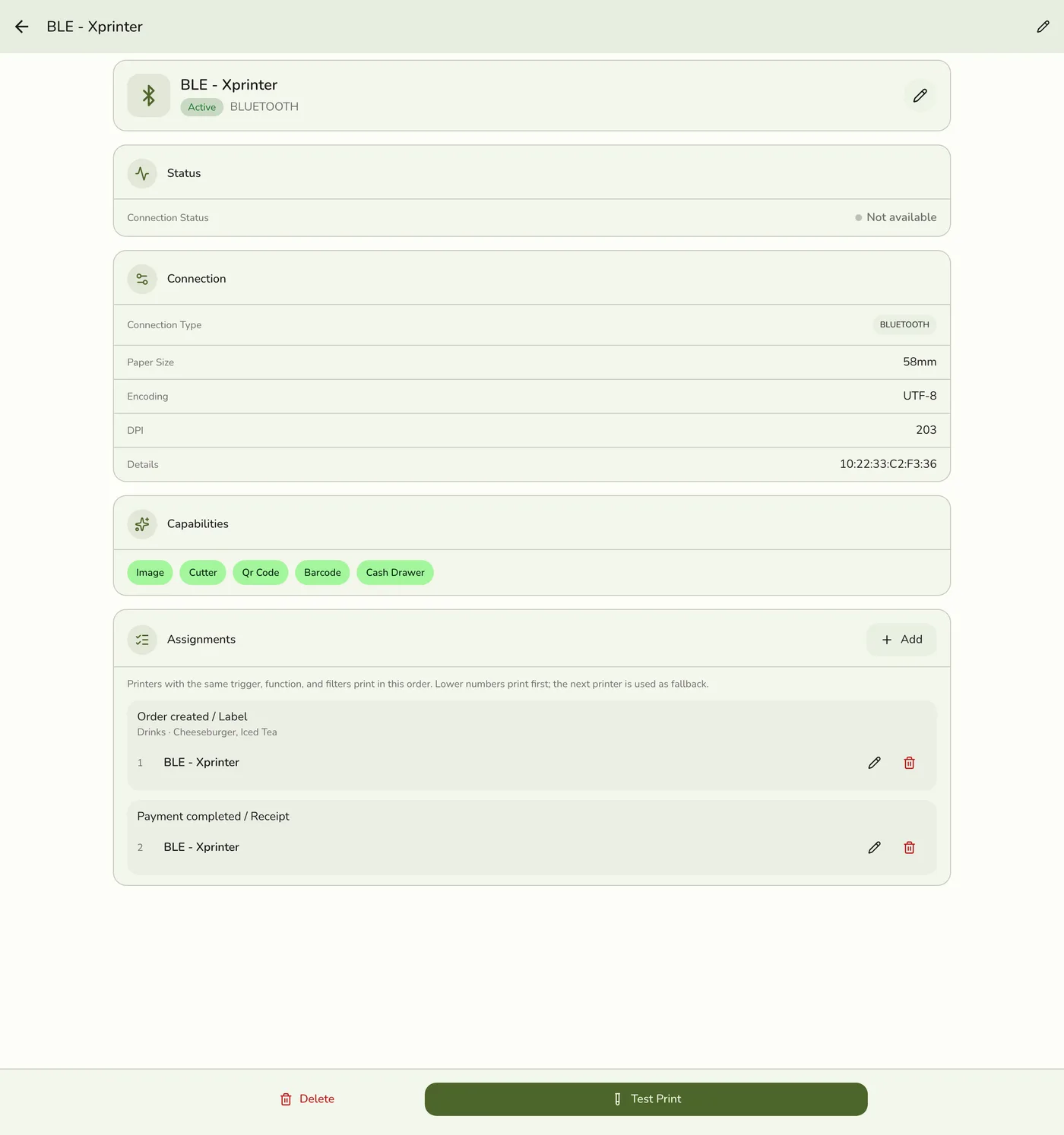
Read the status
Online: the Hub can reach it. Offline: the Hub cannot reach a network printer, has not found a USB or serial one for about 90 seconds, or has not checked in for about 90 seconds. Error or Paper low: the last print failed while the Hub could still see it. Ready or Not paired: a Bluetooth printer.
Status badges — screenshot coming soon
Retry or cancel queued prints
While anything is waiting, a small badge with the number queued shows at the top of the screen. Tap it to open the queue. Each waiting print shows the document and order number, like Kitchen slip · #121, the printer it is for, and how long ago it was queued. Tap the retry icon to send that print now, or the ✕ to cancel it. Tap Undo within 5 seconds to bring a cancelled print back. Retry now sends every waiting print that can go out, and Cancel all prints empties the queue after asking you first.
The Status and Queue card — screenshot coming soon
Check an order's print history
Open the order. Its Activity card lists each print: what, what started it, the printer, the time, and a status of Completed, Failed, Sent, Canceled or Queued.

What happens next
- The queue retries each job up to 3 times when the printer is reachable again, then stops trying on its own. It stays in the queue marked Stopped trying until you retry or cancel it.
Edge cases
- The Hub checks about every 30 seconds, starting right after it opens, so you need no test print after a restart. A new printer shows Offline until a Hub reports it, usually within a minute. With two Hubs, each speaks only for the USB and serial printers on its own computer, and a network printer is checked by every Hub. Fuze shows no banner for an offline printer.
- Which prints are queued. Only prints that happen on their own, like the receipt after payment or the kitchen slip. A print you start yourself is never queued. If it fails, its message offers Try again, so a later flush never prints a second copy.
- Anyone can cancel. Anyone using the device can cancel a queued print. The order's Activity shows it as CANCELED with the reason Cancelled by staff.
- Dropped after 24 hours. A print queued more than 24 hours ago is dropped, so yesterday's ticket never comes out today.
- Hub status updates appear at once on a device connected to the Hub, and on plans with live sync. Otherwise the list refreshes every minute.
- History needs Printers · View and is kept 90 days. A device printing offline sends its records when it is back, so they can show up a little later. When the first printer fails and the next prints, you see one Completed entry with the reason the first failed.
- Messages you start. Receipt sent to Front Counter (nothing to do). Front Counter unavailable. Receipt sent to Kitchen (the backup printed). Printing is turned off for this store (tap Open settings). No active printer can print this (tap Printers). Bluetooth is off (turn it on, Try again). Allow Bluetooth for Fuze Store (Open settings). Front Counter isn't paired with this phone (pair it, Try again). Can't reach the Fuze Store Hub (check it is on and on this Wi-Fi). Couldn't print on any printer (Try again or Choose printer). Couldn't build the receipt from its template (fix the template). This receipt was just reprinted (wait 25 seconds). Reprinted the most times allowed on this device (5 since the app opened, use another device). Couldn't reprint this receipt (needs the reprint permission). The reprint was still recorded under your name.
- Messages on their own. No message means it printed. Front Counter unavailable. Receipt printed on Kitchen. Couldn't print the kitchen slip on Kitchen Printer. Queued to retry. Couldn't print the label. Print it again from the order, when nothing could be kept to retry.
- Bag Tags, the printer picker, the waiting-list ticket and label dialogs stay open on a failure so you can fix it. A reprint of a finished order's receipt never offers Choose printer.
- No printers yet shows a setup card with Add Printer. Nothing is wrong.
- A one-time migration banner appears if you used the older single Bluetooth printer. Migrate is one way: it creates a Bluetooth printer and routing rules from your old settings. Test a print after.
- Customer says no receipt? Check the order's Activity card for whether it printed, where and when.
Works with
| Add-on or plan | What changes on this page |
|---|---|
| Plan | Printing is included in every plan. |
| Fuze Store Hub | Needed for USB, Serial and web-browser printing, and recommended for network printers. Bluetooth prints straight from the phone. |