

Managing Event Services
An event service is the thing a customer books, such as a haircut or a 60-minute massage. It schedules time. It has no price of its own: the price comes from the items you attach, which ring up at check-in.
Before you start
- The Event Services · Modify permission.
- A plan with bookable services (Lite and up).
- The products or services you want to attach, already in the catalog.
Steps
Open Event Services
Open the menu → Event Services, then tap New Event Service. The same form opens from an empty Service picker when booking.

Name it and set the duration
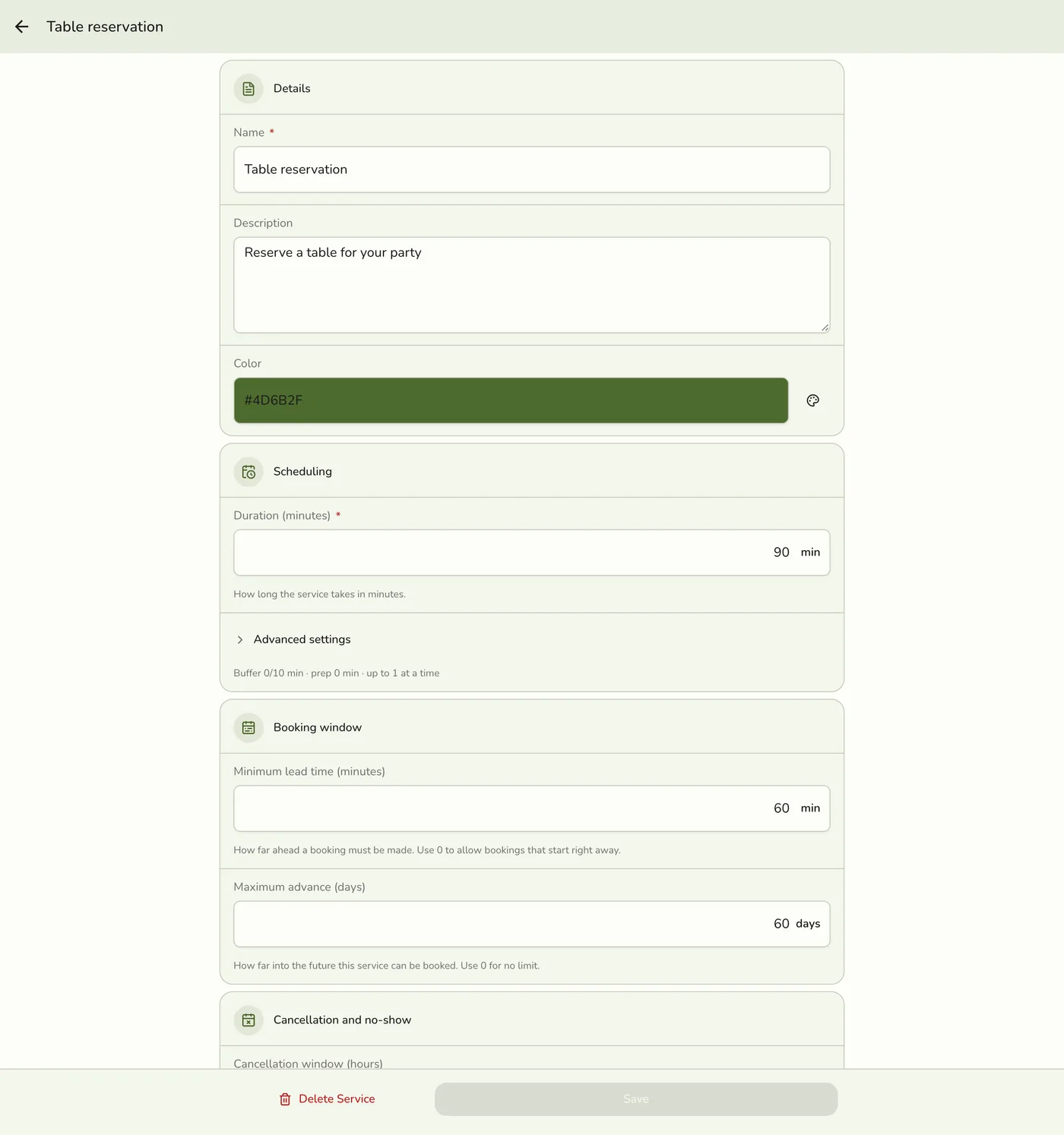
Enter a Name and a Duration in minutes. Add a description and a colour if you like. The duration sets the length of every slot.

Open Advanced settings if needed
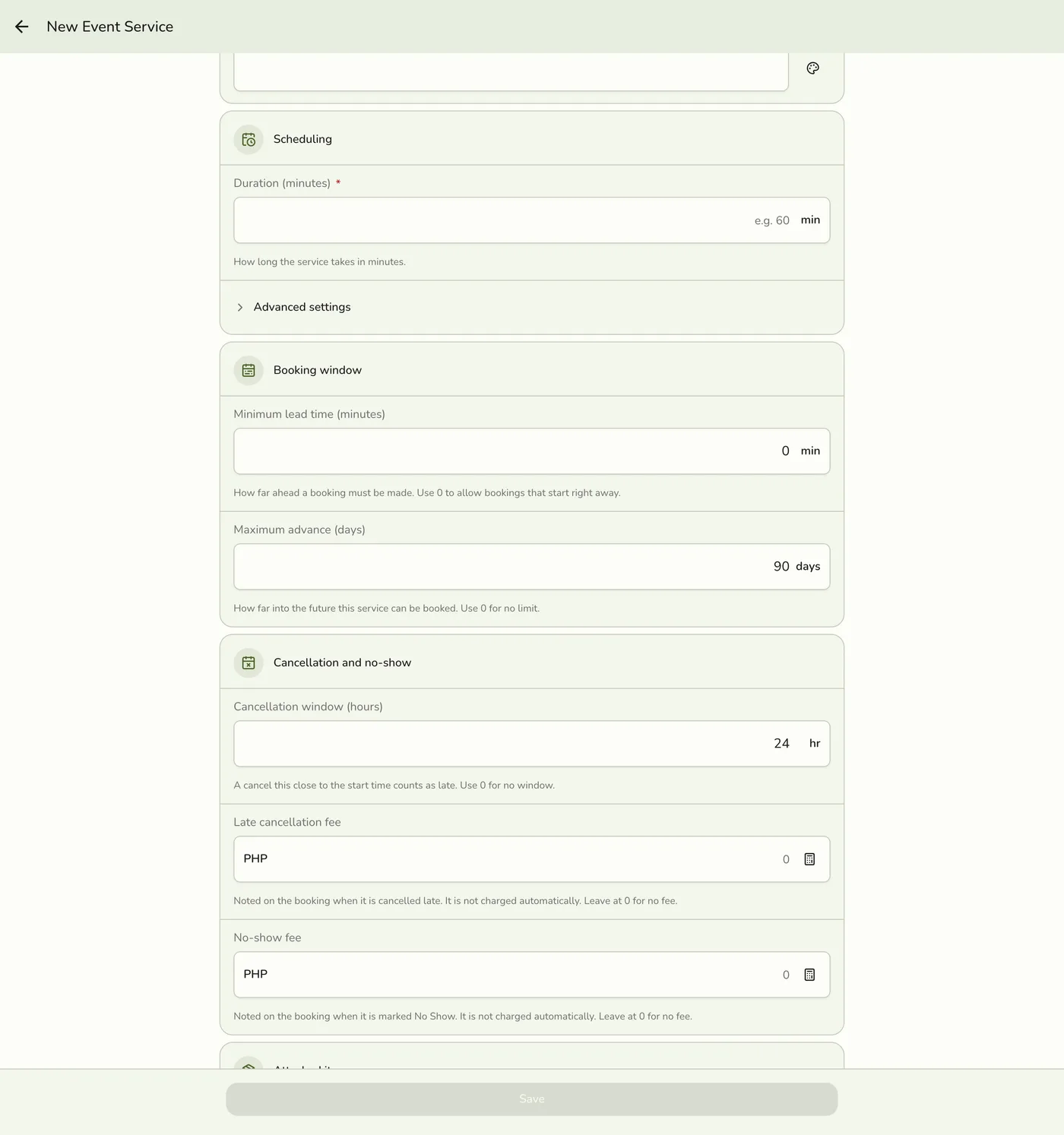
Set a buffer before, buffer after, preparation time and Max concurrent (how many can run at once, 1 unless changed).

Set the booking policies
Set the minimum lead time, maximum advance days (0 is no limit), the cancellation window in hours, and the late cancellation and no-show fees.
Attach the items that ring up
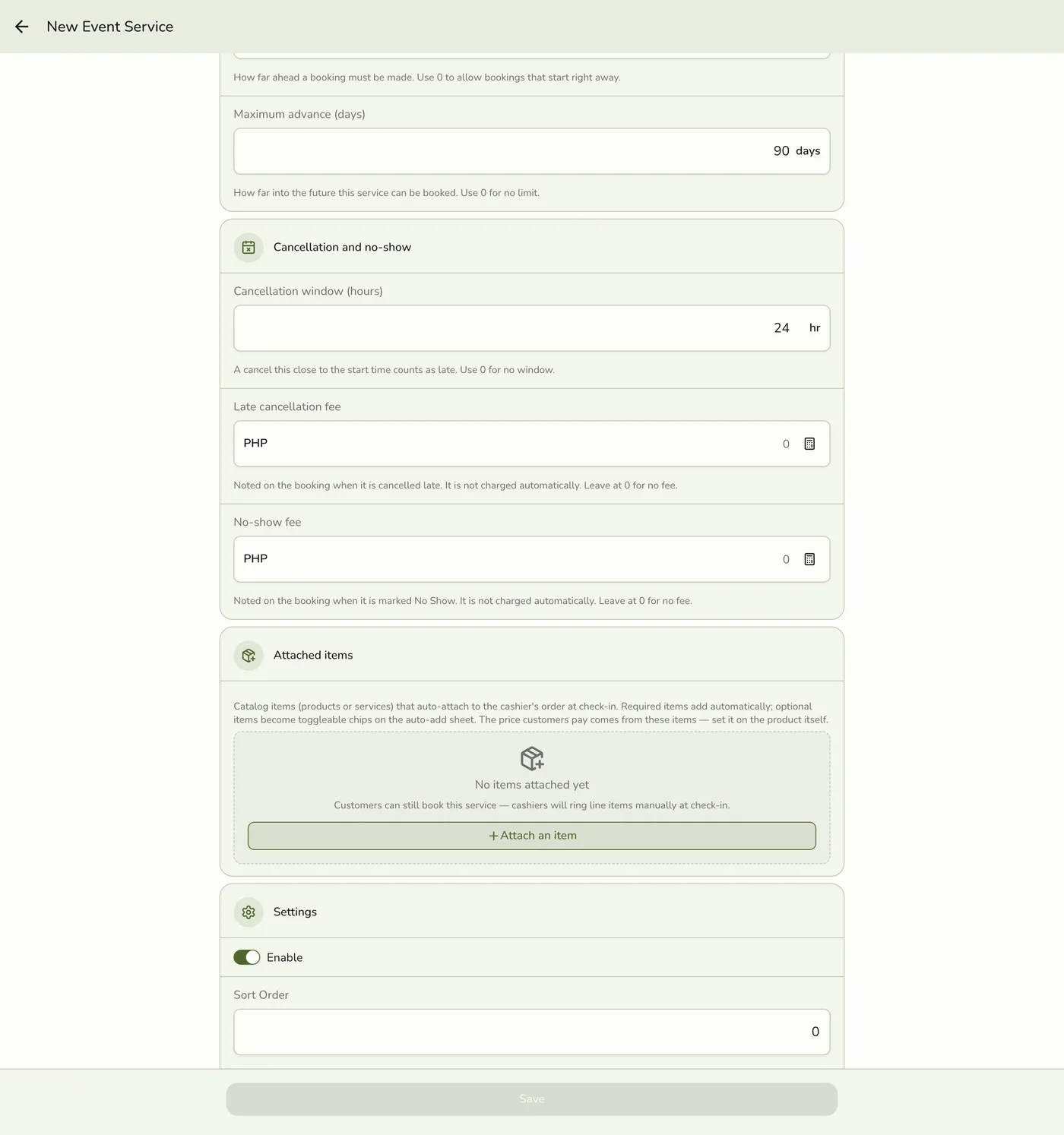
Under Attached items, add the products or services to charge for. Each has a quantity, an optional price override and a Required switch. Required items are added to the order at check-in.
Save, then assign staff
Leave Enable on and tap Save. Then open the service, tap Manage under Staff assignment, tick who performs it, and save.
What happens next
- The service shows in the booking picker and on the online booking page at once, because their lists are refreshed.
Edge cases
- Event service or catalog service? An event service schedules time, set up here, Lite and up. A catalog service is a sellable item in Products with its own price, on any plan. Most salons need both: one event service per treatment, with a catalog service attached to ring up. See Service Overview.
- Create the catalog items first. Attached items point at real catalog rows. The same item cannot be attached twice.
- Required or optional. Required items are added at check-in at the price override, where 0 means free, unless the cashier already added the item. Optional items are not offered at the register today.
- Staff assignment limits who the online booking page offers. Bookings made by staff in the app do not check it.
- Edit, disable or delete. Edits apply to future bookings. Disabling hides the service from the picker. Deleting stops it being booked, and past bookings keep its name.
- Bulk. Tick several services, then Enable, Disable or Delete them together.
- Booking window. Days count on your store's clock, and the last day is open all day.
- Fees are noted, not charged. The late cancellation and no-show fees appear on the history only.
- Required deposit. A spreadsheet import can store one, but the app does not collect it yet.
- Without bookable services on the plan the menu item hides and the server refuses.
Works with
| Add-on or plan | What changes on this page |
|---|---|
| Events (Starter and up) | Bookings, check-in and reminders. Not on the free Basic plan. |
| Lite and up | Event Services, the catalog of bookable services, and the staff lookup for appointments. On Starter you can take reservations; appointments need a bookable service. |
| SMS Notifications add-on | Texts for scheduled, rescheduled, checked in, in progress, completed and cancelled bookings, when each is turned on. |
| Live sync (Lite and up) | Other devices see the change at once. On lower plans they pick it up the next time they refresh. |
| Staff Operations add-on | Not needed for staff assignment. |