

Updating an Event
Applies toStarter plan and upNeeds Bookings · Modify; Bookings · ViewUsually owner, manager, cashier
Open a booking from Events to edit its details, move it, or run it through its statuses.
Before you start
- The Bookings · Modify permission.
Steps
1
Open the booking
Tap it on the Events board, or open it from the customer's Bookings.

2
Edit the details
Tap Edit, change the times, party size, table, staff, customers or notes, and tap Save. If the save fails, the app shows why and keeps your changes.

3
Move it on the day view
On the Events day view, press and hold a booking, drag it to the new start time, and confirm. It keeps its length, status and order.
Dragging a booking on the day view — screenshot coming soon
4
Run it through its statuses
Tap Confirm on a new or requested booking, Check in an appointment or Seat a reservation when they arrive, then In progress, then Complete.
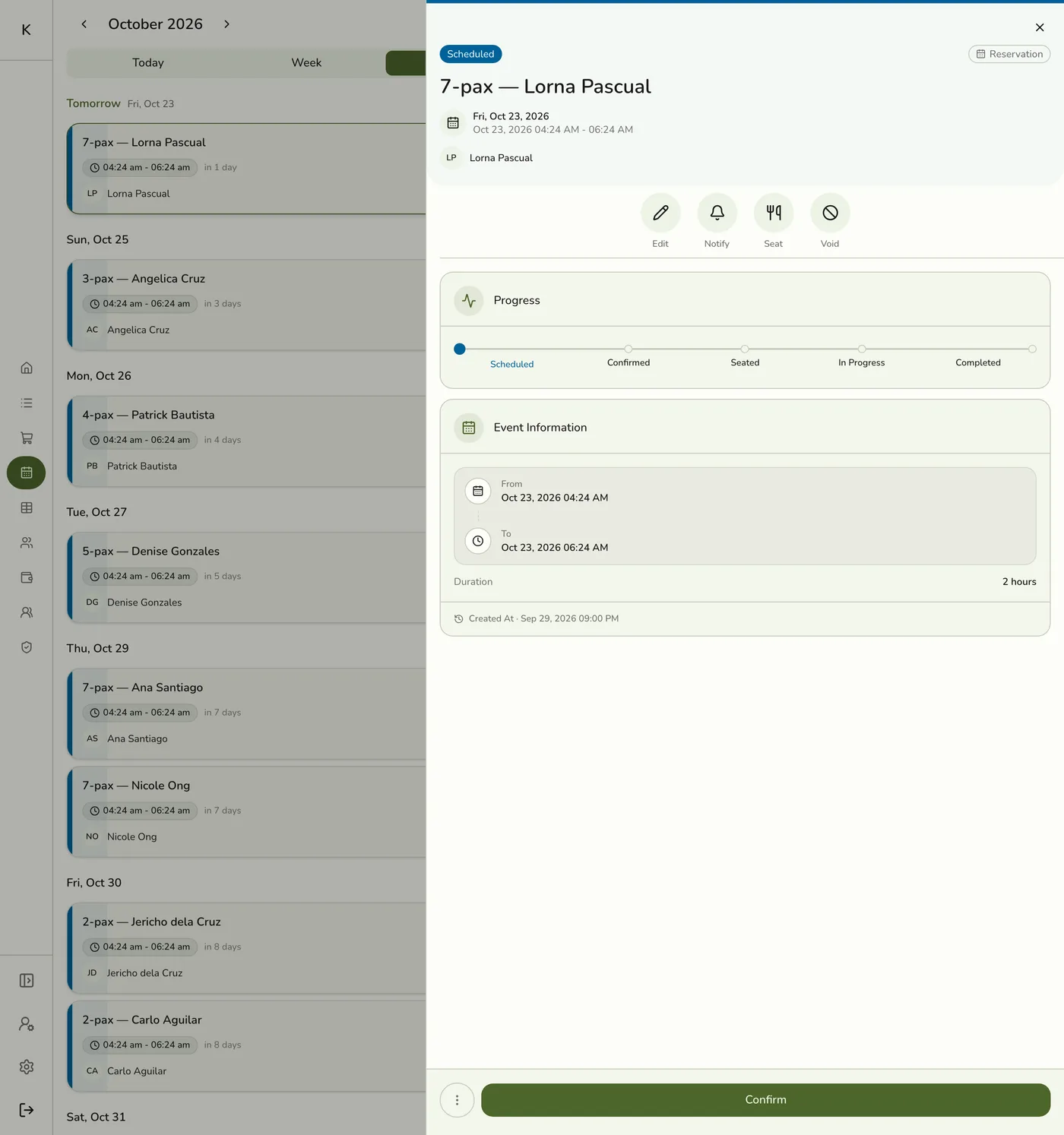
What happens next
- Each move records its time. Completing a booking that has an order completes the order too. See Taking Payment for an Event.
- The customer is texted on Scheduled, Rescheduled, Checked in, In progress, Completed and Canceled when the SMS add-on and that text are on.
Edge cases
- There is no Reschedule button. Change the time with Edit or by dragging. Neither marks it Rescheduled or puts its order on hold.
- Moving checks the time again. The staff member must be free, the service must not be over its limit, and a reservation's table must be free. You can drag only a Scheduled or Confirmed booking, and only with the permission to change bookings.
- If someone changed it first, your save, status button or drag is refused with a note that the event was updated. Reload and try again.
- Complete with an order needs Point of Sale too. Staff who may only manage bookings do not see it.
- Only valid next steps show, but the menu can offer a move the server refuses, such as In progress on a Scheduled booking. It fails with a status message.
- Notify opens the shared Notify dialog. Email needs a plan with email notifications, and text needs the SMS add-on, its master switch and Wallet points.
- A requested online booking starts as Requested and is confirmed or declined from here.
- Void is for order lines, not for cancelling the booking. See Voiding an Event Order.
Works with
| Add-on or plan | What changes on this page |
|---|---|
| Events (Starter and up) | Bookings, check-in and reminders. Not on the free Basic plan. |
| Lite and up | Event Services, the catalog of bookable services, and the staff lookup for appointments. On Starter you can take reservations; appointments need a bookable service. |
| SMS Notifications add-on | Texts for scheduled, rescheduled, checked in, in progress, completed and cancelled bookings, when each is turned on. |
| Live sync (Lite and up) | Other devices see the change at once. On lower plans they pick it up the next time they refresh. |