

Managing POS Orders
After a sale is rung up, you run it from POS → Orders (open and today's orders) or Orders (the full history). Both open the same order screen. Each order card shows one main button: the next step for its status.
Before you start
- The Point of Sale · Modify permission for actions. Orders · View is enough to read history.
Steps
Find the order
Open POS → Orders and use the status tabs, or search by number or customer. Several words must all match, such as "ana 1042". Use Scan to open an order from a printed QR or claim code. Orders (history) also filters by status and amount, and reaches back as far as your plan allows.

Open the order
Tap the order, or press and hold its card to open the actions menu without leaving the list. The top shows its number, status, payment badges and code. Items, Staff & commissions, payments and an Activity timeline are below. On a phone everything is one column.

Tap the next step
Tap the main button, or use Menu for the rest. Which steps show depends on the status. Typical path: New or Pending, Processing, Ready, Shipped if used, Completed, Closed. Complete finishes the sale. With claim tags on the order, Complete first asks you to tap each tag back in. On a delivery the tags go with the rider; check them in from the order's Claim tags card when they come back. See Claim Tags. Close locks the order so it can be refunded. Cancel calls off an unfinished order.
The next status button on an order — screenshot coming soon
Notify the customer
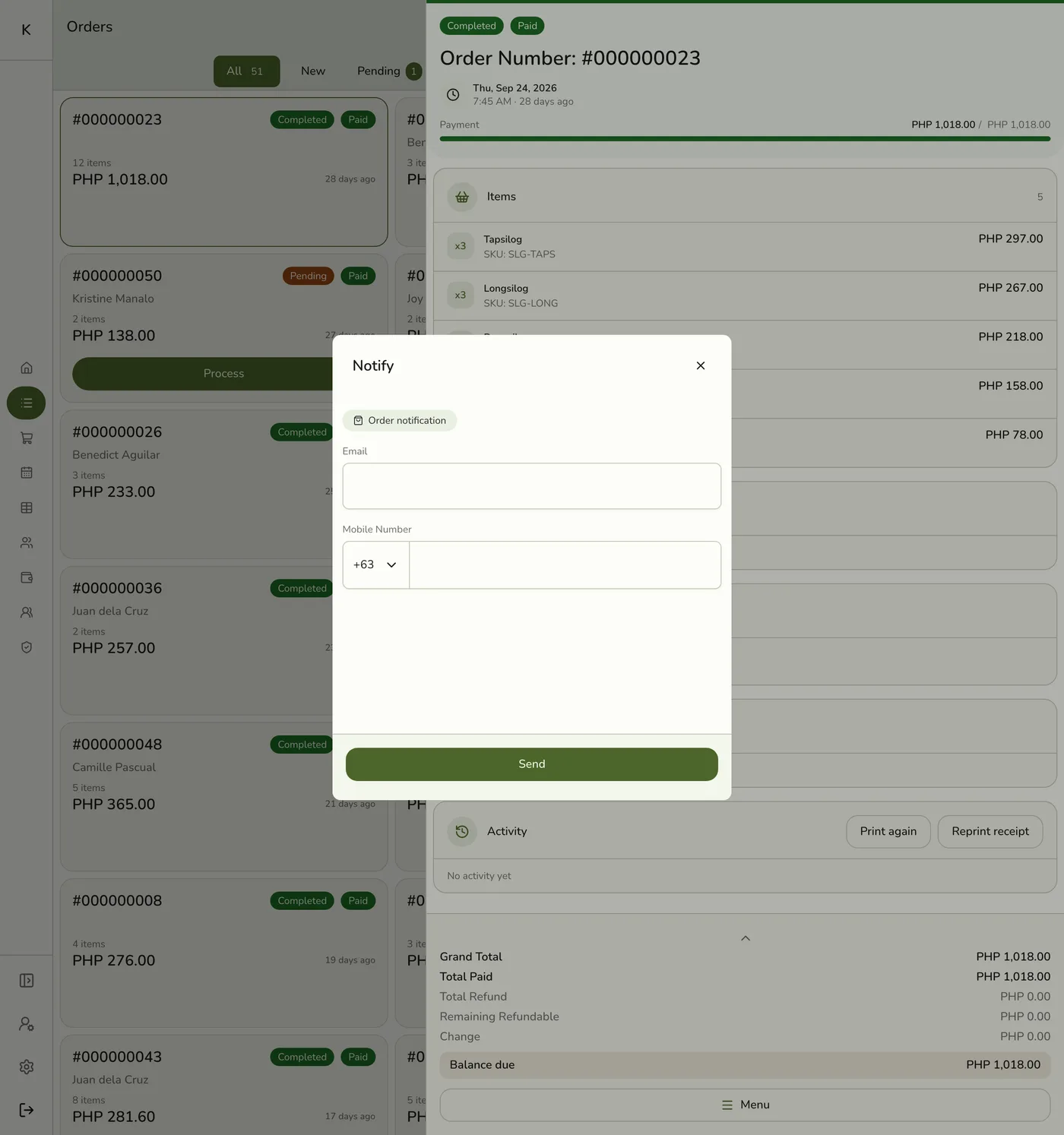
Open Menu → Notify. Pick a suggested contact or type an email or mobile number, then tap Send. It sends the update for the order's current status. Share sends the customer a live status link, and the new-code button gives the order a fresh four-digit code.
Fix staff, service or customer
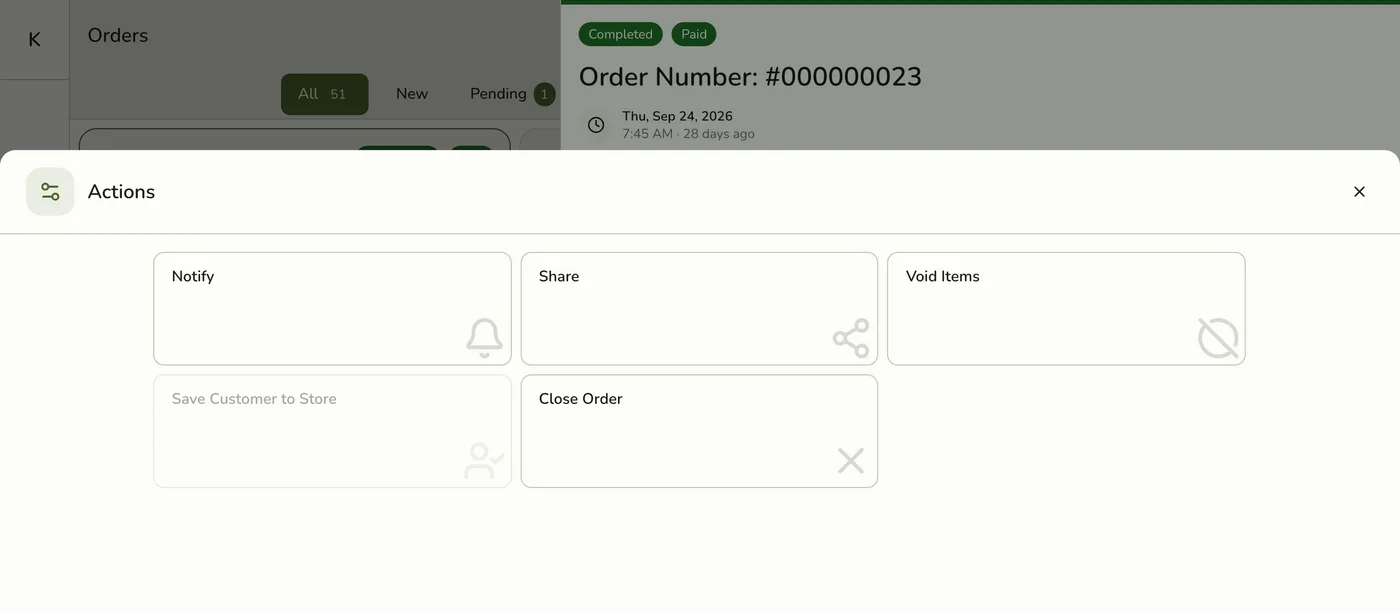
From Menu: Assign staff, Edit line staff, change or remove the service mode, apply a gift card, or Save customer once the order is completed. Use Edit to change items, which reopens the order on the register.
Open the order and choose Print Bill or the print options. Jobs go to Bluetooth printers or the Hub, depending on your setup.
The print options on an order — screenshot coming soon
What happens next
- Each change writes the new status, clears the kitchen ticket on ready, ship, close or cancel, and tells the customer by push, text or email when those are set up.
- A cancel before the order is completed puts back its stock, every gift card amount and every loyalty point it held.
Edge cases
- Which orders the list shows. Today's orders, plus earlier ones that are not finished: New, Pending, On Hold, Processing, Ready, Shipped, and Completed but not closed. Closed, cancelled and voided orders from earlier days are in Orders.
- How far back history goes. Basic 1 month, free trial 2, Starter 3, Lite 6, Standard 12, Premium all. Older orders are not deleted and return if the plan is raised.
- Actions by status. New: Accept, Cancel. Pending to Shipped: the next statuses, Payment, staff, service mode, Void, Cancel, and Edit until Ready. Completed: Close, Void, Save customer, and Refund only when overpaid. Closed: Refund while something is still refundable. Voided and cancelled: view and print only.
- Close needs nothing owed. Close is refused while money is owed either way. An overpaid order can be closed once the extra is refunded.
- Cancelling a paid order. An unfinished order that holds a deposit needs the deposit refunded first. Tap Refund, give the money back, record it with Add Payment, then tap Cancel. Cancel is refused until then. Gift cards and loyalty points are put back by the cancel. Refunds need a paid plan or the free trial.
- Void or refund? Void corrects lines before any money is collected. Once any payment is on the order, Void is hidden. See Voiding Items and Refund Overview.
- Notify gates. Email needs a plan with email notifications, which Basic lacks. Text needs the SMS add-on, the master switch on, a valid number and Wallet points. Notify is a deliberate send, so the automatic-email switches do not apply. It is hidden on a New, cancelled or voided order, and while a required session is not open.
- Another device changed the order. Your edit is refused with "This order was changed on another device." Reload and redo it.
- Staff Operations manager approval can be required for voids, when that add-on and policy are on.
- Look-alike traps. A refund row can look like a payment in the list. A failed payment can hide the Void button. A cancelled or voided order can still show a Print Bill button. A cancelled-order message can show a raw code.
- Kitchen display can move an order backwards when a ticket is recalled.
- Claim tags. The actions menu of an open or shipped order that has claim tags shows Claim tags, even once every tag is back. It opens the order's tags to tap back in, release or look at, without completing the order. Cancelling or voiding the order frees any tags still out. See Claim Tags.
Works with
| Add-on or plan | What changes on this page |
|---|---|
| Plan | Refunds need Starter and up. Email notify needs a plan with email. History length depends on the plan. |
| SMS Notifications add-on | Text updates on each status change, with Wallet points. |
| Staff Pay add-on | Line staff and commissions. |
| Staff Operations add-on | Manager approval for voids. |
| Kitchen Display add-on | Tickets clear on ready, ship, close and cancel. |
| Live sync (Lite and up) | Other devices see the change at once. On lower plans they pick it up the next time they refresh. |