

POS Units Overview
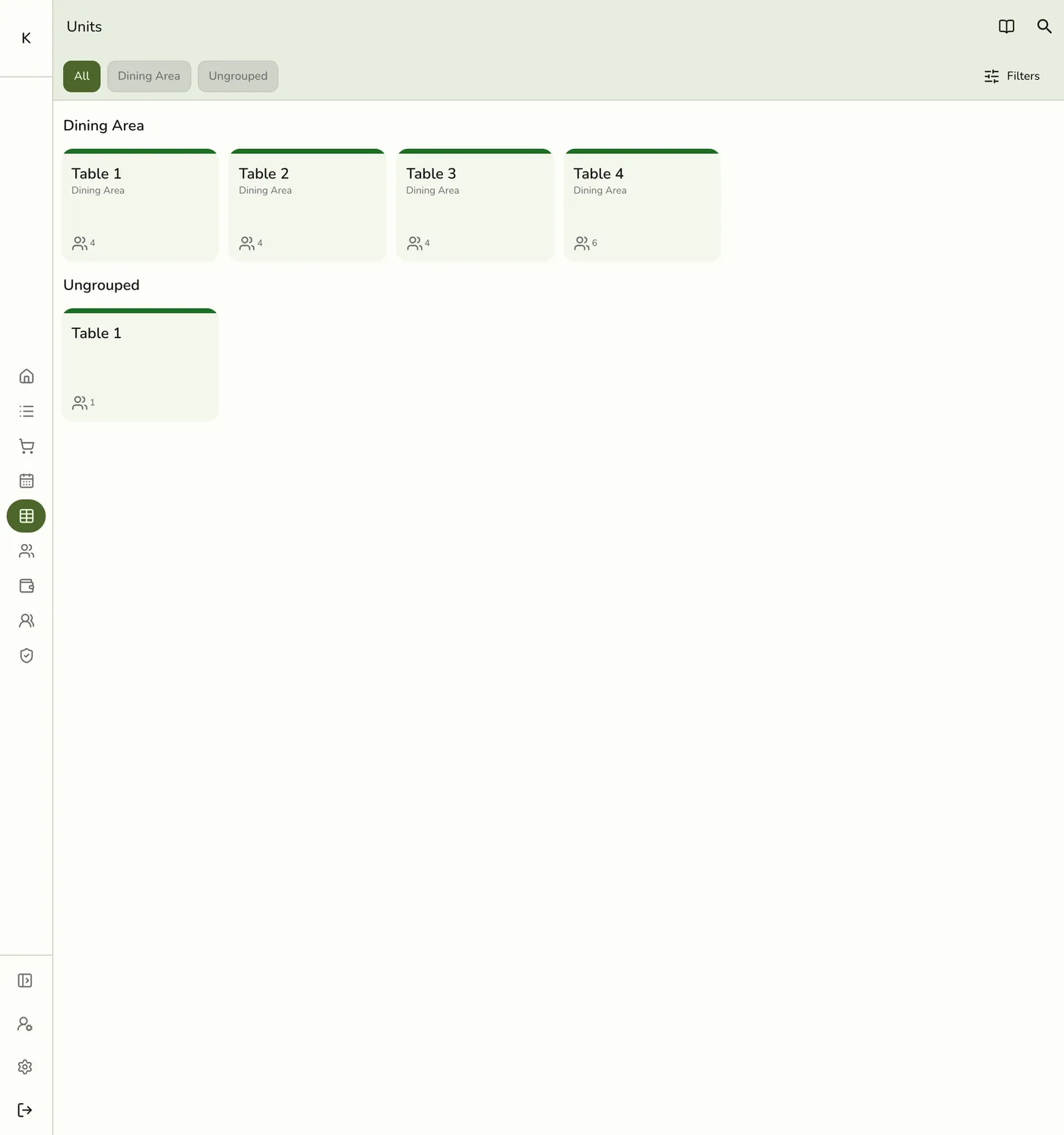
On the register, Units is the live view of your tables, rooms, seats or bays. You open it from the POS menu. The units themselves are made in Configurations → Operations.
What this covers
The grid. From the POS menu, tap Units. You see your enabled units as a grid, with a chip for each area, a search and a status filter. Each tile shows its status and, when occupied, its order number.
A unit's sheet. Tap a unit to see what you can do:
| Action | When |
|---|---|
| Make Order | Start a new order on that unit |
| View Order | Open the order already on the unit |
| Available, Occupied, Reserved, Unavailable | Set the unit's status |
| Print Bill, Print Slip, Complete | When an order is on it |
| Transfer | Move the open order to another unit |
Where things live. Areas and Units under Configurations make and edit the layout. POS → Units runs service against it. See Area and Unit Overview.
Works with
| Add-on or plan | What changes |
|---|---|
| Plan | Units need Starter and up. On Basic the screen is hidden. |
| Floor Plan add-on | Shows the units as a drawn floor. A tap does the same as on the grid. See Live Floor on POS. |
| Live sync (Lite and up) | Other devices see the change at once. On lower plans they pick it up the next time they refresh. |
Guides in this section
Related guides
Edge cases
- One open order per table. If another register seats an order first, yours is refused with "That table was just given another order", and the list refreshes.
- Floor view. With the Floor Plan add-on, a plan set to Show on register and the device's Interactive floor plan switch on, you see the drawn floor. Staff who may not view floor plans still get the grid, and an area with no plan shown falls back to the grid.
- The list is kept briefly and refreshes when another device changes a unit.
- Needs the register permission. Everything here is Point of Sale · Modify.