

Voiding Items and Orders
Punched the wrong item, or the customer changed their mind before paying? A void corrects lines before money is collected, and keeps them on the record with a reason.
Before you start
- The Point of Sale · Modify permission.
- The order has no payment on it.
Steps
Open the unpaid order
From POS → Orders, open the order. Void is available only while the order has no payment.

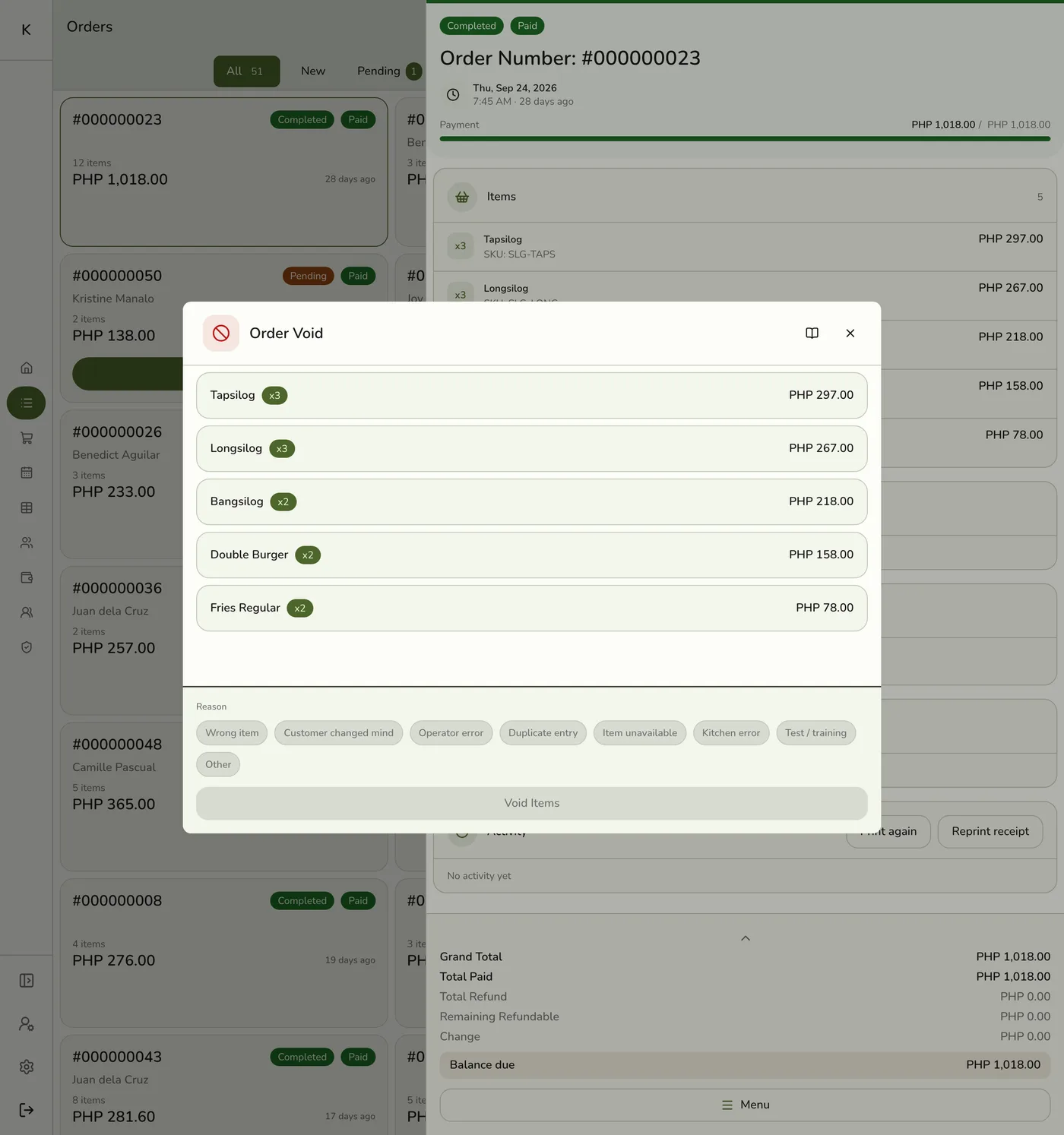
Choose Void Items
Open Menu → Void Items. Pick the items. To void part of a line, set the quantity: void 1 of 3 lattes and keep 2.

Pick a reason
Every void needs a reason: wrong item, customer changed mind, operator error, duplicate entry, item unavailable, kitchen error, service not started, no staff available, service not completed, test or training, or other. Add a note of up to 500 characters if you like.
Get a manager to approve, if asked
With the Staff Operations add-on and void approval on, a PIN pad appears. A manager approves by PIN or badge without switching the active operator.
The manager PIN pad — screenshot coming soon
What happens next
- The lines stay on the order for audit but no longer count toward totals, sales, tax or stock. A void that empties the order marks it Voided.
- Stock goes back as the order itself recorded it: reserved stock is released, and stock taken off hand comes back only when your store returns stock on void. A bundle returns the items inside it.
- Commission already paid on the voided lines is taken back in proportion to the quantity voided.
- The kitchen ticket lines are voided and, with a printer rule set, a void slip prints.
Edge cases
- Void, cancel or refund. Void removes lines before payment. Cancel calls off a whole unfinished order, and a deposit must be refunded first. Refund returns money on a closed order, an overpaid completed one, or a deposit. See Managing POS Orders.
- Editing a saved order. Removing a saved item, swiping Void on it, or lowering its quantity opens this same sheet with the item picked. Items added in the same edit can be removed freely.
- Gift cards and points stay counted. They still cover what is left. If the order now costs less than they cover, the extra goes back on the card and to the customer's points, and a full void puts everything back.
- A partial void and the kitchen. The kitchen display can keep the full quantity, or a Hub-paired display can drop the whole line. Tell the kitchen when you void part of a line.
- An order linked to a booking. Any void on it cancels the booking, even if most lines remain. See Voiding an Event Order.
- Void reasons. The store's allowed list has no screen to edit. If it holds no reason the app sends, every void is refused. A booking void always sends Other, so it fails when Other is missing.
- Already voided or not on the order. Refused. The quantity must be from 1 up to what the line holds.
- The void slip. To print one, add a routing rule with the Void trigger on the kitchen printer. See Routing Rules. It lists only what this void took off. Kitchen screens update on their own.
- Reports. Session Z-reports and the Voids Report break voids down by staff and reason. A spike in operator error points to training.
Works with
| Add-on or plan | What changes on this page |
|---|---|
| Staff Operations add-on | Manager PIN approval for voids. |
| Kitchen Display add-on | Voided lines drop off the screen. |
| Store Session add-on | Voids count in that session's report. |
| Plan | Void is on every plan. Refunds, for paid orders, need Starter and up. |
| Live sync (Lite and up) | Other devices see the change at once. On lower plans they pick it up the next time they refresh. |