

Live Floor on POS
Applies toStarter plan and upFloor Plan add-onNeeds Floor Plan · Modify; Floor Plan · View; Point of Sale · ModifyUsually owner, manager, cashier
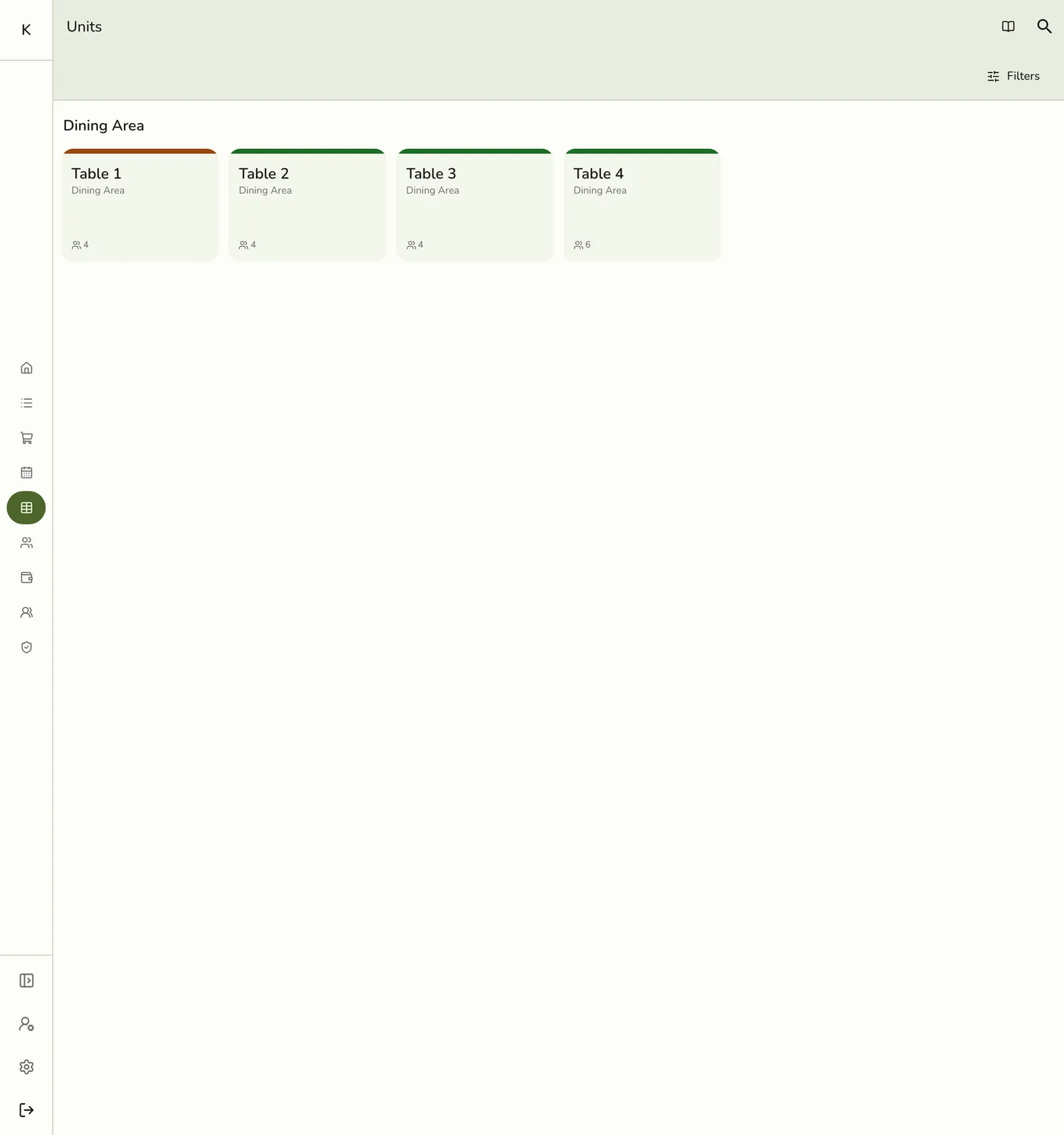
With Floor Plan on, the register Units screen can show a tappable map instead of the grid. The actions are the same as on the grid. Only the view changes.
Before you start
- The Floor Plan add-on is on and a plan is drawn.
- The Point of Sale · Modify permission to use the register.
Steps
1
Turn on Show on register for the plan
On Configurations → Operations → Floor Plans, switch Show on register on for each plan. It is on by default.

2
Turn on Interactive floor plan on this device
Open Account → Settings → Point of Sale and turn on Interactive floor plan. It is a device setting, not a store preference, and it is hidden without the add-on.

3
Open Units on the register
From the POS menu tap Units. Use the chips at the top to switch areas. Each area keeps its own zoom.
4
Tap a table
The sheet opens as on the grid: Make Order, View Order, change the status, or Transfer. While moving an order, tap a table to pick where it goes.

What happens next
- Occupied tables show their status colour, name and order number, and recolour as units change on other devices.
Edge cases
- You still see the grid when the add-on is off, Show on register is off for that area, the device switch is off, the area has no plan, or the staff member may not view floor plans. A search or status filter lays the grid over the floor.
- Status changes untie an open order. Setting a status by hand leaves any open order on the table open without a table. See Updating Unit Status.
- Transfer. Occupied targets confirm a swap, and Unavailable tables cannot be picked. See Making an Order with a Unit.
- A staff member without the area permission can fail to load the list. Give them Areas · View too.
Works with
| Add-on or plan | What changes on this page |
|---|---|
| Floor Plan add-on | Required. Free during the free trial. After the trial, activate it per store from Add-ons. |
| Plan | Areas and units need Starter and up, so a store on Basic has nothing to draw. |
| Roles & Permissions add-on | Floor Plan · View opens Floor Plans read-only. Floor Plan · Modify creates, edits, deletes and flips Show on register. |
| Live sync (Lite and up) | Other devices see the change at once. On lower plans they pick it up the next time they refresh. |