

Creating a Floor Plan
Applies toStarter plan and upFloor Plan add-onNeeds Floor Plan · Modify; Floor Plan · ViewUsually owner, manager
Create one layout per area. After you save, Fuze opens the editor so you can draw the room and place your units.
Before you start
- The Floor Plan add-on is on.
- The Floor Plan · Modify permission.
- At least one area without a plan.
Steps
1
Open Floor Plans
Open Configurations, then under Operations tap Floor Plans.

2
Tap New floor plan
This shows only to people who may change floor plans.

3
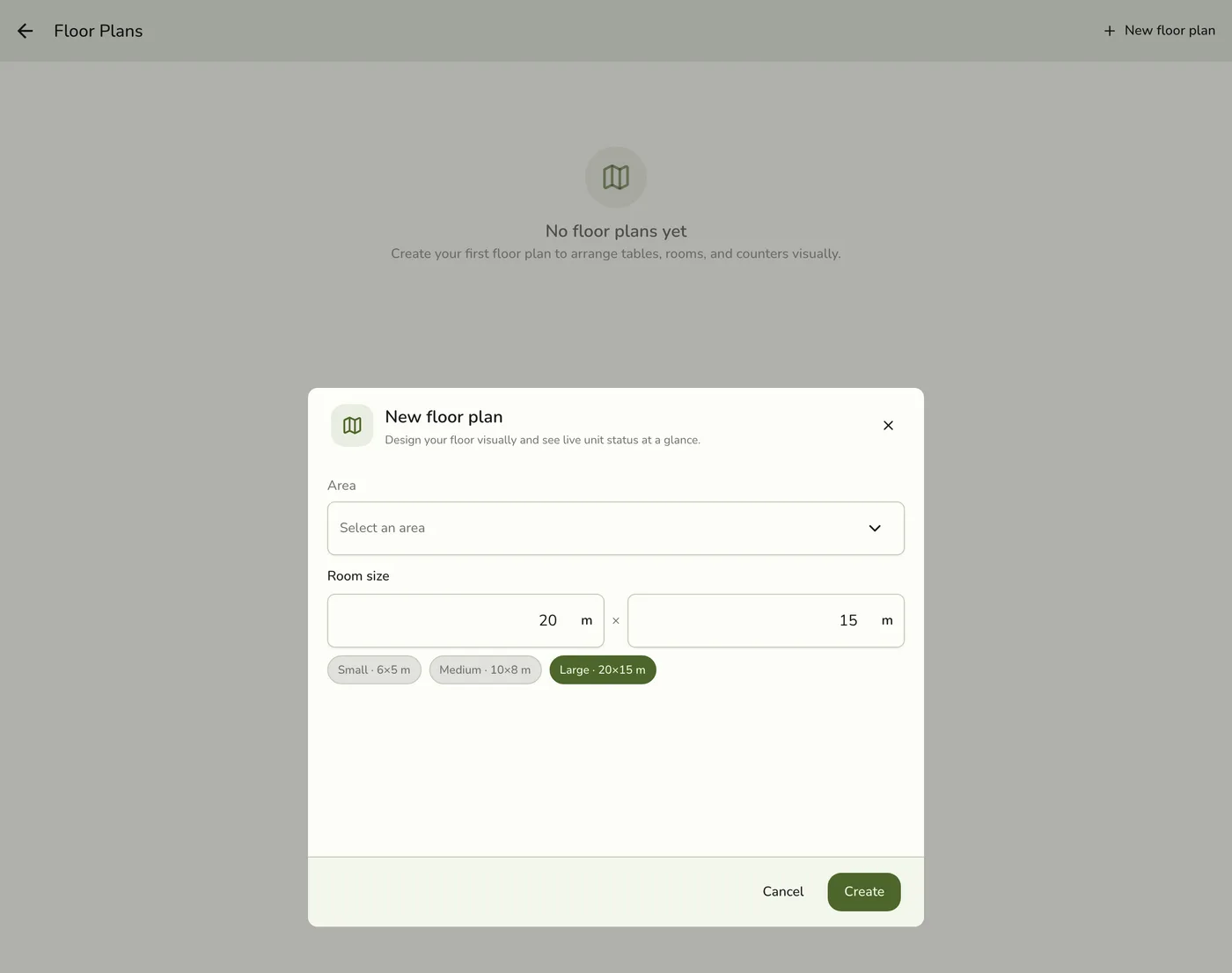
Pick the area and the room size
Choose the Area. Only areas without a plan appear. Set the Room size: width and depth in meters, 2 to 100. It starts at 20 by 15, with Small, Medium and Large presets.

4
Tap Create
Fuze opens the editor with an empty plan. See Editing and Placing Units.
What happens next
- The empty plan is kept on this device. It is sent to the server on the first save: the automatic one after a change, leaving the editor, or Save. It is named after the area and shows on the register from the start.
Edge cases
- One plan per area. If every area has a plan, the form says to add an area first and Create stays off. Edit or delete the existing plan instead.
- Show on register is on each plan's row. Turn it off to keep the drawing but put the grid back for that area. See Live Floor on POS.
- Delete. Tap a plan's delete button and confirm. It removes the drawing only. The server keeps it aside, so a new plan for the same area brings it back with the new drawing. If the call fails, nothing is shown and the plan returns on the next refresh.
- A plan opened from another device is fetched when this device has no copy. Plans whose area was removed are left out.
- A failed first save is kept on the device and sent again with the next one, without a message.
- A deleted plan for the same area is brought back by a new plan. If the area has a live plan, a second one is refused.
Works with
| Add-on or plan | What changes on this page |
|---|---|
| Floor Plan add-on | Required. Free during the free trial. After the trial, activate it per store from Add-ons. |
| Plan | Areas and units need Starter and up, so a store on Basic has nothing to draw. |
| Roles & Permissions add-on | Floor Plan · View opens Floor Plans read-only. Floor Plan · Modify creates, edits, deletes and flips Show on register. |
| Live sync (Lite and up) | Other devices see the change at once. On lower plans they pick it up the next time they refresh. |