

Taking Payment for an Event
Applies toStarter plan and upNeeds Point of Sale · Modify; Bookings · ModifyUsually owner, manager, cashier
A booking's order rings up when the customer arrives. Take the payment from the booking's Payments screen, which opens the same payment dialog as the register.
Before you start
- The Point of Sale · Modify and Bookings · Modify permissions.
- A booking with an order.
Steps
1
Open the booking
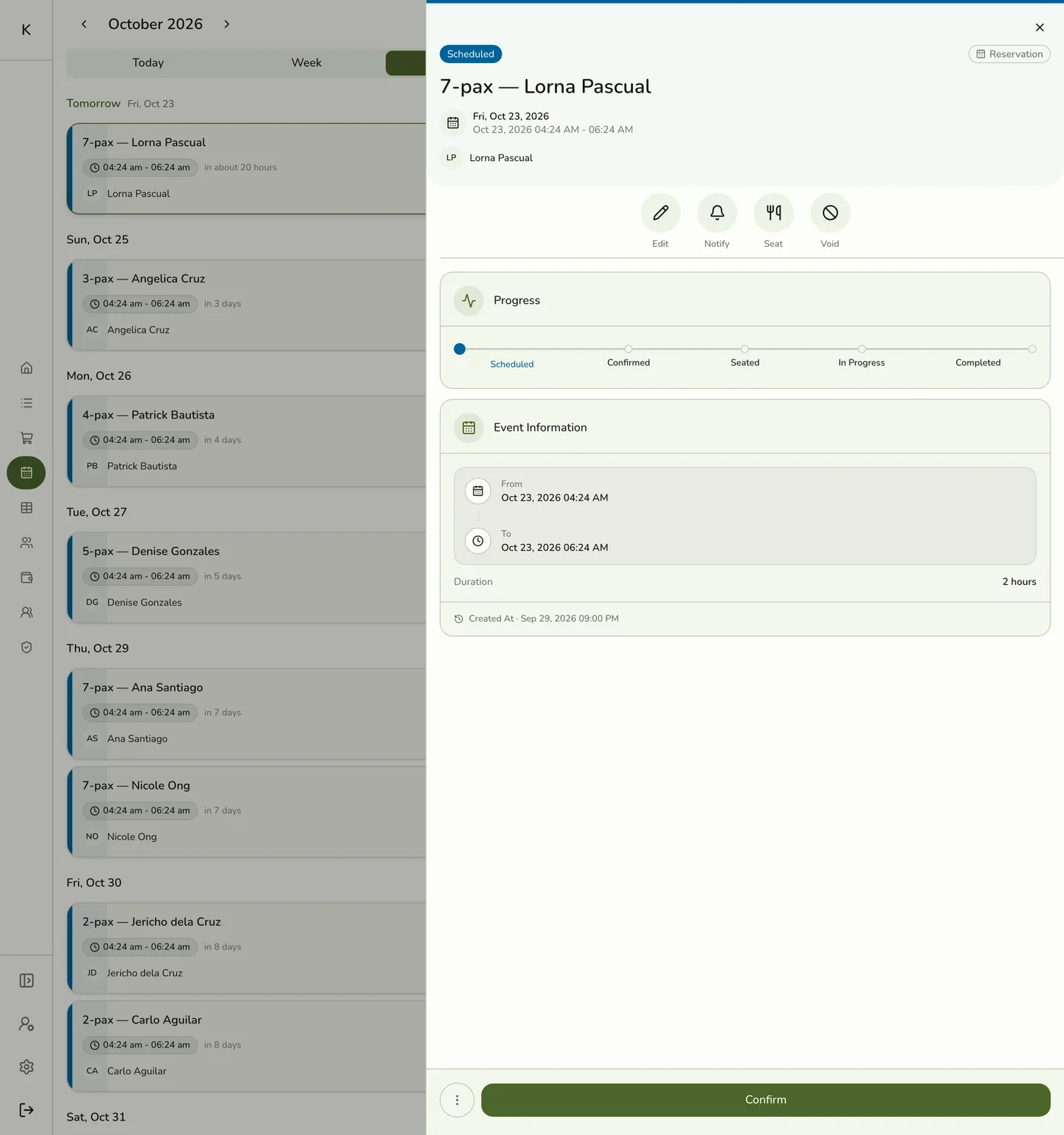
Open Events and tap the booking. Once it is checked in or seated, its order carries the service's required items.
2
Open Payments
Tap Payments. If the order still owes money, Complete also opens it for you.
The booking Payments screen — screenshot coming soon
3
Take the payment
Tap the tender, key the amount, and confirm, exactly as on the register. See Using the POS Register.
The payment dialog for the booking order — screenshot coming soon
4
Complete the booking
Tap Complete. The order and the booking complete together.
The completed booking — screenshot coming soon
What happens next
- The order is completed with its payments, loyalty points are awarded, and the booking moves to Completed. If either step is refused, neither changes.
Edge cases
- Required items. Each Required item still active on the service is added to the order at check-in, unless the cashier already added it. Optional items are not offered at the register.
- Both permissions. Completing needs Point of Sale as well as Bookings · Modify. Staff who may only manage bookings are refused.
- A deposit on a reservation can be recorded as a payment. Refund it from the order if you give it back.
- Two devices, two orders. If two devices ring up the same booking, the booking can be linked to a second order and billed twice. Ring it up from one device.
- Partial payment. Use Save as partial payment to leave the order open.
Works with
| Add-on or plan | What changes on this page |
|---|---|
| Events (Starter and up) | Bookings, check-in and reminders. Not on the free Basic plan. |
| Lite and up | Event Services, the catalog of bookable services, and the staff lookup for appointments. On Starter you can take reservations; appointments need a bookable service. |
| SMS Notifications add-on | Texts for scheduled, rescheduled, checked in, in progress, completed and cancelled bookings, when each is turned on. |
| Live sync (Lite and up) | Other devices see the change at once. On lower plans they pick it up the next time they refresh. |