

Canceling an Event
Applies toStarter plan and upNeeds Bookings · Modify; Bookings · ViewUsually owner, manager, cashier
Cancel a booking from its detail Actions. This is separate from Void, which only affects the lines of the linked order.
Before you start
- The Bookings · Modify permission, and Point of Sale for a booking with an order.
Steps
1
Open the booking
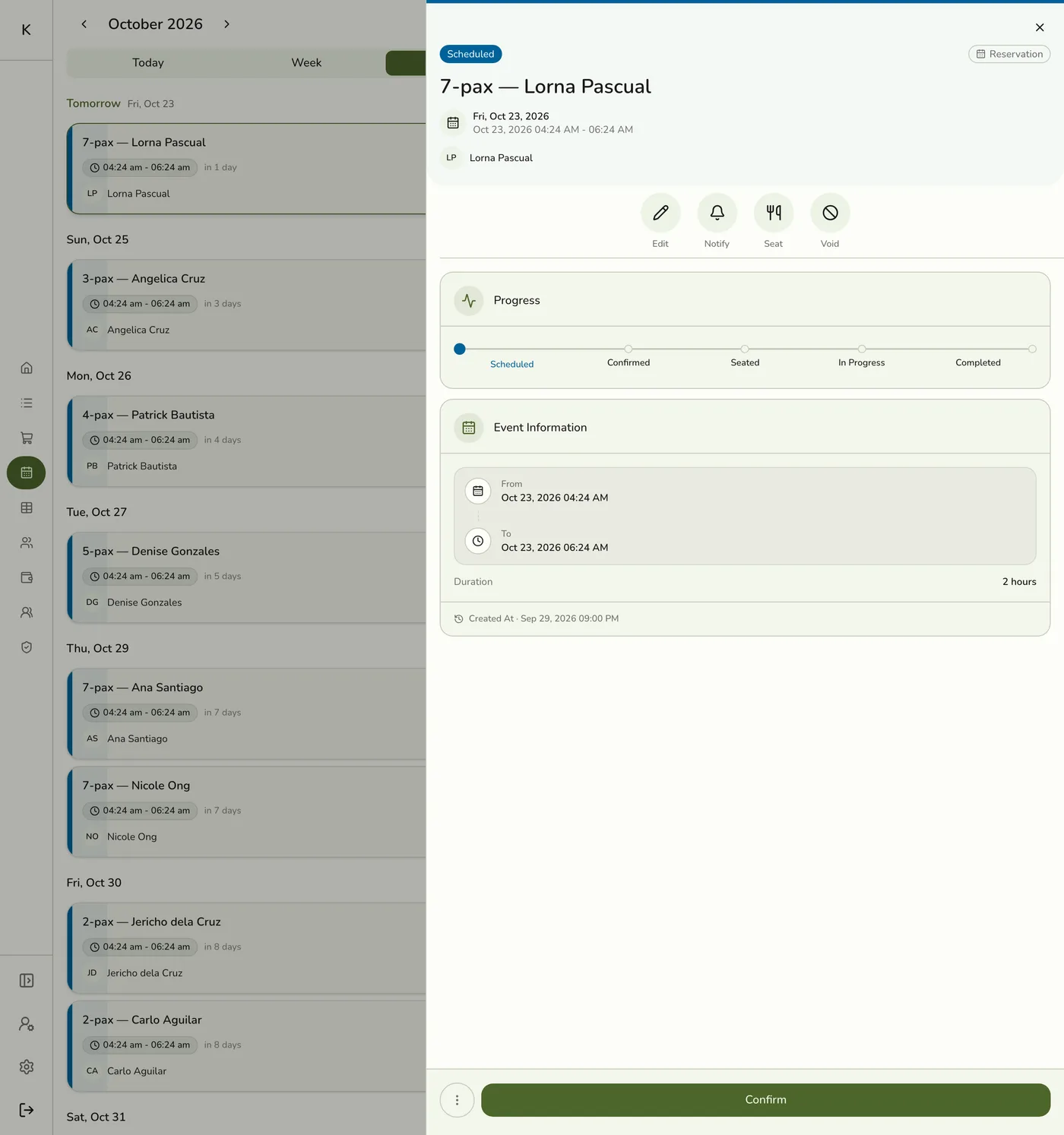
Open Events and tap the booking.
2
Choose Cancel
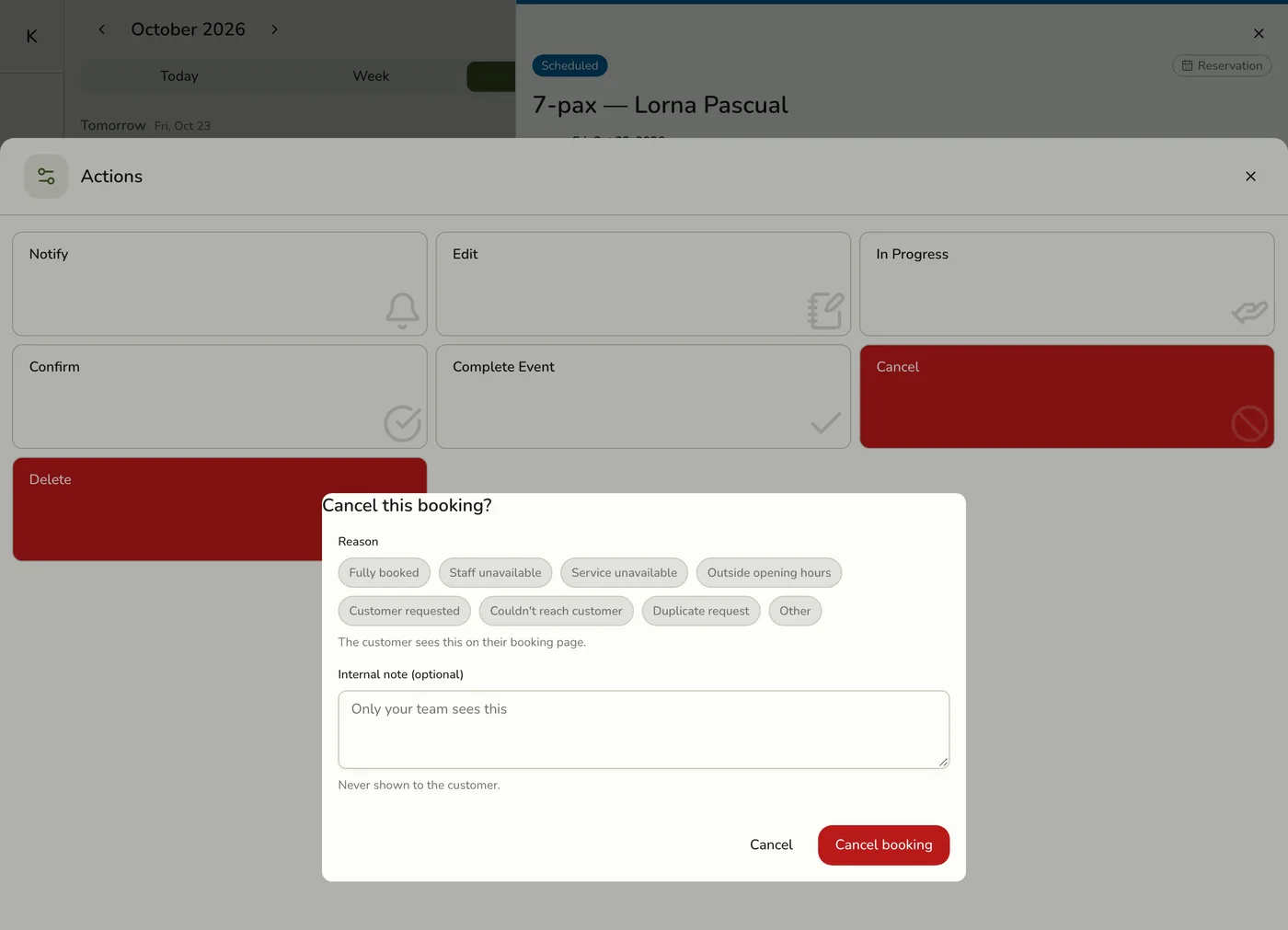
Open Actions and choose Cancel. For an online request, the button is Decline.

3
Pick a reason and confirm
Choose a reason from the list, such as fully booked, staff unavailable or customer asked, add a note if you like, and confirm.
4
Confirm a late cancel
If the service's cancellation window has passed and it has a fee, the app asks Cancel after the cancellation window? Tap Cancel anyway to go ahead, or Go Back.
The late cancel confirmation — screenshot coming soon
What happens next
- The booking moves to Canceled, and the late fee is noted on its history. The fee is not charged automatically.
- The customer is texted when the SMS add-on and the canceled text are on.
Edge cases
- The order is cancelled with it. Money already taken is not refunded for you. Record a refund on the order if you give it back. See Managing POS Orders.
- Permissions. A booking with an order needs Point of Sale as well as Bookings · Modify, because it ends the sale. Staff who may only manage bookings do not see Cancel on it. A booking with no order needs only Bookings · Modify.
- No show. Mark a guest who did not arrive as No show from Scheduled, Confirmed or Rescheduled. A no-show fee is noted but not charged.
- Delete. Only a Scheduled booking more than a day away can be deleted, along with its unpaid order. An order with payments refuses the delete.
- Where the fee is set. On the event service, under Cancellation and no-show. See Managing Event Services.
- Unanswered online requests are cancelled automatically when their time passes or after 72 hours, and the customer's page says the store did not answer in time.
Works with
| Add-on or plan | What changes on this page |
|---|---|
| Events (Starter and up) | Bookings, check-in and reminders. Not on the free Basic plan. |
| Lite and up | Event Services, the catalog of bookable services, and the staff lookup for appointments. On Starter you can take reservations; appointments need a bookable service. |
| SMS Notifications add-on | Texts for scheduled, rescheduled, checked in, in progress, completed and cancelled bookings, when each is turned on. |
| Live sync (Lite and up) | Other devices see the change at once. On lower plans they pick it up the next time they refresh. |