

How to Manage a Staff Schedule
The schedule tells Fuze Store who can take a booking, on which days, and during which hours. Each person has one stretch of hours per weekday and at most one override per date.
Before you start
- The Staff Members · Modify permission.
- A plan with bookings.
Steps
Open the Schedule tab
Open Staff, tap ⋮ → Schedule on a row, or open the person's page and its Schedule tab. The Overview tab shows today's hours, the weekly total and the next day off.

Set the weekly hours
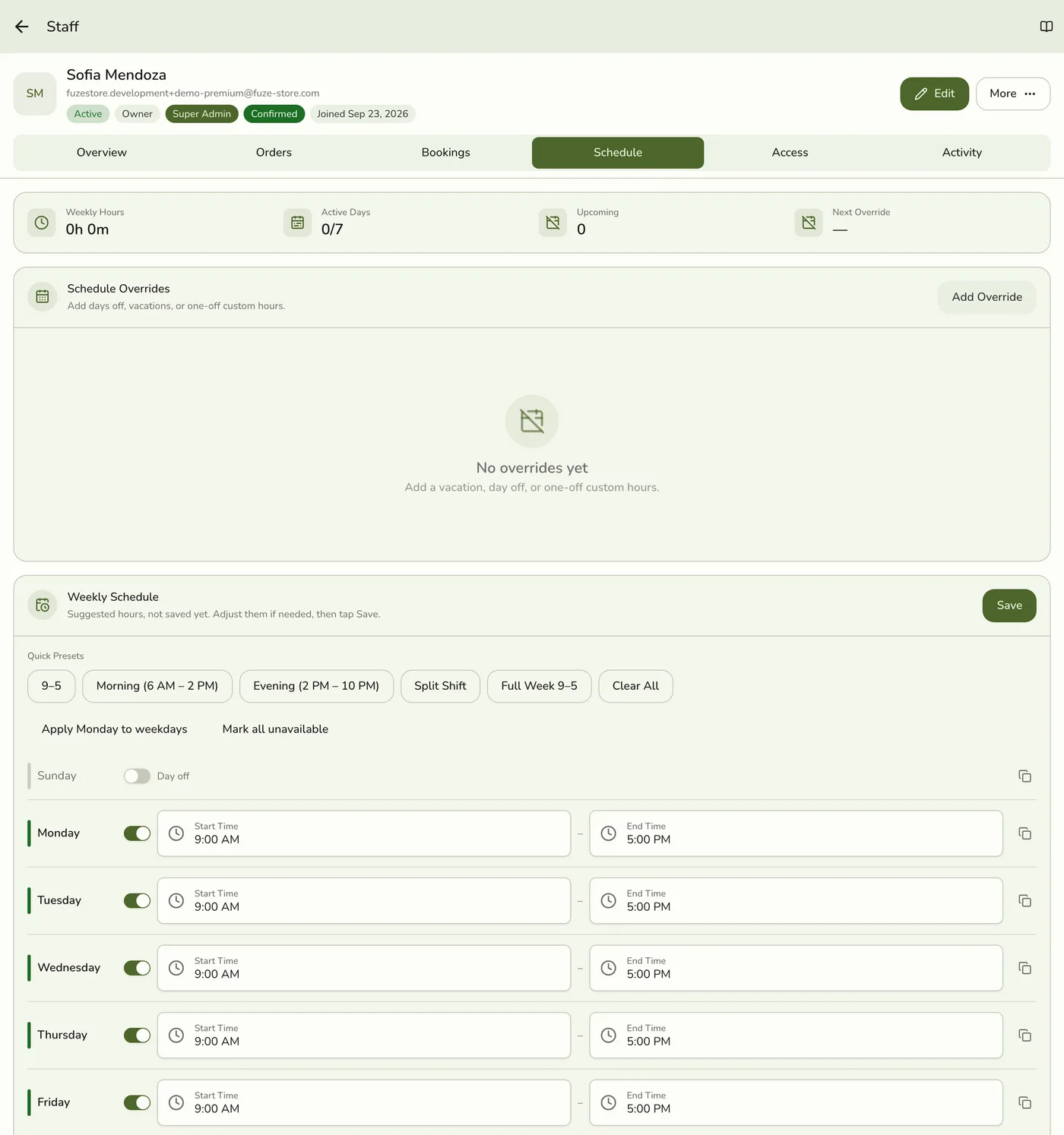
Use a Quick Preset such as 9-5 or Full Week 9-5, or set Start and End for each working day. Switch a day off with its toggle. Tap Apply Monday to weekdays to copy Monday to Tuesday through Friday.
Save
Tap Save. The whole week is saved in one step, and applies to every week until you change it.
Add a day off or different hours
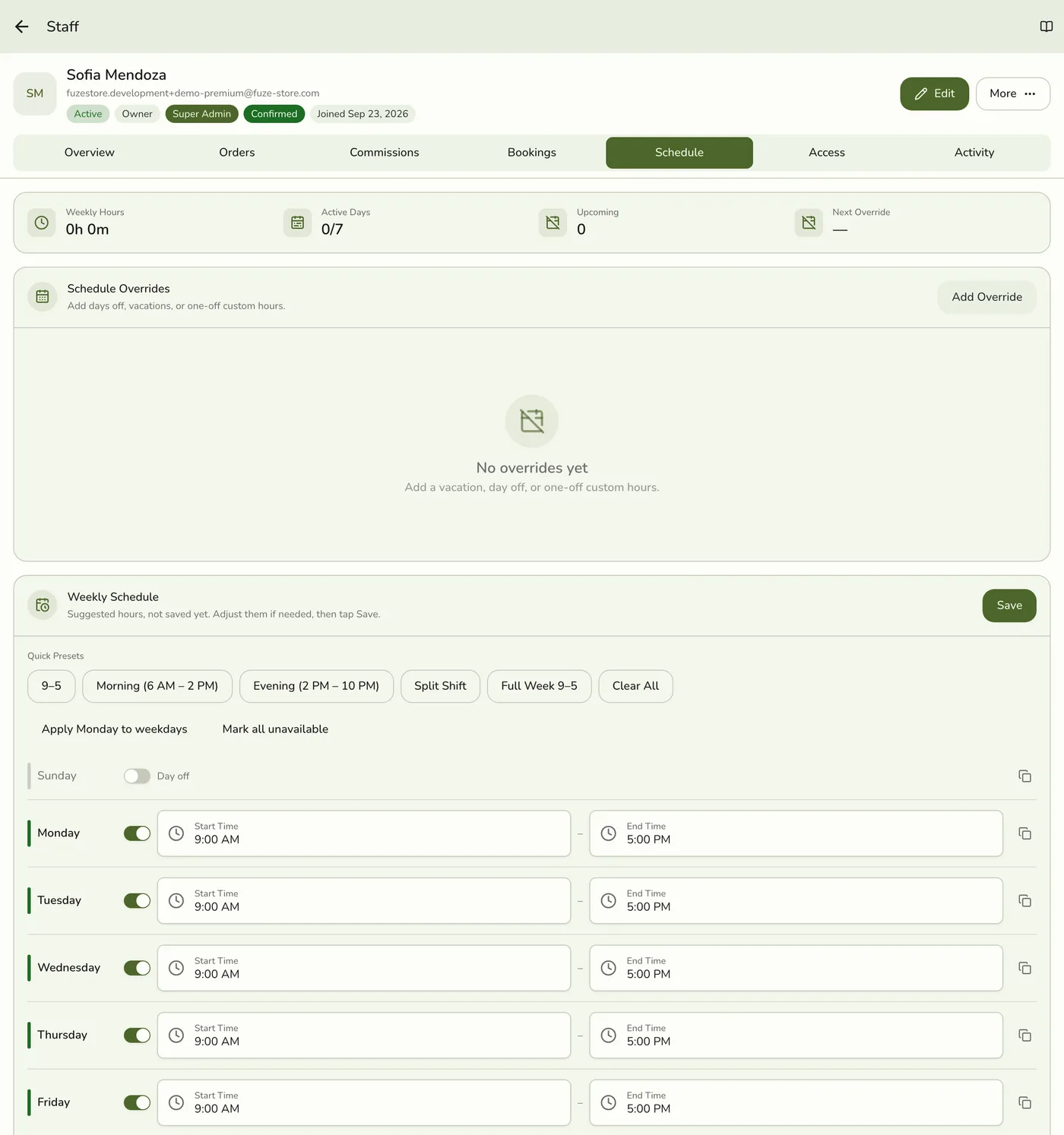
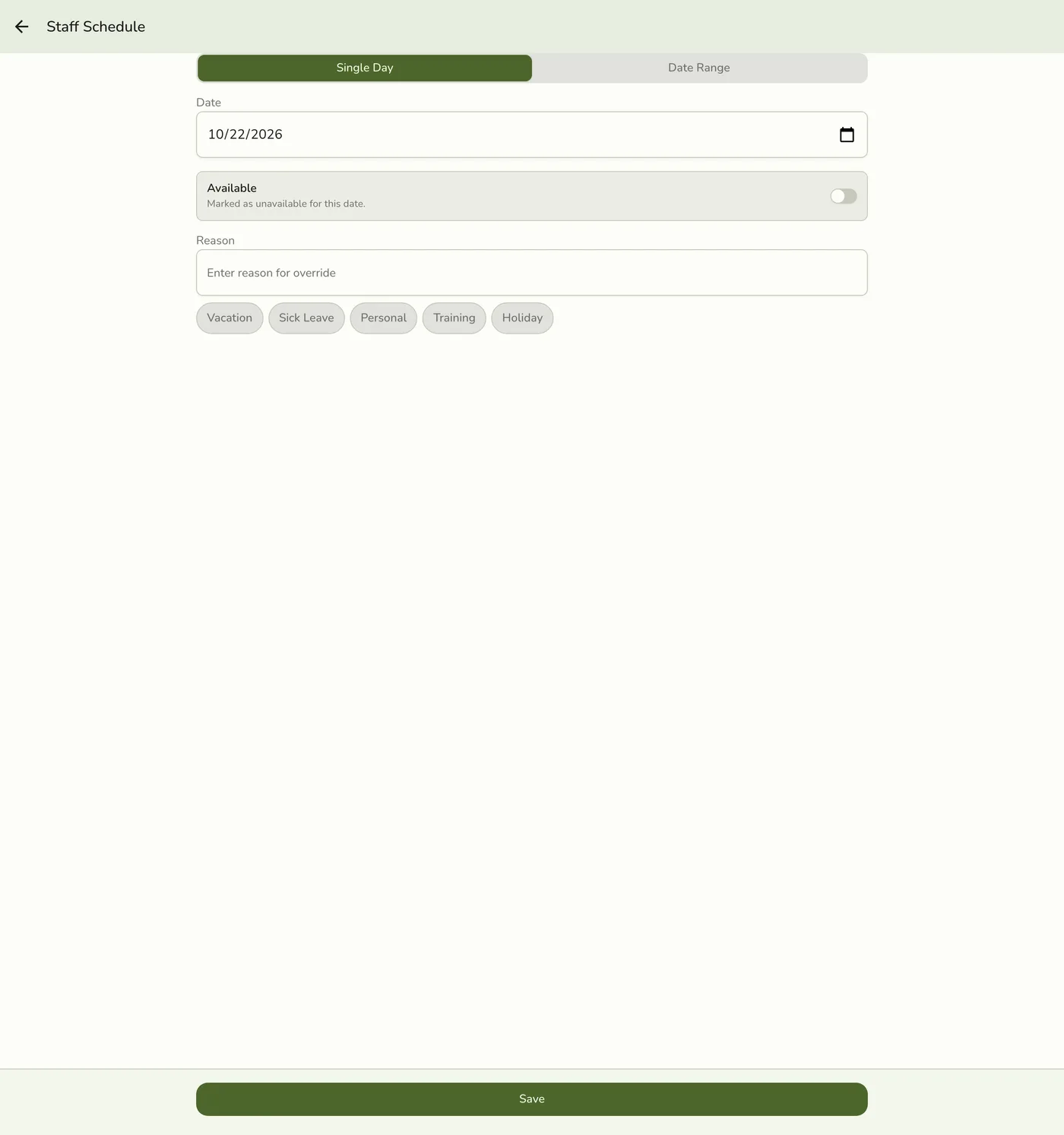
In the override calendar, tap a date or Add, and pick a single date or a range. Mark the day Unavailable, or enter different Start and End times. Add a Reason if you like and tap Save.
What happens next
- An override wins over the weekly hours for its exact date. Deleting it puts the day back on the weekly hours.
- Bookings read this when a booking is made or moved, and when time slots are offered. The whole booking must fall inside the day's hours.
Edge cases
- Never scheduled means always free. Someone who has never had hours saved is treated as free at any time. Once any day has hours, a day with none counts as a day off. Save at least the weekly hours.
- Suggested hours are not saved yet. A new person starts from Monday to Friday, 9 to 5, marked as not saved. Tap Save to keep them.
- Hours cannot run past midnight. The end must be after the start. The screen accepts an end before the start, so check it before saving.
- One override per date. Saving the same date again replaces it. A range is saved one date at a time, and if some dates fail the app names them and keeps the rest.
- An override marked available with no hours means free all day.
- Existing bookings are not cancelled when you mark a day unavailable. Move them from the booking.
- Staff manage their own overrides. A person can add or delete their own overrides from My Profile without any permission. See My Profile and My Schedule.
- Schedule changes are not sent to other devices. Others see them when they next refresh.
- Plans. The schedule screens are for stores with Events. If your plan has no bookings, they do not show.
Works with
| Add-on or plan | What changes on this page |
|---|---|
| Events (Starter and up) | Schedules matter only when bookings exist. Stores without Events do not see the tabs. |
| Plan | Starter and up for bookings. Event Advanced features need Lite and up. |