

My Profile and My Schedule
My Profile is your own copy of the staff page. Your identity is the permission, so you need no role to open it. Open it from the menu → My Profile.
Before you start
- You are signed in as staff.
Steps
1
Open My Profile
Open the menu and choose My Profile.

2
Open the Schedule tab
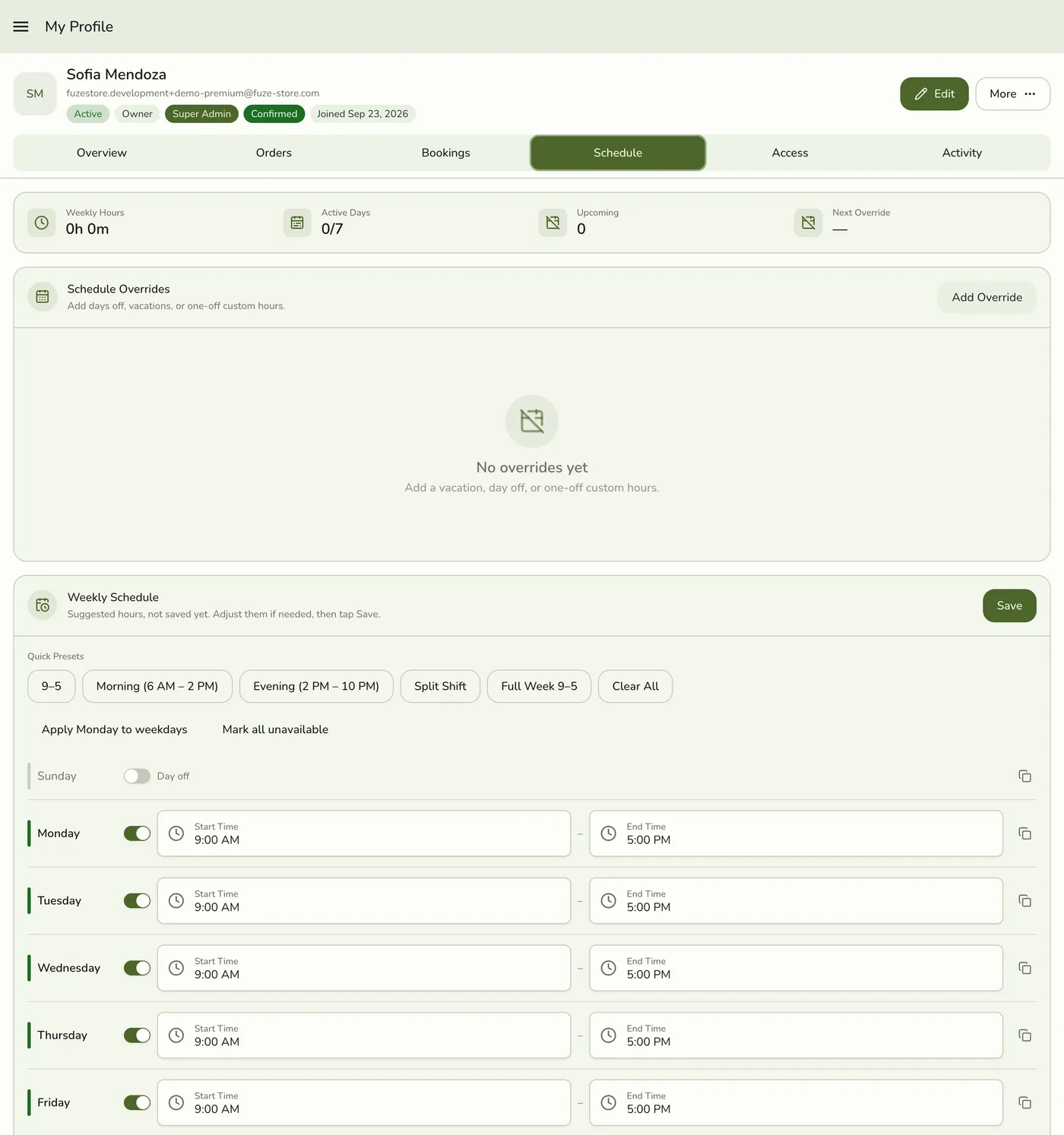
Your weekly hours show at the top. You can see them but not change them. Ask a manager to fix a wrong week.
3
Add your own override
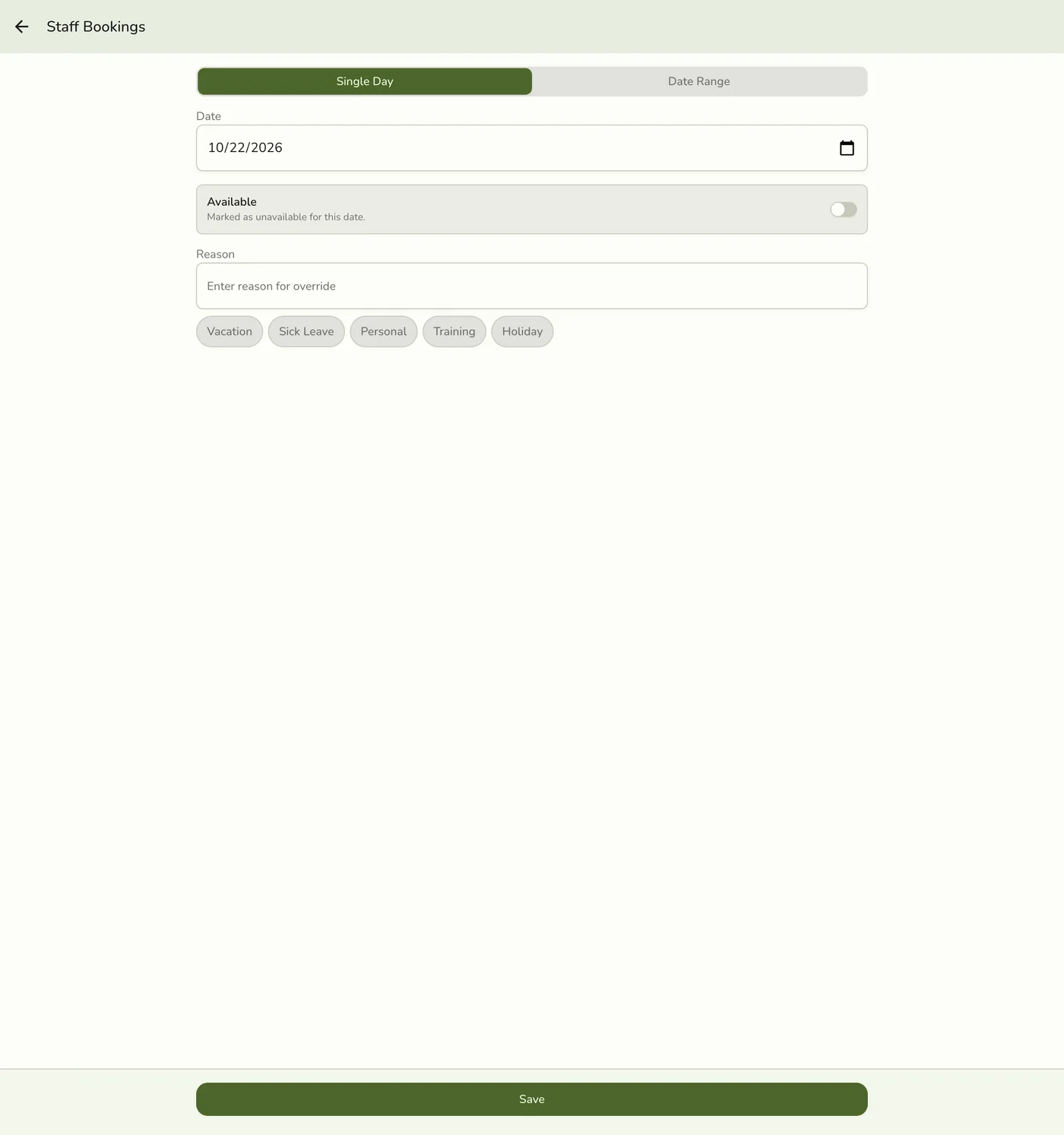
Tap Add, pick a date or a range, mark yourself Unavailable or enter different Start and End times, add a Reason, and tap Save.
4
Delete an override you no longer need
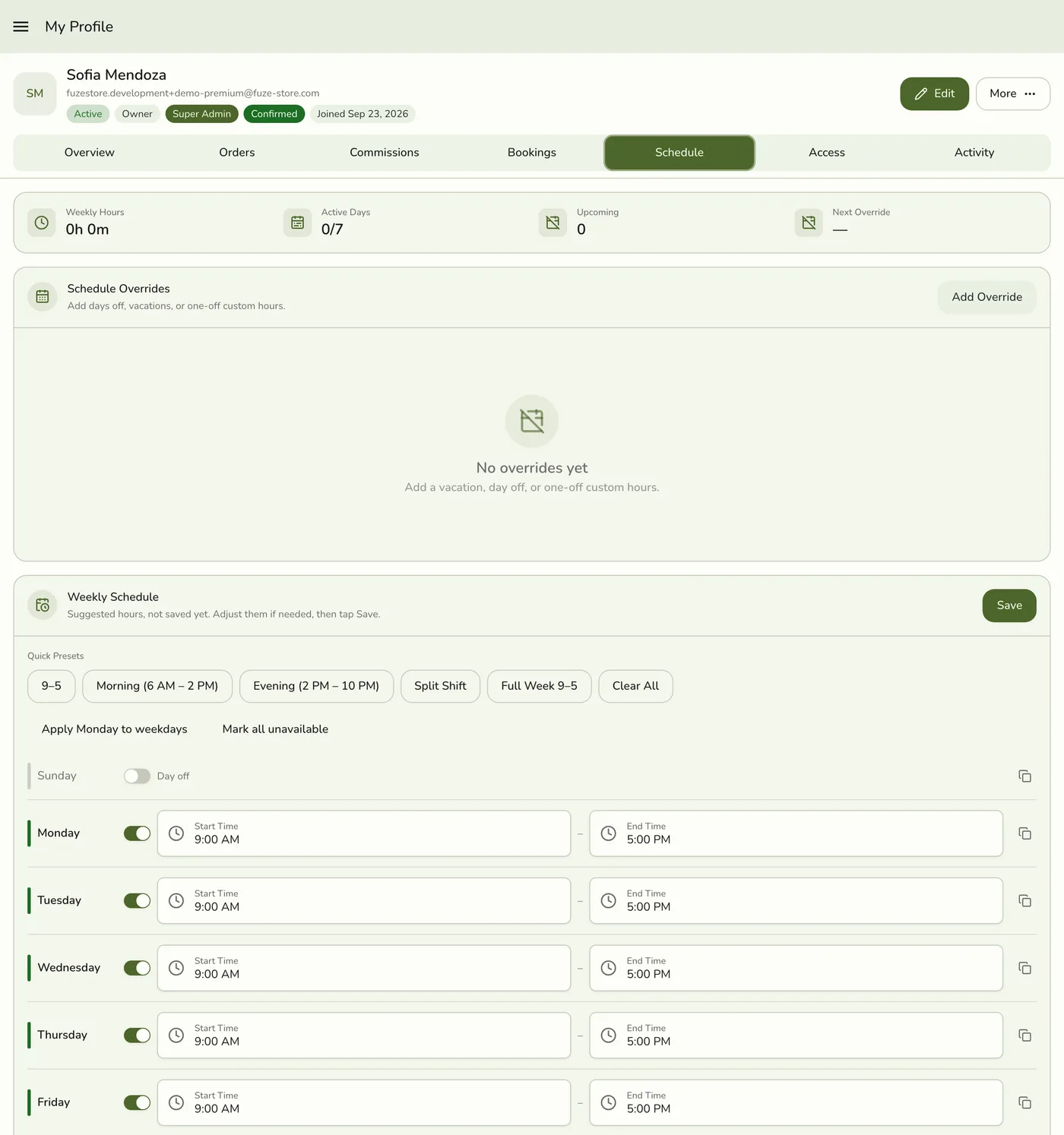
Open the override and delete it. The day goes back to your weekly hours.
What happens next
- Marking yourself unavailable removes your slots from the booking picker for that date. Bookings already on the calendar are not cancelled, so tell a manager if one needs to move.
Edge cases
- Tabs depend on your plan and permissions. You see Overview, Orders, Bookings, Schedule and Access, plus Commissions when commissions are on. There is no remove card and no Active switch on your own profile.
- Overview shows your sales for the last 7, 30 or 90 days, your open orders, a schedule summary and your access. Orders is your full history, whether you were on the order or one of its lines.
- Bookings is read-only and needs Events. Stores without bookings do not show it.
- Edit changes your own name and contact. Changing your email sends a confirmation to the new address. You cannot change your own role or switch yourself off.
- Your PIN. With Staff Operations, the Access tab lets you set, change or remove your own PIN. You cannot set a PIN that someone else uses, and several wrong tries lock PIN changes for a while. See Staff PINs.
- You cannot edit someone else's overrides. Naming anyone else is refused.
- Your commissions. See My Commissions.
Works with
| Add-on or plan | What changes on this page |
|---|---|
| Events (Starter and up) | Needed for the Bookings tab and for the booking picker to read your overrides. |
| Staff Operations add-on | Adds your PIN and badge cards. |