

How to Remove Staff from Your Store
Applies toEvery plan, including free BasicNeeds Staff Members · Delete; Staff Members · ModifyUsually owner, manager
When someone leaves, remove them so they can no longer reach your store. Their name stays on past orders.
Before you start
- The Staff Members · Delete permission.
Steps
1
Open the person
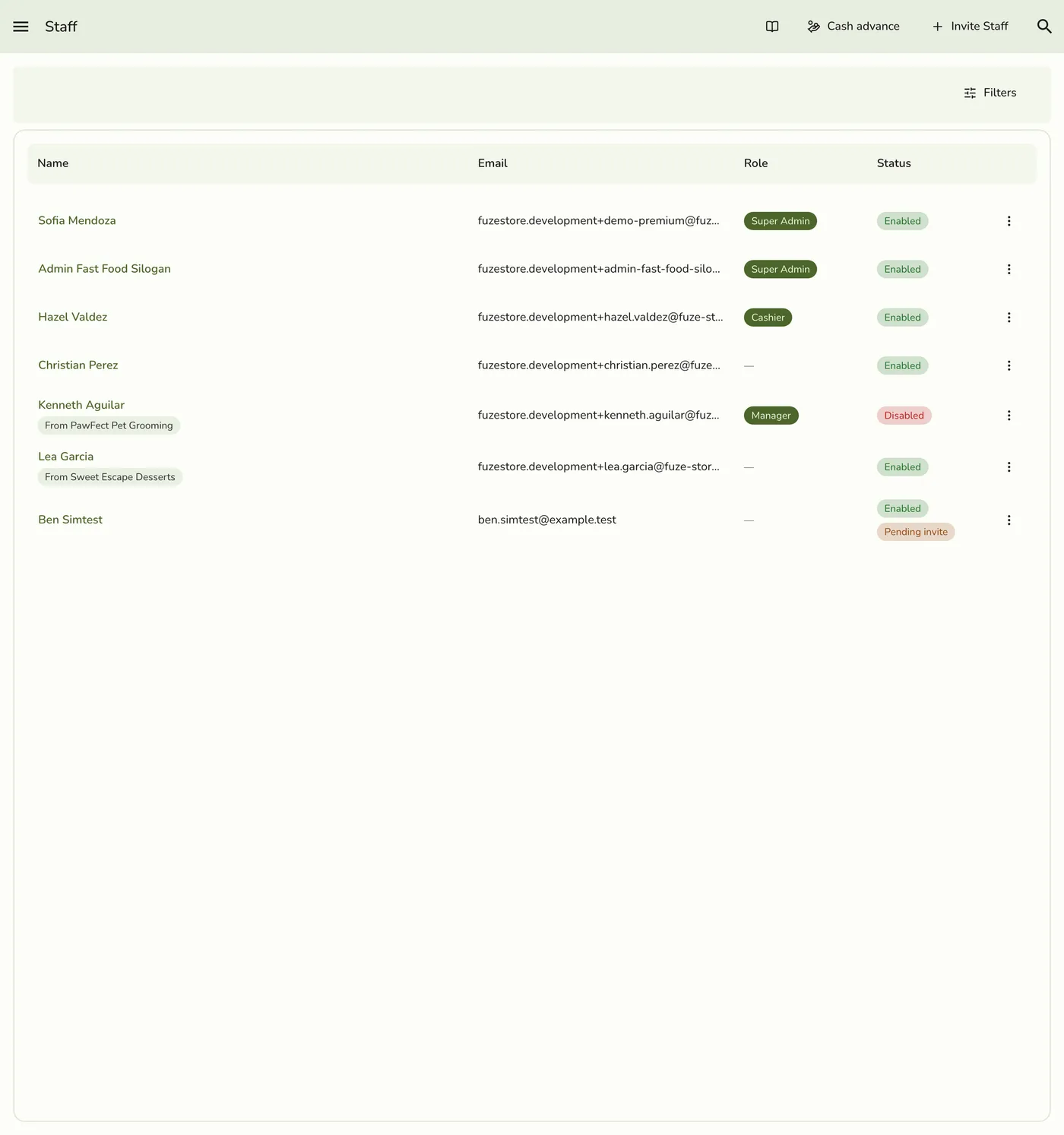
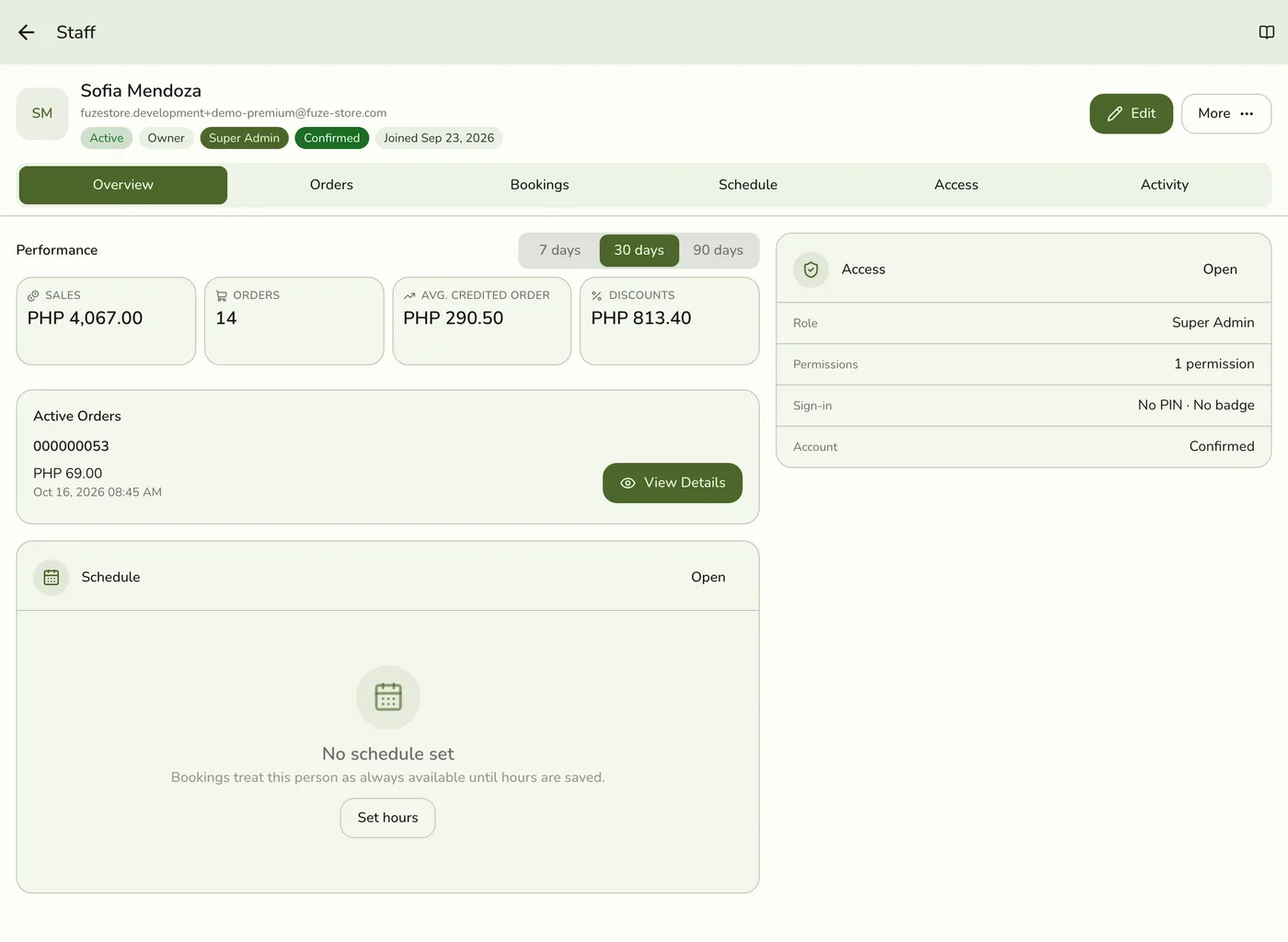
Open Staff and tap the person's name, or ⋮ → View Details.

2
Choose Remove from store
Tap More → Remove from store, or use the red remove card at the bottom of the Overview tab. The ⋮ menu on their row also has Remove.
3
Confirm
Tap Remove staff. Their access ends at once.
What happens next
- The record is hidden, not erased, so past orders and activity keep the name.
- A signed-in person loses access at once. You can invite them again later.
- Their place counts toward the plan's staff limit no more.
Edge cases
- The owner cannot be removed, and nobody can remove their own row. The option is not offered on either.
- If you are unsure, switch the person off instead. Inactive people still count toward the limit but can be switched back on. See How to Update Staff.
- Open commissions or payouts. Someone with unpaid commission or an open cash advance cannot be removed: record their payout first. A removed person can no longer be paid. See Recording a Payout.
- An organization's people cannot be removed from one branch. Remove them on the organization's People screen, or their visit simply ends.
- Making room after a downgrade. Removing someone who has left frees a place when the plan's staff limit has hidden newer people.
Works with
| Add-on or plan | What changes on this page |
|---|---|
| Plan staff limit | Only staff with a Fuze login count, the owner and inactive members included. POS-only staff (PIN or badge) never count. Basic 3, Starter 5, Lite 10, Standard 15, Premium unlimited. A store on its free trial has no limit. After a downgrade, the list shows the owner and the longest-serving members with a login, and hides the newest. |
| Live sync (Lite and up) | Other devices learn of staff and role changes at once. On lower plans they pick the change up the next time they refresh. |