

How to Update Staff Information
Keep each person's record current so access, scheduling and notifications reach the right place. You can edit a person's details, switch them off, or change how they sign in.
Before you start
- The Staff Members · Modify permission.
Steps
1
Open the person
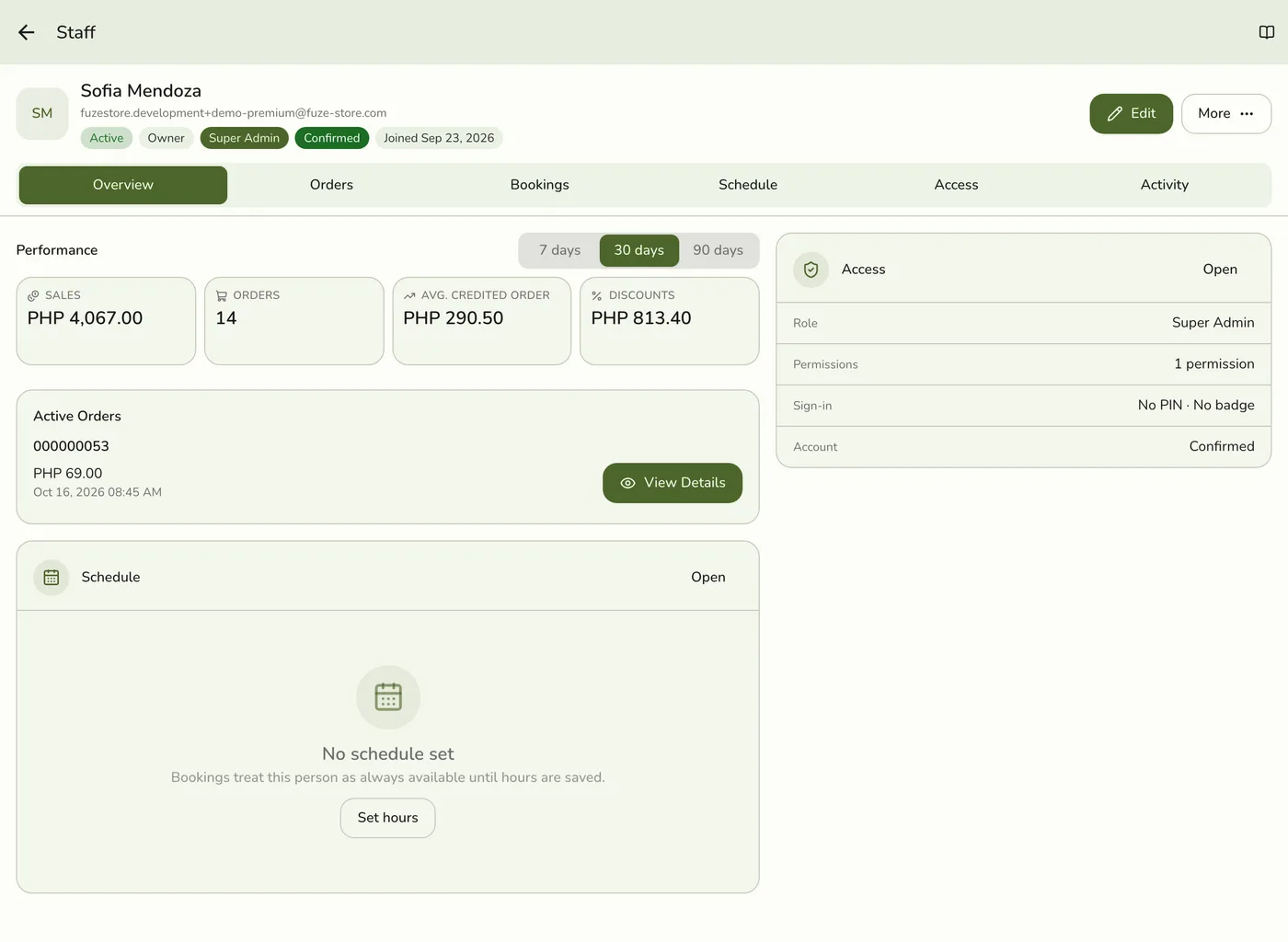
Open Staff, search or scroll to the person, then tap ⋮ → Edit. You can also open their page and tap Edit at the top right.

2
Change the details
Change the name, email, store access or role. Leave the rest as it is.

3
Save
Tap Save. You return to the staff member's page, and the change is used right away for scheduling, permissions and notifications.
4
Or use the Access tab for Active and role
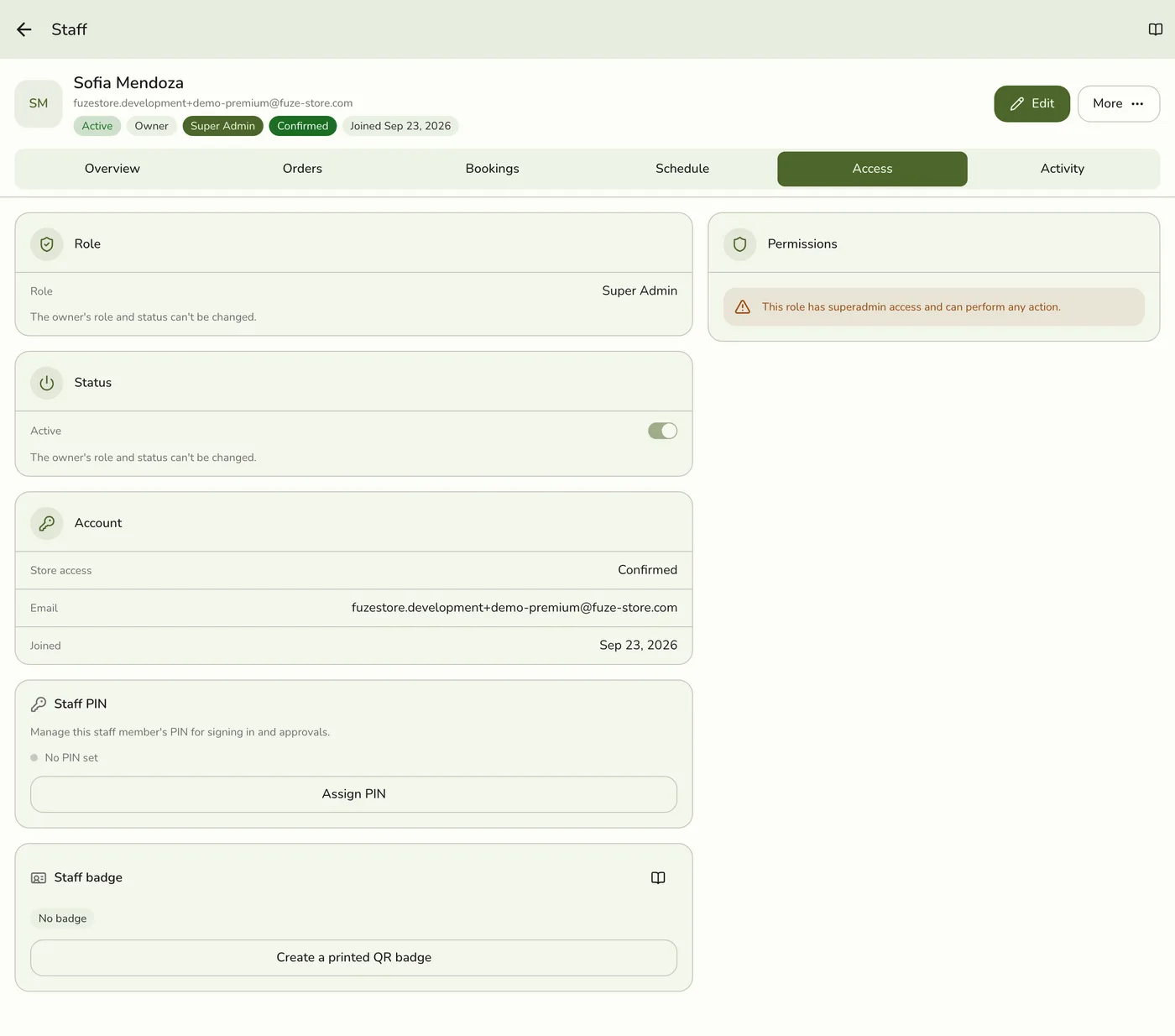
Open the person's page, then the Access tab. The Active switch turns them off or on after you confirm. Change role picks a new role and saves as soon as you tap it. Deactivate and Activate are also in the More menu.
What happens next
- Turning someone off, unlinking their account or removing them ends their signed-in access at once, rather than when it would have expired.
Edge cases
- The owner can be renamed and can change their email, but cannot be switched off or lose their role, and stays Invite to Fuze Store. The Active switch and Change role are not offered on the owner, on your own row, or on My Profile.
- Changing an invited person's email sends a fresh invitation to the new address, unlinks the old account, and the old link stops working. They must accept again. Typing the same address in other capitals changes nothing and sends nothing.
- POS only to Invite to Fuze Store sends an invitation to the email on the record. They can sign in once they accept.
- Invite to Fuze Store to POS only removes their login, with no email. They stay on the roster and keep using their PIN. Switching back re-invites them.
- A new email on a POS only person changes nothing else.
- Role check only when the role changes. You can still rename someone whose role is bigger than yours. Changing their role to one you do not hold is refused.
- Pay fields from anyone who does not manage commissions are dropped without an error, and a person's own rate and pay show only to people who may see commissions.
- Staff managed by your organization. Only the role can be changed here, plus their PIN and badge. Name, email, store access and the Active switch are locked, and pay is hidden. Change those on the organization's People screen.
- Email shown as blank in the list. A known display gap: the staff list can show a blank email even when one is saved. Open the person's page to see it.
Works with
| Add-on or plan | What changes on this page |
|---|---|
| Roles & Permissions add-on | Controls whether roles are enforced. With it on, a staff member may do only what their role allows. With it off, every staff member has full access and the Role field is hidden. Roles stay on file and apply again when the add-on returns. |
| Live sync (Lite and up) | Other devices learn of staff and role changes at once. On lower plans they pick the change up the next time they refresh. |
| Organization add-on | Organization people are edited at the organization. See Organization Pay Profiles. |