

My Commissions
Applies toEvery plan, including free BasicdocsChrome.gates.addons.STAFF_PAYUsually owner, manager, cashier
When your store has Staff Commissions on, your profile has a Commissions tab with your own numbers. It is the same tab a manager sees for you, scoped to you. Your identity is the permission.
Before you start
- Staff Commissions is on for your store.
Steps
1
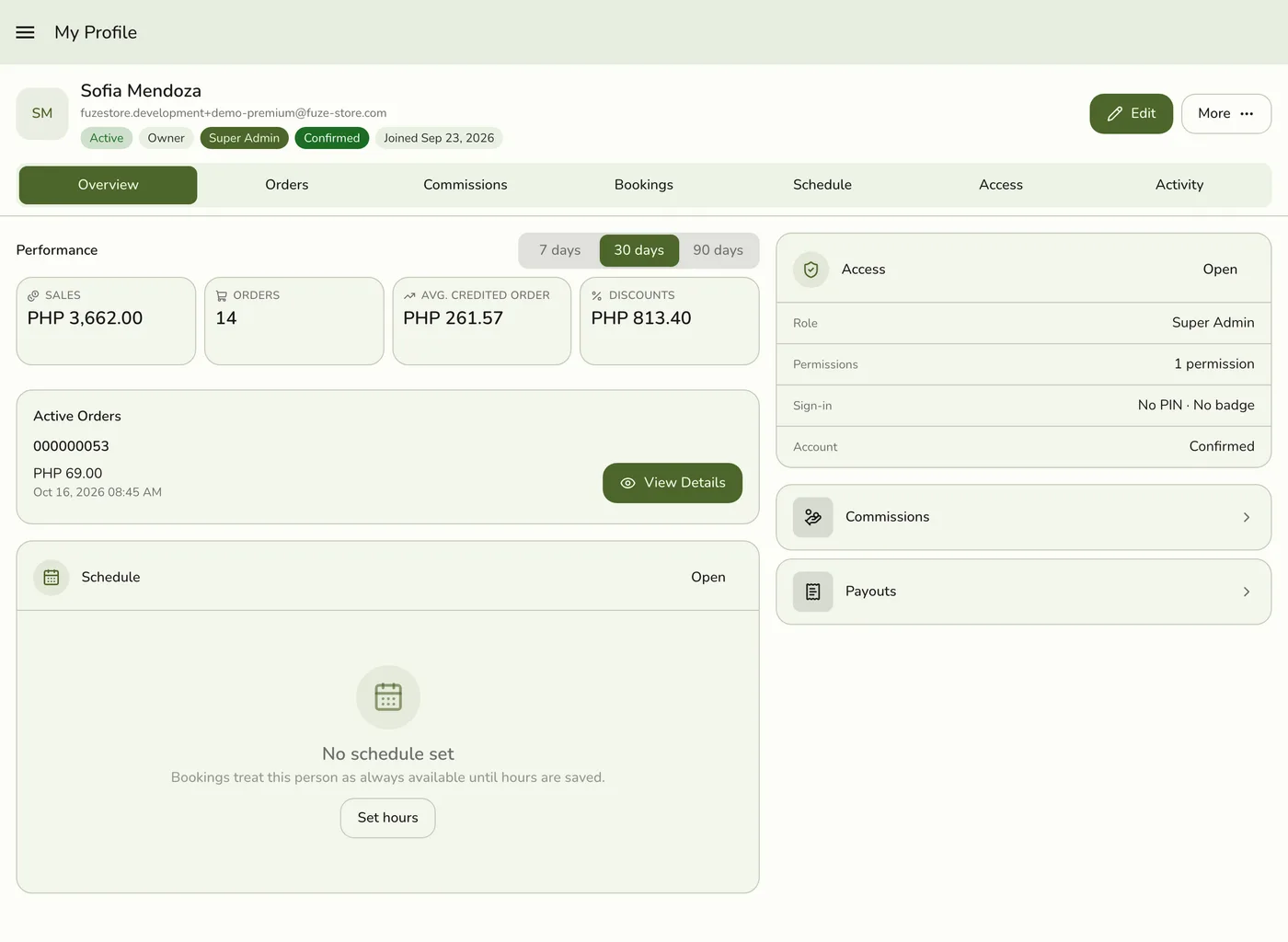
Open My Profile
Open the menu and choose My Profile.
2
Open the Commissions tab
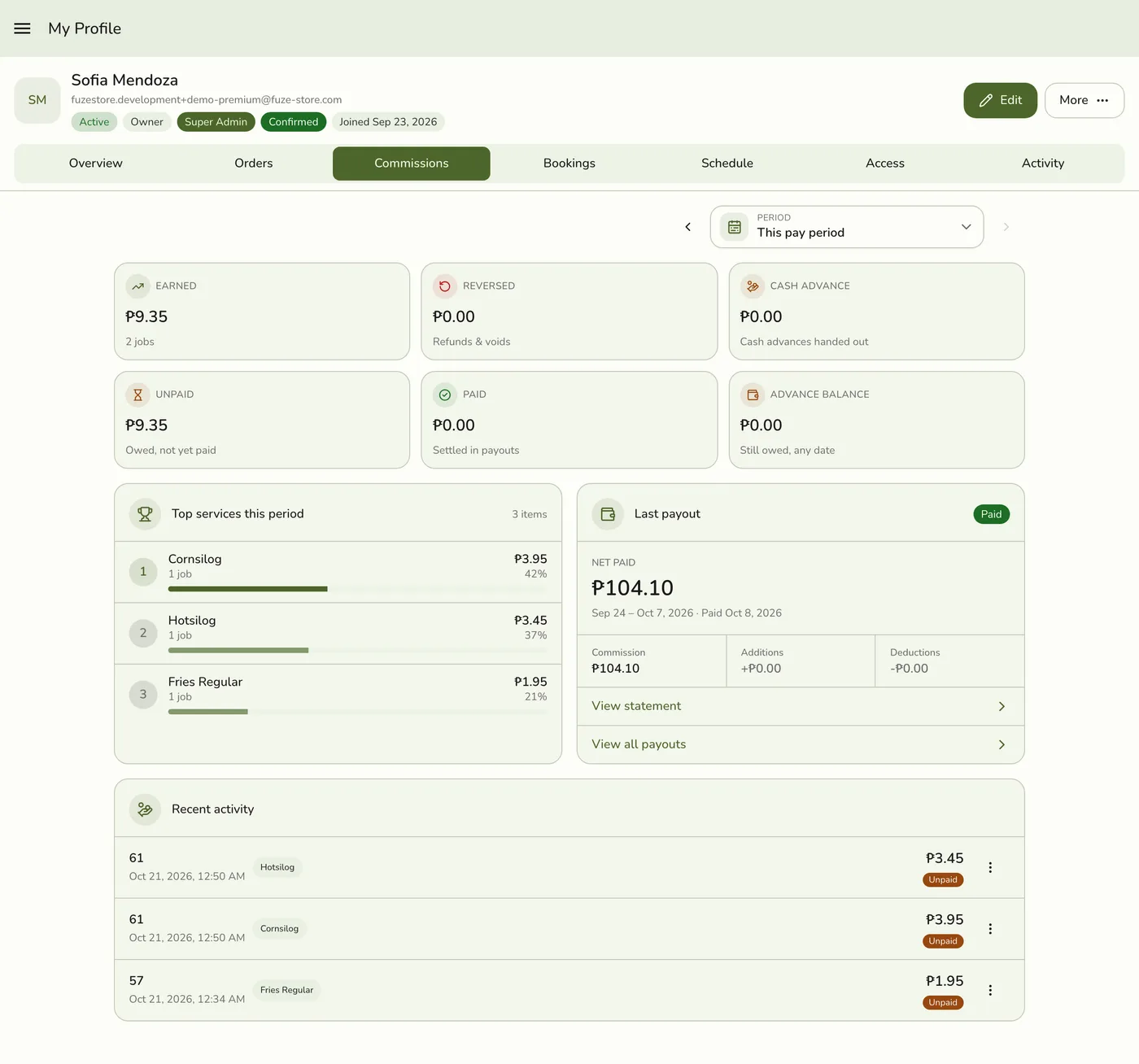
Pick the period at the top, such as This pay period or Last pay period. They follow the pay schedule your store set: weekly, twice a month or monthly. You see earned, reversed, cash advances, unpaid and paid totals, your top services and your latest payout.
3
See the entries behind the totals
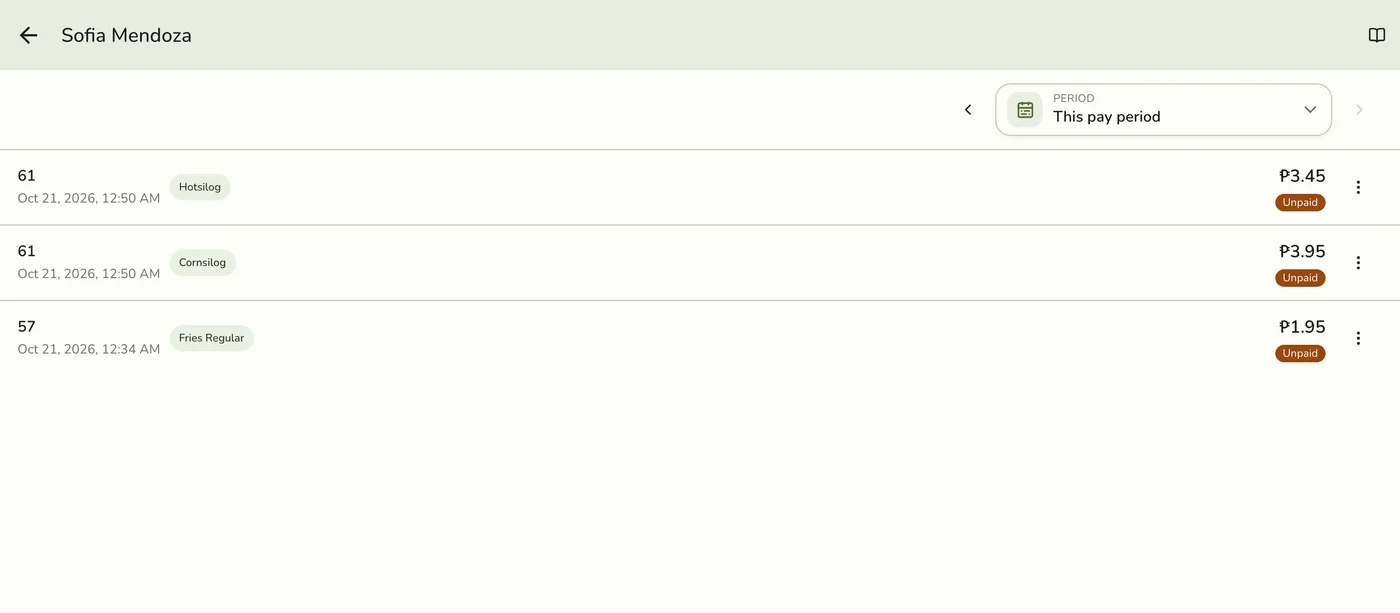
Your five newest entries show, including reversals from a refund or void. Tap View all for every entry in the period.
4
Open a payout
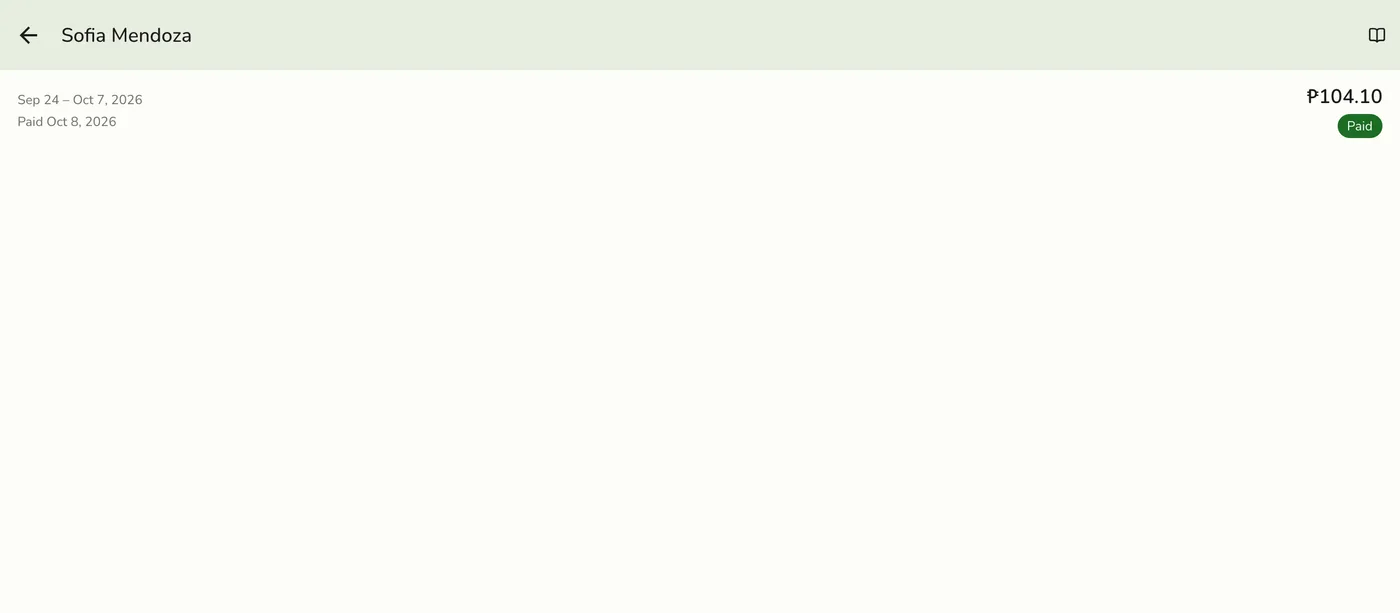
From My Profile, tap Payouts, then a payout. It reads like a payslip: net pay, then base pay, commission, additions, deductions and the payment.
What happens next
- Nothing here changes. Only a manager can change a rate, correct an entry or record a payout.
Edge cases
- Your organization pays you. If you are one of the organization's people, Payouts lists Pay from your organization from whichever branch you open it. A pay run appears once it is approved, with what you earned at each branch, additions, deductions, advances repaid and net pay.
- No rates. The page never shows commission rates, yours or anyone else's, and has no way to record a payout or cash advance for yourself.
- A number that looks wrong? Ask a manager. See Commissions Troubleshooting.
- No tab at all. Commissions are off for your store, or the Staff Pay add-on is off.
- Refunds reduce earnings. A refund or void reverses the matching commission, and the reversal shows in the list.
Works with
| Add-on or plan | What changes on this page |
|---|---|
| Staff Pay add-on | Required. Without it the tab is hidden. |
| Staff Commissions preference | Must be on. See Turning On Commissions. |
| Organization add-on | Adds pay from organization pay runs. See Organization Pay Runs. |