

Several Cars, Bags or Guests on One Order
A customer drives in with two cars, or drops off three bags. Keep them on one order. Each gets its own details and services, and the customer pays once. The app calls each one by the name your store picked, such as Car 1 and Car 2.
Before you start
- Service Details set up. See Setting Up Your Fields.
Steps
Turn it on
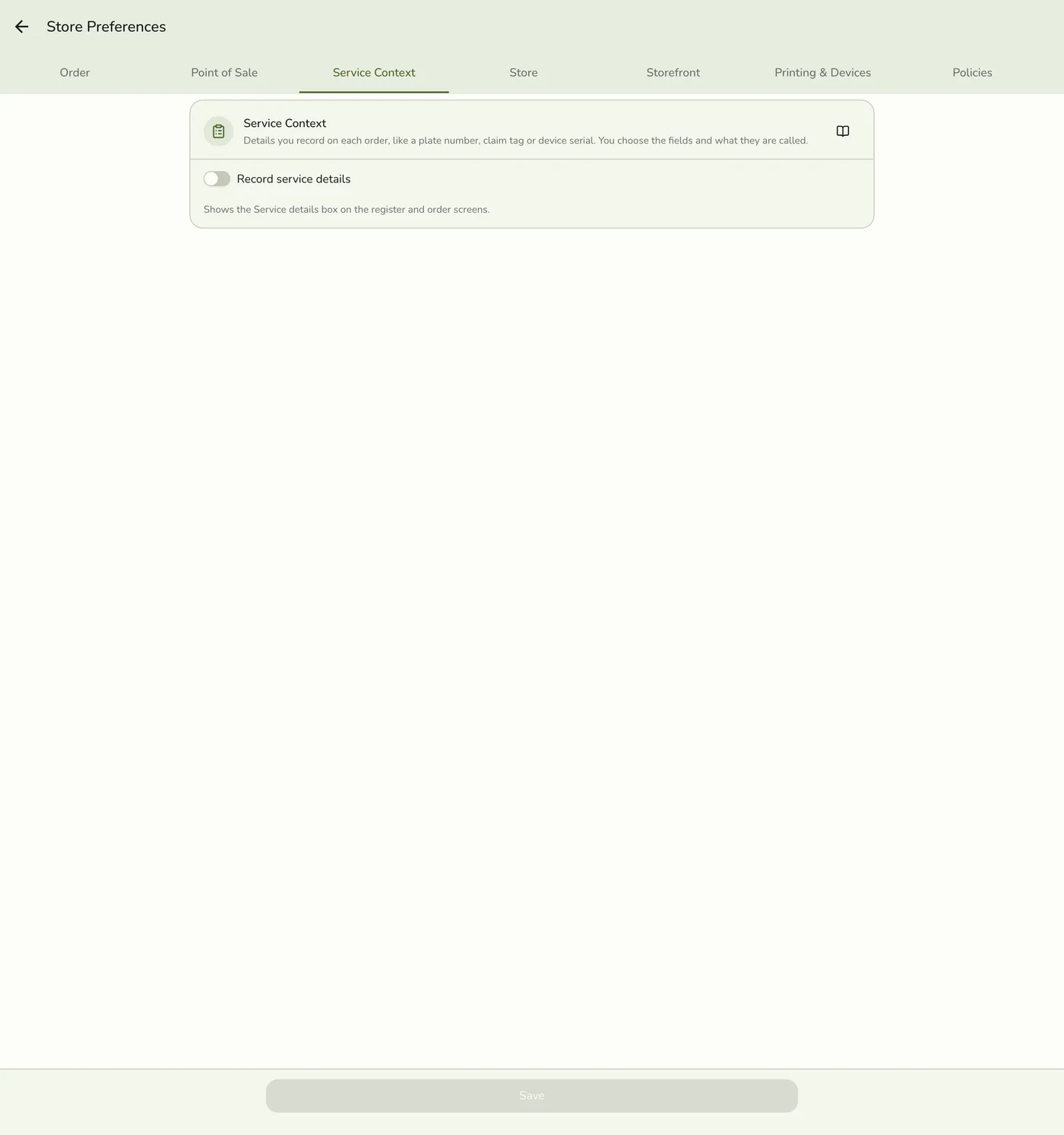
In Preferences → Service Context, under your fields, turn on More than one per order. Under What to call each one, pick Car, Bag, Device, Pet, Guest, Patient or Item. Tap Save.
Fill in the first one
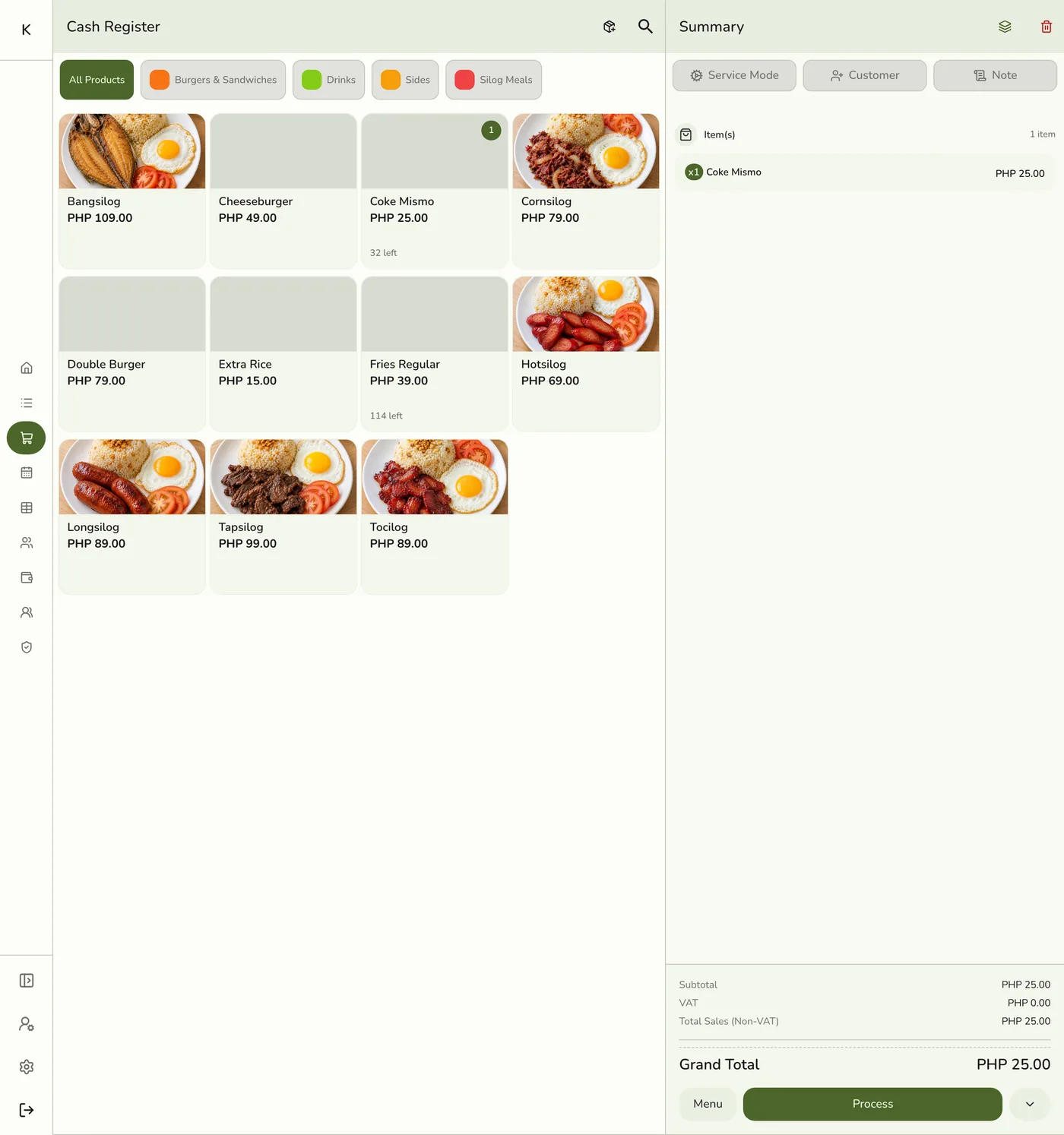
Add the first service to the cart, tap Service details, and fill in the Car 1 card.
Add another
Tap Add car. A Car 2 card appears with the same empty fields. Fill it in and tap Save.
The Car 2 card — screenshot coming soon
Put each service on the right one
The cart groups items under each car. Tap a car's header to make it Adding here, then tap a service, and it lands on that car. To move an item, open it and pick a car or Whole order from Which car?. Custom items have the same chips.
The cart grouped by car — screenshot coming soon
Pay once
Charge the order as usual. After payment, Order Completed lists the items under each car.
Order Completed grouped by car — screenshot coming soon
What happens next
- The order has one total, one payment and one receipt. Order details show a block per car with its items, and whole-order items last.
- The queue ticket prints a SERVICE DETAILS block with CAR 1 and CAR 2 parts, and the items grouped by car. The kitchen ticket does not group them.
- The Daily Sheet joins every car's value in one column and adds a Serviced tile, such as Serviced · 2 cars.
Edge cases
- Removing a car that still has items asks first. Its items move to Whole order on save, with price, discounts and staff unchanged. The card cannot be removed while lines are still on it in the editor.
- Each line keeps its own staff, so each person earns commission on their own line.
- Tapping the same service twice adds to that car's line. It never merges with the same service on the other car.
- Edit later. Add a car, move items or remove a car from Edit.
- Turned off after use. A second car is refused while the store records one per order. An order saved with several keeps them.
- Templates that start it on. Car wash, motorcycle repair and wash (Car), laundry and pressing (Bag), repair (Device), pet grooming and vet (Pet), spa and salon (Guest), dental, optical and medical clinic (Patient). Every other store starts off.
- Older app versions see only the first car. Update every device before your team adds a second.
- Receipt prints no service details today.
Works with
| Add-on or plan | What changes on this page |
|---|---|
| Plan | Service Details needs Starter and up, or the free trial. On Basic the tab and capture screens are hidden, but details already saved on past orders stay visible. |
| Waiting List add-on | The same fields appear when a customer joins the queue. |
| Daily Sheet report | A column per field, and a Serviced tile when several cars, bags or guests are on one order. |