

Capturing Service Details at Checkout
Once your fields are set up, your team fills them in while ringing up a sale.
Before you start
- Service Details turned on with at least one field.
- The Point of Sale · Modify permission.
Steps
1
Add items to the order
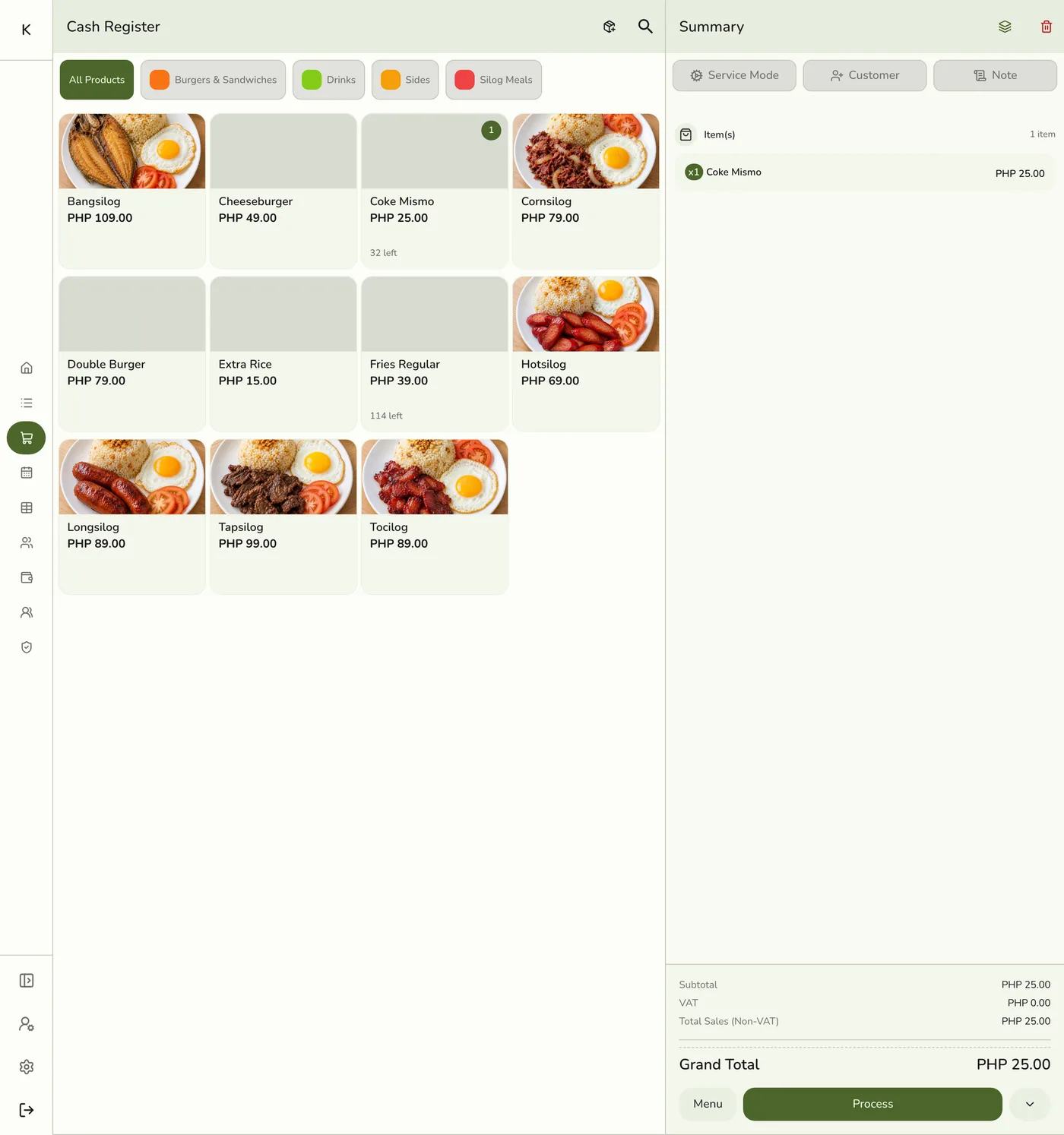
Add items as usual. The Summary shows a Service details section once the cart has an item.

2
Open Service details
Tap the section, which reads Tap to add service details when empty. You can also use the register Menu → Service details.

3
Fill in the fields
Dropdowns show your list, Yes / No is a switch, and Text and Number are typed. A Text field with Uppercase normalization tidies the value, so abc 1234 saves as ABC 1234.

4
Save
Tap Save. The values show in the Summary and travel with the order.
What happens next
- The order carries the details. Open any order to see them as label and value rows.
- The primary (searchable) field can show beside the customer's name on the customer display, and marked fields print on the queue ticket.
Edge cases
- The register may stop you. Required fields must be filled before the order is saved.
- Waiting list. The same fields appear on New Waiting List, so you can capture the plate or claim tag when a customer joins, before any order exists.
- A snapshot per order. Renaming or removing a field later does not change completed orders.
- Several cars, bags or guests. The sheet shows one card each. See Several Cars, Bags or Guests on One Order.
- Receipt. Service details do not print on the receipt today.
Works with
| Add-on or plan | What changes on this page |
|---|---|
| Plan | Service Details needs Starter and up, or the free trial. On Basic the tab and capture screens are hidden, but details already saved on past orders stay visible. |
| Waiting List add-on | The same fields appear when a customer joins the queue. |
| Daily Sheet report | A column per field, and a Serviced tile when several cars, bags or guests are on one order. |